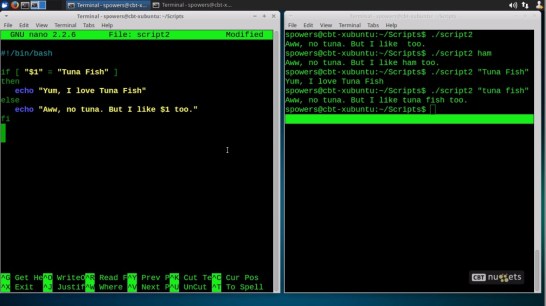
Basics of Linux Scripting

script1

script2

script3

script4

script5

What’s the difference between the terms “Shell” and “Bash”?

A “shell” is any software that provides an interface to an operating system. For instance, explorer.exeis the default shell in Windows (though alternatives exist), and on OS X Finder provides much of the same functionality. On Linux/*nix, the shell could be part of the desktop environment (like Gnome orKDE), or can be a separate software component sitting on top of it (like Unity or Cinnamon).

The above examples are all graphical shells that use a combination of windows, menus, icons and other such elements to provide a graphical user interface (GUI) that can be interacted with using the mouse cursor. However, in the context of software like Bash, or writing scripts, “shell” is usually taken to mean a command-line interpreter, which performs largely the same duties as a graphical shell, except is entirely text-based.

Bash is a specific example of a command-line shell, and is probably one of the most well-known ones, being the default in many Linux distributions as well as OS X. It was designed as a replacement for the Bourne shell (Bash stands for “Bourne again shell”), one of the first Unix shells.

Examples of command-line shells on Windows include cmd.exe (aka Command Prompt) andPowerShell.

What is sh

sh (or the Shell Command Language) is a programming language described by the POSIX standard. It has many implementations (ksh88, dash, …). bash can also be considered an implementation of sh (see below).

Because sh is a specification, not an implementation, /bin/sh is a symlink (or a hard link) to an actual implementation on most POSIX systems.

What is bash

bash started as an sh-compatible implementation (although it predates the POSIX standard by a few years), but as time passed it has acquired many extensions. Many of these extensions may change the behavior of valid POSIX shell scripts, so by itself bash is not a valid POSIX shell. Rather, it is a dialect of the POSIX shell language.

bash supports a --posix switch, which makes it more POSIX-compliant. It also tries to mimic POSIX if invoked as sh.

sh == bash?

For a long time, /bin/sh used to point to /bin/bash on most GNU/Linux systems. As a result, it had almost become safe to ignore the difference between the two. But that started to change recently.

Some popular examples of systems where /bin/sh does not point to /bin/bash (and on some of which /bin/bash may not even exist) are:

  1. Modern Debian and Ubuntu systems, which symlink sh to dash by default;
  2. Busybox, which is usually run during the Linux system boot time as part of initramfs. It uses the ash shell implementation.
  3. BSDs. OpenBSD uses pdksh, a descendant of the Korn shell. FreeBSD’s sh is a descendant of the original UNIX Bourne shell.

Shebang line

Ultimately, it’s up to you to decide which one to use, by writing the «shebang» line.

E.g.

#!/bin/sh

will use sh (and whatever that happens to point to),

#!/bin/bash

will use /bin/bash if it’s available (and fail with an error message if it’s not). Of course, you can also specify another implementation, e.g.

#!/bin/dash

Which one to use

For my own scripts, I prefer sh for the following reasons:

  • it is standardized
  • it is much simpler and easier to learn
  • it is portable across POSIX systems — even if they happen not to have bash, they are required to have sh

There are advantages to using bash as well. Its features make programming more convenient and similar to programming in other modern programming languages. These include things like scoped local variables and arrays. Plain sh is a very minimalistic programming language.

The Beginner’s Guide to Shell Scripting: The Basics

banner-01

The term “shell scripting” gets mentioned often in Linux forums but many users aren’t familiar with it. Learning this easy and powerful programming method can help you save time, learn the command-line better, and banish tedious file management tasks.

What Is Shell Scripting?

Being a Linux user means you play around with the command-line. Like it or not, there are just some things that are done much more easily via this interface than by pointing and clicking. The more you use and learn the command-line, the more you see its potential. Well, the command-line itself is a program: the shell. Most Linux distros today use Bash, and this is what you’re really entering commands into.

Now, some of you who used Windows before using Linux may remember batch files. These were little text files that you could fill with commands to execute and Windows would run them in turn. It was a clever and neat way to get some things done, like run games in your high school computer lab when you couldn’t open system folders or create shortcuts. Batch files in Windows, while useful, are a cheap imitation of shell scripts.

cbr script

Shell scripts allow us to program commands in chains and have the system execute them as a scripted event, just like batch files. They also allow for far more useful functions, such as command substitution. You can invoke a command, like date, and use it’s output as part of a file-naming scheme. You can automate backups and each copied file can have the current date appended to the end of its name. Scripts aren’t just invocations of commands, either. They’re programs in their own right. Scripting allows you to use programming functions – such as ‘for’ loops, if/then/else statements, and so forth – directly within your operating system’s interface. And, you don’t have to learn another language because you’re using what you already know: the command-line.

That’s really the power of scripting, I think. You get to program with commands you already know, while learning staples of most major programming languages. Need to do something repetitive and tedious? Script it! Need a shortcut for a really convoluted command? Script it! Want to build a really easy to use command-line interface for something? Script it!

Before You Begin

Before we begin our scripting series, let’s cover some basic information. We’ll be using the bash shell, which most Linux distributions use natively. Bash is available for Mac OS users and Cygwin on Windows, too. Since it’s so universal, you should be able to script regardless of your platform. In addition, so long as all of the commands that are referenced exist, scripts can work on multiple platforms with little to no tweaking required.

Scripting can easily make use of “administrator” or “superuser” privileges, so it’s best to test out scripts before you put them to work. Also use common sense, like making sure you have backups of the files you’re about to run a script on. It’s also really important to use the right options, like –i for the rm command, so that your interaction is required. This can prevent some nasty mistakes. As such, read through scripts you download and be careful with data you have, just in case things go wrong.

At their core, scripts are just plain text files. You can use any text editor to write them: gedit, emacs, vim, nano… This list goes on. Just be sure to save it as plain text, not as rich text, or a Word document. Since I love the ease of use that nano provides, I’ll be using that.

Script Permissions and Names

Scripts are executed like programs, and in order for this to happen they need to have the proper permissions. You can make scripts executable by running the following command on it:

chmod +x ~/somecrazyfolder/script1

This will allow anyone to run that particular script. If you want to restrict its use to just your user, you can use this instead:

chmod u+x ~/somecrazyfolder/script1

In order to run this script, you would have to cd into the proper directory and then run the script like this:

cd ~/somecrazyfolder

./script1

To make things more convenient, you can place scripts in a “bin” folder in your home directory:

~/bin

In many modern distros, this folder no longer is created by default, but you can create it. This is usually where executable files are stored that belong to your user and not to other users. By placing scripts here, you can just run them by typing their name, just like other commands, instead of having to cd around and use the ‘./’ prefix.

Before you name a script, though, you should the following command to check if you have a program installed that uses that name:

which [command]

A lot of people name their early scripts “test,” and when they try to run it in the command-line, nothing happens. This is because it conflicts with the test command, which does nothing without arguments. Always be sure your script names don’t conflict with commands, otherwise you may find yourself doing things you don’t intend to do!

Scripting Guidelines

guidelines

As I mentioned before, every script file is essentially plain text. That doesn’t mean you can write what you want all willy-nilly, though. When a text file is attempted to be executed, shells will parse through them for clues as to whether they’re scripts or not, and how to handle everything properly. Because of this, there are a few guidelines you need to know.

  1. Every script should being with “#!/bin/bash”
  2. Every new line is a new command
  3. Comment lines start with a #
  4. Commands are surrounded by ()

The Hash-Bang Hack

When a shell parses through a text file, the most direct way to identify the file as a script is by making your first line:

#!/bin/bash

If you use another shell, substitute its path here. Comment lines start with hashes (#), but adding the bang (!) and the shell path after it is a sort of hack that will bypass this comment rule and will force the script to execute with the shell that this line points to.

New Line = New Command

Every new line should be considered a new command, or a component of a larger system. If/then/else statements, for example, will take over multiple lines, but each component of that system is in a new line. Don’t let a command bleed over into the next line, as this can truncate the previous command and give you an error on the next line. If your text editor is doing that, you should turn off text-wrapping to be on the safe side. You can turn off text wrapping in nano bit hitting ALT+L.

Comment Often with #s

If you start a line with a #, the line is ignored. This turns it into a comment line, where you can remind yourself of what the output of the previous command was, or what the next command will do. Again, turn off text wrapping, or break you comment into multiple lines that all begin with a hash. Using lots of comments is a good practice to keep, as it lets you and other people tweak your scripts more easily. The only exception is the aforementioned Hash-Bang hack, so don’t follow #s with !s. 😉

Commands Are Surrounded By Parentheses

In older days, command substitutions were done with single tick marks (`, shares the ~ key). We’re not going to be touching on this yet, but as most people go off and explore after learning the basics, it’s probably a good idea to mention that you should use parentheses instead. This is mainly because when you nest – put commands inside other commands – parentheses work better.

Your First Script

Let’s start with a simple script that allows you to copy files and append dates to the end of the filename. Let’s call it “datecp”. First, let’s check to see if that name conflicts with something:

which cp

You can see that there’s no output of the which command, so we’re all set to use this name.

Let’s create a blank file in the ~/bin folder:

touch ~/bin/datecp

touch

And, let’s change the permission now, before we forget:

chmod

Let’s start building our script then. Open up that file in your text editor of choice. Like I said, I like the simplicity of nano.

nano ~/bin/datecp

And, let’s go ahead and put in the prerequisite first line, and a comment about what this script does.

hashbang hack

Next, let’s declare a variable. If you’ve ever taken algebra, you probably know what a that is. A variable allows us to store information and do things with it. Variables can “expand” when referenced elsewhere. That is, instead of displaying their name, they will display their stored contents. You can later tell that same variable to store different information, and any instruction that occurs after that will use the new information. It’s a really fancy placeholder.

What will we put in out variable? Well, let’s store the date and time! To do this, we’ll call upon the date command.

Take a look at the screenshot below for how to build the output of the date command:

date output

You can see that by adding different variables that start with %, you can change the output of the command to what you want. For more information, you can look at the manual page for the date command.

Let’s use that last iteration of the date command, “date +%m_%d_%y-%H.%M.%S”, and use that in our script.

date in script

If we were to save this script right now, we could run it and it would give us the output of the date command like we’d expect:

date script output

But, let’s do something different. Let’s give a variable name, like date_formatted to this command. The proper syntax for this is as follows:

variable=$(command –options arguments)

And for us, we’d build it like this:

date_formatted=$(date +%m_%d_%y-%H.%M.%S)

date as variable

This is what we call command substitution. We’re essentially telling bash that whenever the variable “date_formatted” shows up, to run the command inside the parentheses. Then, whatever output the commands gives should be displayed instead of the name of the variable, “date_formatted”.

Here’s an example script and its output:

echo date script

echo date output

Note that there are two spaces in the output. The space within the quotes of the echo command and the space in front of the variable are both displayed. Don’t use spaces if you don’t want them to show up. Also note that without this added “echo” line, the script would give absolutely no output.

Let’s get back to our script. Let’s next add in the copying part of the command.

cp –iv $1 $2.$date_formatted

appended filename

This will invoke the copy command, with the –i and –v options. The former will ask you for verification before overwriting a file, and the latter will display what is being down on the command-line.

Next, you can see I’ve added the “$1” option. When scripting, a dollar sign ($) followed by a number will denote that numbered argument of the script when it was invoked. For example, in the following command:

cp –iv Trogdor2.mp3 ringtone.mp3

The first argument is “Trogdor2.mp3” and the second argument is “ringtone.mp3”.

Looking back at our script, we can see that we’re referencing two arguments:

appended filename

This means that when we run the script, we’ll need to provide two arguments for the script to run correctly. The first argument, $1, is the file that will be copied, and is substituted as the “cp –iv” command’s first argument.

The second argument, $2, will act as the output file for the same command. But, you can also see that it’s different. We’ve added a period and we’ve referenced the “date_formatted” variable from above. Curious as to what this does?

Here’s what happens when the script is run:

appended filename output

You can see that the output file is listed as whatever I entered for $2, followed by a period, then the output of the date command! Makes sense, right?

Now when I run the datecp command, it will run this script and allow me to copy any file to a new location, and automatically add the date and time to end of the filename. Useful for archiving stuff!


Shell scripting is at the heart of making your OS work for you. You don’t have to learn a new programming language to make it happen, either. Try scripting with some basic commands at home and start thinking of what you can use this for.

Bash Scripting Introduction Tutorial with 5 Practical Examples

Similar to our on-going Unix Sedand Unix Awk series, we will be posting several articles on Bash scripting, which will cover all the bash scripting techniques with practical examples.

Shell is a program, which interprets user commands. The commands are either directly entered by the user or read from a file called the shell script.

Shell is called as an interactive shell, when it reads the input from the user directly.

Shell is called as an non-interactive shell, when it reads commands from a file and executes it. In this case, shell reads each line of a script file from the top to the bottom, and execute each command as if it has been typed directly by the user.

Print the value of built in shell variable $-, to know whether the shell is an interactive or non-interactive.

# echo $-
himBH

Note: $- variable contains an “i” when the shell is interactive.

Unix has variety of Shells. Bourne shell (sh), Bourne again shell (bash), C shell (csh), Korn shell (ksh), Tenex C shell (tcsh). Use the which or whereis unix commands to find out where a specific shell is located as shown below.

# which bash
/bin/bash

# whereis bash
bash: /bin/bash /usr/share/man/man1/bash.1.gz

You can switch between the shells, by typing the shell name. For example, type csh to switch to C shell.

Writing and execution of shell script

Example 1. Hello World Bash Script

    1. Create a script by typing the following two lines into a file using your favourite editor.
$ cat helloworld.sh
#!/bin/bash
echo Hello World
    1. You can choose any name for the file. File name should not be same as any of the Unix built-in commands.
    2. Script always starts with the two character ‘#!’ which is called as she-bang. This is to indicate that the file is a script, and should be executed using the interpreter (/bin/bash) specified by the rest of the first line in the file.
    3. Execute the script as shown below. If you have any issues executing a shell script, refer to shell script execution tutorial
$ bash helloworld.sh
Hello World
  1. When you execute the command “bash helloworld.sh”, it starts the non-interactive shell and passes the filename as an argument to it.
  2. The first line tells the operating system which shell to spawn to execute the script.
  3. In the above example, bash interpreter which interprets the script and executes the commands one by one from top to bottom.
  4. You can even execute the script, with out leading “bash” by:
    • Change the permission on the script to allow you(User) to execute it, using the command “chmod u+x helloworld.sh”.
    • Directory containing the script should be included in the PATH environment variable. If not included, you can execute the script by specifying the absolute path of the script.
  5. echo is a command which simply outputs the argument we give to it. It is also used to print the value of the variable.

Bash-Startup files

As we discussed earlier in our execution sequence for .bash_profile and related files article, when the bash is invoked as an interactive shell, it first reads and executes commands from /etc/profile. If /etc/profile doesn’t exist, it reads and executes the commands from ~/.bash_profile, ~/.bash_login and ~/.profile in the given order. The –noprofile option may be used when the shell is started to inhibit this behavior.

Typically your bash_profile executes ~/.bashrc. If you like, you can show a welcome message. This only runs when you first log in. You can export the variables whatever you want, and you can set the aliases which will be running and available once you opened the shell. When a login shell exits, Bash reads and executes commands from the file ~/.bash_logout.

Example 2. Print a welcome message when you login

Type the following contents in your bash_profile file. If the file doesn’t exist, create a file with the below content.

$ cat ~/.bash_profile
hname=`hostname`
echo "Welcome on $hname."

When you login to an interactive shell, you will see the welcome messages as shown below.

login as: root
root@dev-db's password:
Welcome on dev-db

Example 3. Print system related information

When you login to an interactive shell, you can show the name of the kernel installed in the server, bash version, uptime and time in the server.

$cat ~/.bash_profile
hname=`hostname`
echo "Welcome on $hname."

echo -e "Kernel Details: " `uname -smr`
echo -e "`bash --version`"
echo -ne "Uptime: "; uptime
echo -ne "Server time : "; date

When you launch an interactive shell, it prints the message as shown below.

login as: root
root@dev-db's password:
Welcome on dev-db

Kernel Information:  Linux 2.6.18-128 x86_64
GNU bash, version 3.2.25(1)-release (x86_64-redhat-linux-gnu)
Copyright (C) 2005 Free Software Foundation, Inc.
Uptime:  11:24:01 up 21 days, 13:15,  3 users,  load average: 0.08, 0.18, 0.11
Server time : Tue Feb 22 11:24:01 CET 2010

Example 4. Print the last login details

If multiple users are using the same machine with same login, then details like the machine from which the last login happened, and time at which they logged in, would be the most useful details. This example prints the last login details during the starting of an interactive shell.

$ cat ~/.bash_profile
hname=`hostname`
echo "Welcome on $hname."
echo -e "Kernel Details: " `uname -smr`
echo -e "`bash --version`"
echo -ne "Uptime: "; uptime
echo -ne "Server time : "; date

lastlog | grep “root” | awk {‘print “Last login from : “$3

print “Last Login Date & Time: “,$4,$5,$6,$7,$8,$9;}’
During start up, you will get the message as shown below.

login as: root
root@dev-db's password:
Welcome on dev-db
Kernel Information:  Linux 2.6.18-128 x86_64
GNU bash, version 3.2.25(1)-release (x86_64-redhat-linux-gnu)
Copyright (C) 2005 Free Software Foundation, Inc.
Uptime:  11:24:01 up 21 days, 13:15,  3 users,  load average: 0.08, 0.18, 0.11
Server time : Tue Feb 22 11:24:01 CET 2010

Last login from : sasikala-laptop

Last Login Date & Time: Tue Feb 22 11:24:01 +0100 2010

Example 5. Export variables and set aliases during start-up

The most common commands you will use in your .bashrc and .bash_profile files are the export and alias command.

An alias is simply substituting one piece of text for another. When you run an alias, it simply replaces what you typed with what the alias is equal to. For example, if you want to set an alias for ls command to list the files/folders with the colors, do the following:

alias ls 'ls --color=tty'

If you add this command to one of the start-up files, you can execute ls command, where it will be automatically replaced with the ls –color=tty command.

Export command is used to set an environment variable. Various environment variables are used by the system, or other applications. They simply are a way of setting parameters that any application/script can read. If you set a variable without the export command, that variable only exists for that particular process.

In the example below, it is exporting the environment variable HISTSIZE. The line which is starting with # is a comment line.

$ cat /etc/profile
alias ls 'ls --color=tty'

# Setup some environment variables.
export HISTSIZE=1000

PATH=$PATH:$HOME/bin:/usr/bin:/bin/usr:/sbin/etc

export PATH

export SVN_SH=${SVN_RSH-ssh}

Writing a Simple Bash Script

The first step is often the hardest, but don’t let that stop you. If you’ve ever wanted to learn how to write a shell script but didn’t know where to start, this is your lucky day.

If this is your first time writing a script, don’t worry — shell scripting is not that complicated. That is, you can do some complicated things with shell scripts, but you can get there over time. If you know how to run commands at the command line, you can learn to write simple scripts in just 10 minutes. All you need is a text editor and an idea of what you want to do. Start small and use scripts to automate small tasks. Over time you can build on what you know and wind up doing more and more with scripts.

Starting Off

Each script starts with a “shebang” and the path to the shell that you want the script to use, like so:

#!/bin/bash

The “#!” combo is called a shebang by most Unix geeks. This is used by the shell to decide which interpreter to run the rest of the script, and ignored by the shell that actually runs the script. Confused? Scripts can be written for all kinds of interpreters — bash, tsch, zsh, or other shells, or for Perl, Python, and so on. You could even omit that line if you wanted to run the script by sourcing it at the shell, but let’s save ourselves some trouble and add it to allow scripts to be run non-interactively.

What’s next? You might want to include a comment or two about what the script is for. Preface comments with the hash (#) character:

#!/bin/bash
# A simple script

Let’s say you want to run an rsync command from the script, rather than typing it each time. Just add the rsync command to the script that you want to use:

#!/bin/bash
# rsync script
rsync -avh --exclude="*.bak" /home/user/Documents/ /media/diskid/user_backup/Documents/

Save your file, and then make sure that it’s set executable. You can do this using the chmod utility, which changes a file’s mode. To set it so that a script is executable by you and not the rest of the users on a system, use “chmod 700 scriptname” — this will let you read, write, and execute (run) the script — but only your user. To see the results, run ls -lh scriptname and you’ll see something like this:

-rwx------ 1 jzb jzb   21 2010-02-01 03:08 echo

The first column of rights, rwx, shows that the owner of the file (jzb) has read, write, and execute permissions. The other columns with a dash show that other users have no rights for that file at all.

Variables

The above script is useful, but it has hard-coded paths. That might not be a problem, but if you want to write longer scripts that reference paths often, you probably want to utilize variables. Here’s a quick sample:

#!/bin/bash
# rsync using variables

SOURCEDIR=/home/user/Documents/
DESTDIR=/media/diskid/user_backup/Documents/

rsync -avh --exclude="*.bak" $SOURCEDIR $DESTDIR

There’s not a lot of benefit if you only reference the directories once, but if they’re used multiple times, it’s much easier to change them in one location than changing them throughout a script.

Taking Input

Non-interactive scripts are useful, but what if you need to give the script new information each time it’s run? For instance, what if you want to write a script to modify a file? One thing you can do is take an argument from the command line. So, for instance, when you run “script foo” the script will take the name of the first argument (foo):

#!/bin/bash

echo $1

Here bash will read the command line and echo (print) the first argument — that is, the first string after the command itself.

You can also use read to accept user input. Let’s say you want to prompt a user for input:

#!/bin/bash

echo -e "Please enter your name: "
read name
echo "Nice to meet you $name"

That script will wait for the user to type in their name (or any other input, for that matter) and use it as the variable $name. Pretty simple, yeah? Let’s put all this together into a script that might be useful. Let’s say you want to have a script that will back up a directory you specify on the command line to a remote host:

#!/bin/bash

echo -e "What directory would you like to back up?" 
read directory

DESTDIR=
 user@host.rsync.net:$directory/

rsync --progress -avze ssh --exclude="*.iso" $directory $DESTDIR

That script will read in the input from the command line and substitute it as the destination directory at the target system, as well as the local directory that will be synced. It might look a bit complex as a final script, but each of the bits that you need to know to put it together are pretty simple. A little trial and error and you’ll be creating useful scripts of your own.

Sticky bit

[Linux] Difference between /tmp and /var/tmp

The /tmp and /var/tmp directories are both used to store temporary files, but their use is slightly different.

The differences

  • When a program writes temporary files in /tmp, don’t expect to find it at the launch of another program..
  • Indeed this directory can be cleaned out anytime. In the vast majority of distributions, this directory is cleaned at each reboot.

However, the files written to /var/tmp will be kept after restart.

Sticky Bit

– The sticky bit is primarily used on shared directories.
– It is useful for shared directories such as /var/tmp and /tmp because users can create files, read and execute files owned by other users, but are not allowed to remove files owned by other users.
– For example if user bob creates a file named /tmp/bob, other user tom can not delete this file even when the /tmp directory has permission of 777. If sticky bit is not set then tom can delete /tmp/bob, as the /tmp/bob file inherits the parent directory permissions.
– root user (Off course!) and owner of the files can remove their own files.

Example of sticky bit :

# ls -ld /var/tmp
drwxrwxrwt  2   sys   sys   512   Jan 26 11:02  /var/tmp
- T refers to when the execute permissions are off.
- t refers to when the execute permissions are on.

How to set sticky bit permission?

# chmod +t [path_to_directory]
or 
# chmod 1777 [path_to_directory]

What is a sticky Bit and how to set it in Linux?

What is Sticky Bit?

Sticky Bit is mainly used on folders in order to avoid deletion of a folder and its content by other users though they having write permissions on the folder contents. If Sticky bit is enabled on a folder, the folder contents are deleted by only owner who created them and the root user. No one else can delete other users data in this folder(Where sticky bit is set). This is a security measure to avoid deletion of critical folders and their content(sub-folders and files), though other users have full permissions.

Learn Sticky Bit with examples:

Example: Create a project(A folder) where people will try to dump files for sharing, but they should not delete the files created by other users.

How can I setup Sticky Bit for a Folder?

Sticky Bit can be set in two ways

  1. Symbolic way (t,represents sticky bit)
  2. Numerical/octal way (1, Sticky Bit bit as value 1)

Use chmod command to set Sticky Bit on Folder: /opt/dump/

Symbolic way:

chmod o+t /opt/dump/
or
chmod +t /opt/dump/

Let me explain above command, We are setting Sticky Bit(+t) to folder /opt/dump by using chmod command.

Numerical way:

chmod 1757 /opt/dump/

Here in 1757, 1 indicates Sticky Bit set, 7 for full permissions for owner, 5 for read and execute permissions for group, and full permissions for others.

Checking if a folder is set with Sticky Bit or not?

Use ls –l to check if the x in others permissions field is replaced by t or T

For example: /opt/dump/ listing before and after Sticky Bit set

Before Sticky Bit set:

ls -l

total 8

-rwxr-xrwx 1 xyz xyzgroup 148 Dec 22 03:46 /opt/dump/

After Sticky Bit set:

ls -l

total 8

-rwxr-xrwt 1 xyz xyzgroup 148 Dec 22 03:46 /opt/dump/

Some FAQ’s related to Sticky Bit:

Now sticky bit is set, lets check if user “temp” can delete this folder which is created xyz user.

$ rm -rf /opt/dump

rm: cannot remove `/opt/dump’: Operation not permitted

$ ls -l /opt

total 8

drwxrwxrwt 4 xyz xyzgroup 4096 2012-01-01 17:37 dump
$

if you observe other user is unable to delete the folder /opt/dump. And now content in this folder such as files and folders can be deleted by their respective owners who created them. No one can delete other users data in this folder though they have full permissions.

I am seeing “T” ie Capital s in the file permissions, what’s that?

After setting Sticky Bit to a file/folder, if you see ‘T’ in the file permission area that indicates the file/folder does not have executable permissions for all users on that particular file/folder.

Sticky bit without Executable permissions:

so if you want executable permissions, Apply executable permissions to the file.
chmod o+x /opt/dump/
ls -l command output:
-rwxr-xrwt 1 xyz xyzgroup 0 Dec 5 11:24 /opt/dump/
Sticky bit with Executable permissions:

sticky bit unix, unix sticky bit, suid, linux sticky bit, sticky bit in unix, sticky bit aix, sticky bit chmod, sticky bits, sticky bit linux, suid sgid sticky bit, set sticky bit, stickybit, sticky bit permission, setting sticky bit, solaris sticky bit, sticky bit solaris, sticky bit directory, remove sticky bit, ubuntu sticky bit, sticky bit t, aix sticky bit, sticky bit load balancer, directory sticky bit, umask

you should see a smaller ‘t’ in the executable permission position.

How can I find all the Sticky Bit set files in Linux/Unix.

find / -perm +1000

The above find command will check all the files which is set with Sticky Bit bit(1000).

Can I set Sticky Bit for files?

Yes, but most of the time it’s not required.

How can I remove Sticky Bit bit on a file/folder?

chmod o-t /opt/dump/

The Ultimate Linux Soft and Hard Link Guide (10 Ln Command Examples)

There are two types of links available in Linux — Soft Link and Hard Link.

Linux ln command is used to create either soft or hard links.

This article explains how to create soft link, how to create hard link, and various link tips and tricks with 10 practical examples.

$ ls -l
total 4
lrwxrwxrwx 1 chris chris 10 2010-09-17 23:40 file1 -> sample.txt
-rw-r--r-- 1 chris chris 22 2010-09-17 23:36 sample.txt

The 1st character in each and every line of the ls command output indicates one of the following file types. If the 1st character is l (lower case L), then it is a link file.

  • regular file
  • l link file
  • d directory
  • p pipe
  • c character special device
  • b block special device

1. What is Soft Link and Hard Link?

Soft Link

Linux OS recognizes the data part of this special file as a reference to another file path. The data in the original file can be accessed through the special file, which is called as Soft Link.

To create a soft link, do the following (ln command with -s option):

$ ln -s /full/path/of/original/file /full/path/of/soft/link/file

Hard Link

With Hard Link, more than one file name reference the same inode number. Once you create a directory, you would see the hidden directories “.” and “..” . In this, “.” directory is hard linked to the current directory and the “..” is hard linked to the parent directory.

When you use link files, it helps us to reduce the disk space by having single copy of the original file and ease the administration tasks as the modification in original file reflects in other places.

To create a hard link, do the following (ln command with no option):

$ ln /full/path/of/original/file /full/path/of/hard/link/file

2. Create Symbolic Link for File or Directory

Create a symbolic link for a File

The following examples creates a symbolic link library.so under /home/chris/lib, based on the library.so located under /home/chris/src/ directory.

$ cd /home/chris/lib 

$ ln -s /home/chris/src/library.so library.so

$ ls -l library.so
lrwxrwxrwx  1 chris chris       21 2010-09-18 07:23 library.so -> /home/chris/src/library.so

Create a symbolic link for a Directory

Just like file, you can create symbolic link for directories as shown below.

$ mkdir /home/chris/obj

$ cd tmp

$ ln -s /home/chris/obj objects

$ ls -l objects
lrwxrwxrwx 1 chris chris       6 2010-09-19 16:48 objects -> /home/chris/obj

Note: The inode of the original file/directory and the soft link should not be identical.

3. Create Hard Link for Files

The inode number for the hard linked files would be same. The hard link for files can be created as follows,

$ ln src_original.txt dst_link.txt

$ ls -i dst_link.txt
253564 dst_link.txt

$ ls -i src_original.txt
253564 src_original.txt

Note: Unix / Linux will not allow any user (even root) to create hard link for a directory.

4. Create Links Across Different Partitions

When you want to create the link across partitions, you are allowed to create only the symbolic links. Creating hard link across partitions is not allowed, as Unix can’t create/maintain same inode numbers across partitions.

You would see the “Invalid cross-device link” error when you are trying to create a hard link file across partitions.

# mount /dev/sda5 /mnt

# cd /mnt

# ls
main.c Makefile

# ln Makefile /tmp/Makefile
ln: creating hard link `/tmp/Makefile' to `Makefile': Invalid cross-device link

And the symbolic link can be created in the same way as we did in the above.

5. Backup the Target Files If it Already Exists

When you create a new link (if another file exist already with the same name as the new link name), you can instruct ln command to take a backup of the original file before creating the new link using the –backup option as shown below.

$ ls
ex1.c  ex2.c

$ ln --backup -s ex1.c ex2.c 

$ ls -lrt
total 8
-rw-r--r-- 1 chris chris 20 2010-09-19 16:57 ex1.c
-rw-r--r-- 1 chris chris 20 2010-09-19 16:57 ex2.c~
lrwxrwxrwx 1 chris chris  5 2010-09-19 17:02 ex2.c -> ex1.c

Note: If you don’t want the backup and overwrite the existing file then use -f option.

6. Create Link Using “No-Deference” ln Command Option

While creating a new soft link, normally OS would de-reference the destination path before it creates the new soft link.

Sometimes you might not want ln command to create the new link, if the destination path is already a symbolic link that is pointing to a directory.

Following examples shows a normal way of creating soft link inside a directory.

$ cd ~

$ mkdir example

$ ln -s /etc/passwd example

$ cd example/

$ ls -l
total 0
lrwxrwxrwx 1 root root 16 2010-09-19 17:24 passwd -> /etc/passwd

In case the “example” directory in the above code-snippet is a symbolic link pointing to some other directory (for example second-dir), the ln command shown will still create the link under second-dir. If you don’t want that to happen, use ln -n option as shown below.

$ cd ~

$ rm -rf example

$ mkdir second-dir

$ ln -s second-dir example

$ ln -n -s /etc/passwd example
ln: creating symbolic link `example': File exists

Note: In the above example, if you don’t use the -n option, the link will be created under ~/second-dir directory.

7. Create Link for Multiple Files at the Same Time

In the following example, there are two directories — first-dir and second-dir. The directory first-dir contains couple of C program files. If you want to create soft links for these files in second-dir, you’ll typically do it one by one. Instead, you can create soft list for multiple files together using -t option as shown below.

$ ls
first-dir second-dir

$ ls first-dir
ex1.c  ex2.c

$ cd second-dir

$ ln -s ../first-dir/*.c -t .

$ ls -l
total 0
lrwxrwxrwx 1 chris chris 14 2010-09-19 15:20 ex1.c -> ../first-dir/ex1.c
lrwxrwxrwx 1 chris chris 14 2010-09-19 15:20 ex2.c -> ../first-dir/ex2.c

Keep in mind that whenever you are creating link files with -t option, it is better to go into target directory and perform the link creation process. Otherwise, you would face the broken link files as shown below.

$ cd first-dir

$ ln -s *.c /home/chris/second-dir

$ cd /home/chris/second-dir
$ ls -l
total 0
lrwxrwxrwx 1 chris chris 5 2010-09-19 15:26 ex1.c -> ex1.c
lrwxrwxrwx 1 chris chris 5 2010-09-19 15:26 ex2.c -> ex2.c

Instead, you might also use actual path for source files to create the link properly.

8. Removing the Original File When a Soft Link is pointing to it

When the original file referred by a soft-link is deleted, the soft link will be broken as shown below.

$ ln -s file.txt /tmp/link

$ ls -l /tmp/link
lrwxrwxrwx 1 chris chris 9 2010-09-19 15:38 /tmp/link -> file1.txt

$ rm file.txt

$ ls -l /tmp/link
lrwxrwxrwx 1 chris chris 9 2010-09-19 15:38 /tmp/link -> file1.txt

9. Links Help You to Increase the Partition Size Virtually

Let us assume that you have two partitions – 5GB and 20GB. The first partition does not have too much free space available in it. If a program located on the first partition needs more space (For example, for it’s log file), you can use some of the space from the second partition by creating a link for the log files as shown below.

Consider that partition1 is mounted on /, and partition2 is mounted to /mnt/. Let us assume that the logs that are located on partition1 is running out of space, and you’ve decided to move them to partition2. You can achieve this as shown below.

$ mkdir /mnt/logs

$ cd /logs

$ mv * /mnt/logs

$ cd /; rmdir logs

$ ln -s /mnt/logs logs

10. Removing the Hard Linked Files

When you delete a file that is hard linked, you would be still able to access the content of the file until you have the last file which is hard linked to it, as shown in the example below.

Create a sample file.

$ vim src_original.txt
Created this file to test the hard link.

Create a hard link to the sample file.

$ ln src_original.txt dst_link.txt

Delete the original file.

$ rm src_original.txt

You can still access the original file content by using the hard link you created.

$ cat dst_link.txt
Created this file to test the hard link.

Linux logrotation

How To Manage Log Files With Logrotate On Ubuntu 12.10

About Logrotate

Logrotate is a utility/tool that manages activities like automatic rotation, removal and compression of log files in a system. This is an excellent tool to manage your logs conserve precious disk space. By having a simple yet powerful configuration file, different parameters of logrotation can be controlled. This gives complete control over the way logs can be automatically managed and need not necessitate manual intervention.

Prerequisites

As a prerequisite, we are assuming that you have gone through the article on how to set up your droplet or VPS. If not, you can find the article here. This tutorial requires you to have a VPS up and running and have you log into it.

Setup Logrotate

Step 1—Update System and System Packages

Run the following command to update the package lists from apt-get and get the information on the newest versions of packages and their dependencies.

sudo apt-get update

Step 2—Install Logrotate

If logrotate is not already on your VPS, install it now through apt-get.

sudo apt-get install logrotate

Step 3 — Confirmation

To verify that logrotate was successfully installed, run this in the command prompt.

logrotate

Since the logrotate utility is based on configuration files, the above command will not rotate any files and will show you a brief overview of the usage and the switch options available.

Step 4—Configure Logrotate

Configurations and default options for the logrotate utility are present in:

/etc/logrotate.conf

Some of the important configuration settings are : rotation-interval, log-file-size, rotation-count and compression.

Application-specific log file information (to override the defaults) are kept at:

/etc/logrotate.d/

We will have a look at a few examples to understand the concept better.

Step 5—Example

An example application configuration setting would be the dpkg (Debian package management system), that is stored in /etc/logrotate.d/dpkg. One of the entries in this file would be:

/var/log/dpkg.log {
	monthly
	rotate 12
	compress
	delaycompress
	missingok
	notifempty
	create 644 root root
}

What this means is that:

  • the logrotation for dpkg monitors the /var/log/dpkg.log file and does this on a monthly basis – this is the rotation interval.
  • ‘rotate 12’ signifies that 12 days worth of logs would be kept.
  • logfiles can be compressed using the gzip format by specifying ‘compress’ and ‘delaycompress’ delays the compression process till the next log rotation. ‘delaycompress’ will work only if ‘compress’ option is specified.
  • ‘missingok’ avoids halting on any error and carries on with the next log file.
  • ‘notifempty’ avoid log rotation if the logfile is empty.
  • ‘create <mode> <owner> <group>’ creates a new empty file with the specified properties after log-rotation.

Though missing in the above example, ‘size’ is also an important setting if you want to control the sizing of the logs growing in the system.

A configuration setting of around 100MB would look like:

size 100M

Note that If both size and rotation interval are set, then size is taken as a higher priority. That is, if a configuration file has the following settings:

monthly
size 100M

then the logs are rotated once the file size reaches 100M and this need not wait for the monthly cycle.

Step 6—Cron Job

You can also set the logrotation as a cron so that the manual process can be avoided and this is taken care of automatically. By specifying an entry in /etc/cron.daily/logrotate , the rotation is triggered daily.

Step 7—Status Check and Verification

To verify if a particular log is indeed rotating or not and to check the last date and time of its rotation, check the /var/lib/logrotate/status file. This is a neatly formatted file that contains the log file name and the date on which it was last rotated.

cat /var/lib/logrotate/status 

A few entries from this file, for example:

"/var/log/lpr.log" 2013-4-11
"/var/log/dpkg.log" 2013-4-11
"/var/log/pm-suspend.log" 2013-4-11
"/var/log/syslog" 2013-4-11
"/var/log/mail.info" 2013-4-11
"/var/log/daemon.log" 2013-4-11
"/var/log/apport.log" 2013-4-11

Congratulations! You have logrotate installed in your system. Now, change the configuration settings as per your requirements.

HowTo: The Ultimate Logrotate Command Tutorial with 10 Examples

Managing log files effectively is an essential task for Linux sysadmin.

In this article, let us discuss how to perform following log file operations using UNIX logrotateutility.

  • Rotate the log file when file size reaches a specific size
  • Continue to write the log information to the newly created file after rotating the old log file
  • Compress the rotated log files
  • Specify compression option for the rotated log files
  • Rotate the old log files with the date in the filename
  • Execute custom shell scripts immediately after log rotation
  • Remove older rotated log files

1. Logrotate Configuration files

Following are the key files that you should be aware of for logrotate to work properly.

/usr/sbin/logrotate – The logrotate command itself.

/etc/cron.daily/logrotate – This shell script executes the logrotate command everyday.

$ cat /etc/cron.daily/logrotate
#!/bin/sh

/usr/sbin/logrotate /etc/logrotate.conf
EXITVALUE=$?
if [ $EXITVALUE != 0 ]; then
    /usr/bin/logger -t logrotate "ALERT exited abnormally with [$EXITVALUE]"
fi
exit 0

/etc/logrotate.conf – Log rotation configuration for all the log files are specified in this file.

$ cat /etc/logrotate.conf
weekly
rotate 4
create
include /etc/logrotate.d
/var/log/wtmp {
    monthly
    minsize 1M
    create 0664 root utmp
    rotate 1
}

/etc/logrotate.d – When individual packages are installed on the system, they drop the log rotation configuration information in this directory. For example, yum log rotate configuration information is shown below.

$ cat /etc/logrotate.d/yum
/var/log/yum.log {
    missingok
    notifempty
    size 30k
    yearly
    create 0600 root root
}

2. Logrotate size option: Rotate the log file when file size reaches a specific limit

If you want to rotate a log file (for example, /tmp/output.log) for every 1KB, create the logrotate.conf as shown below.

$ cat logrotate.conf
/tmp/output.log {
        size 1k
        create 700 bala bala
        rotate 4
}

This logrotate configuration has following three options:

  • size 1k – logrotate runs only if the filesize is equal to (or greater than) this size.
  • create – rotate the original file and create the new file with specified permission, user and group.
  • rotate – limits the number of log file rotation. So, this would keep only the recent 4 rotated log files.

Before the logrotation, following is the size of the output.log:

$ ls -l /tmp/output.log
-rw-r--r-- 1 bala bala 25868 2010-06-09 21:19 /tmp/output.log

Now, run the logrotate command as shown below. Option -s specifies the filename to write the logrotate status.

$ logrotate -s /var/log/logstatus logrotate.conf

Note : whenever you need of log rotation for some files, prepare the logrotate configuration and run the logroate command manually.
After the logrotation, following is the size of the output.log:

$ ls -l /tmp/output*
-rw-r--r--  1 bala bala 25868 2010-06-09 21:20 output.log.1
-rwx------ 1 bala bala        0 2010-06-09 21:20 output.log

Eventually this will keep following setup of rotated log files.

  • output.log.4.
  • output.log.3
  • output.log.2
  • output.log.1
  • output.log

Please remember that after the log rotation, the log file corresponds to the service would still point to rotated file (output.log.1) and keeps on writing in it. You can use the above method, if you want to rotate the apache access_log or error_log every 5 MB.

Ideally, you should modify the /etc/logrotate.conf to specify the logrotate information for a specific log file.

Also, if you are having huge log files, you can use: 10 Awesome Examples for Viewing Huge Log Files in Unix

3. Logrotate copytruncate option: Continue to write the log information in the newly created file after rotating the old log file.

$ cat logrotate.conf
/tmp/output.log {
         size 1k
         copytruncate
         rotate 4
}

copytruncate instruct logrotate to creates the copy of the original file (i.e rotate the original log file) and truncates the original file to zero byte size. This helps the respective service that belongs to that log file can write to the proper file.

While manipulating log files, you might find the sed substitute, sed delete tips helpful.

4. Logrotate compress option: Compress the rotated log files

If you use the compress option as shown below, the rotated files will be compressed with gzip utility.

$ cat logrotate.conf
/tmp/output.log {
        size 1k
        copytruncate
        create 700 bala bala
        rotate 4
        compress
}

Output of compressed log file:

$ ls /tmp/output*
output.log.1.gz output.log

5. Logrotate dateext option: Rotate the old log file with date in the log filename

$ cat logrotate.conf
/tmp/output.log {
        size 1k
        copytruncate
        create 700 bala bala
        dateext
        rotate 4
        compress
}

After the above configuration, you’ll notice the date in the rotated log file as shown below.

$ ls -lrt /tmp/output*
-rw-r--r--  1 bala bala 8980 2010-06-09 22:10 output.log-20100609.gz
-rwxrwxrwx 1 bala bala     0 2010-06-09 22:11 output.log

This would work only once in a day. Because when it tries to rotate next time on the same day, earlier rotated file will be having the same filename. So, the logrotate wont be successful after the first run on the same day.

Typically you might use tail -f to view the output of the log file in realtime. You can even combine multiple tail -f output and display it on single terminal.

6. Logrotate monthly, daily, weekly option: Rotate the log file weekly/daily/monthly

For doing the rotation monthly once,

$ cat logrotate.conf
/tmp/output.log {
        monthly
        copytruncate
        rotate 4
        compress
}

Add the weekly keyword as shown below for weekly log rotation.

$ cat logrotate.conf
/tmp/output.log {
        weekly
        copytruncate
        rotate 4
        compress
}

Add the daily keyword as shown below for every day log rotation. You can also rotate logs hourly.

$ cat logrotate.conf
/tmp/output.log {
        daily
        copytruncate
        rotate 4
        compress
}

7. Logrotate postrotate endscript option: Run custom shell scripts immediately after log rotation

Logrotate allows you to run your own custom shell scripts after it completes the log file rotation. The following configuration indicates that it will execute myscript.sh after the logrotation.

$ cat logrotate.conf
/tmp/output.log {
        size 1k
        copytruncate
        rotate 4
        compress
        postrotate
               /home/bala/myscript.sh
        endscript
}

8. Logrotate maxage option: Remove older rotated log files

Logrotate automatically removes the rotated files after a specific number of days.  The following example indicates that the rotated log files would be removed after 100 days.

$ cat logrotate.conf
/tmp/output.log {
        size 1k
        copytruncate
        rotate 4
        compress
        maxage 100
}

9. Logrotate missingok option: Dont return error if the log file is missing

You can ignore the error message when the actual file is not available by using this option as shown below.

$ cat logrotate.conf
/tmp/output.log {
        size 1k
        copytruncate
        rotate 4
        compress
        missingok
}

10. Logrotate compresscmd and compressext option: Sspecify compression command for the log file rotation

$ cat logrotate.conf
/tmp/output.log {
        size 1k
        copytruncate
        create
        compress
        compresscmd /bin/bzip2
        compressext .bz2
        rotate 4
}

Following compression options are specified above:

  • compress – Indicates that compression should be done.
  • compresscmd – Specify what type of compression command should be used. For example: /bin/bzip2
  • compressext – Specify the extension on the rotated log file. Without this option, the rotated file would have the default extension as .gz. So, if you use bzip2 compressioncmd, specify the extension as .bz2 as shown in the above example.

ps and free commands

Important 10 Linux ps command Practical Examples

As an Operating System which inspired from Unix, Linux has a built-in tool to capture current processes on the system. This tool is available in command line interface.

What is PS Command

From its manual page, PS gives a snapshots of the current process. It will “capture” the system condition at a single time. If you want to have a repetitive updates in a real time, we can use top command.

PS support three (3) type of usage syntax style.

1. UNIX style, which may be grouped and must be preceded by a dash
2. BSD style, which may be grouped and must not be used with a dash
3. GNU long options, which are preceded by two dash

We can mix those style, but conflicts can appear. In this article, will use UNIX style. Here’s are some examples of PS command in a daily use.

1. Run ps without any options

This is a very basic ps usage. Just type ps on your console to see its result.

ps with no options

By default, it will show us 4 columns of information.

  • PID is a Process ID of the running command (CMD)
  • TTY is a place where the running command runs
  • TIME tell about how much time is used by CPU while running the command
  • CMD is a command that run as current process

This information is displayed in unsorted result.

2. Show all current processes

To do this, we can use -a options. As we can guess, -a is stand for “all”. While x will show all process even the current process is not associated with any TTY (terminal)

$ ps -ax

This result might be long result. To make it more easier to read, combine it with less command.

$ ps -ax | less

ps all information

3. Filter processes by its user

For some situation we may want to filter processes by user. To do this, we can use -u option. Let say we want to see what processes which run by user pungki. So the command will be like below

$ ps -u pungki

filter by user

4. Filter processes by CPU or memory usage

Another thing that you might want to see is filter the result by CPU or memory usage. With this, you can grab information about which processes that consume your resource. To do this, we can use aux options. Here’s an example of it :

$ ps -aux | less

show all information

Since the result can be in a long list, we can pipe less command into ps command.
By default, the result will be in unsorted form. If we want to sort by particular column, we can add –sortoption into ps command.

Sort by the highest CPU utilization in ascending order

$ ps -aux –sort -pcpu | less

sort by cpu usage

Sort by the highest Memory utilization in ascending order

$ ps -aux –sort -pmem | less

sort by memory usage

Or we can combine itu a single command and display only the top ten of the result :

$ ps -aux –sort -pcpu,+pmem | head -n 10

5. Filter processes by its name or process ID

To to this, we can use -C option followed by the keyword. Let say, we want to show processes named getty. We can type :

$ ps -C getty

filter by its name or process ID

If we want to show more detail about the result, we can add -f option to show it on full format listing. The above command will looks like below :

$ ps -f -C getty

filter by its name or process ID

6. Filter processes by thread of process

If we need to know the thread of a particular process, we can use -L option followed by its Process ID (PID). Here’s an example of -L option in action :

$ ps -L 1213

show processes in threaded view

As we can see, the PID remain the same value, but the LWP which shows numbers of thread show different values.

7. Show processes in hierarchy

Sometime we want to see the processes in hierarchical form. To do this, we can use -axjf options.

$ps -axjf

show in hierarchy

Or, another command which we can use is pstree.

$ pstree

show information in hierarchy

8. Show security information

If we want to see who is currently logged on into your server, we can see it using the ps command. There are some options that we can use to fulfill our needs. Here’s some examples :

$ ps -eo pid,user,args

Option -e will show you all processes while -o option will control the output. Pid, User and Args will show you the Process ID, the User who run the application and the running application.

show security information

The keyword / user-defined format that can be used with -e option are args, cmd, comm, command, fname, ucmd, ucomm, lstart, bsdstart and start.

9. Show every process running as root (real & effecitve ID) in user format

System admin may want to see what processes are being run by root and other information related to it. Using ps command, we can do by this simple command :

$ ps -U root -u root u

The -U parameter will select by real user ID (RUID). It selects the processes whose real user name or ID is in the userlist list. The real User ID identifies the user who created the process.

While the -u paramater will select by effective user ID (EUID)

The last u paramater, will display the output in user-oriented format which contains User, PID, %CPU, %MEM, VSZ, RSS, TTY, STAT, START, TIME and COMMAND columns.

Here’s the output of the above command.

show real and effective User ID

10. Use PS in a realtime process viewer

ps will display a report of what happens in your system. The result will be a static report.
Let say, we want to filter processes by CPU and Memory usage as on the point 4 above. And we want the report is updated every 1 second. We can do it by combining ps command with watch command on Linux.

Here’s the command :

$ watch -n 1 ‘ps -aux –sort -pmem, -pcpu’

combine ps with watch

If you feel the report is too long, we can limit it by – let say – the top 20 processes. We can add headcommand to do it.

$ watch -n 1 ‘ps -aux –sort -pmem, -pcpu | head 20’

combine ps with watch

This live reporter is not like top or htop of course. But the advantage of using ps to make live report is that you can custom the field. You can choose which field you want to see.

For example, if you need only the pungki user shown, then you can change the command to become like this :

$ watch -n 1 ‘ps -aux -U pungki u –sort -pmem, -pcpu | head 20’

combine ps with watch

Conclusion

You may use ps on your daily usage to monitor about what happens your Linux system. But actually, you can generate various types of report using ps command with the use of appropriate paramaters.

Another ps advantage is that ps are installed by default in any kind of Linux. So you can just start to use it.

Don’t forget to see ps documentation by typing man ps on you Linux console to explore more options.

10 ‘free’ Commands to Check Memory Usage in Linux

Linux is one of the most popular open source operating system and comes with huge set of commands. The most important and single way of determining the total available space of the physical memory and swap memory is by using “free” command.

The Linux “free” command gives information about total used and available space of physical memory andswap memory with buffers used by kernel in Linux/Unix like operating systems.


This article provides some useful examples of “free” commands with options, that might be useful for you to better utilize memory that you have.

1. Display System Memory

Free command used to check the used and available space of physical memory and swap memory in KB. See the command in action below.

# free

             total       used       free     shared    buffers     cached
Mem:       1021628     912548     109080          0     120368     655548
-/+ buffers/cache:     136632     884996
Swap:      4194296          0    4194296

2. Display Memory in Bytes

Free command with option -b, display the size of memory in Bytes.

# free -b

             total       used       free     shared    buffers     cached
Mem:    1046147072  934420480  111726592          0  123256832  671281152
-/+ buffers/cache:  139882496  906264576
Swap:   4294959104          0 4294959104

3. Display Memory in Kilo Bytes

Free command with option -k, display the size of memory in (KB) Kilobytes.

# free -k

             total       used       free     shared    buffers     cached
Mem:       1021628     912520     109108          0     120368     655548
-/+ buffers/cache:     136604     885024
Swap:      4194296          0    4194296

4. Display Memory in Megabytes

To see the size of the memory in (MB) Megabytes use option as -m.

# free -m

             total       used       free     shared    buffers     cached
Mem:           997        891        106          0        117        640
-/+ buffers/cache:        133        864
Swap:         4095          0       4095

5. Display Memory in Gigabytes

Using -g option with free command, would display the size of the memory in GB(Gigabytes).

# free -g
             total       used       free     shared    buffers     cached
Mem:             0          0          0          0          0          0
-/+ buffers/cache:          0          0
Swap:            3          0          3

6. Display Total Line

Free command with -t option, will list the total line at the end.

# free -t

            total       used       free     shared    buffers     cached
Mem:       1021628     912520     109108          0     120368     655548
-/+ buffers/cache:     136604     885024
Swap:      4194296          0    4194296
Total: 5215924 912520 4303404

7. Disable Display of Buffer Adjusted Line

By default the free command display “buffer adjusted” line, to disable this line use option as -o.

# free -o

            total       used       free     shared    buffers     cached
Mem:       1021628     912520     109108          0     120368     655548
Swap:      4194296          0    4194296

8. Dispaly Memory Status for Regular Intervals

The -s option with number, used to update free command at regular intervals. For example, the below command will update free command every 5 seconds.

# free -s 5

             total       used       free     shared    buffers     cached
Mem:       1021628     912368     109260          0     120368     655548
-/+ buffers/cache:     136452     885176
Swap:      4194296          0    4194296

9. Show Low and High Memory Statistics

The -l switch displays detailed high and low memory size statistics.

# free -l

             total       used       free     shared    buffers     cached
Mem:       1021628     912368     109260          0     120368     655548
Low:        890036     789064     100972
High:       131592     123304       8288
-/+ buffers/cache:     136452     885176
Swap:      4194296          0    4194296

10. Check Free Version

The -V option, display free command version information.

# free -V

procps version 3.2.8

syslog and dmesg

How To View and Write To System Log Files on Ubuntu

Linux logs a large amount of events to the disk, where they’re mostly stored in the /var/log directory in plain text. Most log entries go through the system logging daemon, syslogd, and are written to the system log.

Ubuntu includes a number of ways of viewing these logs, either graphically or from the command-line. You can also write your own log messages to the system log — particularly useful in scripts.

Viewing Logs Graphically

To view log files using an easy-to-use, graphical application, open the Log File Viewer application from your Dash.

image

The Log File Viewer displays a number of logs by default, including your system log (syslog), package manager log (dpkg.log), authentication log (auth.log), and graphical server log (Xorg.0.log). You can view all the logs in a single window – when a new log event is added, it will automatically appear in the window and will be bolded. You can also press Ctrl+F to search your log messages or use the Filters menu to filter your logs.

image

If you have other log files you want to view – say, a log file for a specific application – you can click the File menu, select Open, and open the log file. It will appear alongside the other log files in the list and will be monitored and automatically updated, like the other logs.

image

Writing to the System Log

The logger utility allows you to quickly write a message to your system log with a single, simple command. For example, to write the message Hello World to your system log, use the following command:

logger “Hello World”

image

You may also wish to specify additional information – for example, if you’re using the logger command within a script, you may want to include the name of the script:

logger –t ScriptName “Hello World”

image

Viewing Logs in the Terminal

The dmesg command displays the Linux kernel’s message buffer, which is stored in memory. Run this command and you’ll get a lot of output.

image

To filter this output and search for the messages you’re interested in, you can pipe it to grep:

dmesg | grep something

You can also pipe the output of the dmesg command to less, which allows you to scroll through the messages at your own pace. To exit less, press Q.

dmesg | less

image

If a grep search produces a large amount of results, you can pipe its output to less, too:

dmesg | grep something | less

In addition to opening the log files located in /var/log in any text editor, you can use the catcommand to print the contents of a log (or any other file) to the terminal:

cat /var/log/syslog

Like the dmesg command above, this will produce a large amount of output. You can use thegrep and less commands to work with the output:

grep something /var/log/syslog

less /var/log/syslog

Other useful commands include the head and tail commands. head prints the first n lines in a file, while tail prints the last n lines in the file – if you want to view recent log messages, the tail command is particularly useful.

head -n 10 /var/log/syslog

tail -n 10 /var/log/syslog

image

Some applications may not write to the system log and may produce their own log files, which you can manipulate in the same way – you’ll generally find them in the /var/log directory, too. For example, the Apache web server creates a /var/log/apache2 directory containing its logs.

7 ‘dmesg’ Commands for Troubleshooting and Collecting Information of Linux Systems

The ‘dmesg‘ command displays the messages from the kernel ring buffer. A system passes multiple runlevel from where we can get lot of information like system architecture, cpu, attached device, RAM etc. When computer boots up, a kernel (core of an operating system) is loaded into memory. During that period number of messages are being displayed where we can see hardware devices detected by kernel.


The messages are very important in terms of diagnosing purpose in case of device failure. When we connect or disconnect hardware device on the system, with the help of dmesg command we come to know detected or disconnected information on the fly. The dmesg command is available on most Linux and Unix based Operating System.

Let’s throw some light on most famous tool called ‘dmesg’ command with their practical examples as discussed below. The exact syntax of dmesg as follows.

# dmseg [options...]

1. List all loaded Drivers in Kernel

We can use text-manipulation tools i.e. ‘more‘, ‘tail‘, ‘less‘ or ‘grep‘ with dmesg command. As output of dmesg log won’t fit on a single page, using dmesg with pipe more or less command will display logs in a single page.

[root@tecmint.com ~]# dmesg | more
[root@tecmint.com ~]# dmesg | less
Sample Output
[    0.000000] Initializing cgroup subsys cpuset
[    0.000000] Initializing cgroup subsys cpu
[    0.000000] Initializing cgroup subsys cpuacct
[    0.000000] Linux version 3.11.0-13-generic (buildd@aatxe) (gcc version 4.8.1 (Ubuntu/Linaro 4.8.1-10ubuntu8) ) #20-Ubuntu SMP Wed Oct 23 17:26:33 UTC 2013 
(Ubuntu 3.11.0-13.20-generic 3.11.6)
[    0.000000] KERNEL supported cpus:
[    0.000000]   Intel GenuineIntel
[    0.000000]   AMD AuthenticAMD
[    0.000000]   NSC Geode by NSC
[    0.000000]   Cyrix CyrixInstead
[    0.000000]   Centaur CentaurHauls
[    0.000000]   Transmeta GenuineTMx86
[    0.000000]   Transmeta TransmetaCPU
[    0.000000]   UMC UMC UMC UMC
[    0.000000] e820: BIOS-provided physical RAM map:
[    0.000000] BIOS-e820: [mem 0x0000000000000000-0x000000000009fbff] usable
[    0.000000] BIOS-e820: [mem 0x00000000000f0000-0x00000000000fffff] reserved
[    0.000000] BIOS-e820: [mem 0x0000000000100000-0x000000007dc08bff] usable
[    0.000000] BIOS-e820: [mem 0x000000007dc08c00-0x000000007dc5cbff] ACPI NVS
[    0.000000] BIOS-e820: [mem 0x000000007dc5cc00-0x000000007dc5ebff] ACPI data
[    0.000000] BIOS-e820: [mem 0x000000007dc5ec00-0x000000007fffffff] reserved
[    0.000000] BIOS-e820: [mem 0x00000000e0000000-0x00000000efffffff] reserved
[    0.000000] BIOS-e820: [mem 0x00000000fec00000-0x00000000fed003ff] reserved
[    0.000000] BIOS-e820: [mem 0x00000000fed20000-0x00000000fed9ffff] reserved
[    0.000000] BIOS-e820: [mem 0x00000000fee00000-0x00000000feefffff] reserved
[    0.000000] BIOS-e820: [mem 0x00000000ffb00000-0x00000000ffffffff] reserved
[    0.000000] NX (Execute Disable) protection: active
.....

Read Also: Manage Linux Files Effectively using commands head, tail and cat

2. List all Detected Devices

To discover which hard disks has been detected by kernel, you can search for the keyword “sda” along with “grep” like shown below.

[root@tecmint.com ~]# dmesg | grep sda

[    1.280971] sd 2:0:0:0: [sda] 488281250 512-byte logical blocks: (250 GB/232 GiB)
[    1.281014] sd 2:0:0:0: [sda] Write Protect is off
[    1.281016] sd 2:0:0:0: [sda] Mode Sense: 00 3a 00 00
[    1.281039] sd 2:0:0:0: [sda] Write cache: enabled, read cache: enabled, doesn't support DPO or FUA
[    1.359585]  sda: sda1 sda2 < sda5 sda6 sda7 sda8 >
[    1.360052] sd 2:0:0:0: [sda] Attached SCSI disk
[    2.347887] EXT4-fs (sda1): mounted filesystem with ordered data mode. Opts: (null)
[   22.928440] Adding 3905532k swap on /dev/sda6.  Priority:-1 extents:1 across:3905532k FS
[   23.950543] EXT4-fs (sda1): re-mounted. Opts: errors=remount-ro
[   24.134016] EXT4-fs (sda5): mounted filesystem with ordered data mode. Opts: (null)
[   24.330762] EXT4-fs (sda7): mounted filesystem with ordered data mode. Opts: (null)
[   24.561015] EXT4-fs (sda8): mounted filesystem with ordered data mode. Opts: (null)

NOTE: The ‘sda’ first SATA hard drive, ‘sdb’ is the second SATA hard drive and so on. Search with ‘hda’ or ‘hdb’ in the case of IDE hard drive.

3. Print Only First 20 Lines of Output

The ‘head’ along with dmesg will show starting lines i.e. ‘dmesg | head -20′ will print only 20 lines from the starting point.

[root@tecmint.com ~]# dmesg | head  -20

[    0.000000] Initializing cgroup subsys cpuset
[    0.000000] Initializing cgroup subsys cpu
[    0.000000] Initializing cgroup subsys cpuacct
[    0.000000] Linux version 3.11.0-13-generic (buildd@aatxe) (gcc version 4.8.1 (Ubuntu/Linaro 4.8.1-10ubuntu8) ) #20-Ubuntu SMP Wed Oct 23 17:26:33 UTC 2013 (Ubuntu 3.11.0-13.20-generic 3.11.6)
[    0.000000] KERNEL supported cpus:
[    0.000000]   Intel GenuineIntel
[    0.000000]   AMD AuthenticAMD
[    0.000000]   NSC Geode by NSC
[    0.000000]   Cyrix CyrixInstead
[    0.000000]   Centaur CentaurHauls
[    0.000000]   Transmeta GenuineTMx86
[    0.000000]   Transmeta TransmetaCPU
[    0.000000]   UMC UMC UMC UMC
[    0.000000] e820: BIOS-provided physical RAM map:
[    0.000000] BIOS-e820: [mem 0x0000000000000000-0x000000000009fbff] usable
[    0.000000] BIOS-e820: [mem 0x00000000000f0000-0x00000000000fffff] reserved
[    0.000000] BIOS-e820: [mem 0x0000000000100000-0x000000007dc08bff] usable
[    0.000000] BIOS-e820: [mem 0x000000007dc08c00-0x000000007dc5cbff] ACPI NVS
[    0.000000] BIOS-e820: [mem 0x000000007dc5cc00-0x000000007dc5ebff] ACPI data
[    0.000000] BIOS-e820: [mem 0x000000007dc5ec00-0x000000007fffffff] reserved

4. Print Only Last 20 Lines of Output

The ‘tail’ along with dmesg command will print only 20 last lines, this is useful in case we insert removable device.

[root@tecmint.com ~]# dmesg | tail -20

parport0: PC-style at 0x378, irq 7 [PCSPP,TRISTATE]
ppdev: user-space parallel port driver
EXT4-fs (sda1): mounted filesystem with ordered data mode
Adding 2097144k swap on /dev/sda2.  Priority:-1 extents:1 across:2097144k
readahead-disable-service: delaying service auditd
ip_tables: (C) 2000-2006 Netfilter Core Team
nf_conntrack version 0.5.0 (16384 buckets, 65536 max)
NET: Registered protocol family 10
lo: Disabled Privacy Extensions
e1000: eth0 NIC Link is Up 1000 Mbps Full Duplex, Flow Control: None
Slow work thread pool: Starting up
Slow work thread pool: Ready
FS-Cache: Loaded
CacheFiles: Loaded
CacheFiles: Security denies permission to nominate security context: error -95
eth0: no IPv6 routers present
type=1305 audit(1398268784.593:18630): audit_enabled=0 old=1 auid=4294967295 ses=4294967295 res=1
readahead-collector: starting delayed service auditd
readahead-collector: sorting
readahead-collector: finished

5. Search Detected Device or Particular String

It’s difficult to search particular string due to length of dmesg output. So, filter the lines with are having string like ‘usb‘ ‘dma‘ ‘tty‘ and ‘memory‘ etc. The ‘-i’ option instruct to grep command to ignore the case (upper or lower case letters).

[root@tecmint.com log]# dmesg | grep -i usb
[root@tecmint.com log]# dmesg | grep -i dma
[root@tecmint.com log]# dmesg | grep -i tty
[root@tecmint.com log]# dmesg | grep -i memory
Sample Output
[    0.000000] Scanning 1 areas for low memory corruption
[    0.000000] initial memory mapped: [mem 0x00000000-0x01ffffff]
[    0.000000] Base memory trampoline at [c009b000] 9b000 size 16384
[    0.000000] init_memory_mapping: [mem 0x00000000-0x000fffff]
[    0.000000] init_memory_mapping: [mem 0x37800000-0x379fffff]
[    0.000000] init_memory_mapping: [mem 0x34000000-0x377fffff]
[    0.000000] init_memory_mapping: [mem 0x00100000-0x33ffffff]
[    0.000000] init_memory_mapping: [mem 0x37a00000-0x37bfdfff]
[    0.000000] Early memory node ranges
[    0.000000] PM: Registered nosave memory: [mem 0x0009f000-0x000effff]
[    0.000000] PM: Registered nosave memory: [mem 0x000f0000-0x000fffff]
[    0.000000] please try 'cgroup_disable=memory' option if you don't want memory cgroups
[    0.000000] Memory: 2003288K/2059928K available (6352K kernel code, 607K rwdata, 2640K rodata, 880K init, 908K bss, 56640K reserved, 1146920K highmem)
[    0.000000] virtual kernel memory layout:
[    0.004291] Initializing cgroup subsys memory
[    0.004609] Freeing SMP alternatives memory: 28K (c1a3e000 - c1a45000)
[    0.899622] Freeing initrd memory: 23616K (f51d0000 - f68e0000)
[    0.899813] Scanning for low memory corruption every 60 seconds
[    0.946323] agpgart-intel 0000:00:00.0: detected 32768K stolen memory
[    1.360318] Freeing unused kernel memory: 880K (c1962000 - c1a3e000)
[    1.429066] [drm] Memory usable by graphics device = 2048M

6. Clear dmesg Buffer Logs

Yes, we can clear dmesg logs if required with below command. It will clear dmesg ring buffer message logs till you executed the command below. Still you can view logs stored in ‘/var/log/dmesg‘ files. If you connect any device will generate dmesg output.

[root@tecmint.com log]# dmesg -c

7. Monitoring dmesg in Real Time

Some distro allows command ‘tail -f /var/log/dmesg’ as well for real time dmesg monitoring.

[root@tecmint.com log]# watch "dmesg | tail -20"

Conclusion: The dmesg command is useful as dmesg records all the system changes done or occur in real time. As always you can man dmesg to get more information.

Linux Directory Structure and Important Files Paths Explained (File Hierarchy Standard) FHS

For any person, who does not have a sound knowledge of Linux Operating System and Linux File System, dealing with the files and their location, their use may be horrible, and a newbie may really mess up.

This article is aimed to provide the information about Linux File System, some of the important files, theirusability and location.

Linux Directory Structure Diagram

A standard Linux distribution follows the directory structure as provided below with Diagram and explanation.

Linux File System Structure

Each of the above directory (which is a file, at the first place) contains important information, required for booting to device drivers, configuration files, etc. Describing briefly the purpose of each directory, we are starting hierarchically.

  1. /bin : All the executable binary programs (file) required during booting, repairing, files required to run into single-user-mode, and other important, basic commands viz., cat, du, df, tar, rpm, wc, history, etc.
  2. /boot : Holds important files during boot-up process, including Linux Kernel.
  3. /dev : Contains device files for all the hardware devices on the machine e.g., cdrom, cpu, etc
  4. /etc : Contains Application’s configuration files, startup, shutdown, start, stop script for every individual program.
  5. /home : Home directory of the users. Every time a new user is created, a directory in the name of user is created within home directory which contains other directories like Desktop, Downloads, Documents, etc.
  6. /lib : The Lib directory contains kernel modules and shared library images required to boot the system and run commands in root file system.
  7. /lost+found : This Directory is installed during installation of Linux, useful for recovering files which may be broken due to unexpected shut-down.
  8. /media : Temporary mount directory is created for removable devices viz., media/cdrom.
  9. /mnt : Temporary mount directory for mounting file system.
  10. /opt : Optional is abbreviated as opt. Contains third party application software. Viz., Java, etc.
  11. /proc : A virtual and pseudo file-system which contains information about running process with a particularProcess-id aka pid.
  12. /root : This is the home directory of root user and should never be confused with ‘/
  13. /run : This directory is the only clean solution for early-runtime-dir problem.
  14. /sbin : Contains binary executable programs, required by System Administrator, for Maintenance. Viz.,iptables, fdisk, ifconfig, swapon, reboot, etc.
  15. /srv : Service is abbreviated as ‘srv‘. This directory contains server specific and service related files.
  16. /sys : Modern Linux distributions include a /sys directory as a virtual filesystem, which stores and allows modification of the devices connected to the system.
  17. /tmp :System’s Temporary Directory, Accessible by users and root. Stores temporary files for user andsystem, till next boot.
  18. /usr : Contains executable binaries, documentation, source code, libraries for second level program.
  19. /var : Stands for variable. The contents of this file is expected to grow. This directory contains log, lock,spool, mail and temp files.

The Filesystem Hierarchy Standard (FHS) defines the structure of file systems on Linux and other UNIX-like operating systems. However, Linux file systems also contain some directories that aren’t yet defined by the standard.

/ – The Root Directory

Everything on your Linux system is located under the / directory, known as the root directory. You can think of the / directory as being similar to the C:\ directory on Windows – but this isn’t strictly true, as Linux doesn’t have drive letters. While another partition would be located at D:\ on Windows, this other partition would appear in another folder under / on Linux.

image

/bin – Essential User Binaries

The /bin directory contains the essential user binaries (programs) that must be present when the system is mounted in single-user mode. Applications such as Firefox are stored in /usr/bin, while important system programs and utilities such as the bash shell are located in /bin. The /usr directory may be stored on another partition – placing these files in the /bin directory ensures the system will have these important utilities even if no other file systems are mounted. The /sbin directory is similar – it contains essential system administration binaries.

image

/boot – Static Boot Files

The /boot directory contains the files needed to boot the system – for example, the GRUB boot loader’s files and your Linux kernels are stored here. The boot loader’s configuration files aren’t located here, though – they’re in /etc with the other configuration files.

/cdrom – Historical Mount Point for CD-ROMs

The /cdrom directory isn’t part of the FHS standard, but you’ll still find it on Ubuntu and other operating systems. It’s a temporary location for CD-ROMs inserted in the system. However, the standard location for temporary media is inside the /media directory.

/dev – Device Files

Linux exposes devices as files, and the /dev directory contains a number of special files that represent devices. These are not actual files as we know them, but they appear as files – for example, /dev/sda represents the first SATA drive in the system. If you wanted to partition it, you could start a partition editor and tell it to edit /dev/sda.

This directory also contains pseudo-devices, which are virtual devices that don’t actually correspond to hardware. For example, /dev/random produces random numbers. /dev/null is a special device that produces no output and automatically discards all input – when you pipe the output of a command to /dev/null, you discard it.

image

/etc – Configuration Files

The /etc directory contains configuration files, which can generally be edited by hand in a text editor. Note that the /etc/ directory contains system-wide configuration files – user-specific configuration files are located in each user’s home directory.

/home – Home Folders

The /home directory contains a home folder for each user. For example, if your user name is bob, you have a home folder located at /home/bob. This home folder contains the user’s data files and user-specific configuration files. Each user only has write access to their own home folder and must obtain elevated permissions (become the root user) to modify other files on the system.

image

/lib – Essential Shared Libraries

The /lib directory contains libraries needed by the essential binaries in the /bin and /sbin folder. Libraries needed by the binaries in the /usr/bin folder are located in /usr/lib.

/lost+found – Recovered Files

Each Linux file system has a lost+found directory. If the file system crashes, a file system check will be performed at next boot. Any corrupted files found will be placed in the lost+found directory, so you can attempt to recover as much data as possible.

/media – Removable Media

The /media directory contains subdirectories where removable media devices inserted into the computer are mounted. For example, when you insert a CD into your Linux system, a directory will automatically be created inside the /media directory. You can access the contents of the CD inside this directory.

/mnt – Temporary Mount Points

Historically speaking, the /mnt directory is where system administrators mounted temporary file systems while using them. For example, if you’re mounting a Windows partition to perform some file recovery operations, you might mount it at /mnt/windows. However, you can mount other file systems anywhere on the system.

/opt – Optional Packages

The /opt directory contains subdirectories for optional software packages. It’s commonly used by proprietary software that doesn’t obey the standard file system hierarchy – for example, a proprietary program might dump its files in /opt/application when you install it.

/proc – Kernel & Process Files

The /proc directory similar to the /dev directory because it doesn’t contain standard files. It contains special files that represent system and process information.

image

/root – Root Home Directory

The /root directory is the home directory of the root user. Instead of being located at /home/root, it’s located at /root. This is distinct from /, which is the system root directory.

/run – Application State Files

The /run directory is fairly new, and gives applications a standard place to store transient files they require like sockets and process IDs. These files can’t be stored in /tmp because files in /tmp may be deleted.

/sbin – System Administration Binaries

The /sbin directory is similar to the /bin directory. It contains essential binaries that are generally intended to be run by the root user for system administration.

image

/selinux – SELinux Virtual File System

If your Linux distribution uses SELinux for security (Fedora and Red Hat, for example), the /selinux directory contains special files used by SELinux. It’s similar to /proc. Ubuntu doesn’t use SELinux, so the presence of this folder on Ubuntu appears to be a bug.

/srv – Service Data

The /srv directory contains “data for services provided by the system.” If you were using the Apache HTTP server to serve a website, you’d likely store your website’s files in a directory inside the /srv directory.

/tmp – Temporary Files

Applications store temporary files in the /tmp directory. These files are generally deleted whenever your system is restarted and may be deleted at any time by utilities such as tmpwatch.

/usr – User Binaries & Read-Only Data

The /usr directory contains applications and files used by users, as opposed to applications and files used by the system. For example, non-essential applications are located inside the /usr/bin directory instead of the /bin directory and non-essential system administration binaries are located in the /usr/sbin directory instead of the /sbin directory. Libraries for each are located inside the /usr/lib directory. The /usr directory also contains other directories – for example, architecture-independent files like graphics are located in /usr/share.

The /usr/local directory is where locally compiled applications install to by default – this prevents them from mucking up the rest of the system.

image

/var – Variable Data Files

The /var directory is the writable counterpart to the /usr directory, which must be read-only in normal operation. Log files and everything else that would normally be written to /usr during normal operation are written to the /var directory. For example, you’ll find log files in /var/log.

The following are the 20 different log files that are located under /var/log/ directory. Some of these log files are distribution specific. For example, you’ll see dpkg.log on Debian based systems (for example, on Ubuntu).

  1. /var/log/messages – Contains global system messages, including the messages that are logged during system startup. There are several things that are logged in /var/log/messages including mail, cron, daemon, kern, auth, etc.
  2. /var/log/dmesg – Contains kernel ring buffer information. When the system boots up, it prints number of messages on the screen that displays information about the hardware devices that the kernel detects during boot process. These messages are available in kernel ring buffer and whenever the new message comes the old message gets overwritten. You can also view the content of this file using the dmesg command.
  3. /var/log/auth.log – Contains system authorization information, including user logins and authentication machinsm that were used.
  4. /var/log/boot.log – Contains information that are logged when the system boots
  5. /var/log/daemon.log – Contains information logged by the various background daemons that runs on the system
  6. /var/log/dpkg.log – Contains information that are logged when a package is installed or removed using dpkg command
  7. /var/log/kern.log – Contains information logged by the kernel. Helpful for you to troubleshoot a custom-built kernel.
  8. /var/log/lastlog – Displays the recent login information for all the users. This is not an ascii file. You should use lastlog command to view the content of this file.
  9. /var/log/maillog /var/log/mail.log – Contains the log information from the mail server that is running on the system. For example, sendmail logs information about all the sent items to this file
  10. /var/log/user.log – Contains information about all user level logs
  11. /var/log/Xorg.x.log – Log messages from the X
  12. /var/log/alternatives.log – Information by the update-alternatives are logged into this log file. On Ubuntu, update-alternatives maintains symbolic links determining default commands.
  13. /var/log/btmp – This file contains information about failed login attemps. Use the last command to view the btmp file. For example, “last -f /var/log/btmp | more”
  14. /var/log/cups – All printer and printing related log messages
  15. /var/log/anaconda.log – When you install Linux, all installation related messages are stored in this log file
  16. /var/log/yum.log – Contains information that are logged when a package is installed using yum
  17. /var/log/cron – Whenever cron daemon (or anacron) starts a cron job, it logs the information about the cron job in this file
  18. /var/log/secure – Contains information related to authentication and authorization privileges. For example, sshd logs all the messages here, including unsuccessful login.
  19. /var/log/wtmp or /var/log/utmp – Contains login records. Using wtmp you can find out who is logged into the system. who command uses this file to display the information.
  20. /var/log/faillog – Contains user failed login attemps. Use faillog command to display the content of this file.

Apart from the above log files, /var/log directory may also contain the following sub-directories depending on the application that is running on your system.

  • /var/log/httpd/ (or) /var/log/apache2 – Contains the apache web server access_log and error_log
  • /var/log/lighttpd/ – Contains light HTTPD access_log and error_log
  • /var/log/conman/ – Log files for ConMan client. conman connects remote consoles that are managed by conmand daemon.
  • /var/log/mail/ – This subdirectory contains additional logs from your mail server. For example, sendmail stores the collected mail statistics in /var/log/mail/statistics file
  • /var/log/prelink/ – prelink program modifies shared libraries and linked binaries to speed up the startup process. /var/log/prelink/prelink.log contains the information about the .so file that was modified by the prelink.
  • /var/log/audit/ – Contains logs information stored by the Linux audit daemon (auditd).
  • /var/log/setroubleshoot/ – SELinux uses setroubleshootd (SE Trouble Shoot Daemon) to notify about issues in the security context of files, and logs those information in this log file.
  • /var/log/samba/ – Contains log information stored by samba, which is used to connect Windows to Linux.
  • /var/log/sa/ – Contains the daily sar files that are collected by the sysstat package.
  • /var/log/sssd/ – Use by system security services daemon that manage access to remote directories and authentication mechanisms.

Instead of manually trying to archive the log files, by cleaning it up after x number of days, or by deleting the logs after it reaches certain size, you can do this automatically using logrotate as we discussed earlier.

Managing File permissions and ownerships

chmod

linux-file-permissions_featured-image

What we’ll cover in this article is how to identify permissions for files & directories and how to change them, as well as changing ownerships, groups, etc. Depending on what you want to do, you’ll want to make sure you have the appropriate permissions (obviously), so let’s find out how to change them.

Let’s start by making a file we can use.

I issued the “touch” command to make a file creatively named testfile.

Touch will just create an empty file but has all the same attributes as an actual file. You can see this by using “ls –l.”

Commands:
touch test file
mkdir workfolder

Linux File Permissions 1

The permisions are broken into 4 sections.

Linux File Permissions 2

chmod – adds and removes permissions

If you wanted to add or remove permissions to the user, use the command “chmod” with a “+” or “–“, along with the r (read), w (write), x (execute) attribute followed by the name of the directory or file.

chmod +rwx “name of the file”
chmod –rwx “name of the directory”

Linux File Permissions 3

chmod +x testfile – this would allow me to execute
chmod –wx testfile – this would take out write and executable permissions

You’ll notice that this only changes the permissions for the owner of the file, in this case roman.

Changing Permissions for the Group Owners & Others

The command is similar to what we did before, but this time you add a “g” for group or “o” for users.

chmod g+w testfile
chmod g-wx testfile

Linux File Permissions 4

chmod o+w testfile
chmod o-rwx workfolder

Linux File Permissions 5

Lastly you can change it for everyone: “u” for users, “g” for group, & “o” for others; uog or a (for all).

chmod ugo+rwx workfolder – will give read, write, execute to everyone
chmod a=r workfolder – will give only read perission for everyone

chgrp – changing groups of files & directories

Another useful option is to change file permission to the group owning the file. Perhaps you create the files, but people on the db2 team can write/execute as well. We use chgrp for this purpose.

Linux File Permissions 6

You can see above that testfile and the work folder belong to the users group.

Linux File Permissions 7

By issuing the command – chgrp “name of the group” “name of the file” – you can change this.

chgrp sales testfile
chgrp sales workfolder

This give sales control of the file & then I can take away permissions for everyone else.

Note: The group must exit before you try to assign groups to files and directories.

chown – changing ownership

Another helpful command is changing ownerships of files and directories. The command is “chwon” along with “name of new owner” & “name of file.”

Linux File Permissions 8

The files belonged to roman. To give ownership to tom, issue the command:

chown tom testfile
chown tom workfolder

We can also combine the group and ownership command by:

Linux File Permissions 9

chown -R tom:sales /home/roman/tsfiles

The above command gives tom the ownership of the directory tsfiles, and all files and subfolders. The -R stands for recursive which is why all sub folders and files belong to tom as well.

As opposed to: chown tom workfolder

This command will give ownership to tom but all sub files and directories still belong to the original owner. The -R will transfer ownership of all sub directories to the new owner.

As you can see, you have several options when it comes to permissions. You have the capability to dictate who can do what & the flexibility to limit usability among users. It may be easier to just give all permission to everyone but this may end up biting you in the end, so choose wisely.

Permission in numeric mode

The above way of changing permissions will work fine but you may also need to know how to change permissions in numeric mode. chmod is used in much the same way, but instead of r, w, or x you will use numbers instead.

What are the numbers?
0 = No Permission
1 = Execute
2 = Write
4 = Read

You basically add up the numbers depending on the level of permission you want to give.

Linux File Permissions 10

Examples:
chmod 777 workfolder
Will give read, write, and execute permissions for everyone.

Linux File Permissions 11

chmod 700 workfolder
Will give read, write, and execute permission for the user, but nothing to everyone else.

Linux File Permissions 12

chmod 327 workfolder
Will give write and execute (3) permission for the user, w (2) for the group, and read, write, and execute for other users.
Permission numbers
0 = —
1 = –x
2 = -w-
3 = -wx
4 = r—
5 = r-x
6 = rw-
7 = rwx

Either variation of changing permissions will work, just remember how to use the numeric values.

12 Linux Chown Command Examples to Change Owner and Group

The concept of owner and groups for files is fundamental to Linux. Every file is associated with an owner and a group. You can use chown and chgrp commands to change the owner or the group of a particular file or directory.

In this article, we will discuss the ‘chown’ command as it covers most part of the ‘chgrp’ command also.

Even if you already know this command, probably one of the examples mentioned below might be new to you.

1. Change the owner of a file

# ls -lart tmpfile
-rw-r--r-- 1 himanshu family 0 2012-05-22 20:03 tmpfile

# chown root tmpfile

# ls -l tmpfile
-rw-r--r-- 1 root family 0 2012-05-22 20:03 tmpfile

So we see that the owner of the file was changed from ‘himanshu’ to ‘root’.

2. Change the group of a file

Through the chown command, the group (that a file belongs to) can also be changed.

# ls -l tmpfile
-rw-r--r-- 1 himanshu family 0 2012-05-22 20:03 tmpfile

# chown :friends tmpfile

# ls -l tmpfile
-rw-r--r-- 1 himanshu friends 0 2012-05-22 20:03 tmpfile

If you observe closely, the group of the file changed from ‘family’ to ‘friends’. So we see that by just adding a ‘:’ followed by the new group name, the group of the file can be changed.

3. Change both owner and the group

# ls -l tmpfile
-rw-r--r-- 1 root family 0 2012-05-22 20:03 tmpfile

# chown himanshu:friends tmpfile

# ls -l tmpfile
-rw-r--r-- 1 himanshu friends 0 2012-05-22 20:03 tmpfile

So we see that using the syntax ‘<newOwner>:<newGroup>’, the owner as well as group can be changed in one go.

4. Using chown command on symbolic link file

Here is a symbolic link :

# ls -l tmpfile_symlnk
lrwxrwxrwx 1 himanshu family 7 2012-05-22 20:03 tmpfile_symlnk -> tmpfile

So we see that the symbolic link ‘tmpfile_symlink’ links to the file ‘tmpfile’.

Lets see what happens if chown command is issued on a symbolic link:

# chown root:friends tmpfile_symlnk

# ls -l tmpfile_symlnk
lrwxrwxrwx 1 himanshu family 7 2012-05-22 20:03 tmpfile_symlnk -> tmpfile

# ls -l tmpfile
-rw-r--r-- 1 root friends 0 2012-05-22 20:03 tmpfile

When the chown command was issued on symbolic link to change the owner as well as the group then its the referent of the symbolic link ie ‘tmpfile’ whose owner and group got changed. This is the default behavior of the chown command. Also, there exists a flag ‘–dereference’ for the same.

5. Using chown command to forcefully change the owner/group of symbolic file.

Using flag ‘-h’, you can forcefully change the owner or group of a symbolic link as shown below.

# ls -l tmpfile_symlnk
lrwxrwxrwx 1 himanshu family 7 2012-05-22 20:03 tmpfile_symlnk -> tmpfile

# chown -h root:friends tmpfile_symlnk

# ls -l tmpfile_symlnk
lrwxrwxrwx 1 root friends 7 2012-05-22 20:03 tmpfile_symlnk -> tmpfile

6. Change owner only if a file is owned by a particular user

Using chown “–from” flag, you can change the owner of a file, only if that file is already owned by a particular owner.

# ls -l tmpfile
-rw-r--r-- 1 root friends 0 2012-05-22 20:03 tmpfile

# chown --from=guest himanshu tmpfile

# ls -l tmpfile
-rw-r--r-- 1 root friends 0 2012-05-22 20:03 tmpfile

# chown --from=root himanshu tmpfile

# ls -l tmpfile
-rw-r--r-- 1 himanshu friends 0 2012-05-22 20:03 tmpfile
  • In the example above, we verified that the original owner/group of the file ‘tmpfile’ was root/friends.
  • Next we used the ‘–from’ flag to change the owner to ‘himanshu’ but only if the existing owner is ‘guest’.
  • Now, as the existing owner was not ‘guest’. So, the command failed to change the owner of the file.
  • Next we tried to change the owner if the existing owner is ‘root’ (which was true) and this time command was successful and the owner was changed to ‘himanshu’.

On a related note, if you want to change the permission of a file, you should usechmod command.

If you are a beginner, you should start by reading the basics of file permissions.

7. Change group only if a file already belongs to a certain group

Here also the flag ‘–from’ is used but in the following way:

# ls -l tmpfile
-rw-r--r-- 1 himanshu friends 0 2012-05-22 20:03 tmpfile

# chown --from=:friends :family tmpfile

# ls -l tmpfile
-rw-r--r-- 1 himanshu family 0 2012-05-22 20:03 tmpfile

Since the file ‘tmpfile’ actually belonged to group ‘friends’ so the condition was correct and the command was successful.

So we see that by using the flag ‘–from=:<conditional-group-name>’ we can change the group under a particular condition.

NOTE: By following the template ‘–from=<conditional-owner-name>:<conditional-group-name>’, condition on both the owner and group can be applied.

8. Copy the owner/group settings from one file to another

This is possible by using the ‘–reference’ flag.

# ls -l file
-rwxr-xr-x 1 himanshu family 8968 2012-04-09 07:10 file

# ls -l tmpfile
-rw-r--r-- 1 root friends 0 2012-05-22 20:03 tmpfile

# chown --reference=file tmpfile

# ls -l tmpfile
-rw-r--r-- 1 himanshu family 0 2012-05-22 20:03 tmpfile

In the above example, we first checked the owner/group of the reference-file ‘file’ and then checked the owner/group of the target-file ‘tmpfile’. Both were different.  Then we used the chown command with the ‘–reference’ option to apply the owner/group settings from the reference file to the target file. The command was successful and the owner/group settings of ‘tmpfile’ were made similar to the ‘file’.

9. Change the owner/group of the files by traveling the directories recursively

This is made possible by the ‘-R’ option.

# ls -l linux/linuxKernel
-rw-r--r-- 1 root friends 0 2012-05-22 21:52 linux/linuxKernel

# ls -l linux/ubuntu/ub10
-rw-r--r-- 1 root friends 0 2012-05-22 21:52 linux/ubuntu/ub10

# ls -l linux/redhat/rh7
-rw-r--r-- 1 root friends 0 2012-05-22 21:52 linux/redhat/rh7

# chown -R himanshu:family linux/

# ls -l linux/redhat/rh7
-rw-r--r-- 1 himanshu family 0 2012-05-22 21:52 linux/redhat/rh7

# ls -l linux/ubuntu/ub10
-rw-r--r-- 1 himanshu family 0 2012-05-22 21:52 linux/ubuntu/ub10

# ls -l linux/linuxKernel
-rw-r--r-- 1 himanshu family 0 2012-05-22 21:52 linux/linuxKernel

So we see that after checking the owner/group of all the files in the directory ‘linux’ and its two sub-directories ‘ubuntu’ and ‘redhat’.  We issued the chown command with the ‘-R’ option to change both the owner and group. The command was successful and owner/group of all the files was changed successfully.

10. Using chown command on a symbolic link directory

Lets see what happens if we issue the ‘chown’ command to recursively change the owner/group of files in a directory that is a symbolic link to some other directory.

Here is a symbolic link directory ‘linux_symlnk’ that links to the directory ‘linux’ (already used in example ‘9’ above) :

$ ls -l linux_symlnk
lrwxrwxrwx 1 himanshu family 6 2012-05-22 22:02 linux_symlnk -> linux/

Now, lets change the owner (from himanshu to root) of this symbolic link directory recursively :

# chown -R root:friends linux_symlnk

# ls -l linux_symlnk/
-rw-r--r-- 1 himanshu friends    0 2012-05-22 21:52 linuxKernel
drwxr-xr-x 2 himanshu friends 4096 2012-05-22 21:52 redhat
drwxr-xr-x 2 himanshu friends 4096 2012-05-22 21:52 ubuntu

In the ouput above we see that the owner of the files and directories was not changed. This is because by default the ‘chown’ command cannot traverse a symbolic link. This is the default behavior but there is also a flag ‘-P’ for this.

11. Using chown to forcefully change the owner/group of a symbolic link directory recursively

This can be achieved by using the flag -H

# chown -R -H guest:family linux_symlnk

# ls -l linux_symlnk/
total 8
-rw-r--r-- 1 guest family    0 2012-05-22 21:52 linuxKernel
drwxr-xr-x 2 guest family 4096 2012-05-22 21:52 redhat
drwxr-xr-x 2 guest family 4096 2012-05-22 21:52 ubuntu

So we see that by using the -H flag, the owner/group of all the files/folder were changed.

12. List all the changes made by the chown command

Use the verbose option -v, which will display whether the ownership of the file was changed or retained as shown below.

# chown -v -R guest:friends linux
changed ownership of `linux/redhat/rh7' to guest:friends
changed ownership of `linux/redhat' retained to guest:friends
ownership of `linux/redhat_sym' retained as guest:friends
ownership of `linux/ubuntu_sym' retained as guest:friends
changed ownership of `linux/linuxKernel' to guest:friends
changed ownership of `linux/ubuntu/ub10' to guest:friends
ownership of `linux/ubuntu' retained as guest:friends
ownership of `linux' retained as guest:friends

cd and pwd command examples

15 Practical Examples of ‘cd’ Command in Linux

In Linux ‘cd‘ (Change Directory) command is one of the most important and most widely used command for newbies as well as system administrators. For admins on a headless server, ‘cd‘ is the only way to navigate to a directory to check log, execute a program/application/script and for every other task. For newbie it is among those initial commands they make their hands dirty with.

cd command in linux

Thus, keeping in mind, we here bringing you 15 basic commands of ‘cd‘ using tricks and shortcuts to reduce your efforts on the terminal and save time by using these known tricks.

Tutorial Details
  1. Command Name : cd
  2. Stands for : Change Directory
  3. Availability : All Linux Distribution
  4. Execute On : Command Line
  5. Permission : Access own directory or otherwise assigned.
  6. Level : Basic/Beginners

1. Change from current directory to /usr/local.

avi@tecmint:~$ cd /usr/local

avi@tecmint:/usr/local$ 

2. Change from current directory to /usr/local/lib using absolute path.

avi@tecmint:/usr/local$ cd /usr/local/lib 

avi@tecmint:/usr/local/lib$ 

3. Change from current working directory to /usr/local/lib using relative path.

avi@tecmint:/usr/local$ cd lib 

avi@tecmint:/usr/local/lib$ 

4. (a) Move one directory back from where you are now.

avi@tecmint:/usr/local/lib$ cd - 

/usr/local 
avi@tecmint:/usr/local$ 

4. (b) Change Current directory to parent directory.

avi@tecmint:/usr/local/lib$ cd .. 

avi@tecmint:/usr/local$ 

5. Show last working directory from where we moved (use ‘–‘ switch) as shown.

avi@tecmint:/usr/local$ cd -- 

/home/avi 

6. Move two directory up from where you are now.

avi@tecmint:/usr/local$ cd ../ ../ 

avi@tecmint:/usr$

7. Move to users home directory from anywhere.

avi@tecmint:/usr/local$ cd ~ 

avi@tecmint:~$ 

or

avi@tecmint:/usr/local$ cd 

avi@tecmint:~$ 

8. Change working directory to current working directory (seems no use of in General).

avi@tecmint:~/Downloads$ cd . 
avi@tecmint:~/Downloads$ 

or

avi@tecmint:~/Downloads$ cd ./ 
avi@tecmint:~/Downloads$ 

9. Your present working Directory is “/usr/local/lib/python3.4/dist-packages/ ”, change it to “/home/avi/Desktop/ ”, in one line command, by moving up in the directory till ‘/’ then using absolute path.

avi@tecmint:/usr/local/lib/python3.4/dist-packages$ cd ../../../../../home/avi/Desktop/ 

avi@tecmint:~/Desktop$ 

10. Change from current working directory to /var/www/html without typing in full using TAB.

avi@tecmint:/var/www$ cd /v<TAB>/w<TAB>/h<TAB>

avi@tecmint:/var/www/html$ 

11. Navigate from your current working directory to /etc/v__ _, Oops! You forgot the name of directory and not supposed to use TAB.

avi@tecmint:~$ cd /etc/v* 

avi@tecmint:/etc/vbox$ 

Note: This will move to ‘vbox‘ only if there is only one directory starting with ‘v‘. If more than one directory starting with ‘v‘ exist, and no more criteria is provided in command line, it will move to the first directory starting with ‘v‘, alphabetically as their presence in standard dictionary.

12. You need to navigate to user ‘av‘ (not sure if it is avi or avt) home directory, without using TAB.

avi@tecmint:/etc$ cd /home/av? 

avi@tecmint:~$ 

13. What are pushd and popd in Linux?

Pushd and popd are Linux commands in bash and certain other shell which saves current working directory location to memory and bring to the directory from memory as current working directory, respectively as well as changes directory.

avi@tecmint:~$ pushd /var/www/html 

/var/www/html ~ 
avi@tecmint:/var/www/html$ 

The above command saves the current location to memory and changes to the requested directory. As soon as popd is fired, it fetch the saved directory location from memory and makes it current working directory.

avi@tecmint:/var/www/html$ popd 
~ 
avi@tecmint:~$ 

14. Change to a directory containing white spaces.

avi@tecmint:~$ cd test\ tecmint/ 

avi@tecmint:~/test tecmint$ 

or

avi@tecmint:~$ cd 'test tecmint' 
avi@tecmint:~/test tecmint$ 

or 

avi@tecmint:~$ cd "test tecmint"/ 
avi@tecmint:~/test tecmint$ 

15. Change from current working directory to Downloads and list all its settings in one go.

avi@tecmint:/usr$ cd ~/Downloads && ls

…
.
service_locator_in.xls 
sources.list 
teamviewer_linux_x64.deb 
tor-browser-linux64-3.6.3_en-US.tar.xz 
.
...

15 ‘pwd’ (Print Working Directory) Command Examples in Linux

For those working with Linux command Line, command ‘pwd‘ is very helpful, which tells where you are – in which directory, starting from the root (/). Specially for Linux newbies, who may get lost amidst of directories in command Line Interface while navigation, command ‘pwd‘ comes to rescue.

Linux pwd Command Examples

What is pwd?

pwd‘ stands for ‘Print Working Directory‘. As the name states, command ‘pwd‘ prints the current working directory or simply the directory user is, at present. It prints the current directory name with the complete path starting from root (/). This command is built in shell command and is available on most of the shell – bash, Bourne shell, ksh,zsh, etc.

Basic syntax of pwd:
# pwd [OPTION]
Options used with pwd
 Options  Description
 -L (logical)  Use PWD from environment, even if it contains symbolic links
 -P (physical)  Avoid all symbolic links
 –help  Display this help and exit
 –version  Output version information and exit

If both ‘-L‘ and ‘-P‘ options are used, option ‘L‘ is taken into priority. If no option is specified at the prompt, pwd will avoid all symlinks, i.e., take option ‘-P‘ into account.

Exit status of command pwd:

0 Success
Non-zero Failure

This article aims at providing you a deep insight of Linux command ‘pwd‘ with practical examples.

1. Print your current working directory.

avi@tecmint:~$ /bin/pwd

/home/avi

pwd linux command

2. Create a symbolic link of a folder (say /var/www/html into your home directory as htm). Move to the newly created directory and print working directory with symbolic links and without symbolic links.

Create a symbolic link of folder /var/www/html as htm in your home directory and move to it.

avi@tecmint:~$ ln -s /var/www/html/ htm
avi@tecmint:~$ cd htm

Create Symbolic Link

3. Print working directory from environment even if it contains symlinks.

avi@tecmint:~$ /bin/pwd -L

/home/avi/htm

Print Current Working Directory

4. Print actual physical current working directory by resolving all symbolic links.

avi@tecmint:~$ /bin/pwd -P

/var/www/html

Print Physical Working Directory

5. Check if the output of command “pwd” and “pwd -P” are same or not i.e., if no options are given at run-time does “pwd” takes option -P into account or not, automatically.

avi@tecmint:~$ /bin/pwd

/var/www/html

Check pwd Output

Result: It’s clear from the above output of example 4 and 5 (both result are same) thus, when no options are specified with command “pwd”, it automatically takes option “-P” into account.

6. Print version of your ‘pwd’ command.

avi@tecmint:~$ /bin/pwd --version

pwd (GNU coreutils) 8.23
Copyright (C) 2014 Free Software Foundation, Inc.
License GPLv3+: GNU GPL version 3 or later <http://gnu.org/licenses/gpl.html>.
This is free software: you are free to change and redistribute it.
There is NO WARRANTY, to the extent permitted by law.

Written by Jim Meyering.

Check pwd Version

Note: A ‘pwd’ command is often used without options and never used with arguments.

Important: You might have noticed that we are executing the above command as “/bin/pwd” and not “pwd”.

So what’s the difference? Well “pwd” alone means shell built-in pwd. Your shell may have different version of pwd. Please refer manual. When we are using /bin/pwd, we are calling the binary version of that command. Both the shell and the binary version of command Prints Current Working Directory, though the binary version have more options.

7. Print all the locations containing executable named pwd.

avi@tecmint:~$ type -a pwd

pwd is a shell builtin
pwd is /bin/pwd

Print Executable Locations

8. Store the value of “pwd” command in variable (say a), and print its value from the variable (important for shell scripting perspective).

avi@tecmint:~$ a=$(pwd)
avi@tecmint:~$ echo "Current working directory is : $a"

Current working directory is : /home/avi

Store Pwd Value in Variable

Alternatively, we can use printf, in the above example.

9. Change current working directory to anything (say /home) and display it in command line prompt. Execute a command (say ‘ls‘) to verify is everything is OK.

avi@tecmint:~$ cd /home
avi@tecmint:~$ PS1='$pwd> '		[Notice single quotes in the example]
> ls

Change Current Working Directory

10. Set multi-line command line prompt (say something like below).

/home
123#Hello#!

And then execute a command (say ls) to check is everything is OK.

avi@tecmint:~$ PS1='
> $PWD
$ 123#Hello#!
$ '

/home
123#Hello#!

Set Multi Commandline Prompt

11. Check the current working directory and previous working directory in one GO!

avi@tecmint:~$ echo “$PWD $OLDPWD”

/home /home/avi

Check Present Previous Working Directory

12. What is the absolute path (starting from /) of the pwd binary file.

/bin/pwd 

13. What is the absolute path (starting from /) of the pwd source file.

/usr/include/pwd.h 

14. Print the absolute path (starting from /) of the pwd manual pages file.

/usr/share/man/man1/pwd.1.gz

15. Write a shell script analyses current directory (say tecmint) in your home directory. If you are under directorytecmint it output “Well! You are in tecmint directory” and then print “Good Bye” else create a directory tecmintunder your home directory and ask you to cd to it.

Let’s first create a ‘tecmint’ directory, under it create a following shell script file with name ‘pwd.sh’.

avi@tecmint:~$ mkdir tecmint
avi@tecmint:~$ cd tecmint
avi@tecmint:~$ nano pwd.sh

Next, add the following script to the pwd.sh file.

#!/bin/bash

x="$(pwd)"
if [ "$x" == "/home/$USER/tecmint" ]
then
     {
      echo "Well you are in tecmint directory"
      echo "Good Bye"
     }
else
     {
      mkdir /home/$USER/tecmint
      echo "Created Directory tecmint you may now cd to it"
     }
fi

Give execute permission and run it.

avi@tecmint:~$ chmod 755 pwd.sh
avi@tecmint:~$ ./pwd.sh

Well you are in tecmint directory
Good Bye

Conclusion

pwd is one of the simplest yet most popular and most widely used command. A good command over pwd is basic to use Linux terminal. That’s all for now.