How to create and extract zip, tar, tar.gz and tar.bz2 files in Linux ( bz2 and gz ) ( bzip2 and gzip )

tars

zip

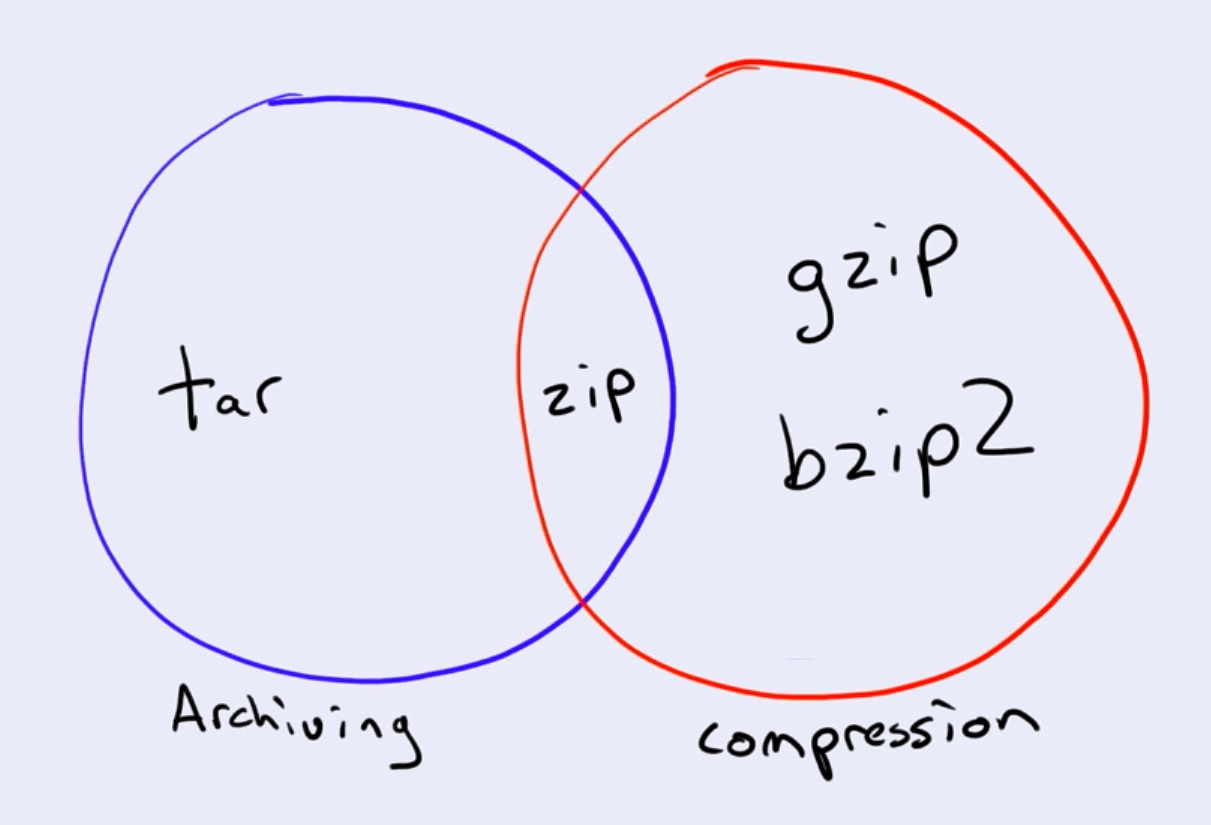
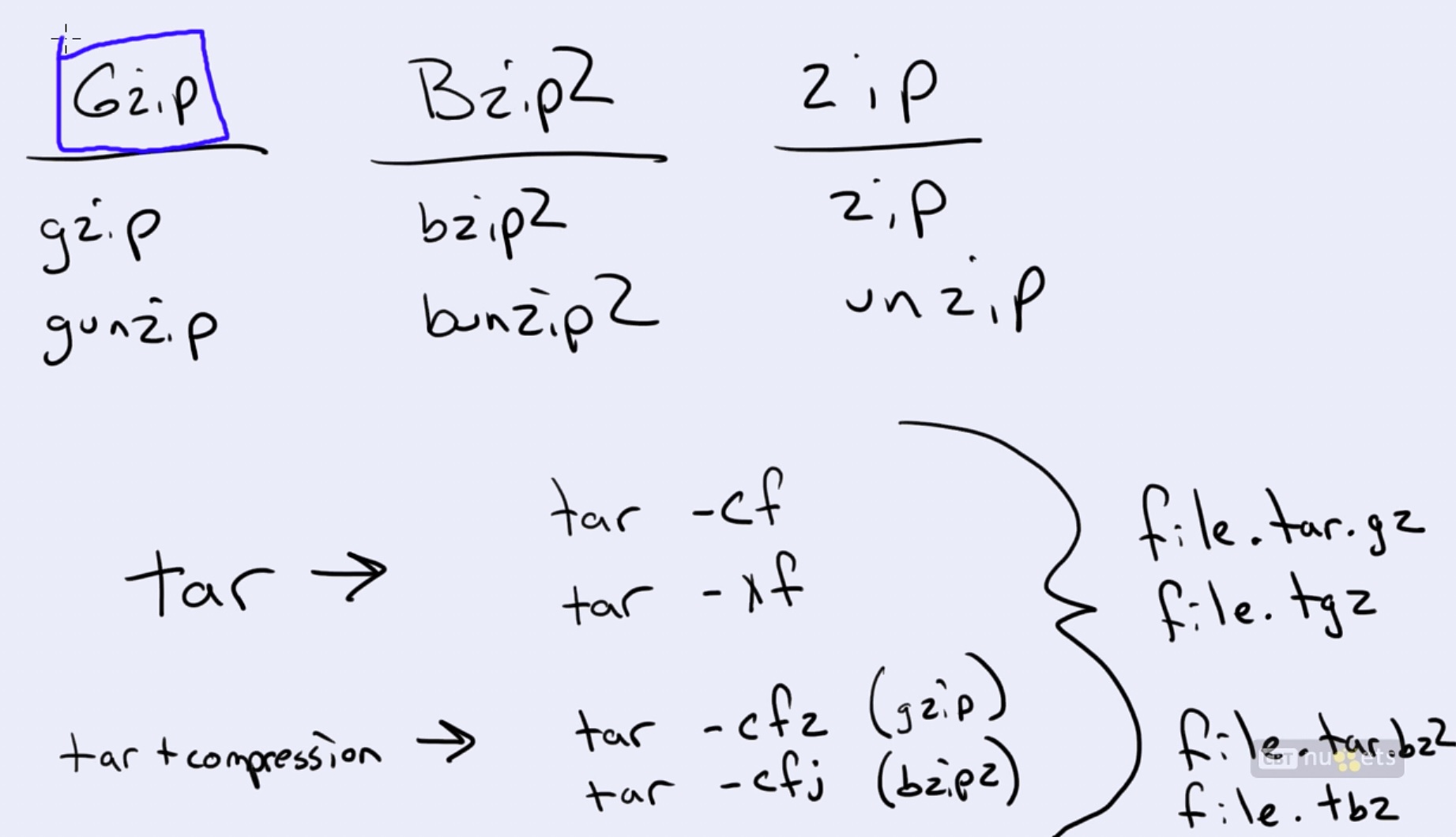
Data compression has been extremely useful to us over the years. Whether its a zip file containing images to be sent in a mail or a compressed data backup stored on a server, we use data compression to save valuable hard drive space or to make the downloading of files easier. There are compression formats out there which allow us to sometimes compress our data by 60% or more. I’ll run you through using some of these formats to compress and decompress files and directories on a Linux machine. We’ll cover the basic usage of zip, tar, tar.gz and the tar.bz2 formats. These are some of the most popular formats for compression used on Linux machines.

Before we delve into the usage of the formats I’d like to share some of my experience using the various formats of archiving. I’m talking about only a few data compression formats here, and there are many more out there. I’ve realized that I need two or three formats of compression that I’m comfortable using, and stick to them. The zip format is definitely one of them. This is because zip has become the de-facto standard choice for data compression, and it works on Windows as well. I use the zip format for files that I might need to share with Windows users. I like to use the tar.gz format for files that I would only use on my Mac and Linux machines.

ZIP

Zip is probably the most commonly used archiving format out there today. Its biggest advantage is the fact that it is available on all operating system platforms such as Linux, Windows, and Mac OS, and generally supported out of the box. The downside of the zip format is that it does not offer the best level of compression. Tar.gz and tar.bz2 are far superior in that respect. Let’s move on to usage now.

To compress a directory with zip do the following:

# zip -r archive_name.zip directory_to_compress

Here’s how you extract a zip archive:

# unzip archive_name.zip

TAR

Tar is a very commonly used archiving format on Linux systems. The advantage with tar is that it consumes very little time and CPU to compress files, but the compression isn’t very much either. Tar is probably the Linux/UNIX version of zip – quick and dirty. Here’s how you compress a directory:

# tar -cvf archive_name.tar directory_to_compress

And to extract the archive:

# tar -xvf archive_name.tar.gz

This will extract the files in the archive_name.tar archive in the current directory. Like with the tar format you can optionally extract the files to a different directory:

# tar -xvf archive_name.tar -C /tmp/extract_here/

TAR.GZ

This format is my weapon of choice for most compression. It gives very good compression while not utilizing too much of the CPU while it is compressing the data. To compress a directory use the following syntax:

# tar -zcvf archive_name.tar.gz directory_to_compress

To decompress an archive use the following syntax:

# tar -zxvf archive_name.tar.gz

This will extract the files in the archive_name.tar.gz archive in the current directory. Like with the tar format you can optionally extract the files to a different directory:

# tar -zxvf archive_name.tar.gz -C /tmp/extract_here/

TAR.BZ2

This format has the best level of compression among all of the formats I’ve mentioned here. But this comes at a cost – in time and in CPU. Here’s how you compress a directory using tar.bz2:

# tar -jcvf archive_name.tar.bz2 directory_to_compress

This will extract the files in the archive_name.tar.bz2 archive in the current directory. To extract the files to a different directory use:

# tar -jxvf archive_name.tar.bz2 -C /tmp/extract_here/

Data compression is very handy particularly for backups. So if you have a shell script that takes a backup of your files on a regular basis you should think about using one of the compression formats you learned about here to shrink your backup size.

Over time you will realize that there is a trade-off between the level of compression and the the time and CPU taken to compress. You will learn to judge where you need a quick but less effective compression, and when you need the compression to be of a high level and you can afford to wait a little while longer.

Create and Extract .bz2 and .gz files

Introduction

bzip2 and bunzip2 are file compression and decompression utilities. The bzip2 and bunzip2 utilities are newer than gzip and gunzip and are not as common yet, but they are rapidly gaining popularity. The bzip2 utility is capable of greater compression ratios than gzip. Therefore, a bzip2 file can be 10-20% smaller than a gzip version of the same file. Usually,files that have been compressed by bzip2 will have a .bz2 extension.

Installing bzip2 in debian

#apt-get install bzip2

Installing bzip2 in ubuntu

sudo apt-get install bzip2

Uncompressing a bzip2 File Using bunzip2 in Debian

To uncompress a bzip2 file, execute the following command

#bunzip2 filename.txt.bz2 (where filename.txt.bz2 is the name of the file you wish to uncompress)

The result of this operation is a file called filename.txt. By default, bunzip2 will delete the filename.txt.bz2 file.

Compressing a File Using bzip2

To compress a file using bzip2, execute the following command:

#bzip2 filename.txt (where filename.txt is the name of the file you wish to compress)

The result of this operation is a file called filename.txt.bz2. By default, bzip2 will delete the filename.txt file.

Uncompressing a bzip2 File Using bunzip2 in Ubuntu

To uncompress a bzip2 file, execute the following command

sudo bunzip2 filename.txt.bz2 (where filename.txt.bz2 is the name of the file you wish to uncompress)

The result of this operation is a file called filename.txt. By default, bunzip2 will delete the filename.txt.bz2 file.

Compressing a File Using bzip2

To compress a file using bzip2, execute the following command:

sudo bzip2 filename.txt (where filename.txt is the name of the file you wish to compress)

The result of this operation is a file called filename.txt.bz2. By default, bzip2 will delete the filename.txt file.

Create and Extract .gz Files

Introduction

gzip and gunzip are GNU file compression and decompression utilities. Usually, files that have been compressed by gzip will have a .gz extension. However, sometimes you may see a file that has a .tgz extension. This is a TAR file that has been compressed by gzip. The .tgz extension is a shorthand version for the .tar.gz extension. This type of file must be uncompressed with gunzip before it can be untarred. However, there is a way to use the tar command to uncompress the file and untar it at the same time. For more information, see the tar: Tape Archive Files guide.

Installing gzip in Debian

#apt-get install gzip

Installing gzip in Ubuntu

sudo apt-get install gzip

Uncompressing a gzip File Using gunzip in Debian

To uncompress a gzip file, execute the following command:

#gunzip filename.txt.gz (where filename.txt.gz is the name of the file you wish to uncompress)

The result of this operation is a file called filename.txt. By default, gunzip will delete the filename.txt.gz file.

Compressing a File Using gzip

To compress a file using gzip, execute the following command:

#gzip filename.txt (where filename.txt is the name of the file you wish to compress)

The result of this operation is a file called filename.txt.gz. By default, gzip will delete the filename.txt file.

Uncompressing a gzip File Using gunzip in Ubuntu

To uncompress a gzip file, execute the following command:

sudo gunzip filename.txt.gz (where filename.txt.gz is the name of the file you wish to uncompress)

The result of this operation is a file called filename.txt. By default, gunzip will delete the filename.txt.gz file.

Compressing a File Using gzip

To compress a file using gzip, execute the following command:

sudo gzip filename.txt (where filename.txt is the name of the file you wish to compress)

The result of this operation is a file called filename.txt.gz. By default, gzip will delete the filename.txt file.

Format, mount and unmount a USB drive in Linux

execute the mount command without any arguments to view all the mounts:

#mount

rootfs on / type rootfs (rw)
/dev on /dev type tmpfs (rw,relatime)
/dev/disk/by-uuid/c4f411af-56b1-4ecc-b85e-a0173aa9dc30 on / type ext4 (rw,noatime,data=ordered)
proc on /proc type proc (rw,relatime)
sysfs on /sys type sysfs (rw,relatime)
devtmpfs on /dev type devtmpfs (rw,relatime,size=490760k,nr_inodes=122690,mode=755)
tmpfs on /run type tmpfs (rw,relatime)
tmpfs on /run/shm type tmpfs (rw,relatime)
devpts on /dev/pts type devpts (rw,relatime,mode=600,ptmxmode=000)
tmpfs on /var/state/login type tmpfs (rw,nosuid,noexec,relatime,mode=700,uid=99,gid=99)
tmpfs on /var/tmp type tmpfs (rw,relatime)
/dev/sda4 on /var/log type ext4 (rw,noatime,data=ordered)
/dev/sdc1 on /media type ext4 (rw,relatime,data=ordered)
You can also use df command to view all the mount points:

#df -h

Filesystem Size Used Avail Use% Mounted on
/dev/sda3 6.9G 3.3G 3.2G 51% /
devtmpfs 480M 0 480M 0% /dev
tmpfs 498M 1.3M 496M 1% /run
tmpfs 498M 0 498M 0% /run/shm
tmpfs 498M 0 498M 0% /var/state/login
tmpfs 498M 368K 497M 1% /var/tmp
/dev/sda4 7.6G 146M 7.1G 2% /var/log
/dev/sdc1 7.1G 17M 6.7G 1% /media

(USB drive should appear as SCSI drive):

#fdisk -l

WARNING: GPT (GUID Partition Table) detected on ‘/dev/sda’! The util fdisk doesn’t support GPT. Use GNU Parted.
Disk /dev/sda: 17.2 GB, 17179869184 bytes
255 heads, 63 sectors/track, 2088 cylinders, total 33554432 sectors
Units = sectors of 1 * 512 = 512 bytes
Sector size (logical/physical): 512 bytes / 512 bytes
I/O size (minimum/optimal): 512 bytes / 512 bytes
Disk identifier: 0x00000000

Device Boot Start End Blocks Id System
/dev/sda1 1 33554431 16777215+ ee GPT

Disk /dev/sdb: 8589 MB, 8589934592 bytes
255 heads, 63 sectors/track, 1044 cylinders, total 16777216 sectors
Units = sectors of 1 * 512 = 512 bytes
Sector size (logical/physical): 512 bytes / 512 bytes
I/O size (minimum/optimal): 512 bytes / 512 bytes
Disk identifier: 0x00000000

Disk /dev/sdb doesn’t contain a valid partition table

Disk /dev/sdc: 7864 MB, 7864320000 bytes
30 heads, 33 sectors/track, 15515 cylinders, total 15360000 sectors
Units = sectors of 1 * 512 = 512 bytes
Sector size (logical/physical): 512 bytes / 512 bytes
I/O size (minimum/optimal): 512 bytes / 512 bytes
Disk identifier: 0x00000000

Device Boot Start End Blocks Id System
/dev/sdc1 8192 15359999 7675904 7 HPFS/NTFS/exFAT

Let’s format the partition as traditional EXT4 Linux file system :

#mkfs.ext4 /dev/sdc1
Mount the drive :

#mount -t ext4 /dev/sdc1 /media

Unmount the drive :

#umount -t ext4 /dev/sdc1 /media
You’re now ready to use it! However, this mount will not survive to a reboot. To make it permanent, you need to edit fstab :

#vi /etc/fstab
tmpfs /run tmpfs defaults 0 0
tmpfs /run/shm tmpfs defaults 0 0
proc /proc proc defaults 0 0
sysfs /sys sysfs defaults 0 0
devtmpfs /dev devtmpfs defaults 0 0
devpts /dev/pts devpts defaults 0 0
tmpfs /var/state/login tmpfs mode=700,uid=nobody,gid=nobody,noexec,nosuid 0 0
tmpfs /var/tmp tmpfs defaults 0 0
UUID=c4f411af-56b1-4ecc-b85e-a0173aa9dc30 / ext4 noatime 1 2
UUID=74f22d22-75b6-45f5-b1dd-fb98f328d138 swap swap defaults 0 0
UUID=f6213ff4-16e3-4107-812b-ba653154128f /var/log ext4 noatime 1 2
/dev/sdc1 /media ext4 defaults 0 0

How to Manage Files from the Linux Terminal

Create Directory – subdirectory, other than that What mkdir command do in Linux

After knowing about ls command for listing entries inside directory, we are now moving to creating directory in Linux system. On Linux, we can use mkdir command. Mkdir is short for “make directory”.

What is mkdir

Mkdir is a command for creating directories in Linux system. This command is a built-in command.

Run mkdir command

You can type mkdir directly from your console to use it.

$ mkdir

By default, running mkdir without any parameter will create directory under the current directory. Here’s a sample of it :

mkdir command

From screenshot above, we created directory called office. When we run mkdir command, we are in/home/pungki directory. So then the new directory, which is office, is created under /home/pungkidirectory. If we put an exact location – for example : /usr/local – , then Linux will create a directory under /usr/local directory.

When Linux found that the directory which suppose to be created is already exist, then Linux will telling us that Linux can’t cretate it.

mkdir directory exist

Another pre-requisite of creating directory that you must have access to the location where the directory want to be created. When you don’t have it then mkdir will report an error.

mkdir permission denied

Create multiple directories

We can also create multiple directories at the same time. Let say we want to create directories namedubuntu, redhat and slackware. Then the syntax will be like this :

$ mkdir ubuntu redhat slackware

create multiple directories

Add directory include its sub-directory

When you want to created a include its sub-directory, you will need to use -p parameter. This parameter will create parent directory first, if mkdir cannot find it. Let say we want to create directory named letter and directory named important under directory letter. Then the syntax will be like this :

$ mkdir -p letter/important

mkdir sub-directory

Set access privilege

Using -m parameter, we can also set the access privilege for the new directory on-the-fly. Here’s an example.

$ mkdir -m=r– letter

The above command will create a directory named letter and give access privilege read-only for thedirectory owner, directory group owner and anybody.

mkdir set privilege

Print message a message for each created directory

If we want, we can use -v parameter to do this. Here’s an example.

$ mkdir -v ubuntu redhat slackware

mkdir verbose

Conclusion

Mkdir command is also one of the basic command that must known for everyone who want to learn Linux. As usual, you can always type man mkdir or mkdir –help to display mkdir manual page and explore it more detail.

8 Pratical Examples of Linux “Touch” Command

In Linux every single file is associated with timestamps, and every file stores the information of last access time, last modification time and last change time. So, whenever we create new file, access or modify an existing file, the timestamps of that file automatically updated.

Linux Touch Command

In this article we will cover some useful practical examples of Linux touch command. The touch command is a standard program for Unix/Linux operating systems, that is used to create, change and modify timestamps of a file. Before heading up for touch command examples, please check out the following options.

Touch Command Options

  1. -a, change the access time only
  2. -c, if the file does not exist, do not create it
  3. -d, update the access and modification times
  4. -m, change the modification time only
  5. -r, use the access and modification times of file
  6. -t, creates a file using a specified time

1. How to Create an Empty File

The following touch command creates an empty (zero byte) new file called sheena.

# touch sheena

2. How to Create Multiple Files

By using touch command, you can also create more than one single file. For example the following command will create 3 files named, sheena, meena and leena.

# touch sheena meena leena

3. How to Change File Access and Modification Time

To change or update the last access and modification times of a file called leena, use the -a option as follows. The following command sets the current time and date on a file. If the leena file does not exist, it will create the new empty file with the name.

# touch -a leena

The most popular Linux commands such as find command and ls command uses timestamps for listing and finding files.

4. How to Avoid Creating New File

Using -c option with touch command avoids creating new files. For example the following command will not create a file called leena if it does not exists.

# touch -c leena

5. How to Change File Modification Time

If you like to change the only modification time of a file called leena, then use the -m option with touch command. Please note it will only updates the last modification times (not the access times) of the file.

# touch -m leena

6. Explicitly Set the Access and Modification times

You can explicitly set the time using -c and -t option with touch command. The format would be as follows.

# touch -c -t YYDDHHMM leena

For example the following command sets the access and modification date and time to a file leena as 17:30(17:30 p.m.) December 10 of the current year (2012).

# touch -c -t 12101730 leena

Next verify the access and modification time of file leena, with ls -l command.

# ls -l

total 2
-rw-r--r--.  1 root    root   0 Dec 10 17:30 leena

7. How to Use the time stamp of another File

The following touch command with -r option, will update the time-stamp of file meena with the time-stamp ofleena file. So, both the file holds the same time stamp.

# touch -r leena meena

8. Create a File using a specified time

If you would like to create a file with specified time other than the current time, then the format should be.

# touch -t YYMMDDHHMM.SS tecmint

For example the below command touch command with -t option will gives the tecmint file a time stamp of18:30:55 p.m. on December 10, 2012.

# touch -t 201212101830.55 tecmint

We’ve almost covered all the options available in the touch command for more options use “man touch“. If we’ve still missed any options and you would like to include in this list, please update us via comment box.

Delete Directory Command in Terminal

You need to use the rmdir utility / command. The rmdir utility removes the directory entry specified by each directory argument, provided it is empty. Arguments are processed in the order given. In order to remove both a parent directory and a subdirectory of that parent, the subdirectory must be specified first so the parent directory is empty when rmdir tries to remove it.

Please note directory often referred to as a folder in the Apple Mac OS X and Microsoft Windows operating systems.

Syntax

The syntax is:

rmdir dirName

OR

rmdir [option] dirName

WARNING! These examples may crash your computer or may result into data loss, if executed without proper care.

Ubuntu delete directory called /tmp/foo

Open the terminal. Type the following command:
$ rmdir /tmp/foo
To remove foo and bar empty directories, type:
$ rmdir foo bar

Recursive directory removal on Ubuntu

Remove all files and directories including all sub-directories i.e. recursive removal:
$ rm -rf /path/to/directory
$ rm -rf /tmp/foo

Please note that you can also pass -p option to the rmdir command. Each directory argument is treated as a pathname of which all components will be removed, if they are empty, starting with the last most component:
$ rmdir -p /tmp/x/y/z

Deleting directories as a superuser on ubuntu

If directory is owned by root or any other user or if you are getting “access denied/permission denied” message, try:

### Warning: careful with sudo and rm/rmdir command. ### 
### Check twice before you hit [enter] key ###
sudo rmdir /path/to/dir
sudo rm -rf /path/to/dir

Moving or Rename File / Directory in Linux – 10 Practical mv Command Examples

After knowing about copy command, the next command which is related is mv command. When you want to move files from one place to another and you don’t want to duplicate it, then mv command is absolutely right for this task.

What is mv command

mv command is a command that similar with cp, but it does not create a copy / duplicate of files or directories. This command is installed by default on your Linux system, in any kind of Linux you are using. Please take a look of some examples using mv command in day-to-day operation.

1. Moving files

The requirement of moving file is the file source location must be different with the files destination location. Here’s an example. To move file_1.txt from current directory to another directory , for example/home/pungki/office, here’s the syntax :

$ mv file_1.txt /home/pungki/office

mv command

As we can see, when we move the file_1.txt, the file_1.txt from previous directory is deleted.

2. Moving multiple files

If we want to move multiple files, we put them in one line separated by space.

$ mv file_2.txt file_3.txt file_4.txt /home/pungki/office

Move multiple files

You can also use pattern if your files have it. For example, to move all files which have .txt extension, we can use this command :

$ mv *.txt /home/pungki/office

Move using pattern

3. Moving directory

Different from the copy command, moving directory using mv command is pretty straight forward. To move a directory, you can just to use mv command without any options. Please take a look screenshot below.

Moving directory

4. Renaming files or directory

We also use mv command to rename files and directory. But in order to do so, the destination location must be the same with the source location. Then the file name must be different.

Let say we are inside /home/pungki/Documents folder and we want to rename file_1.txt into file_2.txt. Then the command will be like :

$ mv file_1.txt file_2.txt

If we mention the absolute path, then it will look like this :

$ mv /home/pungki/Documents/file_1.txt /home/pungki/Documents/file_2.txt

Renaming file

5. Renaming directory

The above rule is also applied to directory. Take a look this example :

$ mv directory_1/ directory_2/

Renaming directory

6. Print what happen

When you are moving or renaming a large number of file / directory, you may want to know does your command works successfully or not without seeing to the destination location. To do this, we can use -voption.
For example we want to move all txt files and want to check it. Then the command will be like this.

$ mv -v *.txt /home/pungki/office

mv with verbose mode

The same way is applied to directory.

mv directory with verbose mode

7. Using interactive mode

When you are moving file into another location, and there is already exist the same file, then by default mv will overwrite it. No pop-up notification for this. To make a notification for overwriting file, we can use -i option.

Let say we want to move file_1.txt to /home/pungki/office. Meanwhile, file_1.txt is already exist in /home/pungki/office directory.

$ mv -i file_1.txt /home/pungki/office

mv with interactive mode

This notification will aware us about the existence of file_1.txt in the destination location. If we press “y” then the file will be moved, otherwise, it will not.

8. Using update option

While -i are notify us about overwriting files, then -u option will perform update only if the source is newer than destination file. Let’s take a look example below.

Update only newer

We have file_1.txt and file_2.txt with this attributes :

  • File_1.txt has 84 bytes file size and it last modified time is 12:00
  • File_2.txt has 0 bytes file size and it last modified time is 11:59

We want to move them into /home/pungki/office directory. But in the destination location, we already have file_1.txt and file_2.txt.

We move file_1.txt and file_2.txt from current directory into /home/pungki/office using command :

$ mv -uv *.txt /home/pungki/office

As the result, we see those files are moved. Those file is moved because their last modified time stamp is newer than the files in /home/pungki/office directory.

9. Do not overwrite any existing file

If -i options is asking us about overwriting files, than -n option will not allow us to overwrite any existing files.

Using example on point 8, if we change the option from -u to -n, combine with -v option, then we will see that there are no files moved into /home/pungki/office directory.

$ mv -vn *.txt /home/pungki/office

No overwrite

10. Create backup when copying

By default, moving files will overwrite the destination files if there are already exist before. But what happen if you are moving wrong files, and the destination files are already overwritten by the new ones? Is there a way to retrieve the old one? Yes there is. We can use -b option. -b option will make a backup of destination file before it overwritten by the new one. Once again, we will use scenario from point 8 above.

$ mv -bv *.txt /home/pungki/office

Backup option

As you can see on the screenshot, on the /home/pungki/office directory, we have a file named file_1.txt~ and file_2.txt~ . The tilde sign (~) means that those files are backup. We can see the attribute of them is older than file_1.txt and file_2.txt.

Conclusion

Moving file or directory also one of the basic command in Linux system. As usual you can type man mv or mv –help to display its manual page to explore more detail.

15 Linux cp Command Examples – Create a Copy of Files and Directories

Copying files or directories is one of basic activity in every operating system. Backup activity is basically is creating a copy of files and directories. On Linux system, we can use cp command to do it.

What is copy command

As we mentioned above, cp command is a command to create copy of files and directories. Here’s some samples of cp command that might useful in day-to-day operation

1. Run cp without any options

This is a very basic cp usage. To copy a file name myfile.txt from one location to another location, we can type like this :

$ cp myfile.txt /home/pungki/office

Copy without options

If we don’t type absolute path, it mean that we are copying a file on current directory. From example above,myfile.txt is located in /home/pungki/Documents. We don’t have to type/home/pungki/Documents/myfile.txt to copy myfile.txt if we are in that /home/pungki/Documentsdirectory. While /home/pungki/office is a folder where the file will be copied.

2. Copy multiple files at the same time

To copy multiple file at the same time, we can just put the files behind the copy command which separated by space. Here’s an example :

$ cp file_1.txt file_2.txt file_3.txt /home/pungki/office

Copying multiple files

3. Copy a directory

Copying a directory is a little bit tricky. You need to add -r or -R option to do it. -r or -R option means recursive. This option is a must whether the directory is empty or not. Here’s an example :

$ cp -r directory_1 /home/pungki/office

Copy directory

One more thing to note is that you need to remove the trailing slash behind the directory name. Otherwise you will have an error message like cp : omitting directory ‘directory_1/’

Copy directory error

If you got that error, the directory will not copied to the destination folder.

4. Create hard links to files instead of copying them

Copying file means you must have some space on the storage to store the copied files. Sometimes for any reasons, you may want to create “shortcut” or links to the files instead of copying them. To do this, we can use -l option.

$ cp -l file_4.txt /home/pungki/office

Copy hardlinks

From screenshot above, we see that a hardlink of file_4.txt was copied into /home/pungki/office/file_4.txt. It marked by the same inode, 835386. But please note, hardlinks cannot be created into directories. Let’s take a look an example below.

The original directory_1 has inode number 278230
Inode number of original directory

The original file_5.txt has inode number 279231
Original inode number of file

Do cp command on directory_1
Copy using -rl options

The copied directory_1 has inode number 274800
Inode number of copied directory

The copied file_5.txt had inode number 279231. Same with its original file
Inode number of copied file

5. Create symbolic links to files

There is another type of links called softlinks or symbolic links. We use -s option to do this. Here’s a sample command.

$ cp -s /home/pungki/Documents/file_6.txt file_6.txt

Creating symlinks only can be done in current directory. On screenshot above, we want to create symbolic links from source directory – /home/pungki/Documents/file_6.txt to /home/pungki/office. But to create symbolic links, I must inside /home/pungki/office as a destination folder. Once I manage to be there, I can run cp -s command above.

Then when you list the file with detail, you will see that /home/pungki/office/file_6.txt is pointing to the original file. Its marked with arrow sign after the file name.

Symbolic links

6. Copy without following symbolic links in Source

To do this, we can use -P option. When cp command found a file with symbolic links, it will copy the as is. Take a look at the sample below.

$ cp -P file_6.txt ./movie

Copy using -P option

As you can see, the cp command will copy file_6.txt as is. The file type still a symbolic link.

7. Copy with following symbolic links in Source

Now we can do this with -L option. Basically, this is an opposite of -P option above. Here’s the sample.

$ cp -L file_6.txt ./movie

Copy using -L option

With this option, the copied file is the same file with the source file of file_6.txt. This is known from the file size. The copied file has 50 bytes file size while the file_6.txt as symbolic link has 33 bytes file size.

8. Archive the files

When we are going to copy a directory, we will use -r or -R option. But we can also use -a option to archive file. This will create an exact copy of files and directories including symbolic links if any. Here’s a sample :

$ cp -a directory_1/ /home/pungki/office

Copy using -a option

The above command will copy a directory named directory_1 into folder /home/pungki/office. As you can see, the file_6.txt still copied as symbolic links.

9. Explain what is being done

By default, when copying activity is success, we will see a command prompt again. If you want to know what happen during the copying file, we can use -v option.

$ cp -v *.txt /home/pungki/office

Verbose option

When we copying all txt files in current directory to /home/pungki/office/ directory, -v option will show what is being done. This additional information will make us more sure about the copying activity.

10. Copy only when the source file is newer

To do this, we can use -u option. Take a look this example below.

$ cp -vu *.txt /home/pungki/office

Copy only if newer

In the beginning, we see file_1.txt has 0 bytes file size. Then we edit it using vi, add some content and save it. Next, we see the file size has changed into 36 bytes.
Meanwhile in /home/pungki/office directory, we already have all *.txt files. When we use -u option, combine with -v option to see what is being done, cp command will only copy a file(s) which is newer from destination directory. As the result, we see that only file_1.txt is copied into /home/pungki/office directory.

11. Use interactive mode

Interactive mode will ask if the destination folder have already the file. To activate interactive mode, use -ioption.

$ cp -ir directory_1/ /home/pungki/office/

Interactive mode

12. Create backup date of each copied file

When the destination folder already have the file, by default cp command will overwrite the same file in the destination directory. Using –backup option, cp command will make a backup of each existing destination file. ../office will refer to /home/pungki/office. Here’s a sample :

$ cp –backup=simple -v *.txt ../office

Backup option

As we can see, –backup=simple option will create a backup file which marked by a tilde sign (~) at the end of the file. –backup option has some Control, which are :

  • none, off : never backups (even if –backup is given)
  • numbered, t : make numbered backups
  • existing, nil : numbered if numbered backup exist, simple otherwise
  • simple, never : always make simple backups

13. Copy only file attributes

Cp command also provide us with –attributes-only option. As we can guess from its name, this option will only copy a file name and its attributes without copying any data. Here’s a sample.

$ cp –attributes-only file_6.txt -v ../office

Copy attributes only

From screenshot above, the original file_6.txt file has 50 bytes file size. Using –attributes-only option,the copied file will have 0 bytes file size. This is because the content of file is not being copied.

14. Force copying

Using -f option will force the copying activity. If the destination files cannot be opened, then -f will try again.

$ cp -f *.txt -v ../office

Copy with force

15. Remove destination before copy

To do this, we can use –remove-destination option. This option is contrast with -f option above. If the cp command find the same file name on the destination folder, cp command will remove destination file first, the copy the new one. Here’s an example.

$ cp –remove-destination *.txt -v ../office

Remove destination option

Conclusion

Cp command is one of basic Linux commands. For those who want to learn Linux, must know this command. Of course you can type man cp or cp –help from your console to display its manual page to explore more detail.
Adding Linux Users and Groups

adding-users-in-linux_featured-image

What we’ll cover in this article is adding and deleting users, as well as modifying exiting users. We’ll then focus on groups and how to add/delete them. I will also point out key files that are associated with this process for those of you that are new to Linux or are looking to pass some type of certification.

What is passwd/groups?

I know you didn’t ask, but before we get into the main course of this article I want to introduce two files that we will be using as examples. In the /etcdirectory, the passwd & the group files hold all of the users and group information. These files are essential when logging on to the system. Anytime you add a user, that user is added to the passwd file. Let’s take a look at/etc/passwd first.

When you add a user to the system, that user is placed into the passwd file.

Issue command: less /etc/passwd

Use the arrows keys to go up and down and “q” to exit.

Adding Users in Linux 1

Adding Users in Linux 2

Adding Users in Linux 3

You can edit the file directly or use the commands we will go over shortly. I recommend using the commands especially if you are a beginner. You do not want to corrupt the passwd file.

Let’s take a look at the group file:

Adding Users in Linux 4

Adding Users in Linux 5

The /etc/group file holds all of the group information as well as the users belonging to each group. The structure is very similar to that of/etc/password.

Adding Users in Linux 6

Again, these files are vital to the system and you will need to know them if you are taking any Linux exams.

Adding/Deleting Users

Adding a user is easy. The command used is: useradd “name of the user”

Note – You must be logged-in as root to add, delete, and modify users. It is not recommended to stay logged-in as root other than when necessary and only certain members should have root access.

Example:
useradd roman

Adding Users in Linux 7

You can then use “su” plus the name of the user you just added to logon. “exit” will take you out.

Adding Users in Linux 8

The command for deleting a user is “userdel”.
userdel roman

Adding Users in Linux 9

These commands are very basic, but there are other options we have as well. Options:

  • -d sets home directory for the user (if other than the default which is: /home/”user’s name”)
  • -m creates the home directory

Adding Users in Linux 10

Using the –d option on its own will only set the home directory for the user, but does not create it.

You can see I confirm this by “echo $HOME” which tells me my home directory and I use “ls” to confirm.

Adding Users in Linux 11

Adding the –m option will create the directory.

Adding Users in Linux 12

If you just add the user, default directory is /home/”users name” and you can just use the –m to create.

Lastly, using the “-r” option along with userdel will delete the user as well as the home directory.

Adding Users in Linux 13

Changing Passwords

If you are logged in as root, the command is “username” password.

Example: passwd roman

Adding Users in Linux 14

If you are logged on as the user, the command is “passwd”.

Adding Users in Linux 15

Adding Users to Groups

Let’s say we want to add roman to the group accounting. “-g” is used to change the user’s primary group.

Command is: useradd –gaccounting roman

I then ran the grep command to confirm.

Adding Users in Linux 16

However, say I want to add roman to the group accounting and make his primary group sales. We can add the “-G” option (other groups).

“-G” basically says add this user to a new group, but keep them in the old one (append).

Adding Users in Linux 17

Then issue command “id roman” – to confirm.

We can use “-G” on its own to add a user to another group.

Adding Users in Linux 18

Note: The groups must exit before we can add users to them.

Modifying Users

If a user is created and you just want to add that user to a group, or change the home directory, etc:

Example: usermod -Gmanagement roman

Adding Users in Linux 19

Or you can change the home directory for the user:

Example: usermod –d/home/newfolder roman

Adding Users in Linux 20

Creating Groups

The command for adding groups is “groupadd” or “groupdel”.

Adding Users in Linux 21

You can confirm by checking the /group/etc file.

Example: grep software /etc/group or cat /etc/group

Adding Users in Linux 22

The “groupdel” command will remove the group entirely.

There are a number of options you have when creating users and groups. Again, you could just go into /etc/passwd directly and add a user there, but unless you are familiar with file editors and putting a lock on, you should work with the commands. We will go over alternate methods in the Vi section.

Summary

  • Commands: useradd, userdel, usermod, groupadd, groupdel
  • Options
    -d change user’s home directory
    -m create directory
    -s used to change the default shell
    -r remove home directory when deleting user
  • “Passwd” will change the user’s password

How to Add a User and Grant Root Privileges on Ubuntu 14.04

Pre-Flight Check
  • These instructions are intended specifically for adding a user on Ubuntu 14.04 LTS.
  • I’ll be working from a Liquid Web Core Managed Ubuntu 14.04 LTS server, and I’ll be logged in as root.
Step 1: Add the User

It’s just one simple command to add a user. In this case, we’re adding a user called mynewuser :

adduser mynewuser

First you will be prompted to enter the user’s password (twice); do this step. Next you’ll be prompted to enter in the user’s information. This step is not required, and pressing enter fills the field with the default information:

Adding user `mynewuser’ …
Adding new group `mynewuser’ (1001) …
Adding new user `mynewuser’ (1001) with group `mynewuser’ …
Creating home directory `/home/mynewuser’ …
Copying files from `/etc/skel’ …
Enter new UNIX password:
Retype new UNIX password:
passwd: password updated successfully
Changing the user information for mynewuser
Enter the new value, or press ENTER for the default
Full Name []: User
Room Number []:
Work Phone []:
Home Phone []:
Other []:

When prompted with the following question, enter Y then hit enter to continue.

Is the information correct? [Y/n] Y

Step 2: Grant Root Privileges to the User

visudo

Find the following code:

# User privilege specification
root ALL=(ALL:ALL) ALL

In this case, we’re granting root privileges to the user mynewuser . Add the following below that code:

mynewuser ALL=(ALL:ALL) ALL

Then exit and save the file with the key commands Ctrl-x, Y, enter.

If you’ve followed the instruction above correctly, then you should now have a user setup by the name ofmynewuser which can use sudo to run commands as root!

what is difference between /etc/shadow and /etc/passwd

passwd is the file where the user information (like username, user ID, group ID, location of home directory, login shell, …) is stored when a new user is created.

shadow is the file where important information (like an encrypted form of the password of a user, the day the password expires, whether or not the passwd has to be changed, the minimum and maximum time between password changes, …) is stored when a new user is created.

Linux Network Configuration and Troubleshooting Commands

Setup DNS Resolution With “resolv.conf” in Examples

The /etc/resolv.conf configuration file contains information that allows a computer to convert alpha-numeric domain names into the numeric IP addresses.

The process of converting domain names to IP addresses is called resolving.

When using DHCP, dhclient usually rewrites resolv.conf with information received from the DHCP server.

How do I edit the “/etc/resolv.conf” file?

Use text editor such as vi or gedit from Linux desktop :
# vi /etc/resolv.conf

There are three main configuration directives in /etc/resolv.conf :

nameserver # DNS server IP
domain # Domain Name of local host
search # Which Domain to search

The “nameserver” directive

The nameserver directive points out to the IP address of a Name Server.

nameserver <IP address>

It can be your own Name Server, some public Name Server or the Name Server of your’s ISP.

Note : Up to 3 name servers may be listed.

Example :

nameserver 192.168.0.100
nameserver 8.8.8.8
nameserver 8.8.4.4

The “domain” directive

Local domain name.

domain <local domain name>

Example :

domain domain.com
nameserver 192.168.0.100
nameserver 8.8.4.4

How the “domain” directive in the “resolv.conf” file works?

You can use domain directive for resolving short host-names – e.g. test.
So if you have the following in your /etc/resolv.conf :

domain example.com

Then your computer will try to resolve test.example.com.

The “search” directive

Search list for hostname lookup. The search list is normally determined from the local domain name but it can be set to a list of domains.

search <search list>

Example :

search example.com company.net
nameserver 192.168.0.100
nameserver 8.8.8.8

How the “search” directive in the “resolv.conf” file works?

You need to use search directive for resolving short host-names – e.g. test.
So if you have the following in your /etc/resolv.conf :

search example.com company.net

Then your computer will try to resolve test.example.com followed bytest.company.net. It will return the first query that was successful.

1. ifconfig

ifconfig (interface configurator) command is use to initialize an interface, assign IP Address to interface andenable or disable interface on demand. With this command you can view IP Address and Hardware / MAC address assign to interface and also MTU (Maximum transmission unit) size.

# ifconfig

eth0      Link encap:Ethernet  HWaddr 00:0C:29:28:FD:4C
          inet addr:192.168.50.2  Bcast:192.168.50.255  Mask:255.255.255.0
          inet6 addr: fe80::20c:29ff:fe28:fd4c/64 Scope:Link
          UP BROADCAST RUNNING MULTICAST  MTU:1500  Metric:1
          RX packets:6093 errors:0 dropped:0 overruns:0 frame:0
          TX packets:4824 errors:0 dropped:0 overruns:0 carrier:0
          collisions:0 txqueuelen:1000
          RX bytes:6125302 (5.8 MiB)  TX bytes:536966 (524.3 KiB)
          Interrupt:18 Base address:0x2000

lo        Link encap:Local Loopback
          inet addr:127.0.0.1  Mask:255.0.0.0
          inet6 addr: ::1/128 Scope:Host
          UP LOOPBACK RUNNING  MTU:16436  Metric:1
          RX packets:8 errors:0 dropped:0 overruns:0 frame:0
          TX packets:8 errors:0 dropped:0 overruns:0 carrier:0
          collisions:0 txqueuelen:0
          RX bytes:480 (480.0 b)  TX bytes:480 (480.0 b)

ifconfig with interface (eth0) command only shows specific interface details like IP Address, MAC Address etc. with -a options will display all available interface details if it is disable also.

# ifconfig eth0

eth0      Link encap:Ethernet  HWaddr 00:0C:29:28:FD:4C
          inet addr:192.168.50.2  Bcast:192.168.50.255  Mask:255.255.255.0
          inet6 addr: fe80::20c:29ff:fe28:fd4c/64 Scope:Link
          UP BROADCAST RUNNING MULTICAST  MTU:1500  Metric:1
          RX packets:6119 errors:0 dropped:0 overruns:0 frame:0
          TX packets:4841 errors:0 dropped:0 overruns:0 carrier:0
          collisions:0 txqueuelen:1000
          RX bytes:6127464 (5.8 MiB)  TX bytes:539648 (527.0 KiB)
          Interrupt:18 Base address:0x2000

Assigning IP Address and Gateway

Assigning an IP Address and Gateway to interface on the fly. The setting will be removed in case of system reboot.

# ifconfig eth0 192.168.50.5 netmask 255.255.255.0

Enable or Disable Specific Interface

To enable or disable specific Interface, we use example command as follows.

Enable eth0
# ifup eth0
Disable eth0
# ifdown eth0

Setting MTU Size

By default MTU size is 1500. We can set required MTU size with below command. Replace XXXX with size.

# ifconfig eth0 mtu XXXX

Set Interface in Promiscuous mode

Network interface only received packets belongs to that particular NIC. If you put interface in promiscuousmode it will received all the packets. This is very useful to capture packets and analyze later. For this you may require superuser access.

# ifconfig eth0 - promisc

2. PING Command

PING (Packet INternet Groper) command is the best way to test connectivity between two nodes. Whether it isLocal Area Network (LAN) or Wide Area Network (WAN). Ping use ICMP (Internet Control Message Protocol) to communicate to other devices. You can ping host name of ip address using below command.

# ping 4.2.2.2

PING 4.2.2.2 (4.2.2.2) 56(84) bytes of data.
64 bytes from 4.2.2.2: icmp_seq=1 ttl=44 time=203 ms
64 bytes from 4.2.2.2: icmp_seq=2 ttl=44 time=201 ms
64 bytes from 4.2.2.2: icmp_seq=3 ttl=44 time=201 ms

OR

# ping www.tecmint.com

PING tecmint.com (50.116.66.136) 56(84) bytes of data.
64 bytes from 50.116.66.136: icmp_seq=1 ttl=47 time=284 ms
64 bytes from 50.116.66.136: icmp_seq=2 ttl=47 time=287 ms
64 bytes from 50.116.66.136: icmp_seq=3 ttl=47 time=285 ms

In Linux ping command keep executing until you interrupt. Ping with -c option exit after N number of request (success or error respond).

# ping -c 5 www.tecmint.com

PING tecmint.com (50.116.66.136) 56(84) bytes of data.
64 bytes from 50.116.66.136: icmp_seq=1 ttl=47 time=285 ms
64 bytes from 50.116.66.136: icmp_seq=2 ttl=47 time=285 ms
64 bytes from 50.116.66.136: icmp_seq=3 ttl=47 time=285 ms
64 bytes from 50.116.66.136: icmp_seq=4 ttl=47 time=285 ms
64 bytes from 50.116.66.136: icmp_seq=5 ttl=47 time=285 ms

--- tecmint.com ping statistics ---
5 packets transmitted, 5 received, 0% packet loss, time 4295ms
rtt min/avg/max/mdev = 285.062/285.324/285.406/0.599 ms

3. TRACEROUTE Command

traceroute is a network troubleshooting utility which shows number of hops taken to reach destination also determine packets traveling path. Below we are tracing route to global DNS server IP Address and able to reach destination also shows path of that packet is traveling.

# traceroute 4.2.2.2

traceroute to 4.2.2.2 (4.2.2.2), 30 hops max, 60 byte packets
 1  192.168.50.1 (192.168.50.1)  0.217 ms  0.624 ms  0.133 ms
 2  227.18.106.27.mysipl.com (27.106.18.227)  2.343 ms  1.910 ms  1.799 ms
 3  221-231-119-111.mysipl.com (111.119.231.221)  4.334 ms  4.001 ms  5.619 ms
 4  10.0.0.5 (10.0.0.5)  5.386 ms  6.490 ms  6.224 ms
 5  gi0-0-0.dgw1.bom2.pacific.net.in (203.123.129.25)  7.798 ms  7.614 ms  7.378 ms
 6  115.113.165.49.static-mumbai.vsnl.net.in (115.113.165.49)  10.852 ms  5.389 ms  4.322 ms
 7  ix-0-100.tcore1.MLV-Mumbai.as6453.net (180.87.38.5)  5.836 ms  5.590 ms  5.503 ms
 8  if-9-5.tcore1.WYN-Marseille.as6453.net (80.231.217.17)  216.909 ms  198.864 ms  201.737 ms
 9  if-2-2.tcore2.WYN-Marseille.as6453.net (80.231.217.2)  203.305 ms  203.141 ms  202.888 ms
10  if-5-2.tcore1.WV6-Madrid.as6453.net (80.231.200.6)  200.552 ms  202.463 ms  202.222 ms
11  if-8-2.tcore2.SV8-Highbridge.as6453.net (80.231.91.26)  205.446 ms  215.885 ms  202.867 ms
12  if-2-2.tcore1.SV8-Highbridge.as6453.net (80.231.139.2)  202.675 ms  201.540 ms  203.972 ms
13  if-6-2.tcore1.NJY-Newark.as6453.net (80.231.138.18)  203.732 ms  203.496 ms  202.951 ms
14  if-2-2.tcore2.NJY-Newark.as6453.net (66.198.70.2)  203.858 ms  203.373 ms  203.208 ms
15  66.198.111.26 (66.198.111.26)  201.093 ms 63.243.128.25 (63.243.128.25)  206.597 ms 66.198.111.26 (66.198.111.26)  204.178 ms
16  ae9.edge1.NewYork.Level3.net (4.68.62.185)  205.960 ms  205.740 ms  205.487 ms
17  vlan51.ebr1.NewYork2.Level3.net (4.69.138.222)  203.867 ms vlan52.ebr2.NewYork2.Level3.net (4.69.138.254)  202.850 ms vlan51.ebr1.NewYork2.Level3.net (4.69.138.222)  202.351 ms
18  ae-6-6.ebr2.NewYork1.Level3.net (4.69.141.21)  201.771 ms  201.185 ms  201.120 ms
19  ae-81-81.csw3.NewYork1.Level3.net (4.69.134.74)  202.407 ms  201.479 ms ae-92-92.csw4.NewYork1.Level3.net (4.69.148.46)  208.145 ms
20  ae-2-70.edge2.NewYork1.Level3.net (4.69.155.80)  200.572 ms ae-4-90.edge2.NewYork1.Level3.net (4.69.155.208)  200.402 ms ae-1-60.edge2.NewYork1.Level3.net (4.69.155.16)  203.573 ms
21  b.resolvers.Level3.net (4.2.2.2)  199.725 ms  199.190 ms  202.488 ms

4. NETSTAT Command

Netstat (Network Statistic) command display connection info, routing table information etc. To displays routing table information use option as -r.

# netstat -r

Kernel IP routing table
Destination     Gateway         Genmask         Flags   MSS Window  irtt Iface
192.168.50.0    *               255.255.255.0   U         0 0          0 eth0
link-local      *               255.255.0.0     U         0 0          0 eth0
default         192.168.50.1    0.0.0.0         UG        0 0          0 eth0

For more examples of Netstat Command, please read our earlier article on 20 Netstat Command Examples in Linux.

5. DIG Command

Dig (domain information groper) query DNS related information like A Record, CNAME, MX Record etc. This command mainly use to troubleshoot DNS related query.

# dig www.tecmint.com; <<>> DiG 9.8.2rc1-RedHat-9.8.2-0.10.rc1.el6 <<>> www.tecmint.com
;; global options: +cmd
;; Got answer:
;; ->>HEADER<

For more examples of Dig Command, please read the article on 10 Linux Dig Commands to Query DNS.

6. NSLOOKUP Command

nslookup command also use to find out DNS related query. The following examples shows A Record (IP Address) of tecmint.com.

# nslookup www.tecmint.com
Server:         4.2.2.2
Address:        4.2.2.2#53

Non-authoritative answer:
www.tecmint.com canonical name = tecmint.com.
Name:   tecmint.com
Address: 50.116.66.136

For more NSLOOKUP Command, read the article on 8 Linux Nslookup Command Examples.

7. ROUTE Command

route command also shows and manipulate ip routing table. To see default routing table in Linux, type the following command.

# route

Kernel IP routing table
Destination     Gateway         Genmask         Flags Metric Ref    Use Iface
192.168.50.0    *               255.255.255.0   U     0      0        0 eth0
link-local      *               255.255.0.0     U     1002   0        0 eth0
default         192.168.50.1    0.0.0.0         UG    0      0        0 eth0

Adding, deleting routes and default Gateway with following commands.

Route Adding
# route add -net 10.10.10.0/24 gw 192.168.0.1
Route Deleting
# route del -net 10.10.10.0/24 gw 192.168.0.1
Adding default Gateway
# route add default gw 192.168.0.1

8. HOST Command

host command to find name to IP or IP to name in IPv4 or IPv6 and also query DNS records.

# host www.google.com

www.google.com has address 173.194.38.180
www.google.com has address 173.194.38.176
www.google.com has address 173.194.38.177
www.google.com has address 173.194.38.178
www.google.com has address 173.194.38.179
www.google.com has IPv6 address 2404:6800:4003:802::1014

Using -t option we can find out DNS Resource Records like CNAME, NS, MX, SOA etc.

# host -t CNAME www.redhat.com

www.redhat.com is an alias for wildcard.redhat.com.edgekey.net.

9. ARP Command

ARP (Address Resolution Protocol) is useful to view / add the contents of the kernel’s ARP tables. To see default table use the command as.

# arp -e

Address                  HWtype  HWaddress           Flags Mask            Iface
192.168.50.1             ether   00:50:56:c0:00:08   C                     eth0

10. ETHTOOL Command

ethtool is a replacement of mii-tool. It is to view, setting speed and duplex of your Network Interface Card(NIC). You can set duplex permanently in /etc/sysconfig/network-scripts/ifcfg-eth0 with ETHTOOL_OPTSvariable.

# ethtool eth0

Settings for eth0:
        Current message level: 0x00000007 (7)
        Link detected: yes

11. IWCONFIG Command

iwconfig command in Linux is use to configure a wireless network interface. You can see and set the basic Wi-Fi details like SSID channel and encryption. You can refer man page of iwconfig to know more.

# iwconfig [interface]

12. HOSTNAME Command

hostname is to identify in a network. Execute hostname command to see the hostname of your box. You can set hostname permanently in /etc/sysconfig/network. Need to reboot box once set a proper hostname.

# hostname 

tecmint.com

13. GUI tool system-config-network

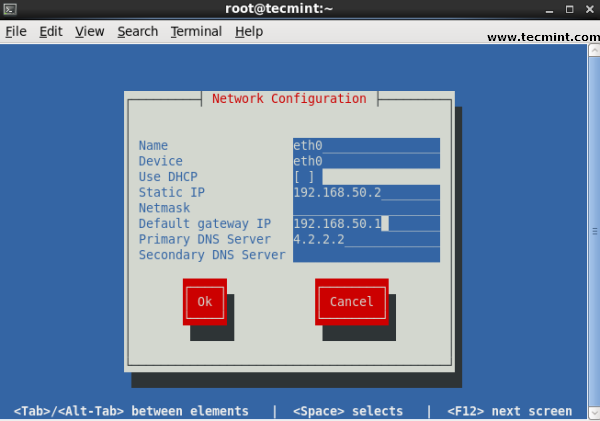
Type system-config-network in command prompt to configure network setting and you will get nice Graphical User Interface (GUI) which may also use to configure IP Address, Gateway, DNS etc. as shown below image.

# system-config-network

Linux GUI Network Configuration

This article can be useful for day to day use of Linux Network administrator in Linux / Unix-like operating system.

How to Get Help With a Command from the Linux Terminal: 8 Tricks for Beginners & Pros Alike

linux terminal help header

Whether you’re an inexperienced terminal user or a grizzled veteran, you won’t always know the right thing to type into the Linux terminal. There are quite a few tools built into the terminal to help you along.

These tricks will help you find the command to use, figure out how to install it, learn how to use it, and view detailed information about it. None of these tricks require an Internet connection.

-h or –-help

If you’re not sure how to use a specific command, run the command with the -h or –-helpswitches. You’ll see usage information and a list of options you can use with the command. For example, if you want to know how to use the wget command, type wget –-help or wget -h.

help option

This will often print a lot of information to the terminal, which can be inconvenient to scroll through. To read the output more easily, you can pipe it through the less command, which allows you to scroll through it with the arrow keys on your keyboard. For example, use the following command to pipe wget’s help output through less:

wget –-help | less

help less

Press q to close the less utility when you’re done.

To find a specific option, you can pipe the output through the grep command. For example, use the following command to search for options that contain the word “proxy”:

wget –-help | grep proxy

help grep

Tab Completion

If you’re not sure about a specific command’s name, an option, or a file name, you can use tab completion to help. Let’s say we want to run a command that we know starts with gnome-session, but we don’t know its exact name. We can type gnome-session into the terminal and press Tab twice to view commands that match the name.

tab completion

Once we see the command, option, or file name we want, we can type a few more letters and press the Tab key again. If only one match is available, the Bash shell will fill it in for you. Tab completion is also a great way to save on keystrokes, even if you know what you want to type.

Command Not Found

If you know the command you want to use, but don’t know the package that contains it, you can type the command into the terminal anyway. Ubuntu will tell you the package that contains the command and show you the command you can use to install it.

Let’s say we wanted to use the rotate command to rotate an image. We could just type rotateinto the terminal and Ubuntu would tell us that we have to install the jigl package to get this command.

command not found

This feature was introduced by Ubuntu, and may have made its way into other Linux distributions. Traditionally, the shell displayed an unhelpful “command not found” message without any additional information.

help

The help command shows a short list of the commands built into the Bash shell itself.

help

man

The man command shows detailed manuals for each command. These are referred to as “man pages.” For example, if you wanted to view the man page for the wget command, you’d typeman wget. Man pages generally contain much more detailed information than you’ll get with the -h or –help options

man

Type man intro to see a detailed introduction to using the shell on Linux.

man intro

To search a man page, type a /, followed by your query, and press Enter. For example, to search a man page for the word shell, type /shell while reading the man page and press Enter.

man page search

info

Some programs don’t have man pages – or have very incomplete man pages – and store their documentation as info documents.

man vs info

To view these, you’ll have to use the info command instead of the man command. That’s info tar instead of man tar.

info

apropos

The apropos command searches for man pages that contain a phrase, so it’s a quick way of finding a command that can do something. It’s the same thing as running the man -k command.

apropos

whatis

The whatis command shows a one-line summary of a command, taken from its man page. It’s a quick way of seeing what a command actually does.

whatis


whereis — Display information about the location of a command: the executable, the source code (if any), and the man pages.
which — Display which version of a command will execute (for when there are two, or more, commands with the same name installed on the system).

less /usr/share/doc — shows you more help documents if available.


A Shell Script to Monitor Network, Disk Usage, Uptime, Load Average and RAM Usage in Linux

The duty of System Administrator is really tough as he/she has to monitor the servers, users, logs, create backup and blah blah blah. For the most repetitive task most of the administrator write a script to automate their day-to-day repetitive task. Here we have written a shell Script that do not aims to automate the task of a typical system admin, but it may be helpful at places and specially for those newbies who can get most of the information they require about their System, Network, Users, Load, Ram, host, Internal IP, External IP, Uptime, etc.

We have taken care of formatting the output (to certain extent). The Script don’t contains any Malicious contents and it can be run using Normal user Account. In-fact it is recommended to run this script as user and not as root.

Linux Server Health Monitoring

You are free to use/modify/redistribute the below piece of code by giving proper credit to Tecmint and Author. We have tried to customize the output to the extent that nothing other than the required output is generated. We have tried to use those variables which are generally not used by Linux System and are probably free.

Minimum System Requirement

All you need to have is a working Linux box.

Dependency

There is no dependency required to use this package for a standard Linux Distribution. Moreover the script don’t requires root permission for execution purpose. However if you want to Install it, you need to enter root password once.

Security

We have taken care to ensure security of the system. Nothing additional package is required/installed. No root access required to run. Moreover code has been released under Apache 2.0 License, that means you are free to edit, modify and re-distribute by keeping Tecmint copyright.

How Do I Install and Run Script?

First, use following wget command to download the monitor script "tecmint_monitor.sh" and make it executable by setting appropriate permissions.

# wget http://tecmint.com/wp-content/scripts/tecmint_monitor.sh
# chmod 755 tecmint_monitor.sh

It is strongly advised to install the script as user and not as root. It will ask for root password and will install the necessary components at required places.

To install "tecmint_monitor.sh" script, simple use -i (install) option as shown below.

./tecmint_monitor.sh -i 

Enter root password when prompted. If everything goes well you will get a success message like shown below.

Password: 
Congratulations! Script Installed, now run monitor Command

After installation, you can run the script by calling command 'monitor' from any location or user. If you don’t like to install it, you need to include the location every-time you want to run it.

# ./Path/to/script/tecmint_monitor.sh

Now run monitor command from anywhere using any user account simply as:

$ monitor

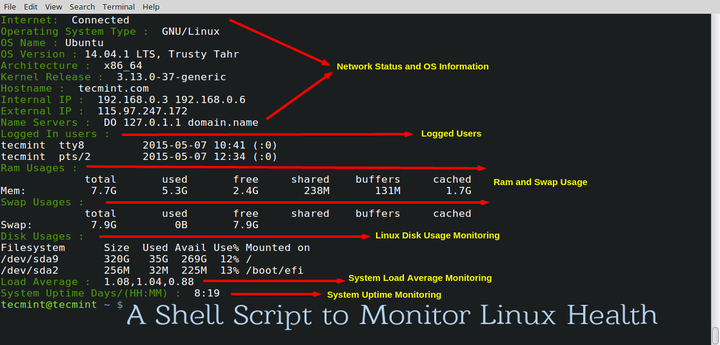
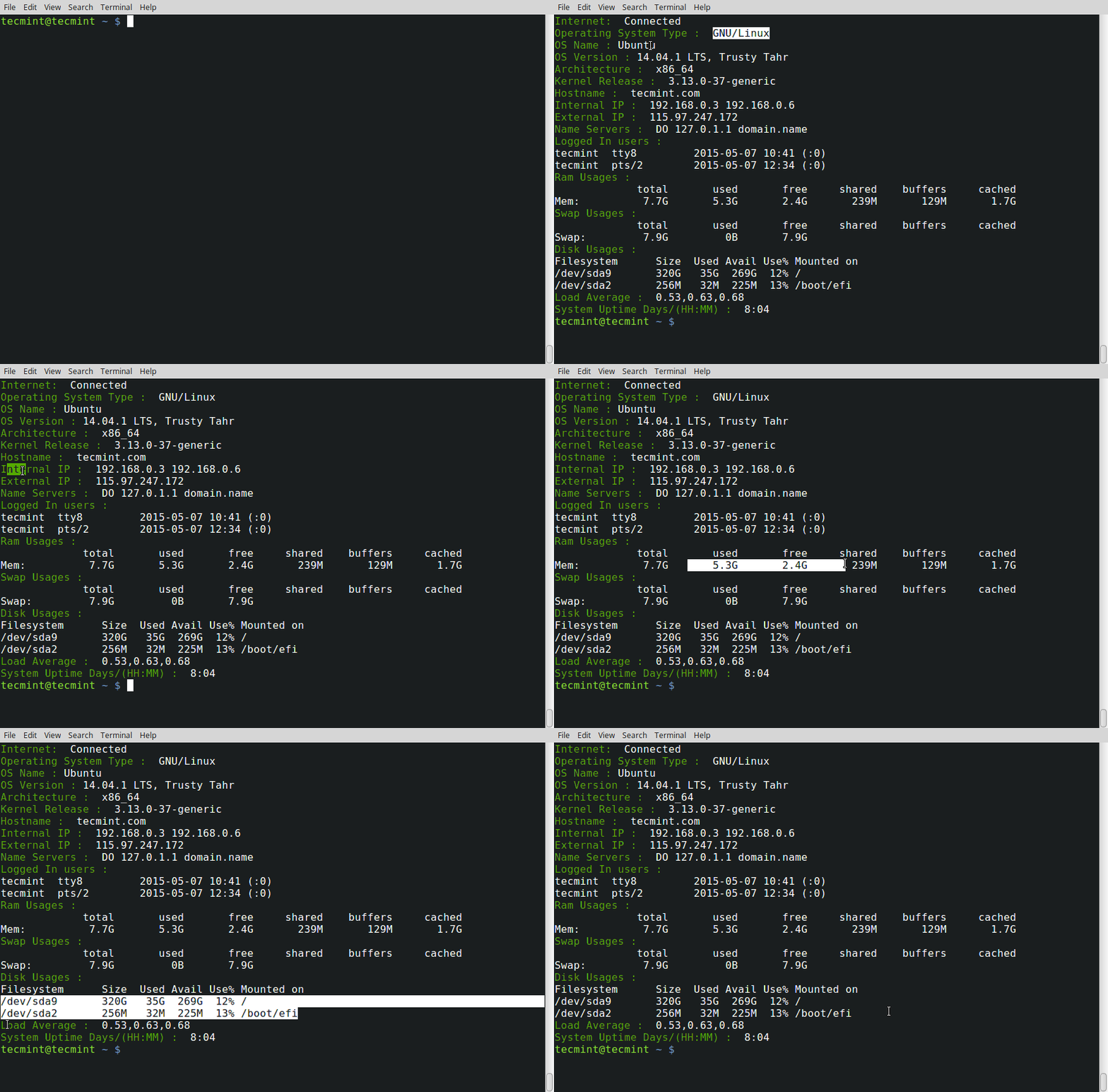
TecMint Monitor Script in Action

As soon as you run the command you get various System related information which are:

  1. Internet Connectivity
  2. OS Type
  3. OS Name
  4. OS Version
  5. Architecture
  6. Kernel Release
  7. Hostname
  8. Internal IP
  9. External IP
  10. Name Servers
  11. Logged In users
  12. Ram Usages
  13. Swap Usages
  14. Disk Usages
  15. Load Average
  16. System Uptime

Check the installed version of script using -v (version) switch.

$ monitor -v

tecmint_monitor version 0.1
Designed by Tecmint.com
Released Under Apache 2.0 License

Conclusion

This script is working out of the box on a few machines I have checked. It should work the same for you as well. If you find any bug let us know in the comments. This is not the end. This is the beginning. You can take it to any level from here. If you feel like editing the script and carry it further you are free to do so giving us proper credit and also share the updated script with us so that we can update this article by giving you proper credit.

Don’t forget to share your thoughts or your script with us. We will be here to help you. Thank you for all the love you have given us. Keep Connected! Stay tuned.

Assign values to shell variables (PATH variable)

Creating and setting variables within a script is fairly simple. Use the following syntax:

varName=someValue

someValue is assigned to given varName and someValue must be on right side of = (equal) sign. If someValue is not given, the variable is assigned the null string.

How Do I Display The Variable Value?

You can display the value of a variable with echo $varName or echo ${varName}:

echo "$varName"

OR

echo "${varName}"

OR

printf "${varName}"

OR

printf "%s\n" ${varName}

For example, create a variable called vech, and give it a value ‘Bus’, type the following at a shell prompt:

vech=Bus

Display the value of a variable vech with echo command:

echo "$vech"

OR

echo "${vech}"

Create a variable called _jail and give it a value “/httpd.java.jail_2”, type the following at a shell prompt:

_jail="/httpd.java.jail_2"
printf "The java jail is located at %s\nStarting chroot()...\n" $_jail

However,

n=10 # this is ok
10=no# Error, NOT Ok, Value must be on right side of = sign.

Common Examples

Define your home directory:

myhome="/home/v/vivek"
echo "$myhome"

Set file path:

input="/home/sales/data.txt"
echo "Input file $input"

Store current date (you can store the output of date by running the shell command):

NOW=$(date)
echo $NOW

Set NAS device backup path:

BACKUP="/nas05"
echo "Backing up files to $BACKUP/$USERNAME"

Setting Environment Variables in Linux (Using Bash Shell) : How-To

What are Environment Variables?

Environment variables are what define the shell. They help the shell to find the location of various programs so that they can be run, the location of the home folder so that the shell can understand when when we mention something like ~/ and other customizations that we take for granted that the terminal will do. There are two kinds of environmental variables – Global Variables and Local Variables

  • Global Variables: These variables provide the settings for all terminals spawned by a particular terminal. These are set automatically when the bash session gets started
  • Local Variables: These variables provide the settings only for the terminal through which they are set. These are usually set by processes when they are running.

How to view/add/edit/remove Global Variables?

The printenv command is used to view, the export commandis used to add/edit and the unsetcommand is used to remove global variables.

Viewing:

nits@nits-workstation:~$ printenv
ORBIT_SOCKETDIR=/tmp/orbit-nits
TERM=xterm
SHELL=/bin/bash
WINDOWID=71314636
GTK_MODULES=canberra-gtk-module
USER=nits
USERNAME=nits
DEFAULTS_PATH=/usr/share/gconf/gnome.default.path
XDG_CONFIG_DIRS=/etc/xdg/xdg-gnome:/etc/xdg
PATH=/usr/local/sbin:/usr/local/bin:/usr/sbin:/usr/bin:/sbin:/bin:/usr/games
DESKTOP_SESSION=gnome
PWD=/home/nits
GDM_KEYBOARD_LAYOUT=us
GNOME_KEYRING_PID=1638
LANG=en_US.UTF-8
GDM_LANG=en_US.utf8
MANDATORY_PATH=/usr/share/gconf/gnome.mandatory.path
UBUNTU_MENUPROXY=libappmenu.so
COMPIZ_CONFIG_PROFILE=ubuntu
GDMSESSION=gnome
SHLVL=1
HOME=/home/nits
LANGUAGE=en_US:en
GNOME_DESKTOP_SESSION_ID=this-is-deprecated
LOGNAME=nits
_PX_CONFIG_ORDER=
XDG_DATA_DIRS=/usr/share/gnome:/usr/local/share/:/usr/share/
DBUS_SESSION_BUS_ADDRESS=unix:abstract=/tmp/dbus-o5GXSSs4jg,guid=fa5c8a536145534d2b6036b900000025
LESSOPEN=| /usr/bin/lesspipe %s
WINDOWPATH=7
DISPLAY=:0
LESSCLOSE=/usr/bin/lesspipe %s %s
IBUS_NO_SNOOPER_APPS=synapse
COLORTERM=gnome-terminal

NOTE: The names of system environment variables that are set by the system itself are always in capital letters so as to help us differentiate between system-set and user-set environmental variables.

Adding:

nits@nits-workstation:~$ adding_test='Adding a test string as a global variable'
nits@nits-workstation:~$ export adding_test
nits@nits-workstation:~$ bash
nits@nits-workstation:~$ echo $adding_test
Adding a test string as a global variable
nits@nits-workstation:~$ exit
exit

Here we created a new string called adding_testand exported it to become a global variable. Then we started a fresh bash shell which is a child process of the terminal that we set the global variable in and when we print the value of the variable adding_text, it printed the value of the variable even in a fresh child process.

Editing:

nits@nits-workstation:~$ echo $PATH
/usr/local/sbin:/usr/local/bin:/usr/sbin:/usr/bin:/sbin:/bin:/usr/games
nits@nits-workstation:~$ export PATH=$PATH:/home/nits/Scripts/
nits@nits-workstation:~$ echo $PATH
/usr/local/sbin:/usr/local/bin:/usr/sbin:/usr/bin:/sbin:/bin:/usr/games:/home/nits/Scripts/
nits@nits-workstation:~$ bash
nits@nits-workstation:~$ echo $PATH
/usr/local/sbin:/usr/local/bin:/usr/sbin:/usr/bin:/sbin:/bin:/usr/games:/home/nits/Scripts/
nits@nits-workstation:~$ exit
exit

Here we saw the contents of the PATH variable (which is one of the global variables) and we appended the location of the directory where our scripts are stored which is/home/nits/Scripts/ and exported it. We checked the value of the PATH variable in the parent terminal and also in the child terminal.

Removing:

nits@nits-workstation:~$ adding_test='Adding a test string as a global variable'
nits@nits-workstation:~$ export adding_test
nits@nits-workstation:~$ echo $adding_test
Adding a test string as a global variable
nits@nits-workstation:~$ unset adding_test
nits@nits-workstation:~$ echo $adding_test

nits@nits-workstation:~$

Here, we exported the adding_test variable and we checked the variable. Upon using the unsetcommand, the variable has gotten removed.

How to view/add/remove Local Variables?

There is no one command to print all the local variables. The set command however, prints all the environment variables present, both global and local variables. Unlike with global variables there is no export command for local variables.

Viewing:

BASH=/bin/bash
BASHOPTS=checkwinsize:cmdhist:expand_aliases:extglob:extquote:force_fignore:histappend:interactive_comments:progcomp:promptvars:sourcepath
BASH_ALIASES=()
BASH_ARGC=()
BASH_ARGV=()
BASH_CMDS=()
BASH_COMPLETION=/etc/bash_completion
BASH_COMPLETION_COMPAT_DIR=/etc/bash_completion.d
BASH_COMPLETION_DIR=/etc/bash_completion.d
BASH_LINENO=()
BASH_SOURCE=()
BASH_VERSINFO=([0]="4" [1]="2" [2]="8" [3]="1" [4]="release" [5]="i686-pc-linux-gnu")
BASH_VERSION='4.2.8(1)-release'
COLORTERM=gnome-terminal
COLUMNS=80
COMPIZ_CONFIG_PROFILE=ubuntu
COMP_WORDBREAKS=$' \t\n"\'><=;|&(:'
DEFAULTS_PATH=/usr/share/gconf/gnome.default.path
DESKTOP_SESSION=gnome
DIRSTACK=()
DISPLAY=:0
GDMSESSION=gnome
GDM_KEYBOARD_LAYOUT=us
GDM_LANG=en_US.utf8
GNOME_DESKTOP_SESSION_ID=this-is-deprecated
GNOME_KEYRING_PID=1638
GROUPS=()
GTK_MODULES=canberra-gtk-module
HISTCONTROL=ignoredups:ignorespace
HISTFILE=/home/nits/.bash_history
HISTFILESIZE=2000
HISTSIZE=1000
HOME=/home/nits
HOSTNAME=nits-workstation

Although not the complete output of set command, you can see many variations between the output of set and printenv commands, that is the addition of extra local variables.

Adding:

nits@nits-workstation:~$ local_add='This is a local variable'
nits@nits-workstation:~$ bash
nits@nits-workstation:~$ echo $local_add

nits@nits-workstation:~$ exit
exit
nits@nits-workstation:~$ echo $local_add
This is a local variable

Assigning value to a variable in a shell makes it a local variable. Here, we created a string variable called local_add. When we spawned a new shell and tried to print the value of local_add variable there, we failed because it is a local variable. But when we got back to our parent terminal and tried printing its value, it did.

Editing:

nits@nits-workstation:~$ echo $local_add
This is a local variable
nits@nits-workstation:~$ local_add=$local_add.'From on here is the text'
nits@nits-workstation:~$ echo $local_add
This is a local variable.From on here is the text

The variable local_add already has a string. We appended another string to the existing value of the local_add variable and then printed the value of the local variable to confirm it.

Removing:

nits@nits-workstation:~$ echo $local_add
This is a local variable.From on here is the text
nits@nits-workstation:~$ unset local_add
nits@nits-workstation:~$ echo $local_add

nits@nits-workstation:~$

Removing a local variable is same as global variable, it is done using the unset command.

Making permanent changes user-wide/system-wide:

User-wide changes:

To make changes for just one particular user, you will have to edit the ~/.bash_profile

nits@nits-workstation:~$ nano ~/.bash_profile

##And inside the file, add/edit your environment variables accordingly -
export PATH=$PATH:/home/nits/Scripts

System-wide changes:

To make changes system-wide , you will have to edit the /etc/environment file. Once you open that file just make the required changes.

nits@nits-workstation:~$ nano /etc/environment/

 ## Make the necessary edits or additions, for example, this is the line in my /etc/environment/ after I edited it to add the Scripts folder in my home directory to it

PATH="/usr/local/sbin:/usr/local/bin:/usr/sbin:/usr/bin:/sbin:/bin:/usr/games:/home/nits/Scripts"

Common errors encountered:

Not a valid identifier error while exporting a variable:

Wrong – Creates Errors

nits@nits-workstation:~$ export $PATH=$PATH:/home/nits/Scripts/
bash: export: `/usr/local/sbin:/usr/local/bin:/usr/sbin:/usr/bin:/sbin:/bin:/usr/games=/usr/local/sbin:/usr/local/bin:/usr/sbin:/usr/bin:/sbin:/bin:/usr/games:/home/nits/Scripts/': not a valid identifier

Correct – No Errors

nits@nits-workstation:~$ export PATH=$PATH:/home/nits/Scripts/

This error is usually encountered when we accidentally type export $PATH instead of exportPATH. There is no $ (dollar-sign) for the variable that is exported.

Linux: Set Environment Variable

Bash shell is used for various purposes under Linux. How do I customize the shell environment variable under Linux operating systems?

You can use shell variables to store data, set configuration options and customize the shell environment under Linux. The default shell is Bash under Linux and can be used for the following purposes:

  1. Configure look and feel of shell.
  2. Setup terminal settings depending on which terminal you’re using.
  3. Set the search path such as JAVA_HOME, and ORACLE_HOME.
  4. Set environment variables as needed by programs.
  5. Run commands that you want to run whenever you log in or log out.
  6. Setup aliases and/or shell function to automate tasks to save typing and time.
  7. Changing bash prompt.
  8. Setting shell options.

You can use the following commands to view and configure the environment.

Display Current Environment

Type the following command:
$ set
Sample outputs:

BASH=/bin/bash
BASH_ARGC=()
BASH_ARGV=()
BASH_LINENO=()
BASH_SOURCE=()
BASH_VERSINFO=([0]="3" [1]="2" [2]="25" [3]="1" [4]="release" [5]="x86_64-redhat-linux-gnu")
BASH_VERSION='3.2.25(1)-release'
COLORS=/etc/DIR_COLORS.xterm
COLUMNS=237
CVS_RSH=ssh
DIRSTACK=()
EUID=0
GROUPS=()
G_BROKEN_FILENAMES=1
HISTFILE=/root/.bash_history
HISTFILESIZE=1000
HISTSIZE=1000
HOME=/root
HOSTNAME=server3.www.p.cyberciti.biz
HOSTTYPE=x86_64
IFS=$' \t\n'
INPUTRC=/etc/inputrc
LANG=en_US.UTF-8
LESSOPEN='|/usr/bin/lesspipe.sh %s'
LINES=64
LOGNAME=root
LS_COLORS='no=00:fi=00:di=00;34:ln=00;36:pi=40;33:so=00;35:bd=40;33;01:cd=40;33;01:or=01;05;37;41:mi=01;05;37;41:ex=00;32:*.cmd=00;32:*.exe=00;32:*.com=00;32:*.btm=00;32:*.bat=00;32:*.sh=00;32:*.csh=00;32:*.tar=00;31:*.tgz=00;31:*.arj=00;31:*.taz=00;31:*.lzh=00;31:*.zip=00;31:*.z=00;31:*.Z=00;31:*.gz=00;31:*.bz2=00;31:*.bz=00;31:*.tz=00;31:*.rpm=00;31:*.cpio=00;31:*.jpg=00;35:*.gif=00;35:*.bmp=00;35:*.xbm=00;35:*.xpm=00;35:*.png=00;35:*.tif=00;35:'
MACHTYPE=x86_64-redhat-linux-gnu
MAIL=/var/spool/mail/root
MAILCHECK=60
OPTERR=1
OPTIND=1
OSTYPE=linux-gnu
PATH=/usr/kerberos/sbin:/usr/kerberos/bin:/usr/local/sbin:/usr/local/bin:/sbin:/bin:/usr/sbin:/usr/bin:/root/bin
PIPESTATUS=([0]="0")
PPID=35469
PROMPT_COMMAND='echo -ne "33]0;${USER}@${HOSTNAME%%.*}:${PWD/#$HOME/~}"; echo -ne "07"'
PS1='[\u@\h \W]\$ '
PS2='> '
PS4='+ '
PWD=/root
SHELL=/bin/bash
SHELLOPTS=braceexpand:emacs:hashall:histexpand:history:interactive-comments:monitor
SHLVL=1
SSH_CLIENT='10.1.3.116 44212 22'
SSH_CONNECTION='10.1.3.116 44212 10.10.29.68 22'
SSH_TTY=/dev/pts/0
TERM=xterm
UID=0
USER=root
_=set
consoletype=pty
tmpid=0
genpasswd ()
{
    local l=$1;
    [ "$l" == "" ] && l=16;
    tr -dc A-Za-z0-9_ < /dev/urandom | head -c ${l} | xargs
}
xrpm ()
{
    [ "$1" != "" ] && ( rpm2cpio "$1" | cpio -idmv )
}

The $PATH defined the search path for commands. It is a colon-separated list of directories in which the shell looks for commands. The $PS1 defines your prompt settings. See the list of all commonly used shell variables for more information. You can display the value of a variable using printf or echo command:
$ echo "$HOME"
OR
$ printf "%s\n" $HOME
Sample outputs:
/home/vivek

Task: Set Environment Variables on Linux

You can modify each environmental or system variable using the export command. Set the PATH environment variable to include the directory where you installed the bin directory with perl and shell scripts:

 
export PATH=${PATH}:/home/vivek/bin

OR

 
export PATH=${PATH}:${HOME}/bin

To set the JAVA_HOME environment variable to the directory where you installed the J2SE SDK application, enter:

 
export PATH=${PATH}:/usr/java/jdk1.5.0_07/bin

You can set multiple paths as follows:

 
export ANT_HOME=/path/to/ant/dir
export PATH=${PATH}:${ANT_HOME}/bin:${JAVA_HOME}/bin

How Do I Make All Settings permanent?

The ~/.bash_profile ($HOME/.bash_profile) or ~/.prfile file is executed when you login using console or remotely using ssh. Type the following command to edit ~/.bash_profile file, enter:
$ vi ~/.bash_proflle
Append the $PATH settings, enter:
export PATH=${PATH}:${HOME}/bin
Save and close the file.

Set IBM DB2 Instance Name

Type the following command:

 
export DB2INSTANCE=prod_sales

A Note About /etc/profile File

/etc/profile contains Linux system wide environment and startup programs. It is used by all users with bash, ksh, sh shell. Usually used to set PATH variable, user limits, and other settings for user. It only runs for login shell. If you wanted to make large changes or application specific changesuse /etc/profile.d/ directory


Linux – File Name Globbing with *, ?, [ ]

Linux – File Name Globbing with *, ?, [ ]

Sometimes you want to do something to a group of files, e.g., delete all of them, without having to perform the command on each file individually. For example, suppose we want to delete all of the .c files in a directory. A wildcard is a pattern which matches something else. Two commonly used *nix wildcards are * (called star) and ? (question mark).

  • Star(*) means 0 or more characters
  • Question Mark(?) means exactly one character
  • Brackets([]) represents a set of characters

Commands involving filenames specified with wildcards are expanded by the shell (this is called globbing after the name of a former program called glob which used to do this outside the shell).

The ‘*’

file*’ will match any filename which starts with the characters “file”, and then is followed by zero or more occurrences of any character.

Examples

Suppose Fred’s home directory contains the files,

  • file01.cpp
  • file02.cpp
  • file03.cpp
  • file1.cpp
  • file01.o
  • file02.o
  • file03.o
  • file1.o

To delete all of the .c files, type,

$ rm *.c

To delete file01.cpp and file01.o,

$ rm file01.*

The ‘?’

The ‘?’ represents exactly one character.

Examples

Consider again Fred’s home directory from the previous example.

Delete file01.o, file02.o and file03.o, but not file1.o,

$ rm file??.o

Delete file01.o, but not file01.cpp,

$ rm file01.?

The ‘[ ]’ Glob

A set of characters can be specified with brackets [ ]. ‘[ab]’ means the single character can be a OR b. Ranges can also be specified (ex: ‘[1-57-9]’ represents 1-5 OR 7-9).

Examples

Delete file02.cpp and file03.cpp from Fred’s directory,

$ rm file0[23].cpp

This will delete any files that start with f or F (remember linux is case sensitive),

$rm [fF]*

To delete all files which start with the string “file” followed by a single letter type,

$ rm file[a-zA-Z]

The a-z and A-Z in the last example means all the letters in the range lowercase a-z or uppercase A-Z.

There’s more to wildcard matching than this, but this is enough to get you started.

More Examples

Remove all files that are exactly 1 character,

$rm ?

Let’s say you have a directory named ‘9-15-2007-Backup-Really-Long-Name-blah…’ Rather than typing the whole name, you could just type a subset of the string and use it with the cd command(change directory),

$ cd 9-15-2007*

If you have multiple folders that start with 9-15-2007, your directory will be changed to the first one alphabetically.

You can use file name globbing on most commands that accept files as arguments.

Command Line Basics (ls, cat and echo)

15 Basic ‘ls’ Command Examples in Linux

ls command is one of the most frequently used command in Linux. I believe ls command is the first command you may use when you get into the command prompt of Linux Box. We use lscommand daily basis and frequently even though we may not aware and never use all the option available. In this article, we’ll be discussing basic ls command where we have tried to cover as much parameters as possible.


1. List Files using ls with no option

ls with no option list files and directories in bare format where we won’t be able to view details like file types, size, modified date and time, permission and links etc.

# ls

0001.pcap        Desktop    Downloads         index.html   install.log.syslog  Pictures  Templates
anaconda-ks.cfg  Documents  fbcmd_update.php  install.log  Music               Public    Videos

2 List Files With option –l

Here, ls -l (-l is character not one) shows file or directory, size, modified date and time, file or folder name and owner of file and it’s permission.

# ls -l

total 176
-rw-r--r--. 1 root root   683 Aug 19 09:59 0001.pcap
-rw-------. 1 root root  1586 Jul 31 02:17 anaconda-ks.cfg
drwxr-xr-x. 2 root root  4096 Jul 31 02:48 Desktop
drwxr-xr-x. 2 root root  4096 Jul 31 02:48 Documents
drwxr-xr-x. 4 root root  4096 Aug 16 02:55 Downloads
-rw-r--r--. 1 root root 21262 Aug 12 12:42 fbcmd_update.php
-rw-r--r--. 1 root root 46701 Jul 31 09:58 index.html
-rw-r--r--. 1 root root 48867 Jul 31 02:17 install.log
-rw-r--r--. 1 root root 11439 Jul 31 02:13 install.log.syslog
drwxr-xr-x. 2 root root  4096 Jul 31 02:48 Music
drwxr-xr-x. 2 root root  4096 Jul 31 02:48 Pictures
drwxr-xr-x. 2 root root  4096 Jul 31 02:48 Public
drwxr-xr-x. 2 root root  4096 Jul 31 02:48 Templates
drwxr-xr-x. 2 root root  4096 Jul 31 02:48 Videos

3. View Hidden Files

List all files including hidden file starting with ‘.‘.

# ls -a

.                .bashrc  Documents         .gconfd          install.log         .nautilus     .pulse-cookie
..               .cache   Downloads         .gnome2          install.log.syslog  .netstat.swp  .recently-used.xbel
0001.pcap        .config  .elinks           .gnome2_private  .kde                .opera        .spice-vdagent
anaconda-ks.cfg  .cshrc   .esd_auth         .gtk-bookmarks   .libreoffice        Pictures      .tcshrc
.bash_history    .dbus    .fbcmd            .gvfs            .local              .pki          Templates
.bash_logout     Desktop  fbcmd_update.php  .ICEauthority    .mozilla            Public        Videos
.bash_profile    .digrc   .gconf            index.html       Music               .pulse        .wireshark

4. List Files with Human Readable Format with option -lh

With combination of -lh option, shows sizes in human readable format.

# ls -lh

total 176K
-rw-r--r--. 1 root root  683 Aug 19 09:59 0001.pcap
-rw-------. 1 root root 1.6K Jul 31 02:17 anaconda-ks.cfg
drwxr-xr-x. 2 root root 4.0K Jul 31 02:48 Desktop
drwxr-xr-x. 2 root root 4.0K Jul 31 02:48 Documents
drwxr-xr-x. 4 root root 4.0K Aug 16 02:55 Downloads
-rw-r--r--. 1 root root  21K Aug 12 12:42 fbcmd_update.php
-rw-r--r--. 1 root root  46K Jul 31 09:58 index.html
-rw-r--r--. 1 root root  48K Jul 31 02:17 install.log
-rw-r--r--. 1 root root  12K Jul 31 02:13 install.log.syslog
drwxr-xr-x. 2 root root 4.0K Jul 31 02:48 Music
drwxr-xr-x. 2 root root 4.0K Jul 31 02:48 Pictures
drwxr-xr-x. 2 root root 4.0K Jul 31 02:48 Public
drwxr-xr-x. 2 root root 4.0K Jul 31 02:48 Templates
drwxr-xr-x. 2 root root 4.0K Jul 31 02:48 Videos

5. List Files and Directories with ‘/’ Character at the end

Using -F option with ls command, will add the ‘/’ Character at the end each directory.

# ls -F

0001.pcap        Desktop/    Downloads/        index.html   install.log.syslog  Pictures/  Templates/
anaconda-ks.cfg  Documents/  fbcmd_update.php  install.log  Music/              Public/    Videos/

6. List Files in Reverse Order

The following command with ls -r option display files and directories in reverse order.

# ls -r

Videos     Public    Music               install.log  fbcmd_update.php  Documents  anaconda-ks.cfg
Templates  Pictures  install.log.syslog  index.html   Downloads         Desktop    0001.pcap

7. Recursively list Sub-Directories

ls -R option will list very long listing directory trees. See an example of output of the command.

# ls -R

total 1384
-rw-------. 1 root     root      33408 Aug  8 17:25 anaconda.log
-rw-------. 1 root     root      30508 Aug  8 17:25 anaconda.program.log

./httpd:
total 132
-rw-r--r--  1 root root     0 Aug 19 03:14 access_log
-rw-r--r--. 1 root root 61916 Aug 10 17:55 access_log-20120812

./lighttpd:
total 68
-rw-r--r--  1 lighttpd lighttpd  7858 Aug 21 15:26 access.log
-rw-r--r--. 1 lighttpd lighttpd 37531 Aug 17 18:21 access.log-20120819

./nginx:
total 12
-rw-r--r--. 1 root root    0 Aug 12 03:17 access.log
-rw-r--r--. 1 root root  390 Aug 12 03:17 access.log-20120812.gz

8. Reverse Output Order

With combination of -ltr will shows latest modification file or directory date as last.

# ls -ltr

total 176
-rw-r--r--. 1 root root 11439 Jul 31 02:13 install.log.syslog
-rw-r--r--. 1 root root 48867 Jul 31 02:17 install.log
-rw-------. 1 root root  1586 Jul 31 02:17 anaconda-ks.cfg
drwxr-xr-x. 2 root root  4096 Jul 31 02:48 Desktop
drwxr-xr-x. 2 root root  4096 Jul 31 02:48 Videos
drwxr-xr-x. 2 root root  4096 Jul 31 02:48 Templates
drwxr-xr-x. 2 root root  4096 Jul 31 02:48 Public
drwxr-xr-x. 2 root root  4096 Jul 31 02:48 Pictures
drwxr-xr-x. 2 root root  4096 Jul 31 02:48 Music
drwxr-xr-x. 2 root root  4096 Jul 31 02:48 Documents
-rw-r--r--. 1 root root 46701 Jul 31 09:58 index.html
-rw-r--r--. 1 root root 21262 Aug 12 12:42 fbcmd_update.php
drwxr-xr-x. 4 root root  4096 Aug 16 02:55 Downloads
-rw-r--r--. 1 root root   683 Aug 19 09:59 0001.pcap

9. Sort Files by File Size

With combination of -lS displays file size in order, will display big in size first.

# ls -lS

total 176
-rw-r--r--. 1 root root 48867 Jul 31 02:17 install.log
-rw-r--r--. 1 root root 46701 Jul 31 09:58 index.html
-rw-r--r--. 1 root root 21262 Aug 12 12:42 fbcmd_update.php
-rw-r--r--. 1 root root 11439 Jul 31 02:13 install.log.syslog
drwxr-xr-x. 2 root root  4096 Jul 31 02:48 Desktop
drwxr-xr-x. 2 root root  4096 Jul 31 02:48 Documents
drwxr-xr-x. 4 root root  4096 Aug 16 02:55 Downloads
drwxr-xr-x. 2 root root  4096 Jul 31 02:48 Music
drwxr-xr-x. 2 root root  4096 Jul 31 02:48 Pictures
drwxr-xr-x. 2 root root  4096 Jul 31 02:48 Public
drwxr-xr-x. 2 root root  4096 Jul 31 02:48 Templates
drwxr-xr-x. 2 root root  4096 Jul 31 02:48 Videos
-rw-------. 1 root root  1586 Jul 31 02:17 anaconda-ks.cfg
-rw-r--r--. 1 root root   683 Aug 19 09:59 0001.pcap

10. Display Inode number of File or Directory

We can see some number printed before file / directory name. With -i options list file / directory with inode number.

# ls -i

20112 0001.pcap        23610 Documents         23793 index.html          23611 Music     23597 Templates
23564 anaconda-ks.cfg  23595 Downloads            22 install.log         23612 Pictures  23613 Videos
23594 Desktop          23585 fbcmd_update.php     35 install.log.syslog  23601 Public

11. Shows version of ls command

Check version of ls command.

# ls --version

ls (GNU coreutils) 8.4
Copyright (C) 2010 Free Software Foundation, Inc.
License GPLv3+: GNU GPL version 3 or later <http://gnu.org/licenses/gpl.html>.
This is free software: you are free to change and redistribute it.
There is NO WARRANTY, to the extent permitted by law.
Written by Richard M. Stallman and David MacKenzie.

12. Show Help Page

List help page of ls command with their option.

# ls --help

Usage: ls [OPTION]... [FILE]...

13. List Directory Information

With ls -l command list files under directory /tmp. Wherein with -ld parameters displays information of /tmp directory.

# ls -l /tmp
total 408
drwx------. 2 narad narad   4096 Aug  2 02:00 CRX_75DAF8CB7768
-r--------. 1 root  root  384683 Aug  4 12:28 htop-1.0.1.tar.gz
drwx------. 2 root  root    4096 Aug  4 11:20 keyring-6Mfjnk
drwx------. 2 root  root    4096 Aug 16 01:33 keyring-pioZJr
drwx------. 2 gdm   gdm     4096 Aug 21 11:26 orbit-gdm
drwx------. 2 root  root    4096 Aug 19 08:41 pulse-gl6o4ZdxQVrX
drwx------. 2 narad narad   4096 Aug  4 08:16 pulse-UDH76ExwUVoU
drwx------. 2 gdm   gdm     4096 Aug 21 11:26 pulse-wJtcweUCtvhn
-rw-------. 1 root  root     300 Aug 16 03:34 yum_save_tx-2012-08-16-03-34LJTAa1.yumtx
# ls -ld /tmp/

drwxrwxrwt. 13 root root 4096 Aug 21 12:48 /tmp/

14. Display UID and GID of Files

To display UID and GID of files and directories. use option -n with ls command.

# ls -n

total 36
drwxr-xr-x. 2 500 500 4096 Aug  2 01:52 Downloads
drwxr-xr-x. 2 500 500 4096 Aug  2 01:52 Music
drwxr-xr-x. 2 500 500 4096 Aug  2 01:52 Pictures
-rw-rw-r--. 1 500 500   12 Aug 21 13:06 tmp.txt
drwxr-xr-x. 2 500 500 4096 Aug  2 01:52 Videos

15. ls command and it’s Aliases

We have made alias for ls command, when we execute ls command it’ll take -l option by default and display long listing as mentioned earlier.

# alias ls="ls -l"

Note: We can see number of alias available in your system with below alias command and same can be unalias as shown below example.

# alias

alias cp='cp -i'
alias l.='ls -d .* --color=auto'
alias ll='ls -l --color=auto'
alias ls='ls --color=auto'
alias mv='mv -i'
alias rm='rm -i'
alias which='alias | /usr/bin/which --tty-only --read-alias --show-dot --show-tilde'

To remove an alias previously defined, just use the unalias command.

# unalias ls

13 Basic Cat Command Examples in Linux

The cat (short for “concatenate“) command is one of the most frequently used command in Linux/Unix like operating systems. cat command allows us to create single or multiple files, view contain of file, concatenate files and redirect output in terminal or files. In this article, we are going to find out handy use of cat commands with their examples in Linux.


General Syntax

cat [OPTION] [FILE]...

1. Display Contains of File

In the below example, it will show contains of /etc/passwd file.

# cat /etc/passwd

root:x:0:0:root:/root:/bin/bash
bin:x:1:1:bin:/bin:/sbin/nologin
narad:x:500:500::/home/narad:/bin/bash

2. View Contains of Multiple Files in terminal

In below example, it will display contains of test and test1 file in terminal.

# cat test test1

Hello everybody
Hi world,

3. Create a File with Cat Command

We will create a file called test2 file with below command.

# cat >test2

Awaits input from user, type desired text and press CTRL+D (hold down Ctrl Key and type ‘d‘) to exit. The text will be written in test2 file. You can see contains of file with following cat command.

# cat test2

hello everyone, how do you do?

4. Use Cat Command with More & Less Options

If file having large number of contains that won’t fit in output terminal and screen scrolls up very fast, we can use parameters more and less with cat command as show above.

# cat song.txt | more
# cat song.txt | less

5. Display Line Numbers in File

With -n option you could see the line numbers of a file song.txt in the output terminal.

# cat -n song.txt

1  "Heal The World"
2  There's A Place In
3  Your Heart
4  And I Know That It Is Love
5  And This Place Could
6  Be Much
7  Brighter Than Tomorrow
8  And If You Really Try
9  You'll Find There's No Need
10  To Cry
11  In This Place You'll Feel
12  There's No Hurt Or Sorrow

6. Display $ at the End of File

In the below, you can see with -e option that ‘$‘ is shows at the end of line and also in space showing ‘$‘ if there is any gap between paragraphs. This options is useful to squeeze multiple lines in a single line.

# cat -e test

hello everyone, how do you do?$
$
Hey, am fine.$
How's your training going on?$
$

7. Display Tab separated Lines in File

In the below output, we could see TAB space is filled up with ‘^I‘ character.

# cat -T test

hello ^Ieveryone, how do you do?

Hey, ^Iam fine.
^I^IHow's your training ^Igoing on?
Let's do ^Isome practice in Linux.

8. Display Multiple Files at Once

In the below example we have three files test, test1 and test2 and able to view the contains of those file as shown above. We need to separate each file with ; (semi colon).

# cat test; cat test1; cat test2

This is test file
This is test1 file.
This is test2 file.

9. Use Standard Output with Redirection Operator

We can redirect standard output of a file into a new file else existing file with ‘>‘ (greater than) symbol. Careful, existing contains of test1 will be overwritten by contains of test file.

# cat test > test1

10. Appending Standard Output with Redirection Operator

Appends in existing file with ‘>>‘ (double greater than) symbol. Here, contains of test file will be appended at the end of test1 file.

# cat test >> test1

11. Redirecting Standard Input with Redirection Operator

When you use the redirect with standard input ‘<‘ (less than symbol), it use file name test2 as a input for a command and output will be shown in a terminal.

# cat < test2

This is test2 file.

12. Redirecting Multiple Files Contain in a Single File

This will create a file called test3 and all output will be redirected in a newly created file.

# cat test test1 test2 > test3

13. Sorting Contains of Multiple Files in a Single File

This will create a file test4 and output of cat command is piped to sort and result will be redirected in a newly created file.

# cat test test1 test2 test3 | sort > test4

This article shows the basic commands that may help you to explore cat command. You may refer man page of cat command if you want to know more options.

15 Practical Examples of ‘echo’ command in Linux

echo is one of the most commonly and widely used built-in command for Linux bash and C shells, that typically used in scripting language and batch files to display a line of text/string on standard output or a file.


The syntax for echo is:

echo [option(s)] [string(s)]

1. Input a line of text and display on standard output

$ echo Tecmint is a community of Linux Nerds 

Outputs the following text:

Tecmint is a community of Linux Nerds 

2. Declare a variable and echo its value. For example, Declare a variable of x and assign its value=10.

$ x=10

echo its value:

$ echo The value of variable x = $x 

The value of variable x = 10 

Note: The ‘-e‘ option in Linux acts as interpretation of escaped characters that are backslashed.

3. Using option ‘\b‘ – backspace with backslash interpretor ‘-e‘ which removes all the spaces in between.

$ echo -e "Tecmint \bis \ba \bcommunity \bof \bLinux \bNerds" 

TecmintisacommunityofLinuxNerds 

4. Using option ‘\n‘ – New line with backspace interpretor ‘-e‘ treats new line from where it is used.

$ echo -e "Tecmint \nis \na \ncommunity \nof \nLinux \nNerds" 

Tecmint 
is 
a 
community 
of 
Linux 
Nerds 

5. Using option ‘\t‘ – horizontal tab with backspace interpretor ‘-e‘ to have horizontal tab spaces.

$ echo -e "Tecmint \tis \ta \tcommunity \tof \tLinux \tNerds" 

Tecmint 	is 	a 	community 	of 	Linux 	Nerds 

6. How about using option new Line ‘\n‘ and horizontal tab ‘\t‘ simultaneously.

$ echo -e "\n\tTecmint \n\tis \n\ta \n\tcommunity \n\tof \n\tLinux \n\tNerds" 

	Tecmint 
	is 
	a 
	community 
	of 
	Linux 
	Nerds 

7. Using option ‘\v‘ – vertical tab with backspace interpretor ‘-e‘ to have vertical tab spaces.

$ echo -e "\vTecmint \vis \va \vcommunity \vof \vLinux \vNerds" 

Tecmint 
        is 
           a 
             community 
                       of 
                          Linux 
                                Nerds 

8. How about using option new Line ‘\n‘ and vertical tab ‘\v‘ simultaneously.

$ echo -e "\n\vTecmint \n\vis \n\va \n\vcommunity \n\vof \n\vLinux \n\vNerds" 


Tecmint 

is 

a 

community 

of 

Linux 

Nerds 

Note: We can double the vertical tab, horizontal tab and new line spacing using the option two times or as many times as required.

9. Using option ‘\r‘ – carriage return with backspace interpretor ‘-e‘ to have specified carriage return in output.

$ echo -e "Tecmint \ris a community of Linux Nerds" 

is a community of Linux Nerds 

10. Using option ‘\c‘ – suppress trailing new line with backspace interpretor ‘-e‘ to continue without emitting new line.

$ echo -e "Tecmint is a community \cof Linux Nerds" 

Tecmint is a community avi@tecmint:~$ 

11. Omit echoing trailing new line using option ‘-n‘.

$ echo -n "Tecmint is a community of Linux Nerds" 
Tecmint is a community of Linux Nerdsavi@tecmint:~/Documents$ 

12. Using option ‘\a‘ – alert return with backspace interpretor ‘-e‘ to have sound alert.

$ echo -e "Tecmint is a community of \aLinux Nerds" 
Tecmint is a community of Linux Nerds

Note: Make sure to check Volume key, before firing.

13. Print all the files/folder using echo command (ls command alternative).

$ echo * 

103.odt 103.pdf 104.odt 104.pdf 105.odt 105.pdf 106.odt 106.pdf 107.odt 107.pdf 108a.odt 108.odt 108.pdf 109.odt 109.pdf 110b.odt 110.odt 110.pdf 111.odt 111.pdf 112.odt 112.pdf 113.odt linux-headers-3.16.0-customkernel_1_amd64.deb linux-image-3.16.0-customkernel_1_amd64.deb network.jpeg 

14. Print files of a specific kind. For example, let’s assume you want to print all ‘.jpeg‘ files, use the following command.

$ echo *.jpeg 

network.jpeg 

15. The echo can be used with redirect operator to output to a file and not standard output.

$ echo "Test Page" > testpage 

## Check Content
avi@tecmint:~$ cat testpage 
Test Page 
echo Options
 Options  Description
 -n  do not print the trailing newline.
 -e  enable interpretation of backslash escapes.
 \b  backspace
 \\  backslash
 \n  new line
 \r  carriage return
 \t  horizontal tab
 \v  vertical tab

How to display a list of recent commands in Ubuntu Linux

Linux has a rich command line experience that can sometimes be a little daunting for people switching over from Windows. Displaying the list of recent commands is pretty simple, though:

> history

1 ps -ef
2 kill 24188
3 ps -ef
4 tail logfile.log

If you want to find a command that you used before but you have a huge history list, you can quickly find it by passing it through grep. Let’s say we remember typing the ftp command, but can’t remember the domain name of the server:

> history | grep ftp

321 ftp ftp.cdrom18.com

Pretty simple stuff! What if we want to display the list of items that we use the most often?  We can use a much more complicated command like this:

> history|awk ‘{print $2}’|awk ‘BEGIN {FS=”|”} {print $1}’|sort|uniq -c|sort -r

114 ls
105 ./runreports.sh
97 cd
24 uptime
15 mysql
13 vi