Debian / Ubuntu Linux: Setup NFSv4 File Server

How do I install and configure NFS version 4 server under Debian or Ubuntu Linux server operating systems using host-based authentication?

You need to install the following packages in Debian / Ubuntu Linux server:

  1. nfs-kernel-server: Linux kernel NFS version 3 and 4 server.
  2. portmap: RPC port mapper.
  3. nfs-common: NFS support files common to client and server. It also includes the following libraries:
    1. liblockfile1 – NFS-safe locking library, includes dotlockfile program.
    2. libnfsidmap2 – An nfs idmapping library.

Step #1: Install NFSv4 Server

Open a command-line terminal (select Applications > Accessories > Terminal), and then type the following commands. You can also login using ssh command. Switch to the root user by typing su – and entering the root password, when prompted. Enter the command apt-get update && apt-get upgrade to tell apt to refresh its package information by querying the configured repositories and then upgrade the whole system:
# apt-get update && apt-get upgrade
Type the following command to install NFSv4 server package, enter:
# apt-get install nfs-kernel-server portmap nfs-common

Step #2: Configure Portmap

Edit /etc/default/portmap, enter:
# vi /etc/default/portmap
Make sure OPTIONS are set as follows, so that it can accept network connections from your LAN:

 
OPTIONS=""

Save and close the file. Edit /etc/hosts.allow and add list of hosts (IP address or subnet) that are allowed to access the system using portmap, enter:
# vi /etc/hosts.allow
In this example allow 192.168.1.0/24 to access the portmap:

 
portmap: 192.168.1.

Save and close the file. TCP Wrapper is a host-based Networking ACL system, used to filter network access to Internet and/or LAN based systems.

Step #3: Configure idmapd

The rpc.idmapd is the NFSv4 ID <-> name mapping daemon. It provides functionality to the NFSv4 kernel client and server, to which it communicates via upcalls, by translating user and group IDs to names, and vice versa. Edit /etc/default/nfs-common, enter:
# vi /etc/default/nfs-common
Start the idmapd daemon as it needed for NFSv4:

 
NEED_IDMAPD=YES

Save and close the file. The default /etc/idmapd.conf file as follows:
# cat /etc/idmapd.conf
Sample outputs:

 
[General]
 
Verbosity = 0
Pipefs-Directory = /var/lib/nfs/rpc_pipefs
Domain = localdomain
 
[Mapping]
 
Nobody-User = nobody
Nobody-Group = nogroup

I’m going to use the defaults. But, you can configure the mapping as per your setup. See idmapd.conf(5) man page for more info.

Step #4: Configure NFS

First, create a directory using the mkdir command, enter:
# mkdir /exports
Edit /etc/exports file and set the the access control list for filesystems which is exported to NFS clients, enter:
# vi /etc/exports
Append the following configuration, enter:

 
/exports   192.168.1.0/255.255.255.0(rw,no_root_squash,no_subtree_check,crossmnt,fsid=0)

Save and close the file. Where,

  1. /exports: /exports is directory and it is set as an explicit export root of yourpseudofilesystem. You can mount other volumes under
    that using the mount command. See below for more information.
  2. 192.168.1.0/255.255.255.0: You are exporting directories to all hosts on an IP sub network simultaneously called 192.168.1.0/24. Only clients in 192.168.1.0/24 are allowed to access our NFSv4 server.
  3. rw: Allow users to read and write requests on this NFS volume.
  4. no_root_squash: Turn off root squashing. This option is mainly useful for diskless clients.
  5. no_subtree_check: This option disables subtree checking, which has mild security implications. A home directory filesystem, which is normally exported at the root and may see lots of file renames, should be exported with subtree checking disabled.
  6. crossmnt: This option is similar to nohide but it makes it possible for clients to move from the filesystem marked with crossmnt to exported filesystems mounted on it. Thus when a child filesystem “B” is mounted on a parent “A”, setting crossmnt on “A” has the same effect as setting “nohide” on B.
  7. fsid=0: NFS server needs to be able to identify each filesystem that it exports. For NFSv4 server, there is a distinguished filesystem which is the root of all exported filesystem. This is specified with fsid=root or fsid=0 both of which mean exactly the same thing.

A Note About /exports Pseudo File System

The /exports act as the root of the pseudo file system for the export. You need to mount all the required filesystems under this directory. For example, you can share /home, /sales, /usr directory under /exports as follows using the mkdir command:
# cd /exports
# mkdir {home,sales,data,usr}

You can now bind the directories using the mount command as follows:
# cd /exports
# mount --bind /home data
# mount --bind /usr home
# mount --bind /data data
# mount --bind /sales sales

Update /etc/fstab to automatically bind the file system, enter:
# vi /etc/fstab
Update file as follows:

 
/home /exports/data    none bind
/usr /exports/home     none bind
/data /exports/data    none bind
/sales /exports/sales   none bind

Save and close the file. Make sure all services are running:
# /etc/init.d/portmap restart
# /etc/init.d/nfs-common restart
# /etc/init.d/nfs-kernel-server restart

Step #5: Client Configuration

You need to install nfs-common and portmap packages on the client computer running Debian or Ubuntu Linux desktop:
# apt-get install nfs-common portmap
Make sure those two services are running:
# /etc/init.d/nfs-common start
# /etc/init.d/portmap start

How Do I See Exported Directories From The Client Computer?

Type the following commands:
$ showmount -e 192.168.1.10
$ showmount -e server2

Where, 192.168.1.10 is NFSv4 server IP address.

How Do I Mount the Directories From The Client Computer?

Type the following command, enter:
# mkdir /data
To mount the entire /exports, enter:
# mount.nfs4 192.168.1.4:/ /data
Only mount /exports/data, enter:
# mount.nfs4 192.168.1.4:/data /data
I suggest passing the following options to the mount command:
# mount.nfs4 192.168.1.10:/ /nfs -o soft,intr,rsize=8192,wsize=8192
See mount.nfs4 man page for more information.

How Do I Mount Directories Automatically Using /etc/fstab File?

You can mount NFS file systems Using /etc/fstab, enter:
# vi /etc/fstab
Append the entry, enter:
192.168.1.10:/data /data nfs4 soft,intr,rsize=8192,wsize=8192
Save and close the file.

Kerberos Based Authentication

If you do not wish to use host-based authentication, you can use Kerberos-based authentication instead. In the next part of the series I will talk about Kerberos-based authentication for NFSv4 client and server running under Debian operating systems.
Setting Up NFS Server And Client On CentOS 7

NFS, stands for Network File System, is a server-client protocol used for sharing files between linux/unix to unix/linux systems. NFS enables you to mount a remote share locally. You can then directly access any of the files on that remote share.

Scenario

In this how-to, I will be using two systems which are running with CentOS 7. The same steps are applicable for RHEL and Scientific Linux 7 distributions.

Here are mt testing nodes details.

NFS Server Hostname: server.unixmen.local
NFS Server IP Address: 192.168.1.101/24
NFS Client Hostname: client.unixmen.local
NFS Client IP Address: 192.168.1.102/24

Server Side Configuration

Install NFS packages in your Server system by using the following command:

yum install nfs-utils nfs-utils-lib

Enable and start NFS services:

systemctl enable rpcbind
systemctl enable nfs-server
systemctl enable nfs-lock
systemctl enable nfs-idmap
systemctl start rpcbind
systemctl start nfs-server
systemctl start nfs-lock
systemctl start nfs-idmap

Now, let us create some shared directories in server.

Create a shared directory named ‘/var/unixmen_share’ in server and let the client users to read and write files in that directory.

mkdir /var/unixmen_share 
chmod 777 /var/unixmen_share/

Export shared directory on NFS Server:

Edit file /etc/exports,

vi /etc/exports

Add the following line:

/var/unixmen_share/     192.168.1.0/24(rw,sync,no_root_squash,no_all_squash)

where,

/var/unixmen_share – shared directory
192.168.1.0/24 – IP address range of clients
rw – Writable permission to shared folder
sync – Synchronize shared directory
no_root_squash – Enable root privilege
no_all_squash - Enable user’s authority

Restart the NFS service:

systemctl restart nfs-server

Client Side Configuration

Install NFS packages in your client system by using the following command:

yum install nfs-utils nfs-utils-lib

Enable and start NFS services:

systemctl enable rpcbind
systemctl enable nfs-server
systemctl enable nfs-lock
systemctl enable nfs-idmap
systemctl start rpcbind
systemctl start nfs-server
systemctl start nfs-lock
systemctl start nfs-idmap

Mount NFS shares On clients

Create a mount point to mount the shared folder ‘var/unixmen_share’ which we’ve created before in the server.

mkdir /var/nfs_share

Mount the share from server to client as shown below

mount -t nfs 192.168.1.101:/var/unixmen_share/ /var/nfs_share/ 

Sample Output:

mount.nfs: Connection timed out

Probably, it will show a connection timed out error which means that the firewall is blocking our NFS server. To access NFS shares from remote clients, we must allow the following nfs ports in the NFS server iptables/firewall.

If you don’t know which ports to allow through firewall, run the following command:

rpcinfo -p

Sample output:

    program vers proto   port  service
    100000    4   tcp    111  portmapper
    100000    3   tcp    111  portmapper
    100000    2   tcp    111  portmapper
    100000    4   udp    111  portmapper
    100000    3   udp    111  portmapper
    100000    2   udp    111  portmapper
    100024    1   udp  60985  status
    100024    1   tcp  54302  status
    100005    1   udp  20048  mountd
    100005    1   tcp  20048  mountd
    100005    2   udp  20048  mountd
    100005    2   tcp  20048  mountd
    100005    3   udp  20048  mountd
    100005    3   tcp  20048  mountd
    100003    3   tcp   2049  nfs
    100003    4   tcp   2049  nfs
    100227    3   tcp   2049  nfs_acl
    100003    3   udp   2049  nfs
    100003    4   udp   2049  nfs
    100227    3   udp   2049  nfs_acl
    100021    1   udp  46666  nlockmgr
    100021    3   udp  46666  nlockmgr
    100021    4   udp  46666  nlockmgr
    100021    1   tcp  42955  nlockmgr
    100021    3   tcp  42955  nlockmgr
    100021    4   tcp  42955  nlockmgr
    100011    1   udp    875  rquotad
    100011    2   udp    875  rquotad
    100011    1   tcp    875  rquotad
    100011    2   tcp    875  rquotad

You should allow the above ports.

To do that, go to the NFS server, and run the following commands:

firewall-cmd --permanent --add-port=111/tcp
firewall-cmd --permanent --add-port=54302/tcp
firewall-cmd --permanent --add-port=20048/tcp
firewall-cmd --permanent --add-port=2049/tcp
firewall-cmd --permanent --add-port=46666/tcp
firewall-cmd --permanent --add-port=42955/tcp
firewall-cmd --permanent --add-port=875/tcp

Restart firewalld service to take effect the changes:

firewall-cmd --reload

Again mount the share in client system with command:

mount -t nfs 192.168.1.101:/var/unixmen_share/ /var/nfs_share/

Now the NFS share will mount without any connection timed out error.

Verifying NFS Shares On Clients

Verify the share from the server is mounted or not using ‘mount’ command.

mount

Sample output:

proc on /proc type proc (rw,nosuid,nodev,noexec,relatime)
sysfs on /sys type sysfs (rw,nosuid,nodev,noexec,relatime,seclabel)
devtmpfs on /dev type devtmpfs (rw,nosuid,seclabel,size=309620k,nr_inodes=77405,mode=755)
securityfs on /sys/kernel/security type securityfs (rw,nosuid,nodev,noexec,relatime)
tmpfs on /dev/shm type tmpfs (rw,nosuid,nodev,seclabel)
devpts on /dev/pts type devpts (rw,nosuid,noexec,relatime,seclabel,gid=5,mode=620,ptmxmode=000)
tmpfs on /run type tmpfs (rw,nosuid,nodev,seclabel,mode=755)
tmpfs on /sys/fs/cgroup type tmpfs (rw,nosuid,nodev,noexec,seclabel,mode=755)
cgroup on /sys/fs/cgroup/systemd type cgroup (rw,nosuid,nodev,noexec,relatime,xattr,release_agent=/usr/lib/systemd/systemd-cgroups-agent,name=systemd)
pstore on /sys/fs/pstore type pstore (rw,nosuid,nodev,noexec,relatime)
cgroup on /sys/fs/cgroup/cpuset type cgroup (rw,nosuid,nodev,noexec,relatime,cpuset)
cgroup on /sys/fs/cgroup/cpu,cpuacct type cgroup (rw,nosuid,nodev,noexec,relatime,cpuacct,cpu)
cgroup on /sys/fs/cgroup/memory type cgroup (rw,nosuid,nodev,noexec,relatime,memory)
cgroup on /sys/fs/cgroup/devices type cgroup (rw,nosuid,nodev,noexec,relatime,devices)
cgroup on /sys/fs/cgroup/freezer type cgroup (rw,nosuid,nodev,noexec,relatime,freezer)
cgroup on /sys/fs/cgroup/net_cls type cgroup (rw,nosuid,nodev,noexec,relatime,net_cls)
cgroup on /sys/fs/cgroup/blkio type cgroup (rw,nosuid,nodev,noexec,relatime,blkio)
cgroup on /sys/fs/cgroup/perf_event type cgroup (rw,nosuid,nodev,noexec,relatime,perf_event)
cgroup on /sys/fs/cgroup/hugetlb type cgroup (rw,nosuid,nodev,noexec,relatime,hugetlb)
configfs on /sys/kernel/config type configfs (rw,relatime)
/dev/mapper/centos-root on / type xfs (rw,relatime,seclabel,attr2,inode64,noquota)
selinuxfs on /sys/fs/selinux type selinuxfs (rw,relatime)
systemd-1 on /proc/sys/fs/binfmt_misc type autofs (rw,relatime,fd=32,pgrp=1,timeout=300,minproto=5,maxproto=5,direct)
hugetlbfs on /dev/hugepages type hugetlbfs (rw,relatime,seclabel)
mqueue on /dev/mqueue type mqueue (rw,relatime,seclabel)
debugfs on /sys/kernel/debug type debugfs (rw,relatime)
/dev/sda1 on /boot type xfs (rw,relatime,seclabel,attr2,inode64,noquota)
sunrpc on /var/lib/nfs/rpc_pipefs type rpc_pipefs (rw,relatime)
sunrpc on /proc/fs/nfsd type nfsd (rw,relatime)
192.168.1.101:/var/unixmen_share on /var/nfs_share type nfs4 (rw,relatime,vers=4.0,rsize=131072,wsize=131072,namlen=255,hard,proto=tcp,port=0,timeo=600,retrans=2,sec=sys,clientaddr=192.168.1.102,local_lock=none,addr=192.168.1.101)

Auto mount NFS Shares

To mount the shares automatically instead of mounting them manually on every reboot, add the following lines shown in bold in the ‘/etc/fstab’ file of your client system.

vi /etc/fstab
#
# /etc/fstab
# Created by anaconda on Tue Aug 19 12:15:24 2014
#
# Accessible filesystems, by reference, are maintained under '/dev/disk'
# See man pages fstab(5), findfs(8), mount(8) and/or blkid(8) for more info
#
/dev/mapper/centos-root /                       xfs     defaults        1 1
UUID=2ba8d78a-c420-4792-b381-5405d755e544 /boot                   xfs     defaults        1 2
/dev/mapper/centos-swap swap                    swap    defaults        0 0
192.168.1.101:/var/unixmen_share/ /var/nfs_share/ nfs rw,sync,hard,intr 0 0

Reboot the client system and check the share whether it is automatically mounted or not.

mount

Sample output:

proc on /proc type proc (rw,nosuid,nodev,noexec,relatime)
sysfs on /sys type sysfs (rw,nosuid,nodev,noexec,relatime,seclabel)
devtmpfs on /dev type devtmpfs (rw,nosuid,seclabel,size=309620k,nr_inodes=77405,mode=755)
securityfs on /sys/kernel/security type securityfs (rw,nosuid,nodev,noexec,relatime)
tmpfs on /dev/shm type tmpfs (rw,nosuid,nodev,seclabel)
devpts on /dev/pts type devpts (rw,nosuid,noexec,relatime,seclabel,gid=5,mode=620,ptmxmode=000)
tmpfs on /run type tmpfs (rw,nosuid,nodev,seclabel,mode=755)
tmpfs on /sys/fs/cgroup type tmpfs (rw,nosuid,nodev,noexec,seclabel,mode=755)
cgroup on /sys/fs/cgroup/systemd type cgroup (rw,nosuid,nodev,noexec,relatime,xattr,release_agent=/usr/lib/systemd/systemd-cgroups-agent,name=systemd)
pstore on /sys/fs/pstore type pstore (rw,nosuid,nodev,noexec,relatime)
cgroup on /sys/fs/cgroup/cpuset type cgroup (rw,nosuid,nodev,noexec,relatime,cpuset)
cgroup on /sys/fs/cgroup/cpu,cpuacct type cgroup (rw,nosuid,nodev,noexec,relatime,cpuacct,cpu)
cgroup on /sys/fs/cgroup/memory type cgroup (rw,nosuid,nodev,noexec,relatime,memory)
cgroup on /sys/fs/cgroup/devices type cgroup (rw,nosuid,nodev,noexec,relatime,devices)
cgroup on /sys/fs/cgroup/freezer type cgroup (rw,nosuid,nodev,noexec,relatime,freezer)
cgroup on /sys/fs/cgroup/net_cls type cgroup (rw,nosuid,nodev,noexec,relatime,net_cls)
cgroup on /sys/fs/cgroup/blkio type cgroup (rw,nosuid,nodev,noexec,relatime,blkio)
cgroup on /sys/fs/cgroup/perf_event type cgroup (rw,nosuid,nodev,noexec,relatime,perf_event)
cgroup on /sys/fs/cgroup/hugetlb type cgroup (rw,nosuid,nodev,noexec,relatime,hugetlb)
configfs on /sys/kernel/config type configfs (rw,relatime)
/dev/mapper/centos-root on / type xfs (rw,relatime,seclabel,attr2,inode64,noquota)
selinuxfs on /sys/fs/selinux type selinuxfs (rw,relatime)
systemd-1 on /proc/sys/fs/binfmt_misc type autofs (rw,relatime,fd=32,pgrp=1,timeout=300,minproto=5,maxproto=5,direct)
hugetlbfs on /dev/hugepages type hugetlbfs (rw,relatime,seclabel)
mqueue on /dev/mqueue type mqueue (rw,relatime,seclabel)
debugfs on /sys/kernel/debug type debugfs (rw,relatime)
/dev/sda1 on /boot type xfs (rw,relatime,seclabel,attr2,inode64,noquota)
sunrpc on /var/lib/nfs/rpc_pipefs type rpc_pipefs (rw,relatime)
sunrpc on /proc/fs/nfsd type nfsd (rw,relatime)
192.168.1.101:/var/unixmen_share on /var/nfs_share type nfs4 (rw,relatime,vers=4.0,rsize=131072,wsize=131072,namlen=255,hard,proto=tcp,port=0,timeo=600,retrans=2,sec=sys,clientaddr=192.168.1.102,local_lock=none,addr=192.168.1.101)

Thats it. Now NFS server is ready to use.

How to Configure NFS (Network File System) on Ubuntu

Network File System (NFS) is a distributed file system protocol. which allowing a user on a client computer to access files over a network in a manner similar to how local storage is accessed.

This article will help you to install and configure NFS on Ubuntu systems and export an directory and mount it on client system.

Network Details:

We have running two Ubuntu 12.04 LTS Systems in same network 192.168.1.0/24, Below given ips are configured on server and client, which we will use in this tutorial.

Server: 192.168.1.100
Client: 192.168.1.110

Step 1: Set Up NFS Server on Ubuntu

In this step we will describe you to what packages you need to install and how to install them. Also describes who to export and directory using NFS server.

1.1 – Install Pacakges

Use following command to install required packages to configure NFS server.

$ sudo apt-get install nfs-kernel-server portmap

1.2 – Export Directory

After completing package installation, we need to configure nfs to export directory. For this tutorial we are creating a new directory, you may use any existing directory also.

$ sudo mkdir /var/www/share
$ sudo chown nobody:nogroup /var/www/share

Configure NFS to export above created directory and home directory. So that this directory can be accessible over network using NFS.

$ sudo vim /etc/exports

/home             192.168.1.0/24(rw,sync,no_root_squash,no_subtree_check)
/var/www/share    192.168.1.110(rw,sync,no_subtree_check)

After configuring /etc/exports execute following command to export.

$ sudo exportfs -a

1.3 – Verify Exported Directory

To confirm and view exported directory use following command and you will get output like below

$ sudo exportfs -v

[Samput Output]
/home           192.168.1.0/24(rw,wdelay,no_root_squash,no_subtree_check)
/var/www/share  192.168.1.110(rw,wdelay,no_root_squash,no_subtree_check)

Step 2: Set Up NFS Client

After completing set up on server side, login to clients system where we need to configure nfs client and mount exported directory by nfs server.

2.1 – Install Packages

Install following packages on NFS client system, which is required to mount remote directory using nfs.

$ sudo apt-get install nfs-common portmap

2.2 – Mount Remote Exported Directory

Now we need to create mount points for mounting remote nfs exported directories.

$ sudo mkdir /mnt/share
$ sudo mkdir /mnt/home

After creating mount point, mount remote NFS exported directory using following command.

$ sudo mount 192.168.1.100:/var/www/share /mnt/share
$ sudo mount 192.168.1.100:/home /mnt/home

2.3 – Verify Mounted Directory

Check mounted file system using below commands. As per below output both nfs mounted directories are listed at end of result.

$ sudo df -h

[Sample Output]
Filesystem                    Size  Used Avail Use% Mounted on
/dev/sda1                      20G  2.8G   16G  16% /
udev                          371M  4.0K  371M   1% /dev
tmpfs                         152M  812K  151M   1% /run
none                          5.0M     0  5.0M   0% /run/lock
none                          378M  8.0K  378M   1% /run/shm
/dev/sr0                       32M   32M     0 100% /media/CDROM
/dev/sr1                      702M  702M     0 100% /media/Ubuntu 12.04 LTS i386
192.168.1.100:/var/www/share   20G  2.8G   16G  16% /mnt/share
192.168.1.100:/home            20G  2.8G   16G  16% /mnt/home

2.4 Set Up Auto Mount

Add the following lines in /etc/fstab to mount NFS directories automatically after system reboot. This will mount directories on start up after the server reboots.

192.168.1.100:/home  /mnt/home   nfs      auto,noatime,nolock,bg,nfsvers=3,intr,tcp,actimeo=1800 0 0
192.168.1.100:/var/www/share  /mnt/share   nfs     auto,noatime,nolock,bg,nfsvers=3,intr,tcp,actimeo=1800 0 0

2.5 – Unmount NFS Mount Point

If you want to remove mounted file system, You can simply unmounted it using umount command. Also you need to remove entries from /etc/fstab (if added)

# sudo umount /mnt/share
# sudo umount /mnt/home

Setup NFS server on ubuntu 14.04

NFS ( Network file systems ) is used to share files with other computers over the network.
It is mainly used for centralized home folders. This article explains, how to setup NFS server on ubuntu 14.04 . also explains about mounting nfs shares on client machines (Centos and ubuntu).

Setup NFS server on ubuntu 14.04

Step 1 » Update the repositories.
sudo apt-get update
Step 2 » Install nfs server package by typing the command.
sudo apt-get install nfs-kernel-server
Step 3 » Make directory you want to share with other computers.
sudo mkdir /shome
Step 4 » Here /etc/exports is the main config file for NFS.
See the below examples and add share directories to the config file based on your requirement.

Step 5 » Start service by the below command.
sudo /etc/init.d/nfs-kernel-server start
Step 6 » Now check the NFS share status.
krizna@leela:~$ sudo exportfs -u
/shome1 192.168.1.1/24
/shome2 192.168.1.200
/shome3 *.krizna.com
/shome world

That’s it .. NSF server config is over .. Continue for Client setup.

Ubuntu – Client

Step 1 » Install nfs client and dependencies .
sudo apt-get install nfs-common rpcbind
Step 2 » Create a directory /rhome .
sudo mkdir /rhome
Step 3 » Mount the remote share /shome on local directory /rhome.
sudo mount 192.168.1.10:/shome /rhome
add the following line in /etc/fstab file for permanent mount.
192.168.1.10:/shome /rhome nfs rw,sync,hard,intr 0 0
Step 4 » Check the mounted share directory using mount command.
krizna@client:~$ mount
rpc_pipefs on /run/rpc_pipefs type rpc_pipefs (rw)
192.168.1.10:/shome on /rhome type nfs (rw,vers=4,addr=192.168.1.10,clientaddr=192.168.1.201)

Now local rhome is remote NFS directory . whatever data copied to that folder will be stored in remote directory /shome.

Centos – Client

The below steps can be used on REDHAT and Fedora .
Step 1 » Install nfs client and dependencies
yum install nfs-utils nfs-utils-lib
Step 2 » Create a directory /rhome .
mkdir /rhome
Step 3 » Mount remote NFS share directory shome on rhome local directory.
mount 192.168.1.10:/shome /rhome
add the following line in /etc/fstab file for permanent mount.
192.168.1.10:/shome/ /rhome/ nfs rw,sync,hard,intr 0 0
File will looks like

Step 4 » Check the mount status by the below command.
[root@client ~]# mount
sunrpc on /var/lib/nfs/rpc_pipefs type rpc_pipefs (rw)
nfsd on /proc/fs/nfsd type nfsd (rw)
192.168.1.10:/shome on /rhome type nfs (rw,vers=4,addr=192.168.1.10,clientaddr=192.168.1.200)

Now local rhome is remote NFS directory . whatever data copied to that folder will be stored in remote directory /shome.

NFSv4 Vs NFSv3?

Off the top of my head here’s what NFSv4 brings to the table when put head to head against NFSv3. This is not an exhaustive list and I’m doing it from memory so you’ll excuse anything I’ve left out.

NFSv3 NFSv4
Exports All exports are mounted separately. All exports can be mounted together in a directory tree structure as part of a pseudo-filesystem.
Protocol Numerous protocols for different aspects collected together. MOUNT, LOCK, STATUS…etc. A single protocol with the addition of OPEN and CLOSE for security auditing.
Locking Permanent locks in yet another protocol. Lease based locking in the same protocol.
Security UNIX based. SecureNFS. Mode Bit Locking. Kerberos and ACL based.
Communication One operation per RPC. Multiple operations per RPC. (Improves performance)
I18N All locales must match. UTF-8.
Parallel high bandwidth access None native. (Addition such as MPFS) pNFS.

So looking at the list above we see some dramatic improvements, modernizations and simplifications in NFSv4 over NFSv3 as well as the addition of optional parallel high bandwidth access.

But we also see things like deep security functionality which people may not require as well as the fact NFSv3 is stateless and will therefore work better on crufty networks while NFSv4 isn’t and won’t. Also, while NFSv3 is a bunch of protocols working together it’s a bunch of simple protocols working together and it’s foundeverywhere as it’s trivial to implement. NFSv3 has a long life ahead of it yet but the killer feature for NFSv4 was delivered in v4.1. pNFS.

pNFS will drive NFSv4 adoption as it is transparent to applications and designed for High Performance Computing use cases.

Do we need pNFS?

I don’t think anyone doing Seismic Data Processing, Video Streaming or anything like that requiring access to PBs of storage at GB/s speeds ever said they had enough throughput. I believe pNFS will be first adopted by those segments and it’ll drag NFSv4 with it.

Block a single domain through DNS on windows server 2003/2008/2012

We just got a phishing attempt and I felt really bad that I could not stop people from accessing a domain. Isn’t there a way to override a domain in our DNS just for a while so I can stop people from accessing a domain?

Yes, you could create a zone for that domain. No need to create any records, unless you want to point them to a webserver explaining why they are there. Having a DNS zone will make you authoritative for it. When people click on the phishing links, their computers will try to resolve the name with your DNS, and of course, will not be able to access the malware site.

How to Allow or Block a Website or URL by using GPO in Windows Server 2008

Requirements: Windows Server 2003 R2 or above versions (Windows 2008 & Windows Server 2012) Domain Controller

In this Tutorial we will be using Windows Server 2008 server, the procedure that you are about to read will be similar to Windows Server 2003 R2 and Windows Server 2012.

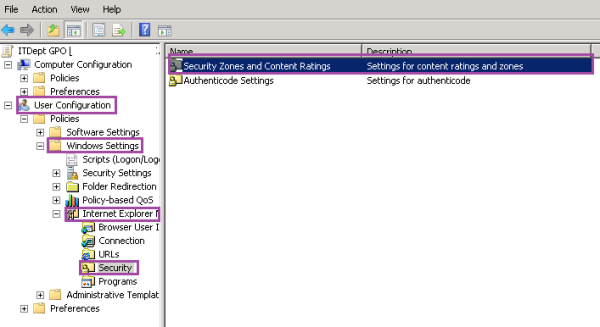
Open up the Group Policy Management Editor and locate the Organizational Unit (OU), expandUser Configuration, expand Windows Settings, expand Internet Explorer then click onSecurity and double click Security Zones and Content Ratings.

gp-mgmt-editor
On the Security and Privacy Settings properties, under Content Ratings select Import the current Content Ratings settings, then click on Modify Settings then click OK.

Security Zones Content Ratings

On Content Advisor properties, click on Approved Sites tab, in Allow this website you may select Always, to Allow a website then click OK.

Allow site

Allow Website

or  choose Never to block a website then click OK.

Content Advisor pic1

Content Advisor

HowTo: Upgrade To a Newer Version of Ubuntu 14.04 LTS

Ubuntu Linux version 14.04 LTS has been released. How do I upgrade to a newer version of Ubuntu 14.04 LTS from Ubuntu 13.10 or 12.04 LTS?

You can upgrade from minor or major release of Ubuntu easily and recommended for all users.

Back up any important data on the Ubuntu server

Make a backup – it cannot be stressed enough how important it is to make a backup of your system before you do this. Most of the actions listed in this post are written with the assumption that they will be executed by the root user running the bash or any other modern shell. Type the following commands to see current version:
$ uname -mrs
$ lsb_release -a

Sample outputs:

Linux 3.2.0-51-generic x86_64
No LSB modules are available.
Distributor ID:	Ubuntu
Description:	Ubuntu 12.04.4 LTS
Release:	12.04
Codename:	precise

How do I upgrade to a newer version of Ubuntu, such as v14.04, from an older v13.10 on a server system?

Type the following command to update package list and instal the update-manager-core package if it is not already installed:
$ sudo apt-get update
$ sudo apt-get install update-manager-core

Next, type the following command to upgrade the Ubuntu server to the latest release such as LTS 14.04 from the command-line. This is the recommended command as the server has no graphic environment or if the server is to be upgraded over a remote connection using ssh client:
$ sudo do-release-upgrade
The do-release-upgrade will launch the upgrade tool. You need to follow the on-screen instructions.

Fixing and forcing upgrade

You may end up getting the following message on screen when you run sudo do-release-upgrade

Checking for a new Ubuntu release
No new release found

Warning: The following method will check if upgrading to the latest devel (also known as unstable) release is possible via -d option.

To force upgrade pass the -d option to sudo do-release-upgrade command:

 
sudo do-release-upgrade -d

A note about upgrading from Ubuntu 13.10 on a desktop system

First, you need to remove all 3rd party binary drivers such as NVIDIA or AMD graphics card driver. Once removed and rebooted the desktop, press Alt+F2 and type in update-manager into the command box:

update-manager

Update Manager should open up and tell you: New distribution release ‘14.04 LTS’ is available. Just click Upgrade and follow the on-screen instructions to upgrade your desktop systems.

Please note that all LTS desktop users need to wait till the first release called Ubuntu LTS v14.04.1 will be released by Canonical LTD. If you do not want to wait till LTS v14.04.1, pass the -d option to the update-manager command as follows to upgrade Ubuntu 12.04 LTS to Ubuntu 14.04 LTS:

 
sudo update-manager  -d

Reboot the server/desktop

Finally, reboot the system:
$ sudo reboot
Verify, your new settings:
$ lsb_release -a
$ uname -mrs
$ tail -f /var/log/app/log/file

Finally, reinstall 3rd party binary drivers.

Automatically update your Ubuntu system with cron-apt

Updating all the software on your system can be a pain, but with Linux it doesn’t have to be that way. We’ll show you how to combine the apt package management system with a task scheduler to automatically update your system.

If you’ve been using Linux for even a short time you’ll surely have experienced the wonders of having a package management system at your disposal. For Debian and Ubuntu users the package manager you get is the excellent apt-get system. apt-getmakes installing a new program (e.g. xclock, a graphical clock) as simple as:

% apt-get install xclock

That’s nice, but the real reason apt is so useful is that updating your entire system all at once is just as easy:

% apt-get update
...
% apt-get upgrade
...

This will refresh the apt system with the newest information about packages and then download and install any packages that have newer versions. Do it regularly and you can be sure that you’ve got the latest and most secure software on your machine, without needing to hunt down the newest edition of each program individually.

You can make things even easier, however, by combining the apt system with the Linux scheduling daemon cron. cron let’s you schedule any command to run periodically at given intervals. Take the following command:

% (apt-get update && apt-get -y upgrade) > /dev/null

Which both updates the apt cache and upgrades the system. The -y flag tells apt-get to answer yes to every question, which prevents the process from hanging waiting for user input, say in the middle of the night so the bandwidth from the downloads won’t bother anyone. It’s also a good idea to redirect the output of the command to /dev/null, so that your terminal is not flooded with the results of automatic maintenance.

It’s a bad idea to just install everything regardless of errors, sometimes incompatible software can creep into the repository, and that can bring down your whole system. A better idea if you want to be more careful with what your machine is doing is to add the-d flag, which tells apt to merely download the packages, but not install them. You can then run apt-get dist-upgrade later to install the packages without waiting for them to download, and letting you keep a watchful eye over what’s being installed without having to wait for everything to download.

If you want to use this approach then you can add the following lines to your crontab using crontab -e, which will download new packages every Sunday morning at 12am:

# Automatic package upgrades
0 0 * * 0 root (apt-get update && apt-get -y -d upgrade) > /dev/null

There is still an easier way — using the cron-apt package, which as the name might suggest, combines the cron and apt utilities, but provides a bit more flexibility and a simpler interface — as well as supporting e-mail alerts on errors or new information.cron-apt automatically adds the -d flag, so you’ll have to run apt-get dist-upgrade to install the changes. You can install cron-apt like any other common utility by using apt:

% apt-get install cron-apt

The configuration for cron-apt reside in /etc/cron-apt/config — except how often the script runs, that’s depended on cron so you can find it in /etc/cron.d/cron-apt. One popular configuration change is to add the line:

MAILON="always"

This will make sure an e-mail is always sent when the update runs, rather than only when an error occurs.

That’s it. Setting up your machine to automatically update itself is as simple as a couple of lines in the console.

Difference Between apt-get Update And apt-get Upgrade Commands

apt-get is the command to do package/application management in Debain based machines such as Ubuntu.

There is a slight difference between update and upgrade options.

#apt-get update

Is the command to update the source list, if you modify the source list or you want to make a sync refresh or added new ppa source then you should execute above command.

Where as

#apt-get upgrade

Command will try to download all the packages which are having updates at apt server and then try to install them if you press “y”. This something like System upgrade to new packages.

—————

apt-get update will update your local copies of your repositories’ package data, such as available versions and dependencies.

  • This is needed to check whether any updates are present.
  • It doesn’t actually upgrade packages.

apt-get upgrade and apt-get dist-upgrade will upgrade packages.

  • The former runs general system upgrades
  • The latter will apply higher level patches such as kernel upgrades.

—————

  • apt-get upgrade will not change what is installed (only versions),
  • apt-get dist-upgrade will install or remove packages as necessary to complete the upgrade,
  • apt upgrade will automatically install but not remove packages.
  • apt full-upgrade performs the same function as apt-get dist-upgrade.

—————

I typically upgrade my machines with:

sudo apt-get update && time sudo apt-get dist-upgrade

Below is an excerpt from man apt-get. Using upgrade keeps to the rule: under no circumstances are currently installed packages removed, or packages not already installed retrieved and installed. If that’s important to you, use apt-get upgrade. If you want things to “just work”, you probably want apt-get dist-upgrade to ensure dependencies are resolved.

To expand on why you’d want upgrade instead of dist-upgrade, if you are a systems administrator, you need predictability. You might be using advanced features like apt pinning or pulling from a collection of PPAs (perhaps you have an in-house PPA), with various automations in place to inspect your system and available upgrades instead of always eagerly upgrading all available packages. You would get very frustrated when apt performs unscripted behavior, particularly if this leads to downtime of a production service.

upgrade
    upgrade is used to install the newest versions of all packages
    currently installed on the system from the sources enumerated in
    /etc/apt/sources.list. Packages currently installed with new
    versions available are retrieved and upgraded; under no
    circumstances are currently installed packages removed, or packages
    not already installed retrieved and installed. New versions of
    currently installed packages that cannot be upgraded without
    changing the install status of another package will be left at
    their current version. An update must be performed first so that
    apt-get knows that new versions of packages are available.

dist-upgrade
    dist-upgrade in addition to performing the function of upgrade,
    also intelligently handles changing dependencies with new versions
    of packages; apt-get has a "smart" conflict resolution system, and
    it will attempt to upgrade the most important packages at the
    expense of less important ones if necessary. So, dist-upgrade
    command may remove some packages. The /etc/apt/sources.list file
    contains a list of locations from which to retrieve desired package
    files. See also apt_preferences(5) for a mechanism for overriding
    the general settings for individual packages.

—————

yum -y update && yum -y upgrade

update:

If run without any packages, update will update every currently installed package. If one or more packages or package globs are specified, Yum will only update the listed packages. While updating packages, yum will ensure that all dependencies are satisfied. […]

If […] the --obsoletes flag is present yum will include package obsoletes in its calculations – this makes it better for distro-version changes, for example: upgrading from somelinux 8.0 to somelinux 9.

upgrade:

Is the same as the update command with the --obsoletes flag set.

Syntax Description Example(s)
apt-get install {package} Install the new package. If package is installed then try to upgrade to latest version apt-get install zip
apt-get install lsof samba mysql-client
apt-get remove {package} Remove/Delete an installed package except configuration files apt-get remove zip
apt-get –purge remove {package} Remove/Delete everything including configuration files apt-get –purge remove mysql-server
apt-get update
apt-get upgrade
Resynchronize the package index files and Upgrade the Debian Linux system including security update (Internet access required) apt-get update
apt-get upgrade
apt-get update
apt-get dist-upgrade
Usually use to upgrade to Debian distribution. For example Woody to Sarge upgrade. ‘dist-upgrade’ in addition to performing the function of upgrade, also intelligently handles changing dependencies with new versions of packages; apt-get has a “smart” conflict resolution system, and it will attempt to upgrade the most important packages at the expense of less important ones if necessary. apt-get update
apt-get dist-upgrade