30 Linux TOP Command Examples

The top command in Linux displays the running processes on the system. One of the most important tools for a system administrator. It is used extensively for monitoring the load on a server. In this article, we explore the top command in detail. The top command is an interactive command. Many commands are available when top is running. We will explore these commands as well.

1. Top Command output:

First of all, let us understand what the output says. Top command displays a lot of information about the running system. But we need to under stand the meaning of different sections of this output:
Running by default, the top command displays output like this:

Top default display

First few lines are horizontal showing summary about different system parameters, and following these are the processes and their attributes in columns.

1.1 Uptime and Load Averages:

Uptime display

At the top of top command is displayed the output similar to uptime command.

The fields display:
* current time
* the time your system is been up
* number of users logged in
* load average of 5, 10 and 15 minutes respectively.
This uptime display can be toggled with ‘l’ command.

1.2 Tasks:

Task summary

The second line shows summary of tasks or processes. The processes can be in different states. It shows total number of the processes. Out of these, the processes can be running, sleeping, stopped or in zombie (zombie is the state of a process state, These process summary can be toggled with ‘t’ command.

1.3 CPU States:

CPU status display

Next is shown the CPU state. Here, %age of CPU time in different modes is shown. The meaning of different CPU times are:

* us, user: CPU time in running (un-niced) user processes
* sy, system: CPU time in running kernel processes
* ni, niced: CPU time in running niced user processes
* wa, IO wait: CPU time waiting for IO completion
* hi: CPU time serving hardware interrupts
* si: CPU time serving software interrupts
* st: CPU time stolen for this vm by the hipervisor.

This can be toggled with ‘t’ command.

1.4 Memory Usage:

Memory usage

Next two lines show memory usage, somewhat like ‘free’ command. 1st of these lines is for physical memory and the second for virtual memory (swap space).
The physical memory is displayed as: total available memory, used memory, free memory, and memory used for buffers
Similarly, swap reflects: total, used, free and cached swap space.
The memory can be toggled with ‘m’ command.

1.5 Fields/Columns:

Top columns

After these horizontal system properties and states, the processes are shown in columns. The different columns represent different properties discussed below.
By default, top shows these attributes associated with processes:

PID
The Process ID, to uniquely identify a processes.

USER
The effective user name of the owner of the processes.

PR
The scheduling priority of the process. Some values in this field are ‘rt’. It means that the process is running under real-time.

NI
The nice value of the process. Lower values mean higher priority.

VIRT
The amount of virtual memory used by the process.

RES
The resident memory size. Resident memory is the amount of non-swapped physical memory a task is using.

SHR
SHR is the shared memory used by the process.

S
This is the process status. It can have one of the following values:

D – uninterruptible sleep
R – running
S – sleeping
T – traced or stopped
Z – zombie

%CPU
It is the percentage of CPU time the task has used since last update.

%MEM
Percentage of available physical memory used by the process.

TIME+
The total CPU time the task has used since it started, with precision upto hundredth of a second.

COMMAND
The command which was used to start the process.

There are many other outputs which are not displayed by default which can display information about page faults, effective group and group ID of the process, and many more.

2. Interactive Commands:

We discussed earlier that the top command is interactive commands. Some of the commands we encountered in the last section. Here we explore these commands further.

2.1 ‘h’: Help

First of all, you can press ‘h’ or ‘?’ to display the help menu for interactive commands.

Help options

2.2 ‘<ENTER>’ or ‘<SPACE>’: Refresh Display

The top command by default refreshes after a certain interval (3 seconds). To refresh manually, user can press enter or space key.

2.3 A: Toggle Alternate Display Mode

This command switches between full-screen Mode and alternate-display mode. In alternate display mode, 4 windows are available:
1. Def
2. Job
3. Mem
4. Usr
Each of the 4 field groups has a unique separately configurable summary area and its own configurable task area. Only one of these 4 windows will be the current window. The current window is displayed on the top left corner.

Alternative display mode

You can switch between 4 windows with ‘a’ and ‘w’ keys. ‘a’ moves to next and ‘w’ to previous window. With ‘g’ command, you can enter a number to select the current window.

Window selection in alternative display

2.4 B: Toggle Bold Display

Some important information is shown in bold characters. This command toggles use of bold.

Bold off

2.5 ‘d’ or ‘s’: Set Display Time interval

When ‘d’ or ‘s’ is pressed, you will be prompted to enter a value ( in seconds ) which will be set as display interval. If you enter 1 here, top will refresh every second.

Display time interval

2.6 ‘l’, ‘t’, ‘m’: Toggle Load, Task, Memory Info

These will toggle load average, task/cpu status and mem info respectively as discussed.

Load average off

CPU summary off

Memory and swap usage off

All three displays off

2.7 ‘f’: Field Management

This is used to chose what field you want to display on the output screen. The fields marked as * are selected.

Managing columns

‘<‘ and ‘>’
The ‘<‘ command moves the sorted field to the left and ‘>’ to the right

2.8 ‘R’: Reverse Sort

Toggle Reverse/Normal sort order

2.9 ‘c’: Toggle Command

Toggle full path of command that started the process and program name.

Full command path

2.10 ‘i’: Idle Tasks

Toggle idle tasks.

Idle task display off

2.11 ‘V’: Forest View

Toggle forest view mode.

Forest view of tasks

2.12 ‘Z’: Change color map

Pressing the ‘Z’ key takes the user to a screen where the display color can be changed for top command. There are 8 task areas to chose from and 8 colors.

Customizing colors

The below screen shows full colored top view with all 4 screens on.

Colored display

2.13 ‘z’: Toggle Color

Toggle color, i.e. turn on or off the colored display.

2.14 ‘x’ or ‘y’

Toggle highlights: ‘x’ sort field; ‘y’ running tasks. Depending upon your display settings, You might have to make the output colored in order to notice these highlights.

X and Y highlighted

2.15 ‘u’: Processes of a User

Show processes for a particular user. You are prompted to enter the username. Blank will show for all users.

Processes of 'raghu' user

2.16 ‘n’ or ‘#’: Number of tasks

Set maximum number of tasks displayed.

Setting number of tasks displayed

2.17 ‘k’: Kill tasks

One of the most important commands of top. Used to send signals to tasks (Usually kill tasks).

Killing a task

2.18 ‘r’: Renice

Renice a task to change the scheduling priority.

3. Command line options:

Most of these command line options are similar to the commands discussed above. Top output can be manipulated interactively with commands. But you can start top with some parameters set to your convenience with these options.

3.1 -b: Batch mode

The -b option starts top command in batch mode. It can be useful when you want to save the output in a file.

3.2 -c: Command/Program-name toggle:

As discussed in the above commands, this option will toggle from the last remembered state of command/program name display.

3.3 -d: Set delay interval

Set the delay interval for top (in seconds). For example:

$ top -d 1

will start the top command with 1 sec delay interval.

3.4 -i: idle process toggle

This option sets the top command with last remembered ‘i’ state reversed.

3.5 -n: Set number of iterations

With -n option, you can set the number of iterations after which top willl end.

$ top -n 3

will exit top automatically after 3 outputs.

3.6 -p: monitor specific PIDs

You can specify what PIDs you want to monitor with -p option. PID value 0 will be treated as process ID of top command itself.

3.7 -u or -U: username or UID

The process of a particular user can be viewed with these options. Username or UID can be specified to the option. The -p, -u and -U options are mutually exclusive. Only one of the options can be used at a time. You get error when you try to use any combination of these options:

$ top -p 28453 -u raghu
top: conflicting process selections (U/p/u)

Linux: Monitor Hard Disks Temperature With hddtemp

There is a nice utility to monitor hard drive temperature. Most modern x86 computer hard disk comes with S.M.A.R.T (Self-Monitoring, Analysis, and Reporting Technology). It is a monitoring system for computer hard disks to detect and report on various indicators of reliability, in the hope of anticipating failures.

=> hddtemp utility will give you the temperature of your hard drive by reading data from S.M.A.R.T. on drives that support this feature. Only modern hard drives have a temperature sensor. hddtemp supports reading S.M.A.R.T. information from SCSI drives too. hddtemp can work as simple command line tool or as a daemon to get information from all servers.

Install hddtemp

To install hddtemp under Debian / Ubuntu Linux, enter:
$ sudo apt-get install hddtemp
You can also perform source code installation. Download the source code tar ball here.
$ wget http://download.savannah.nongnu.org/releases/hddtemp/hddtemp-0.3-beta15.tar.bz2
Untar and install hddtemp:
$ tar -jxvf hddtemp-0.3-beta15.tar.bz2
$ cd hddtemp-0.3-beta15
$ ./configure
$ make
$ sudo make install

Install hard disk temperature database at /usr/share/misc or /etc directory:
$ cd /usr/share/misc
# wget http://download.savannah.nongnu.org/releases/hddtemp/hddtemp.db

How do I monitor hard disk temperature?

To see temperature for /dev/sda, enter the following command:
# hddtemp /dev/sda
Output:

/dev/sda: WDC WD2500YS-01SHB1:  25°C

Above output indicate that my hard disk temperature is 25°C. If temperature is higher than 60°С , consider cooling options immediately.

How Do I Find Out Remote Server HDD Temperature?

By default hddtemp bind to TCP/IP port 7634. You need to run hddtemp in daemon mode. Login on remote box and start it as follows to monitor /dev/sda, /dev/sdb, /dev/sdc, and /dev/sdd:
# hddtemp -d /dev/sd[abcd]
Use telnet or nc / netcat command to to get a temperature from a remote box:
$ telnet remotebox 7634
OR
$ nc 192.168.1.100 7634

Shutdown Linux Computer If Temperature >= 55

To power off / shutdown computer, run following command via cron tab (cron job) file:
[ $(hddtemp /dev/sda | awk '{ print $4}' | awk -F '°' '{ print $1}') -ge 55 ] && /sbin/shutdown -h 0 || :
Sample shell script to shutdown box if temperature >= 55°C (download link):

#!/bin/bash
HDDS="/dev/sda /dev/sdb /dev/sdc"
HDT=/usr/sbin/hddtemp
LOG=/usr/bin/logger
DOWN=/sbin/shutdown
ALERT_LEVEL=55
for disk in $HDDS
do
  if [ -b $disk ]; then
	HDTEMP=$($HDT $disk | awk '{ print $4}' | awk -F '°' '{ print $1}')
        if [ $HDTEMP -ge $ALERT_LEVEL ]; then
           $LOG "System going down as hard disk : $disk temperature $HDTEMP°C crossed its limit"
           sync;sync
           $DOWN -h 0
        fi
  fi
done

smartctl Utility

If you have smartctl utility installed, try it as follows to get temperature data:
# smartctl -d ata -A /dev/sda | grep -i temperature
Output:

194 Temperature_Celsius     0x0022   122   095   000    Old_age   Always       -       28

Set ALERT_LEVEL as per your requirements. Please refer to your hard disk manual for working temperature guideline. Here is general temperature guideline (extracted from Seagate SV35.2 Series Hard Drives Web Page):

Operating 0 to 60 degrees C
Nonoperating -40 to 70 degrees C
Maximum operating temperature change 20 degrees C per hour
Maximum nonoperating temperature change 30 degrees C per hour
Maximum operating case temperature 69 degrees C

Apache2 Basic Authentication Ubuntu

Virtual Host Configuration

To add basic authentication to an apache2 virtual host you need to add the following lines to the virtual host configuration.

AuthType Basic                                               (1)
AuthName "Private Documentation Repository"                  (2)
AuthUserFile /var/www/crock.norang.ca/.htpasswd-private      (3)
Require valid-user                                           (4)
  1. Set the Basic authentication method
  2. Provide a name for the location (optional)
  3. Specify the pathname to the file that contains usernames and passwords. The usual filename to use is .htpasswd
  4. Specify that only users that exist in the file are allowed access

The AuthUserFile should not be located in a directory served by apache2 since you do not want people to be able to download the contents of this file. This file contains the valid usernames and passwords. Example: Virtual Host Entry

<Directory "/var/www/crock.norang.ca/htdocs/private/">
    DirectoryIndex index.py
    AddHandler cgi-script .py
    Options Indexes FollowSymLinks MultiViews ExecCGI
    AuthType Basic
    AuthName "Private Documentation Repository"
    AuthUserFile /var/www/crock.norang.ca/.htpasswd-private
    Require valid-user
    AllowOverride None
    Order allow,deny
    allow from all
</Directory>

htpasswd file

The htpasswd file (var/www/crock.norang.ca.htpasswd-private’ in the example above) is created and maintained by the `htpasswd program. Use use this program to add or change password entries in the file.

Creating New Users

Example: Creating a new entry

$ htpasswd /var/www/crock.norang.ca/.htpasswd-private newuser
New password:
Re-type new password:

This prompts for the password for newuser and stores the encrypted password in the password file.

Example: Created password entry (part of the .htpasswd file)

newuser:Po9FhxMKQJcRY

Deleting Users

You delete users from the .htpasswd access file as follows

Example: Deleting user account newuser

$ htpasswd -D .htpasswd newuser

How To Set Up Apache Virtual Hosts on CentOS 7

ntroduction

The Apache web server is the most popular way of serving web content on the Internet. It serves more than half of all of the Internet’s active websites, and is extremely powerful and flexible.

Apache breaks down its functionality and components into individual units that can be customized and configured independently. The basic unit that describes an individual site or domain is called a virtual host. Virtual hosts allow one server to host multiple domains or interfaces by using a matching system. This is relevant to anyone looking to host more than one site off of a single VPS.

Each domain that is configured will direct the visitor to a specific directory holding that site’s information, without ever indicating that the same server is also responsible for other sites. This scheme is expandable without any software limit, as long as your server can handle the traffic that all of the sites attract.

In this guide, we will walk through how to set up Apache virtual hosts on a CentOS 7 VPS. During this process, you’ll learn how to serve different content to different visitors depending on which domains they are requesting.

Prerequisites

Before you begin with this guide, there are a few steps that need to be completed first.

You will need access to a CentOS 7 server with a non-root user that has sudo privileges. If you haven’t configured this yet, you can run through the CentOS 7 initial server setup guide to create this account.

You will also need to have Apache installed in order to configure virtual hosts for it. If you haven’t already done so, you can use yum to install Apache through CentOS’s default software repositories:

sudo yum -y install httpd

Next, enable Apache as a CentOS service so that it will automatically start after a reboot:

sudo systemctl enable httpd.service

After these steps are complete, log in as your non-root user account through SSH and continue with the tutorial.

Note: The example configuration in this guide will make one virtual host for example.com and another forexample2.com. These will be referenced throughout the guide, but you should substitute your own domains or values while following along. To learn how to set up your domain names with DigitalOcean, follow this link.

If you do not have any real domains to play with, we will show you how to test your virtual host configuration with dummy values near the end of the tutorial.

Step One — Create the Directory Structure

First, we need to make a directory structure that will hold the site data to serve to visitors.

Our document root (the top-level directory that Apache looks at to find content to serve) will be set to individual directories in the /var/www directory. We will create a directory here for each of the virtual hosts that we plan on making.

Within each of these directories, we will create a public_html directory that will hold our actual files. This gives us some flexibility in our hosting.

We can make these directories using the mkdir command (with a -p flag that allows us to create a folder with a nested folder inside of it):

sudo mkdir -p /var/www/example.com/public_html
sudo mkdir -p /var/www/example2.com/public_html

Remember that the portions in red represent the domain names that we want to serve from our VPS.

Step Two — Grant Permissions

We now have the directory structure for our files, but they are owned by our root user. If we want our regular user to be able to modify files in our web directories, we can change the ownership with chown:

sudo chown -R $USER:$USER /var/www/example.com/public_html
sudo chown -R $USER:$USER /var/www/example2.com/public_html

The $USER variable will take the value of the user you are currently logged in as when you submit the command. By doing this, our regular user now owns the public_html subdirectories where we will be storing our content.

We should also modify our permissions a little bit to ensure that read access is permitted to the general web directory, and all of the files and folders inside, so that pages can be served correctly:

sudo chmod -R 755 /var/www

Your web server should now have the permissions it needs to serve content, and your user should be able to create content within the appropriate folders.

Step Three — Create Demo Pages for Each Virtual Host

Now that we have our directory structure in place, let’s create some content to serve.

Because this is just for demonstration and testing, our pages will be very simple. We are just going to make an index.html page for each site that identifies that specific domain.

Let’s start with example.com. We can open up an index.html file in our editor by typing:

nano /var/www/example.com/public_html/index.html

In this file, create a simple HTML document that indicates the site that the page is connected to. For this guide, the file for our first domain will look like this:

<html>
  <head>
    <title>Welcome to Example.com!</title>
  </head>
  <body>
    <h1>Success! The example.com virtual host is working!</h1>
  </body>
</html>

Save and close the file when you are finished.

We can copy this file to use as the template for our second site’s index.html by typing:

cp /var/www/example.com/public_html/index.html /var/www/example2.com/public_html/index.html

Now let’s open that file and modify the relevant pieces of information:

nano /var/www/example2.com/public_html/index.html
<html>
  <head>
    <title>Welcome to Example2.com!</title>
  </head>
  <body>
    <h1>Success! The example2.com virtual host is working!</h1>
  </body>
</html>

Save and close this file as well. You now have the pages necessary to test the virtual host configuration.

Step Four — Create New Virtual Host Files

Virtual host files are what specify the configuration of our separate sites and dictate how the Apache web server will respond to various domain requests.

To begin, we will need to set up the directory that our virtual hosts will be stored in, as well as the directory that tells Apache that a virtual host is ready to serve to visitors. The sites-available directory will keep all of our virtual host files, while the sites-enabled directory will hold symbolic links to virtual hosts that we want to publish. We can make both directories by typing:

sudo mkdir /etc/httpd/sites-available
sudo mkdir /etc/httpd/sites-enabled

Note: This directory layout was introduced by Debian contributors, but we are including it here for added flexibility with managing our virtual hosts (as it’s easier to temporarily enable and disable virtual hosts this way).

Next, we should tell Apache to look for virtual hosts in the sites-enabled directory. To accomplish this, we will edit Apache’s main configuration file and add a line declaring an optional directory for additional configuration files:

sudo nano /etc/httpd/conf/httpd.conf

Add this line to the end of the file:

NameVirtualHost *:80
IncludeOptional sites-enabled/*.conf

Save and close the file when you are done adding that line. We are now ready to create our first virtual host file.

Create the First Virtual Host File

Start by opening the new file in your editor with root privileges:

sudo nano /etc/httpd/sites-available/example.com.conf

Note: Due to the configurations that we have outlined, all virtual host files must end in .conf.

First, start by making a pair of tags designating the content as a virtual host that is listening on port 80 (the default HTTP port):

<VirtualHost *:80>

</VirtualHost>

Next we’ll declare the main server name, http://www.example.com. We’ll also make a server alias to point toexample.com, so that requests for http://www.example.com and example.com deliver the same content:

<VirtualHost *:80>
    ServerName www.example.com
    ServerAlias example.com
</VirtualHost>

Note: In order for the www version of the domain to work correctly, the domain’s DNS configuration will need an A record or CNAME that points www requests to the server’s IP. A wildcard (*) record will also work. To learn more about DNS records, check out our host name setup guide.

Finally, we’ll finish up by pointing to the root directory of our publicly accessible web documents. We will also tell Apache where to store error and request logs for this particular site:

<VirtualHost *:80>

    ServerName www.example.com
    ServerAlias example.com
    DocumentRoot /var/www/example.com/public_html
    ErrorLog /var/www/example.com/error.log
    CustomLog /var/www/example.com/requests.log combined
</VirtualHost>

When you are finished writing out these items, you can save and close the file.

Copy First Virtual Host and Customize for Additional Domains

Now that we have our first virtual host file established, we can create our second one by copying that file and adjusting it as needed.

Start by copying it with cp:

sudo cp /etc/httpd/sites-available/example.com.conf /etc/httpd/sites-available/example2.com.conf

Open the new file with root privileges in your text editor:

sudo nano /etc/httpd/sites-available/example2.com.conf

You now need to modify all of the pieces of information to reference your second domain. When you are finished, your second virtual host file may look something like this:

<VirtualHost *:80>
    ServerName www.example2.com
    DocumentRoot /var/www/example2.com/public_html
    ServerAlias example2.com
    ErrorLog /var/www/example2.com/error.log
    CustomLog /var/www/example2.com/requests.log combined
</VirtualHost>

When you are finished making these changes, you can save and close the file.

Step Five — Enable the New Virtual Host Files

Now that we have created our virtual host files, we need to enable them so that Apache knows to serve them to visitors. To do this, we can create a symbolic link for each virtual host in the sites-enableddirectory:

sudo ln -s /etc/httpd/sites-available/example.com.conf /etc/httpd/sites-enabled/example.com.conf
sudo ln -s /etc/httpd/sites-available/example2.com.conf /etc/httpd/sites-enabled/example2.com.conf

When you are finished, restart Apache to make these changes take effect:

sudo apachectl restart

Step Six — Set Up Local Hosts File (Optional)

If you have been using example domains instead of actual domains to test this procedure, you can still test the functionality of your virtual hosts by temporarily modifying the hosts file on your local computer. This will intercept any requests for the domains that you configured and point them to your VPS server, just as the DNS system would do if you were using registered domains. This will only work from your computer, though, and is simply useful for testing purposes.

Note: Make sure that you are operating on your local computer for these steps and not your VPS server. You will need access to the administrative credentials for that computer.

If you are on a Mac or Linux computer, edit your local hosts file with administrative privileges by typing:

sudo nano /etc/hosts

If you are on a Windows machine, you can find instructions on altering your hosts file here.

The details that you need to add are the public IP address of your VPS followed by the domain that you want to use to reach that VPS:

127.0.0.1   localhost
127.0.1.1   guest-desktop
server_ip_address example.com
server_ip_address example2.com

This will direct any requests for example.com and example2.com on our local computer and send them to our server at server_ip_address.

Step Seven — Test Your Results

Now that you have your virtual hosts configured, you can test your setup easily by going to the domains that you configured in your web browser:

http://example.com

You should see a page that looks like this:

Success! The example.com virtual host is working!

Likewise, if you visit your other domains, you will see the files that you created for them.

If all of the sites that you configured work well, then you have successfully configured your new Apache virtual hosts on the same CentOS server.

If you adjusted your home computer’s hosts file, you may want to delete the lines that you added now that you’ve verified that your configuration works. This will prevent your hosts file from being filled with entries that are not actually necessary.

Conclusion

At this point, you should now have a single CentOS 7 server handling multiple sites with separate domains. You can expand this process by following the steps we outlined above to make additional virtual hosts later. There is no software limit on the number of domain names Apache can handle, so feel free to make as many as your server is capable of handling.

Setup Virtual Hosts In Apache On Ubuntu 14.04 LTS

Virtual Hosts are used to setup more than one domain or websites using a single IP address. This is very usefulif anybody wants to run multiple websites using a single IP address on single VPS.

In this tutorial, let me show how to setup virtual hosts in Apache web server on Ubuntu 14.04 LTS. Be mindful that this tutorial is only tested On Ubuntu 14.04 32bit edition. I may not issue any assurance that this will work on all other Ubuntu lower versions and Ubuntu derivatives.

Scenario

For this tutorial, I will be using Ubuntu 14.04 32bit LTS, and I am going to host two testing websites called“unixmen1.local” and “unixmen2.local”. My test box IP address and hostname are 192.168.1.250/24 andserver.unixmen.local respectively. Change the virtual domain names as per your requirement.

Install Apache Webserver

Prior to install apache server, let us update our Ubuntu server:

sudo apt-get update

Now, install apache web server using the following command:

sudo apt-get install apache2

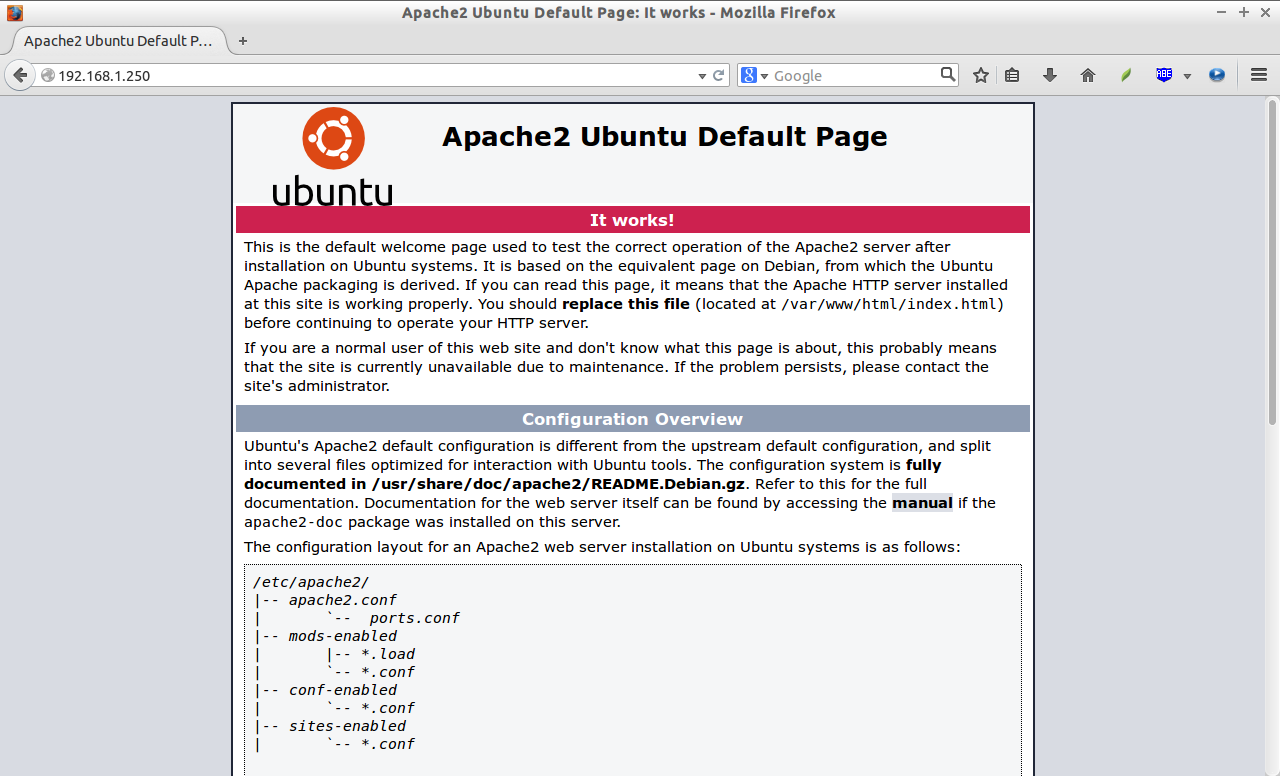
After installing apache server, let us test whether the webserver is working properly or not by navigating to the URL http://ip-address/.

Apache2 Ubuntu Default Page: It works - Mozilla Firefox_001

As you see in the above picture, apache webserver is working.

Setting Up Virtual Hosts

1. Create Virtual Directories

Now, let us proceed to setup virtual hosts. As I mentioned earlier, I am going to host two virtual hosts called“unixmen1.local”, and “unixmen2.local”.

Create a public to place the two virtual hosts data’s.

First, let us create a directory for unixmen1.local site:

sudo mkdir -p /var/www/unixmen1.local/public_html

Then, create the directory for unixmen2.local site:

sudo mkdir -p /var/www/unixmen2.local/public_html

2. Setting Up Ownership and Permissions

The above directories are owned by root user now. We should change the ownership of these two directories to the regular user, instead of root user.

sudo chown -R $USER:$USER /var/www/unixmen1.local/public_html/
sudo chown -R $USER:$USER /var/www/unixmen2.local/public_html/

The “$USER” variable indicates the currently logged in user.

Set the read permissions to the apache web root (/var/www) directory, so that everyone can read files from that directory.

sudo chmod -R 755 /var/www/

We have created the directories for holding the websites data’s and assigned the necessary permissions and ownership to them.

4. Create Sample pages for Virtual Hosts

Now, we have to the sample pages to be served through the websites. First, let us create a sample page to theunixmen1.local virtual host.

Create a index.html for unixmen1.local virtual host,

sudo vi /var/www/unixmen1.local/public_html/index.html

Add the following contents:

<html>
 <head>
 <title>www.unixmen1.local</title>
 </head>
 <body>
 <h1>Welcome To Unixmen1.local website</h1>
 </body>
</html>

Save and close the file.

Similarly, add the sample page to the second virtual host.

sudo vi /var/www/unixmen2.local/public_html/index.html

Add the following contents:

<html>
 <head>
 <title>www.unixmen2.local</title>
 </head>
 <body>
 <h1>Welcome To Unixmen2.local website</h1>
 </body>
</html>

Save and close the file.

5. Create Virtual Host Files

By default, apache comes with a default virtual host file called 000-default.conf. We will copy the 000-default.conf file contents to our new virtual host files.

sudo cp /etc/apache2/sites-available/000-default.conf /etc/apache2/sites-available/unixmen1.local.conf
sudo cp /etc/apache2/sites-available/000-default.conf /etc/apache2/sites-available/unixmen2.local.conf

Make sure the virtual host files contains .conf extension at the end.

Now, modify the unximen1.local.conf file to reflect with our new own values.

sudo vi /etc/apache2/sites-available/unixmen1.local.conf

Make the relevant changes that reflect to the unixmen1 site.

<VirtualHost *:80>
        # The ServerName directive sets the request scheme, hostname and port that
        # the server uses to identify itself. This is used when creating
        # redirection URLs. In the context of virtual hosts, the ServerName
        # specifies what hostname must appear in the request's Host: header to
        # match this virtual host. For the default virtual host (this file) this
        # value is not decisive as it is used as a last resort host regardless.
        # However, you must set it for any further virtual host explicitly.
        #ServerName www.example.com

        ServerAdmin webmaster@unixmen1.local
        ServerName unixmen1.local
        ServerAlias www.unixmen1.local
        DocumentRoot /var/www/unixmen1.local/public_html

        # Available loglevels: trace8, ..., trace1, debug, info, notice, warn,
        # error, crit, alert, emerg.
        # It is also possible to configure the loglevel for particular
        # modules, e.g.
        #LogLevel info ssl:warn

        ErrorLog ${APACHE_LOG_DIR}/error.log
        CustomLog ${APACHE_LOG_DIR}/access.log combined

        # For most configuration files from conf-available/, which are
        # enabled or disabled at a global level, it is possible to
        # include a line for only one particular virtual host. For example the
        # following line enables the CGI configuration for this host only
        # after it has been globally disabled with "a2disconf".
        #Include conf-available/serve-cgi-bin.conf
</VirtualHost>

Like wise, modify the second virtual host file.

sudo vi /etc/apache2/sites-available/unixmen2.local.conf

Make the relevant changes that reflect to the unixmen2 site.

<VirtualHost *:80>
        # The ServerName directive sets the request scheme, hostname and port that
        # the server uses to identify itself. This is used when creating
        # redirection URLs. In the context of virtual hosts, the ServerName
        # specifies what hostname must appear in the request's Host: header to
        # match this virtual host. For the default virtual host (this file) this
        # value is not decisive as it is used as a last resort host regardless.
        # However, you must set it for any further virtual host explicitly.
        #ServerName www.example.com

        ServerAdmin webmaster@unixmen2.local
        ServerName unixmen2.local
        ServerAlias www.unixmen2.local
        DocumentRoot /var/www/unixmen2.local/public_html

        # Available loglevels: trace8, ..., trace1, debug, info, notice, warn,
        # error, crit, alert, emerg.
        # It is also possible to configure the loglevel for particular
        # modules, e.g.
        #LogLevel info ssl:warn

        ErrorLog ${APACHE_LOG_DIR}/error.log
        CustomLog ${APACHE_LOG_DIR}/access.log combined

        # For most configuration files from conf-available/, which are
        # enabled or disabled at a global level, it is possible to
        # include a line for only one particular virtual host. For example the
        # following line enables the CGI configuration for this host only
        # after it has been globally disabled with "a2disconf".
        #Include conf-available/serve-cgi-bin.conf
</VirtualHost>

After modifying the virtual hosts files, disable the default virtual host (000.default.conf), and enable new virtual hosts as shown below.

sudo a2dissite 000-default.conf
sudo a2ensite unixmen1.local.conf
sudo a2ensite unixmen2.local.conf

Finally, restart the apache service.

sudo service apache2 restart

That’s it. Now, we successfully configured the apache virtual hosts on our Ubuntu server.

Testing Virtual Hosts

Edit file /etc/hosts,

sudo vi /etc/hosts

Add the virtual domain names one by one as shown below.

[...]
192.168.1.250   unixmen1.local
192.168.1.250   unixmen2.local

Save and close the file.

Open up your browser and point to the URL http://unixmen1.local or http://unixmen2.local. You should see the sample pages which we created earlier.

Unixmen1.local Test page:

www.unixmen1.local - Mozilla Firefox_004

Unixmen2.local Test page:

www.unixmen2.local - Mozilla Firefox_005

If you want to access these sites from your remote systems, you should add the actual domain name records in your DNS server. Hence, I don’t have any actual domain names and DNS server, I tested this only on my local system, and Its worked perfectly as I expected.

Cheers!

How to Install And Configure Apache In Ubuntu

If you intend to set up a web server (or streaming server) in your Ubuntu machine, apache is one important module that you must install. In this tutorial, we will show you how to install and configure apache for your Ubuntu.

Getting apache onto your Ubuntu machine is easy. Using either the Synaptic Package Manager, Ubuntu Software Center, search and install the “apache2” module. Alternatively, you can open a terminal and type the following command:

sudo apt-get install apache2

Once the installation finished, open a browser and go to the URL “http://localhost“. If you see the word “It Works!“, then your installation of apache is successful.

apache-install-success

Start, Stop and Restart Apache

After you have installed Apache, it will be added to the init.d list and will auto start whenever you boot up your computer. The following commands allow you to start, restart, stop Apache.

sudo /etc/init.d/apache2 start   #start apache
sudo /etc/init.d/apache2 stop   #stop apache
sudo /etc/init.d/apache2 restart   #restart apache

To prevent Apache from autostart when booting up:

sudo update-rc.d -f apache2 remove

To restore Apache back to the autostart list:

sudo update-rc.d apache2 defaults

Note: the above commands will work in debian-based distro (including Ubuntu) only.

Changing the default localhost folder

By default, apache will operate on the “/var/www” folder. This means that whatever files you place in this /var/www folder will be visible from the URL http://localhost. In some instances, you may want the “localhost” to point to another folder instead, say /home/user/public_html. Here is how you do it:

First, make sure the /home/damien/public_html folder exists. Create a simple html file, name it index.html and place it in the public_html folder.

Open a terminal and type:

gksu gedit /etc/apache2/sites-enabled/000-default

Change DocumentRoot /var/www to DocumentRoot /home/user/public_html.

Change <Directory /var/www/> to <Directory /home/user/public_html/>.

apache-edit-virtual-host

Save and exit the file.

Restart the apache

sudo /etc/init.d/apache2 restart

Now, in your browser, reload the URL http://localhost. You should see the html file that you have placed in the public_html folder.

apache-test-success

Configuring different sites

The above trick allows you to change the default operating folder of apache, however, some of you might not want to override the default settings. An alternative is to create multiple sites and point apache to the active site.

Create a new settings file for your new site.

sudo cp /etc/apache2/sites-available/default /etc/apache2/sites-available/site1

Next, edit this settings file.

gksu gedit /etc/apache2/sites-available/site1

Change DocumentRoot /var/www to DocumentRoot /home/user/public_html.

Change <Directory /var/www/> to <Directory /home/user/public_html/>.

Save and exit the file.

Disable the default setting and make active the site1 settings

sudo a2dissite default && sudo a2ensite site1

Lastly, restart the apache.

sudo /etc/init.d/apache2 restart

With this trick, you can create multiple site configuration file, each pointing to a different folder. You can then easily switch between the sites with the a2dissite and a2ensite command

Enabling .htaccess file

.htaccess file is a powerful file that can be used to control and customize a site server behavior without editing the core Apache module. By default, the .htaccess functionality is turned off and all instances of .htaccess files are completely ignored. The server will not even attempt to read .htaccess files in the filesystem.

To enable .htaccess file, open up the settings file that you have created earlier:

gksu gedit /etc/apache2/sites-available/site1

Scroll down the file until you see the part “<Directory /home/user/public_html/>“. Underneath that line of code, change AllowOverride None to AllowOverride All.

apache-allowoverride

Save and exit the file.

LPIC-1 Exam 102 Objectives

LPIC-1 is a professional certification program program that covers performing maintenance tasks with the command line, installing & configuring a computer running Linux and configuring basic networking.

LPIC-1-Logo-300x300

LPIC-1 102 Exam Objectives Topics:

Topic 105: Shells, Scripting and Data Management

105.1 Customize and use the shell environment

Weight: 4

Description: Candidates should be able to customize shell environments to meet users’ needs. Candidates should be able to modify global and user profiles.

Key Knowledge Areas:

  • Set environment variables (e.g. PATH) at login or when spawning a new shell
  • Write Bash functions for frequently used sequences of commands
  • Maintain skeleton directories for new user accounts
  • Set command search path with the proper directory
The following is a partial list of the used files, terms and utilities:
  • .
  • source
  • /etc/bash.bashrc
  • /etc/profile
  • env
  • export
  • set
  • unset
  • ~/.bash_profile
  • ~/.bash_login
  • ~/.profile
  • ~/.bashrc
  • ~/.bash_logout
  • function
  • alias
  • lists

105.2 Customize or write simple scripts

Weight: 4

Description: Candidates should be able to customize existing scripts, or write simple new Bash scripts.

Key Knowledge Areas:

  • Use standard sh syntax (loops, tests)
  • Use command substitution
  • Test return values for success or failure or other information provided by a command
  • Perform conditional mailing to the superuser
  • Correctly select the script interpreter through the shebang (#!) line
  • Manage the location, ownership, execution and suid-rights of scripts
Terms and Utilities:
  • for
  • while
  • test
  • if
  • read
  • seq
  • exec

105.3 SQL data management

Weight: 2

Description: Candidates should be able to query databases and manipulate data using basic SQL commands. This objective includes performing queries involving joining of 2 tables and/or subselects.

Key Knowledge Areas:

  • Use of basic SQL commands
  • Perform basic data manipulation
Terms and Utilities:
  • insert
  • update
  • select
  • delete
  • from
  • where
  • group by
  • order by
  • join


Return to Top

Topic 106: User Interfaces and Desktops

106.1 Install and configure X11

Weight: 2

Description: Candidates should be able to install and configure X11.

Key Knowledge Areas:

  • Verify that the video card and monitor are supported by an X server
  • Awareness of the X font server
  • Basic understanding and knowledge of the X Window configuration file
Terms and Utilities:
  • /etc/X11/xorg.conf
  • xhost
  • DISPLAY
  • xwininfo
  • xdpyinfo
  • X

106.2 Setup a display manager

Weight: 1

Description: Candidates should be able to describe the basic features and configuration of the LightDM display manager. This objective covers awareness of the display managers XDM (X Display Manger), GDM (Gnome Display Manager) and KDM (KDE Display Manager).

Key Knowledge Areas:

  • Basic configuration of LightDM
  • Turn the display manager on or off
  • Change the display manager greeting
  • Awareness of XDM, KDM and GDM
Terms and Utilities:
  • lightdm
  • /etc/lightdm/

106.3 Accessibility

Weight: 1

Description: Demonstrate knowledge and awareness of accessibility technologies.

Key Knowledge Areas:

  • Basic knowledge of keyboard accessibility settings (AccessX)
  • Basic knowledge of visual settings and themes
  • Basic knowledge of assistive technology (ATs)
Terms and Utilities:
  • Sticky/Repeat Keys
  • Slow/Bounce/Toggle Keys
  • Mouse Keys
  • High Contrast/Large Print Desktop Themes
  • Screen Reader
  • Braille Display
  • Screen Magnifier
  • On-Screen Keyboard
  • Gestures (used at login, for example GDM)
  • Orca
  • GOK
  • emacspeak


Return to Top

Topic 107: Administrative Tasks

107.1 Manage user and group accounts and related system files

Weight: 5

Description: Candidates should be able to add, remove, suspend and change user accounts.

Key Knowledge Areas:

  • Add, modify and remove users and groups
  • Manage user/group info in password/group databases
  • Create and manage special purpose and limited accounts
Terms and Utilities:
  • /etc/passwd
  • /etc/shadow
  • /etc/group
  • /etc/skel/
  • chage
  • getent
  • groupadd
  • groupdel
  • groupmod
  • passwd
  • useradd
  • userdel
  • usermod

107.2 Automate system administration tasks by scheduling jobs

Weight: 4

Description: Candidates should be able to use cron or anacron to run jobs at regular intervals and to use at to run jobs at a specific time.

Key Knowledge Areas:

  • Manage cron and at jobs
  • Configure user access to cron and at services
  • Configure anacron
Terms and Utilities:
  • /etc/cron.{d,daily,hourly,monthly,weekly}/
  • /etc/at.deny
  • /etc/at.allow
  • /etc/crontab
  • /etc/cron.allow
  • /etc/cron.deny
  • /var/spool/cron/
  • crontab
  • at
  • atq
  • atrm
  • anacron
  • /etc/anacrontab

107.3 Localisation and internationalisation

Weight: 3

Description: Candidates should be able to localize a system in a different language than English. As well, an understanding of why LANG=C is useful when scripting.

Key Knowledge Areas:

  • Configure locale settings and environment variables
  • Configure timezone settings and environment variables
Terms and Utilities:
  • /etc/timezone
  • /etc/localtime
  • /usr/share/zoneinfo/
  • LC_*
  • LC_ALL
  • LANG
  • TZ
  • /usr/bin/locale
  • tzselect
  • timedatectl
  • date
  • iconv
  • UTF-8
  • ISO-8859
  • ASCII
  • Unicode


Return to Top

Topic 108: Essential System Services

108.1 Maintain system time

Weight: 3

Description: Candidates should be able to properly maintain the system time and synchronize the clock via NTP.

Key Knowledge Areas:

  • Set the system date and time
  • Set the hardware clock to the correct time in UTC
  • Configure the correct timezone
  • Basic NTP configuration
  • Knowledge of using the pool.ntp.org service
  • Awareness of the ntpq command
Terms and Utilities:
  • /usr/share/zoneinfo/
  • /etc/timezone
  • /etc/localtime
  • /etc/ntp.conf
  • date
  • hwclock
  • ntpd
  • ntpdate
  • pool.ntp.org

108.2 System logging

Weight: 3

Description: Candidates should be able to configure the syslog daemon. This objective also includes configuring the logging daemon to send log output to a central log server or accept log output as a central log server. Use of the systemd journal subsystem is covered. Also, awareness of rsyslog and syslog-ng as alternative logging systems is included.

Key Knowledge Areas:

  • Configuration of the syslog daemon
  • Understanding of standard facilities, priorities and actions
  • Configuration of logrotate
  • Awareness of rsyslog and syslog-ng
Terms and Utilities:
  • syslog.conf
  • syslogd
  • klogd
  • /var/log/
  • logger
  • logrotate
  • /etc/logrotate.conf
  • /etc/logrotate.d/
  • journalctl
  • /etc/systemd/journald.conf
  • /var/log/journal/

108.3 Mail Transfer Agent (MTA) basics

Weight: 3

Description: Candidates should be aware of the commonly available MTA programs and be able to perform basic forward and alias configuration on a client host. Other configuration files are not covered.

Key Knowledge Areas:

  • Create e-mail aliases
  • Configure e-mail forwarding
  • Knowledge of commonly available MTA programs (postfix, sendmail, qmail, exim) (no configuration)
Terms and Utilities:
  • ~/.forward
  • sendmail emulation layer commands
  • newaliases
  • mail
  • mailq
  • postfix
  • sendmail
  • exim
  • qmail
  • ~/.forward
  • sendmail emulation layer commands
  • newaliases

108.4 Manage printers and printing

Weight: 2

Description: Candidates should be able to manage print queues and user print jobs using CUPS and the LPD compatibility interface.

Key Knowledge Areas:

  • Basic CUPS configuration (for local and remote printers)
  • Manage user print queues
  • Troubleshoot general printing problems
  • Add and remove jobs from configured printer queues
Terms and Utilities:
  • CUPS configuration files, tools and utilities
  • /etc/cups/
  • lpd legacy interface (lpr, lprm, lpq)


Return to Top

Topic 109: Networking Fundamentals

109.1 Fundamentals of internet protocols

Weight: 4

Description: Candidates should demonstrate a proper understanding of TCP/IP network fundamentals.

Key Knowledge Areas:

  • Demonstrate an understanding of network masks and CIDR notation
  • Knowledge of the differences between private and public “dotted quad” IP addresses
  • Knowledge about common TCP and UDP ports and services (20, 21, 22, 23, 25, 53, 80, 110, 123, 139, 143, 161, 162, 389, 443, 465, 514, 636, 993, 995)
  • Knowledge about the differences and major features of UDP, TCP and ICMP
  • Knowledge of the major differences between IPv4 and IPv6
  • Knowledge of the basic features of IPv6
Terms and Utilities:
  • /etc/services
  • IPv4, IPv6
  • Subnetting
  • TCP, UDP, ICMP

109.2 Basic network configuration

Weight: 4

Description: Candidates should be able to view, change and verify configuration settings on client hosts.

Key Knowledge Areas:

  • Manually and automatically configure network interfaces
  • Basic TCP/IP host configuration
  • Setting a default route
Terms and Utilities:
  • /etc/hostname
  • /etc/hosts
  • /etc/nsswitch.conf
  • ifconfig
  • ifup
  • ifdown
  • ip
  • route
  • ping

109.3 Basic network troubleshooting

Weight: 4

Description: Candidates should be able to troubleshoot networking issues on client hosts.

Key Knowledge Areas:

  • Manually and automatically configure network interfaces and routing tables to include adding, starting, stopping, restarting, deleting or reconfiguring network interfaces
  • Change, view, or configure the routing table and correct an improperly set default route manually
  • Debug problems associated with the network configuration
Terms and Utilities:
  • ifconfig
  • ip
  • ifup
  • ifdown
  • route
  • host
  • hostname
  • dig
  • netstat
  • ping
  • ping6
  • traceroute
  • traceroute6
  • tracepath
  • tracepath6
  • netcat

109.4 Configure client side DNS

Weight: 2

Description: Candidates should be able to configure DNS on a client host.

Key Knowledge Areas:

  • Query remote DNS servers
  • Configure local name resolution and use remote DNS servers
  • Modify the order in which name resolution is done

Terms and Utilities:

  • /etc/hosts
  • /etc/resolv.conf
  • /etc/nsswitch.conf
  • host
  • dig
  • getent


Return to Top

Topic 110: Security

110.1 Perform security administration tasks

Weight: 3

Description: Candidates should know how to review system configuration to ensure host security in accordance with local security policies.

Key Knowledge Areas:

  • Audit a system to find files with the suid/sgid bit set
  • Set or change user passwords and password aging information
  • Being able to use nmap and netstat to discover open ports on a system
  • Set up limits on user logins, processes and memory usage
  • Determine which users have logged in to the system or are currently logged in
  • Basic sudo configuration and usage
Terms and Utilities:
  • find
  • passwd
  • fuser
  • lsof
  • nmap
  • chage
  • netstat
  • sudo
  • /etc/sudoers
  • su
  • usermod
  • ulimit
  • who, w, last

110.2 Setup host security

Weight: 3

Description: Candidates should know how to set up a basic level of host security.

Key Knowledge Areas:

  • Awareness of shadow passwords and how they work
  • Turn off network services not in use
  • Understand the role of TCP wrappers
Terms and Utilities:
  • /etc/nologin
  • /etc/passwd
  • /etc/shadow
  • /etc/xinetd.d/
  • /etc/xinetd.conf
  • /etc/inetd.d/
  • /etc/inetd.conf
  • /etc/inittab
  • /etc/init.d/
  • /etc/hosts.allow
  • /etc/hosts.deny

110.3 Securing data with encryption

Weight: 3

Description: The candidate should be able to use public key techniques to secure data and communication.

Key Knowledge Areas:

  • Perform basic OpenSSH 2 client configuration and usage
  • Understand the role of OpenSSH 2 server host keys
  • Perform basic GnuPG configuration, usage and revocation
  • Understand SSH port tunnels (including X11 tunnels)
Terms and Utilities:
  • ssh
  • ssh-keygen
  • ssh-agent
  • ssh-add
  • ~/.ssh/id_rsa and id_rsa.pub
  • ~/.ssh/id_dsa and id_dsa.pub
  • /etc/ssh/ssh_host_rsa_key and ssh_host_rsa_key.pub
  • /etc/ssh/ssh_host_dsa_key and ssh_host_dsa_key.pub
  • ~/.ssh/authorized_keys
  • ssh_known_hosts
  • gpg
  • ~/.gnupg/

LPIC-1 Exam 101 Objectives

LPIC-1 is a professional certification program that covers performing maintenance tasks with the command line, installing & configuring a computer running Linux and configuring basic networking.

LPIC-1-Logo-300x300

LPIC-1 101 Exam Objectives Topics:

Topic 101: System Architecture

101.1 Determine and configure hardware settings

Weight: 2

Description: Candidates should be able to determine and configure fundamental system hardware.

Key Knowledge Areas:

  • Enable and disable integrated peripherals
  • Configure systems with or without external peripherals such as keyboards
  • Differentiate between the various types of mass storage devices
  • Know the differences between coldplug and hotplug devices
  • Determine hardware resources for devices
  • Tools and utilities to list various hardware information (e.g. lsusb, lspci, etc.)
  • Tools and utilities to manipulate USB devices
  • Conceptual understanding of sysfs, udev, dbus
The following is a partial list of the used files, terms and utilities:
  • /sys/
  • /proc/
  • /dev/
  • modprobe
  • lsmod
  • lspci
  • lsusb

101.2 Boot the system

Weight: 3

Description: Candidates should be able to guide the system through the booting process.

Key Knowledge Areas:

  • Provide common commands to the boot loader and options to the kernel at boot time
  • Demonstrate knowledge of the boot sequence from BIOS to boot completion
  • Understanding of SysVinit and systemd
  • Awareness of Upstart
  • Check boot events in the log files
Terms and Utilities:
  • dmesg
  • BIOS
  • bootloader
  • kernel
  • initramfs
  • init
  • SysVinit
  • systemd

101.3 Change runlevels / boot targets and shutdown or reboot system

Weight: 3

Description: Candidates should be able to manage the SysVinit runlevel or systemd boot target of the system. This objective includes changing to single user mode, shutdown or rebooting the system. Candidates should be able to alert users before switching runlevels / boot targets and properly terminate processes. This objective also includes setting the default SysVinit runlevel or systemd boot target. It also includes awareness of Upstart as an alternative to SysVinit or systemd.

Key Knowledge Areas:

  • Set the default runlevel or boot target
  • Change between runlevels / boot targets including single user mode
  • Shutdown and reboot from the command line
  • Alert users before switching runlevels / boot targets or other major system events
  • Properly terminate processes
Terms and Utilities:
  • /etc/inittab
  • shutdown
  • init
  • /etc/init.d/
  • telinit
  • systemd
  • systemctl
  • /etc/systemd/
  • /usr/lib/systemd/
  • wall


Return to Top

Topic 102: Linux Installation and Package Management

102.1 Design hard disk layout

Weight: 2

Description: Candidates should be able to design a disk partitioning scheme for a Linux system.

Key Knowledge Areas:

  • Allocate filesystems and swap space to separate partitions or disks
  • Tailor the design to the intended use of the system
  • Ensure the /boot partition conforms to the hardware architecture requirements for booting
  • Knowledge of basic features of LVM
Terms and Utilities:
  • / (root) filesystem
  • /var filesystem
  • /home filesystem
  • /boot filesystem
  • swap space
  • mount points
  • partitions

102.2 Install a boot manager

Weight: 2

Description: Candidates should be able to select, install and configure a boot manager.

Key Knowledge Areas:

  • Providing alternative boot locations and backup boot options
  • Install and configure a boot loader such as GRUB Legacy
  • Perform basic configuration changes for GRUB 2
  • Interact with the boot loader

The following is a partial list of the used files, terms and utilities:

  • menu.lst, grub.cfg and grub.conf
  • grub-install
  • grub-mkconfig
  • MBR

102.3 Manage shared libraries

Weight: 1

Description: Candidates should be able to determine the shared libraries that executable programs depend on and install them when necessary.

Key Knowledge Areas:

  • Identify shared libraries
  • Identify the typical locations of system libraries
  • Load shared libraries
Terms and Utilities:
  • ldd
  • ldconfig
  • /etc/ld.so.conf
  • LD_LIBRARY_PATH

102.4 Use Debian package management

Weight: 3

Description: Candidates should be able to perform package management using the Debian package tools.

Key Knowledge Areas:

  • Install, upgrade and uninstall Debian binary packages
  • Find packages containing specific files or libraries which may or may not be installed
  • Obtain package information like version, content, dependencies, package integrity and installation status (whether or not the package is installed)
Terms and Utilities:
  • /etc/apt/sources.list
  • dpkg
  • dpkg-reconfigure
  • apt-get
  • apt-cache
  • aptitude

102.5 Use RPM and YUM package management

Weight: 3

Description: Candidates should be able to perform package management using RPM and YUM tools.

Key Knowledge Areas:

  • Install, re-install, upgrade and remove packages using RPM and YUM
  • Obtain information on RPM packages such as version, status, dependencies, integrity and signatures
  • Determine what files a package provides, as well as find which package a specific file comes from
Terms and Utilities:
  • rpm
  • rpm2cpio
  • /etc/yum.conf
  • /etc/yum.repos.d/
  • yum
  • yumdownloader


Return to Top

Topic 103: GNU and Unix Commands

103.1 Work on the command line

Weight: 4

Description: Candidates should be able to interact with shells and commands using the command line. The objective assumes the Bash shell.

Key Knowledge Areas:

  • Use single shell commands and one line command sequences to perform basic tasks on the command line
  • Use and modify the shell environment including defining, referencing and exporting environment variables
  • Use and edit command history
  • Invoke commands inside and outside the defined path
Terms and Utilities:
  • bash
  • echo
  • env
  • export
  • pwd
  • set
  • unset
  • man
  • uname
  • history
  • .bash_history

103.2 Process text streams using filters

Weight: 3

Description: Candidates should should be able to apply filters to text streams.

Key Knowledge Areas:

  • Send text files and output streams through text utility filters to modify the output using standard UNIX commands found in the GNU textutils package
Terms and Utilities:
  • cat
  • cut
  • expand
  • fmt
  • head
  • join
  • less
  • nl
  • od
  • paste
  • pr
  • sed
  • sort
  • split
  • tail
  • tr
  • unexpand
  • uniq
  • wc

103.3 Perform basic file management

Weight: 4

Description: Candidates should be able to use the basic Linux commands to manage files and directories.

Key Knowledge Areas:

  • Copy, move and remove files and directories individually
  • Copy multiple files and directories recursively
  • Remove files and directories recursively
  • Use simple and advanced wildcard specifications in commands
  • Using find to locate and act on files based on type, size, or time
  • Usage of tar, cpio and dd
Terms and Utilities:
  • cp
  • find
  • mkdir
  • mv
  • ls
  • rm
  • rmdir
  • touch
  • tar
  • cpio
  • dd
  • file
  • gzip
  • gunzip
  • bzip2
  • xz
  • file globbing

103.4 Use streams, pipes and redirects

Weight: 4

Description: Candidates should be able to redirect streams and connect them in order to efficiently process textual data. Tasks include redirecting standard input, standard output and standard error, piping the output of one command to the input of another command, using the output of one command as arguments to another command and sending output to both stdout and a file.

Key Knowledge Areas:

  • Redirecting standard input, standard output and standard error
  • Pipe the output of one command to the input of another command
  • Use the output of one command as arguments to another command
  • Send output to both stdout and a file
Terms and Utilities:
  • tee
  • xargs

103.5 Create, monitor and kill processes

Weight: 4

Description: Candidates should be able to perform basic process management.

Key Knowledge Areas:

  • Run jobs in the foreground and background
  • Signal a program to continue running after logout
  • Monitor active processes
  • Select and sort processes for display
  • Send signals to processes
Terms and Utilities:
  • &
  • bg
  • fg
  • jobs
  • kill
  • nohup
  • ps
  • top
  • free
  • uptime
  • pgrep
  • pkill
  • killall
  • screen

103.6 Modify process execution priorities

Weight: 2

Description: Candidates should should be able to manage process execution priorities.

Key Knowledge Areas:

  • Know the default priority of a job that is created
  • Run a program with higher or lower priority than the default
  • Change the priority of a running process
Terms and Utilities:
  • nice
  • ps
  • renice
  • top

103.7 Search text files using regular expressions

Weight: 2

Description: Candidates should be able to manipulate files and text data using regular expressions. This objective includes creating simple regular expressions containing several notational elements. It also includes using regular expression tools to perform searches through a filesystem or file content.

Key Knowledge Areas:

  • Create simple regular expressions containing several notational elements
  • Use regular expression tools to perform searches through a filesystem or file content
Terms and Utilities:
  • grep
  • egrep
  • fgrep
  • sed
  • regex(7)

103.8 Perform basic file editing operations using vi

Weight: 3

Description: Candidates should be able to edit text files using vi. This objective includes vi navigation, basic vi modes, inserting, editing, deleting, copying and finding text.

Key Knowledge Areas:

  • Navigate a document using vi
  • Use basic vi modes
  • Insert, edit, delete, copy and find text
Terms and Utilities:
  • vi
  • /, ?
  • h,j,k,l
  • i, o, a
  • c, d, p, y, dd, yy
  • ZZ, :w!, :q!, :e!


Return to Top

Topic 104: Devices, Linux Filesystems, Filesystem Hierarchy Standard

104.1 Create partitions and filesystems

Weight: 2

Description: Candidates should be able to configure disk partitions and then create filesystems on media such as hard disks. This includes the handling of swap partitions.

Key Knowledge Areas:

  • Manage MBR partition tables
  • Use various mkfs commands to create various filesystems such as:
    • ext2/ext3/ext4
    • XFS
    • VFAT
  • Awareness of ReiserFS and Btrfs
  • Basic knowledge of gdisk and parted with GPT
Terms and Utilities:
  • fdisk
  • gdisk
  • parted
  • mkfs
  • mkswap

104.2 Maintain the integrity of filesystems

Weight: 2

Description: Candidates should be able to maintain a standard filesystem, as well as the extra data associated with a journaling filesystem.

Key Knowledge Areas:

  • Verify the integrity of filesystems
  • Monitor free space and inodes
  • Repair simple filesystem problems
Terms and Utilities:
  • du
  • df
  • fsck
  • e2fsck
  • mke2fs
  • debugfs
  • dumpe2fs
  • tune2fs
  • XFS tools (such as xfs_metadump and xfs_info)

104.3 Control mounting and unmounting of filesystems

Weight: 3

Description: Candidates should be able to configure the mounting of a filesystem.

Key Knowledge Areas:

  • Manually mount and unmount filesystems
  • Configure filesystem mounting on bootup
  • Configure user mountable removable filesystems
Terms and Utilities:
  • /etc/fstab
  • /media/
  • mount
  • umount

104.4 Manage disk quotas

Weight: 1

Description: Candidates should be able to manage disk quotas for users.

Key Knowledge Areas:

  • Set up a disk quota for a filesystem
  • Edit, check and generate user quota reports
Terms and Utilities:
  • quota
  • edquota
  • repquota
  • quotaon

104.5 Manage file permissions and ownership

Weight: 3

Description: Candidates should be able to control file access through the proper use of permissions and ownerships.

Key Knowledge Areas:

  • Manage access permissions on regular and special files as well as directories
  • Use access modes such as suid, sgid and the sticky bit to maintain security
  • Know how to change the file creation mask
  • Use the group field to grant file access to group members
Terms and Utilities:
  • chmod
  • umask
  • chown
  • chgrp

104.6 Create and change hard and symbolic links

Weight: 2

Description: Candidates should be able to create and manage hard and symbolic links to a file.

Key Knowledge Areas:

  • Create links
  • Identify hard and/or soft links
  • Copying versus linking files
  • Use links to support system administration tasks
Terms and Utilities:
  • ln
  • ls

104.7 Find system files and place files in the correct location

Weight: 2

Description: Candidates should be thoroughly familiar with the Filesystem Hierarchy Standard (FHS), including typical file locations and directory classifications.

Key Knowledge Areas:

  • Understand the correct locations of files under the FHS
  • Find files and commands on a Linux system
  • Know the location and purpose of important file and directories as defined in the FHS
Terms and Utilities:
  • find
  • locate
  • updatedb
  • whereis
  • which
  • type
  • /etc/updatedb.conf

The Ultimate Wget Download Guide With 15 Awesome Examples

wget utility is the best option to download files from internet. wget can pretty much handle all complex download situations including large file downloads, recursive downloads, non-interactive downloads, multiple file downloads etc.,

(To install wget on windows: http://gnuwin32.sourceforge.net/packages/wget.htm)

You mirror an entire website with wget

In this article let us review how to use wget for various download scenarios using 15 awesome wget examples.

1. Download Single File with wget

The following example downloads a single file from internet and stores in the current directory.

$ wget http://www.openss7.org/repos/tarballs/strx25-0.9.2.1.tar.bz2

While downloading it will show a progress bar with the following information:

  • %age of download completion (for e.g. 31% as shown below)
  • Total amount of bytes downloaded so far (for e.g. 1,213,592 bytes as shown below)
  • Current download speed (for e.g. 68.2K/s as shown below)
  • Remaining time to download (for e.g. eta 34 seconds as shown below)

Download in progress:

$ wget http://www.openss7.org/repos/tarballs/strx25-0.9.2.1.tar.bz2
Saving to: `strx25-0.9.2.1.tar.bz2.1'

31% [=================> 1,213,592   68.2K/s  eta 34s

Download completed:

$ wget http://www.openss7.org/repos/tarballs/strx25-0.9.2.1.tar.bz2
Saving to: `strx25-0.9.2.1.tar.bz2'

100%[======================>] 3,852,374   76.8K/s   in 55s    

2009-09-25 11:15:30 (68.7 KB/s) - `strx25-0.9.2.1.tar.bz2' saved [3852374/3852374]

2. Download and Store With a Different File name Using wget -O

By default wget will pick the filename from the last word after last forward slash, which may not be appropriate always.

Wrong: Following example will download and store the file with name: download_script.php?src_id=7701

$ wget http://www.vim.org/scripts/download_script.php?src_id=7701

Even though the downloaded file is in zip format, it will get stored in the file as shown below.

$ ls
download_script.php?src_id=7701

Correct: To correct this issue, we can specify the output file name using the -O option as:

$ wget -O taglist.zip http://www.vim.org/scripts/download_script.php?src_id=7701

3. Specify Download Speed / Download Rate Using wget –limit-rate

While executing the wget, by default it will try to occupy full possible bandwidth. This might not be acceptable when you are downloading huge files on production servers. So, to avoid that we can limit the download speed using the –limit-rate as shown below.

In the following example, the download speed is limited to 200k

$ wget --limit-rate=200k http://www.openss7.org/repos/tarballs/strx25-0.9.2.1.tar.bz2

4. Continue the Incomplete Download Using wget -c

Restart a download which got stopped in the middle using wget -c option as shown below.

$ wget -c http://www.openss7.org/repos/tarballs/strx25-0.9.2.1.tar.bz2

This is very helpful when you have initiated a very big file download which got interrupted in the middle. Instead of starting the whole download again, you can start the download from where it got interrupted using option -c

Note: If a download is stopped in middle, when you restart the download again without the option -c, wget will append .1 to the filename automatically as a file with the previous name already exist. If a file with .1 already exist, it will download the file with .2 at the end.

5. Download in the Background Using wget -b

For a huge download, put the download in background using wget option -b as shown below.

$ wget -b http://www.openss7.org/repos/tarballs/strx25-0.9.2.1.tar.bz2
Continuing in background, pid 1984.
Output will be written to `wget-log'.

It will initiate the download and gives back the shell prompt to you. You can always check the status of the download using tail -f as shown below.

$ tail -f wget-log
Saving to: `strx25-0.9.2.1.tar.bz2.4'

     0K .......... .......... .......... .......... ..........  1% 65.5K 57s
    50K .......... .......... .......... .......... ..........  2% 85.9K 49s
   100K .......... .......... .......... .......... ..........  3% 83.3K 47s
   150K .......... .......... .......... .......... ..........  5% 86.6K 45s
   200K .......... .......... .......... .......... ..........  6% 33.9K 56s
   250K .......... .......... .......... .......... ..........  7%  182M 46s
   300K .......... .......... .......... .......... ..........  9% 57.9K 47s

Also, make sure to review our previous multitail article on how to use tail command effectively to view multiple files.

6. Mask User Agent and Display wget like Browser Using wget –user-agent

Some websites can disallow you to download its page by identifying that the user agent is not a browser. So you can mask the user agent by using –user-agent options and show wget like a browser as shown below.

$ wget --user-agent="Mozilla/5.0 (X11; U; Linux i686; en-US; rv:1.9.0.3) Gecko/2008092416 Firefox/3.0.3" URL-TO-DOWNLOAD

7. Test Download URL Using wget –spider

When you are going to do scheduled download, you should check whether download will happen fine or not at scheduled time. To do so, copy the line exactly from the schedule, and then add –spider option to check.

$ wget --spider DOWNLOAD-URL

If the URL given is correct, it will say

$ wget --spider download-url
Spider mode enabled. Check if remote file exists.
HTTP request sent, awaiting response... 200 OK
Length: unspecified [text/html]
Remote file exists and could contain further links,
but recursion is disabled -- not retrieving.

This ensures that the downloading will get success at the scheduled time. But when you had give a wrong URL, you will get the following error.

$ wget --spider download-url
Spider mode enabled. Check if remote file exists.
HTTP request sent, awaiting response... 404 Not Found
Remote file does not exist -- broken link!!!

You can use the spider option under following scenarios:

  • Check before scheduling a download.
  • Monitoring whether a website is available or not at certain intervals.
  • Check a list of pages from your bookmark, and find out which pages are still exists.

8. Increase Total Number of Retry Attempts Using wget –tries

If the internet connection has problem, and if the download file is large there is a chance of failures in the download. By default wget retries 20 times to make the download successful.

If needed, you can increase retry attempts using –tries option as shown below.

$ wget --tries=75 DOWNLOAD-URL

9. Download Multiple Files / URLs Using Wget -i

First, store all the download files or URLs in a text file as:

$ cat > download-file-list.txt
URL1
URL2
URL3
URL4

Next, give the download-file-list.txt as argument to wget using -i option as shown below.

$ wget -i download-file-list.txt

10. Download a Full Website Using wget –mirror

Following is the command line which you want to execute when you want to download a full website and made available for local viewing.

$ wget --mirror -p --convert-links -P ./LOCAL-DIR WEBSITE-URL
  • –mirror : turn on options suitable for mirroring.
  • -p : download all files that are necessary to properly display a given HTML page.
  • –convert-links : after the download, convert the links in document for local viewing.
  • -P ./LOCAL-DIR : save all the files and directories to the specified directory.

11. Reject Certain File Types while Downloading Using wget –reject

You have found a website which is useful, but don’t want to download the images you can specify the following.

$ wget --reject=gif WEBSITE-TO-BE-DOWNLOADED

12. Log messages to a log file instead of stderr Using wget -o

When you wanted the log to be redirected to a log file instead of the terminal.

$ wget -o download.log DOWNLOAD-URL

13. Quit Downloading When it Exceeds Certain Size Using wget -Q

When you want to stop download when it crosses 5 MB you can use the following wget command line.

$ wget -Q5m -i FILE-WHICH-HAS-URLS

Note: This quota will not get effect when you do a download a single URL. That is irrespective of the quota size everything will get downloaded when you specify a single file. This quota is applicable only for recursive downloads.

14. Download Only Certain File Types Using wget -r -A

You can use this under following situations:

  • Download all images from a website
  • Download all videos from a website
  • Download all PDF files from a website
$ wget -r -A.pdf http://url-to-webpage-with-pdfs/

15. FTP Download With wget

You can use wget to perform FTP download as shown below.

Anonymous FTP download using Wget

$ wget ftp-url

FTP download using wget with username and password authentication.

$ wget --ftp-user=USERNAME --ftp-password=PASSWORD DOWNLOAD-URL