Understanding the Top command on Linux

Know what is happening in “real time” on your systems is in my opinion the basis to use and optimize your OS. On ArchLinux or better on GNU/Linux in general the top command can help us, this is a very useful system monitor that is really easy to use, and that can also allows us to understand why our OS suffers and which process use most resources. The command to be run on the terminal is:

$ top

And we’ll get a screen similar to the one on the right:

Let’s see now every single row of this output to explain all the information found within the screen.

1° Row — top

1

This first line indicates in order:

  • current time (11:37:19)
  • uptime of the machine (up 1 day, 1:25)
  • users sessions logged in (3 users)
  • average load on the system (load average: 0.02, 0.12, 0.07) the 3 values refer to the last minute, five minutes and 15 minutes.

2° Row – task

2

The second row gives the following information:

  • Processes running in totals (73 total)
  • Processes running (2 running)
  • Processes sleeping (71 sleeping)
  • Processes stopped (0 stopped)
  • Processes waiting to be stoppati from the parent process (0 zombie)

3° Row – cpu

3

The third line indicates how the cpu is used. If you sum up all the percentages the total will be 100% of the cpu. Let’s see what these values indicate in order:

  • Percentage of the CPU for user processes (0.3%us)
  • Percentage of the CPU for system processes (0.0%sy)
  • Percentage of the CPU processes with priority upgrade nice (0.0%ni)
  • Percentage of the CPU not used (99,4%id)
  • Percentage of the CPU processes waiting for I/O operations(0.0%wa)
  • Percentage of the CPU serving hardware interrupts (0.3% hi — Hardware IRQ
  • Percentage of the CPU serving software interrupts (0.0% si — Software Interrupts
  • The amount of CPU ‘stolen’ from this virtual machine by the hypervisor for other tasks (such as running another virtual machine) this will be 0 on desktop and server without Virtual machine. (0.0%st — Steal Time)

4° and 5° Rows – memory usage

4

The fourth and fifth rows respectively indicate the use of physical memory (RAM) and swap. In this order: Total memory in use, free, buffers cached.

Following Rows — Processes list

5

And as last thing ordered by CPU usage (as default) there are the processes currently in use. Let’s see what information we can get in the different columns:

  • PID – l’ID of the process(4522)
  • USER – The user that is the owner of the process (root)
  • PR – priority of the process (15)
  • NI – The “NICE” value of the process (0)
  • VIRT – virtual memory used by the process (132m)
  • RES – physical memory used from the process (14m)
  • SHR – shared memory of the process (3204)
  • S – indicates the status of the process: S=sleep R=running Z=zombie (S)
  • %CPU – This is the percentage of CPU used by this process (0.3)
  • %MEM – This is the percentage of RAM used by the process (0.7)
  • TIME+ –This is the total time of activity of this process (0:17.75)
  • COMMAND – And this is the name of the process (bb_monitor.pl)

Conclusions

Now that we have seen in detail all the information that the command “top” returns, it will be easier to understand the reason of excessive load and/or the slowing of the system.

A good alternative to “ TOP ” is “ HTOP “, an evolution of top with features really amazing.

Configure DNS forwarders in Windows Server 2012 R2

In the first article in our series on DNS forwarders, we looked at some best practices for DNS forwarding. In this second article I’ll show you how to configure a DNS server with forwarders in Windows Server 2012 R2.

As always with Windows, you can change, add, and remove forwarders by using either the Windows GUI or the command prompt. I’ve listed steps on how to configure a DNS server to use forwarders using both the Windows GUI and the command prompt below.

Configure a DNS server to use forwarders using the Windows GUI

1. Click Start, point to Administrative Tools, and then click DNS.

Note: You can also type “DNS” without the quotes in the Start page, and it will find it for you.

Opening DNS Manager in Windows Server 2012 R2

2. Open DNS Manager.

Note: To use DNS Manager (and other administrative tools) on a server that does not have the DNS role installed on it, you must install the Remote Server Administration Tools (RSAT) suitable for your OS (the equivalent of adminpak.msi in Windows Server 2003/XP). See our articles on how to install RSAT for Windows 7 and Windows 8 for more information on how to download, install, and configure the RSAT tools on those clients.

3. In the console tree, click on the applicable DNS server, usually it’s the same as the server you’re logged on to.

4.Right-click and select “Properties”.

Note: You may also double-click on the “Forwarders” item in the right pane.

Editing DNS Forwarders in Windows Server 2012 R2

5. On the Forwarders tab click “Edit”.

Note: If you already have existing forwarders, you can choose to edit these as well.

Editing DNS Forwarders in Windows Server 2012 R2

6. In the selected forwarder IP address list, type the IP address of a forwarder, and then click Enter.

Note: You do not need to enter the FQDN of the host, unless you want to. If name resolution traffic is not blocked the name will automatically be resolved.

Note: In this example I’ve used Google’s DNS servers. In most cases you’d want to use your own ISP’s DNS servers. However, in some cases you may want to add internal DNS servers as forwarders, depending on your routing topology.

8.8.8.8
8.8.4.4

Editing DNS Forwarders in Windows Server 2012 R2

In Windows Server 2012/R2, by default the DNS server waits 3 seconds for a response from one forwarder IP address before it tries to query the next forwarder’s IP address. This is configurable, if needed.

7. Repeat with additional forwarders, if needed.

Editing DNS Forwarders in Windows Server 2012 R2

8. When done, click “Ok” twice.

Editing DNS Forwarders in Windows Server 2012 R2

Note: In some cases you may want to configure your DNS server to only use forwarders, and if they fail to respond, you may want it not to attempt further recursion. To do so, un-select the “Use root hints if no forwarders are available”.

If you want to remove one or more forwarders in the future, repeat these steps and simply delete the entry.

To configure a DNS server to use forwarders using the Command Prompt:

1. Open the Command Prompt window with elevated permissions (Run as Administrator).

Configure a DNS server to use forwarders using the Command Prompt

2. If you want to add the same DNS forwarders used in my previous example, in the Command Prompt window type the following command:

dnscmd <DNS_server_name_or_IP>/ResetForwarders 8.8.8.8 8.8.4.4 /timeout 3 /noslave

Using DNSCMD to configure a DNS server

Some Final Notes:

  • Separate the DNS IP addresses by a space.
  • You cannot add individual entries one after the other, you must add all forwarders at the same time in one command. But you can add or change existing entries from DNS Manager.
  • The /timeout switch specifies the amount of time that your DNS server waits for the forwarder to respond.
  • The /slave switch indicates that the DNS server will not attempt to perform its own iterative queries if the forwarder fails to resolve the query.
  • The /noslave switch means that the DNS server will use its root hints file if no forwarders are available to resolve the query.

Configure a DNS Server on Windows Server 2012 or 2012 R2 to use OpenDNS

First, make sure that your clients are pointing to your Windows DNS server. I know this sounds pretty obvious, but you’d be surprised how many people miss this step. If you’re in an Active Directory (AD) environment, your clients really need to be pointing to DNS that is running on your Domain Controller (DC). If you only have one Domain Controller (DC), that’s the IP address you want to use; if you have more than one, use both. (Just don’t forget to make this change on all of your DNS servers!).

On your Windows Server 2012/2012 R2 server, bring up the Start Menu and click on Administrative Tools.
01-opendns_on_server_2012

When the Administrative Tools open, double-click the DNS console icon.
02-opendns_on_server_2012

This will open the DNS Manager. In the DNS Manager, double-click on Forwarders.
03-opendns_on_server_2012

You should be taken to the Forwarders tab in the server’s Properties. Click the Edit… button.
04-opendns_on_server_2012

This will open the Edit Forwarders dialog. Type in the IP addresses for OpenDNS: 208.67.222.222 and208.67.220.220.
05-opendns_on_server_2012

It should look something like this when you’re done. Click OK to close the dialog box.
06-opendns_on_server_2012

After clicking OK, you’ll be taken back to the DNS server’s Properties. It should look something like the screenshot below.

07-opendns_on_server_2012

By default, the Use root hints if no forwarders are available will be checked. This option is a double-edged sword: If you leave it checked, your DNS server may consult with the root hints servers to resolve a DNS entry and could bypass OpenDNS. If you don’t check it, you could have DNS timeouts that could result in DNS timeouts.

So, what option do you choose? Well, it really depends on how you’re using OpenDNS. If you’re using OpenDNS as a filter in a situation where the filter always has to work like a school, church, etc., uncheck the box. If it is more important that clients always get timely DNS responses, check the box.

When you’re done, click OK.

Now that you’ve updated your Forwarders. You’ll need to clear the DNS cache. Click the View menu and then Advanced. This will enable you to see the Cached Lookups section in the DNS console.
08-opendns_on_server_2012

Right-click on Cached Lookups in the DNS Manager and choose Clear Cache.

09-opendns_on_server_2012

You’re done! Remember, if you have more than one Windows Server 2012/2012 R2 DNS server, you’ll need to perform this change on each one. You’ll also need to run an ipconfig.exe /flushdns on your clients if you want this to start using OpenDNS immediately. Otherwise, you can wait and they’ll move over on their own as items in the DNS cache expire.

Deep Packet inspection (DPI) / Layer 7 application recognition / Network Based application recognition (NBAR)

Deep packet inspection (DPI) is an advanced method of packet filtering that functions at the Application layer of the OSI (Open Systems Interconnection) reference model. The use of DPI makes it possible to find, identify, classify, reroute or block packets with specific data or code payloads that conventional packet filtering, which examines only packet headers, cannot detect.

Network Based Application Recognition (NBAR) is the mechanism used by some Cisco routers and switches to recognize a dataflow by inspecting some packets sent.

The networking equipment which uses NBAR does a deep packet inspection on some of the packets in a dataflow, to determine which traffic category the flow belongs to. Used in conjunction with other features, it may then program the internal ASICs to handle this flow appropriately. The categorization may be done with OSI layer 4 info, packet content, signaling, and so on but some new applications have made it difficult on purpose to cling to this kind of tagging.

The NBAR approach is useful in dealing with malicious software using known ports to fake being “priority traffic”, as well as non-standard applications using dynamic ports. That’s why NBAR is also known as OSI layer 7 categorization.

On Cisco routers, NBAR is mainly used for Quality of Service and Security purposes.

How To Install Trusted Root Certification Authority With MMC

Requirement:

sometimes we need to install a third part Certificate as “Trusted Root Certification Authority”.

Solution:

You can run windows MMC tool by following:

1) Start MMC Tool

Click Start -> Run -> Entry MMC and click ‘OK’

2) Click File -> Add/Remove SnapIn…

3) Add Certificate

Select ‘Certificates’ in left panel and click ‘Add’ to move to right panel , Then Click ‘OK’

4) Select ‘Computer Account’ option and click ‘Next’

5) Click ‘Finish’

6) Click ‘OK’

7) Start to import Trusted Root Certificate

A. Expand Certificates Node;
B. Right click Trusted Root Certificates -> All Tasks -> Import.

8) Click Next

9) select downloaded Certificate file

Click ‘Browse’ to select correct Certificate file and click Next

10) Click Next

11) Click Finish

12) Done

Distribute Certificates to Client Computers by Using Group Policy

Applies To: Windows Server 2012

You can use the following procedure to push down the appropriate Secure Sockets Layer (SSL) certificates (or equivalent certificates that chain to a trusted root) for account federation servers, resource federation servers, and Web servers to each client computer in the account partner forest by using Group Policy.

Membership in Domain Admins or Enterprise Admins, or equivalent, in Active Directory Domain Services (AD DS) is the minimum required to complete this procedure. Review details about using the appropriate accounts and group memberships at Local and Domain Default Groups (http://go.microsoft.com/fwlink/?LinkId=83477).

  1. On a domain controller in the forest of the account partner organization, start the Group Policy Management snap-in.
  2. Find an existing Group Policy Object (GPO) or create a new GPO to contain the certificate settings. Ensure that the GPO is associated with the domain, site, or organizational unit (OU) where the appropriate user and computer accounts reside.
  3. Right-click the GPO, and then click Edit.
  4. In the console tree, open Computer Configuration\Policies\Windows Settings\Security Settings\Public Key Policies, right-click Trusted Root Certification Authorities, and then click Import.
  5. On the Welcome to the Certificate Import Wizard page, click Next.
  6. On the File to Import page, type the path to the appropriate certificate files (for example, \\fs1\c$\fs1.cer), and then click Next.
  7. On the Certificate Store page, click Place all certificates in the following store, and then click Next.
  8. On the Completing the Certificate Import Wizard page, verify that the information you provided is accurate, and then click Finish.
  9. Repeat steps 2 through 6 to add additional certificates for each of the federation servers in the farm.
    1. Refresh by using gpupdate /force

Applies To: Windows Server 2008 R2

Certificates are important credentials. Administrators may not want to let users decide which certificates to trust and which not to trust. Often the decision to trust or not trust a particular certificate should be made by an administrator or individual who is knowledgeable about the particular certificate and its trust implications for the organization.

You can use Group Policy to distribute the following types of certificates to clients.

Type of certificate Description
Trusted Root Certification Authorities Implicitly trusted certification authorities (CAs). Includes all of the certificates in the Third-Party Root Certification Authorities store plus root certificates from your own organization and Microsoft.
Enterprise Trust A certificate trust list provides a mechanism for trusting self-signed root certificates from other organizations and limiting the purposes for which these certificates are trusted.
Intermediate Certification Authorities Certificates issued to subordinate CAs.
Trusted Publishers Certificates from CAs that are trusted.
Untrusted Certificates Certificates that you have explicitly decided not to trust because they are no longer valid for their intended purpose or because they are from a source that domain clients should not trust.
Trusted People Certificates issued to people or end entities that are explicitly trusted. Most often these are self-signed certificates or certificates explicitly trusted in an application such as Microsoft Outlook.

Membership in Domain Admins, or equivalent, is the minimum required to complete this procedure. For more information, see Implement Role-Based Administration.

To add certificates to the Trusted Root Certification Authorities store for a domain

  1. Click Start, point to Administrative Tools, and then click Group Policy Management.
  2. In the console tree, double-click Group Policy Objects in the forest and domain containing the Default Domain Policy Group Policy object (GPO) that you want to edit.
  3. Right-click the Default Domain Policy GPO, and then click Edit.
  4. In the Group Policy Management Console (GPMC), go to Computer Configuration, Windows Settings, Security Settings, and then click Public Key Policies.
  5. Right-click the Trusted Root Certification Authorities store.
  6. Click Import and follow the steps in the Certificate Import Wizard to import the certificates.
  7. Refresh by using gpupdate /force

Creating and formatting a hard disk partition

To create a partition or volume (the two terms are often used interchangeably) on a hard disk, you must be logged in as an administrator, and there must be either unallocated disk space or free space within an extended partition on the hard disk.

If there is no unallocated disk space, you can create some by shrinking an existing partition, deleting a partition, or by using a third-party partitioning program. For more information, see Can I repartition my hard disk?

For information about reformatting a hard disk, see Formatting disks and drives: frequently asked questions.

To create and format a new partition (volume)

  1. Open Computer Management by clicking the Start button Picture of the Start button, clicking Control Panel, clicking System and Security, clicking Administrative Tools, and then double-clicking Computer Management. Administrator permission required If you’re prompted for an administrator password or confirmation, type the password or provide confirmation.

  2. In the left pane, under Storage, click Disk Management.

  3. Right-click an unallocated region on your hard disk, and then click New Simple Volume.

  4. In the New Simple Volume Wizard, click Next.

  5. Type the size of the volume you want to create in megabytes (MB) or accept the maximum default size, and then clickNext.

  6. Accept the default drive letter or choose a different drive letter to identify the partition, and then click Next.

  7. In the Format Partition dialog box, do one of the following:

    • If you don’t want to format the volume right now, click Do not format this volume, and then click Next.

    • To format the volume with the default settings, click Next.

  8. Review your choices, and then click Finish.

Note

  • When you create new partitions on a basic disk, the first three will be formatted as primary partitions. Beginning with the fourth, each one will be configured as a logical drive within an extended partition.

To format an existing partition (volume)

Warning

  • Formatting a volume will destroy any data on the partition. Be sure to back up any data you want to save before you begin.

  1. Open Computer Management by clicking the Start button Picture of the Start button, clicking Control Panel, clicking System and Security, clicking Administrative Tools, and then double-clicking Computer Management. Administrator permission required If you’re prompted for an administrator password or confirmation, type the password or provide confirmation.

  2. In the left pane, under Storage, click Disk Management.

  3. Right-click the volume that you want to format, and then click Format.

  4. To format the volume with the default settings, in the Format dialog box, click OK, and then click OK again.

Notes

  • You cannot format a disk or partition that is currently in use, including the partition that contains Windows.

  • The Perform a quick format option will create a new file table, but will not fully overwrite or erase the volume. Aquick format is much faster than a normal format, which fully erases any existing data on the volume.

CBWFQ + LLQ – VoIP/Voice priority traffic – Bandwidth management template

Low-Latency Queuing (Congestion Management and Queuing)

Neither WFQ nor CBWFQ can provide guaranteed bandwidth and low-delay guarantee to selected applications such as VoIP; that is because those queuing models have no priority queue. Certain applications such as VoIP have a small end-to-end delay budget and little tolerance to jitter (delay variation among packets of a flow).

LLQ includes a strict-priority queue that is given priority over other queues, which makes it ideal for delay and jitter-sensitive applications. Unlike the plain old PQ, whereby the higher-priority queues might not give a chance to the lower-priority queues and effectively starve them, the LLQ strict-priority queue is policed. This means that the LLQ strict-priority queue is a priority queue with a minimum bandwidth guarantee, but at the time of congestion, it cannot transmit more data than its bandwidth permits. If more traffic arrives than the strict-priority queue can transmit (due to its strict bandwidth limit), it is dropped. Hence, at times of congestion, other queues do not starve, and get their share of the interface bandwidth to transmit their traffic.

Figure 4-6 shows an LLQ. As you can observe, LLQ is effectively a CBWFQ with one or more strict-priority queues added. Please note that it is possible to have more than one strict priority queue. This is usually done so that the traffic assigned to the two queues—voice and video traffic, for example—can be separately policed. However, after policing is applied, the traffic from the two classes is not separated; it is sent to the hardware queue based on its arrival order (FIFO).

LLQ

As long as the traffic that is assigned to the strict-priority class does not exceed its bandwidth limit and is not policed and dropped, it gets through the LLQ with minimal delay. This is the benefit of LLQ over CBWFQ.

Benefits of LLQ

LLQ offers all the benefits of CBWFQ, including the ability of the user to define classes and guarantee each class an appropriate amount of bandwidth and to apply WRED to each of the classes (except to the strict-priority queue) if needed. In the case of LLQ and CBWFQ, the traffic that is not explicitly classified is considered to belong to the class-default class. You can make the queue that services the class-default class a WFQ instead of FIFO, and if needed, you can apply WRED to it.

The benefit of LLQ over CBWFQ is the existence of one or more strict-priority queues with bandwidth guarantees for delay- and jitter-sensitive traffic. The advantage of LLQ over the traditional PQ is that the LLQ strict-priority queue is policed. That eliminates the chance of starvation of other queues, which can happen if PQ is used. As opposed to the old RTP priority queue, the LLQ strict-priority is not limited to accepting RTP traffic only. You can decide and assign any traffic you want to the LLQ strict-riority queue using special IOS keywords, using access lists, or using Network Based Application Recognition (NBAR) options. Finally, like many other queuing mechanisms, LLQ is not restricted to certain platforms or media types.

Configuring and Monitoring LLQ

Configuring LLQ is almost identical to configuring CBWFQ, except that for the strict-priority queue(s), instead of using the keyword/command bandwidth, you use the keyword/command priority within the desired class of the policy map. You can reserve bandwidth for the strict-priority queue in two ways: you can specify a fixed amount, or you can specify a percentage of the interface bandwidth. The following command syntax is used to do just that in the appropriate order:

tmp9772_thumb

The burst amount (bytes) is specified as an integer between 32 and 2,000,000; it allows a temporary burst above the policed bandwidth. Note that if the percent option is used, the reservable amount of bandwidth is limited by the value of max-reserved-bandwidth on the interface configuration, which is 75 percent by default.

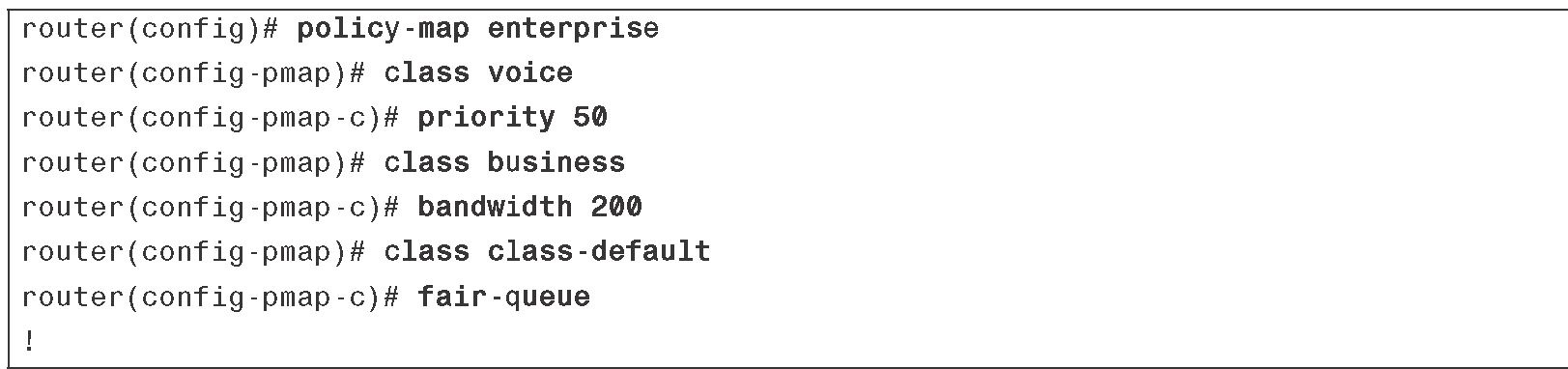
Example 4-7 shows implementation of LLQ using a policy map called enterprise. The policy map assigns a class called voice to the strict-priority queue with a bandwidth guarantee of 50 Kbps. Classes business and class-default form the CBWFQ component of this LLQ.

Example 4-7 A Policy Map to Implement LLQ

A Policy Map to Implement LLQ

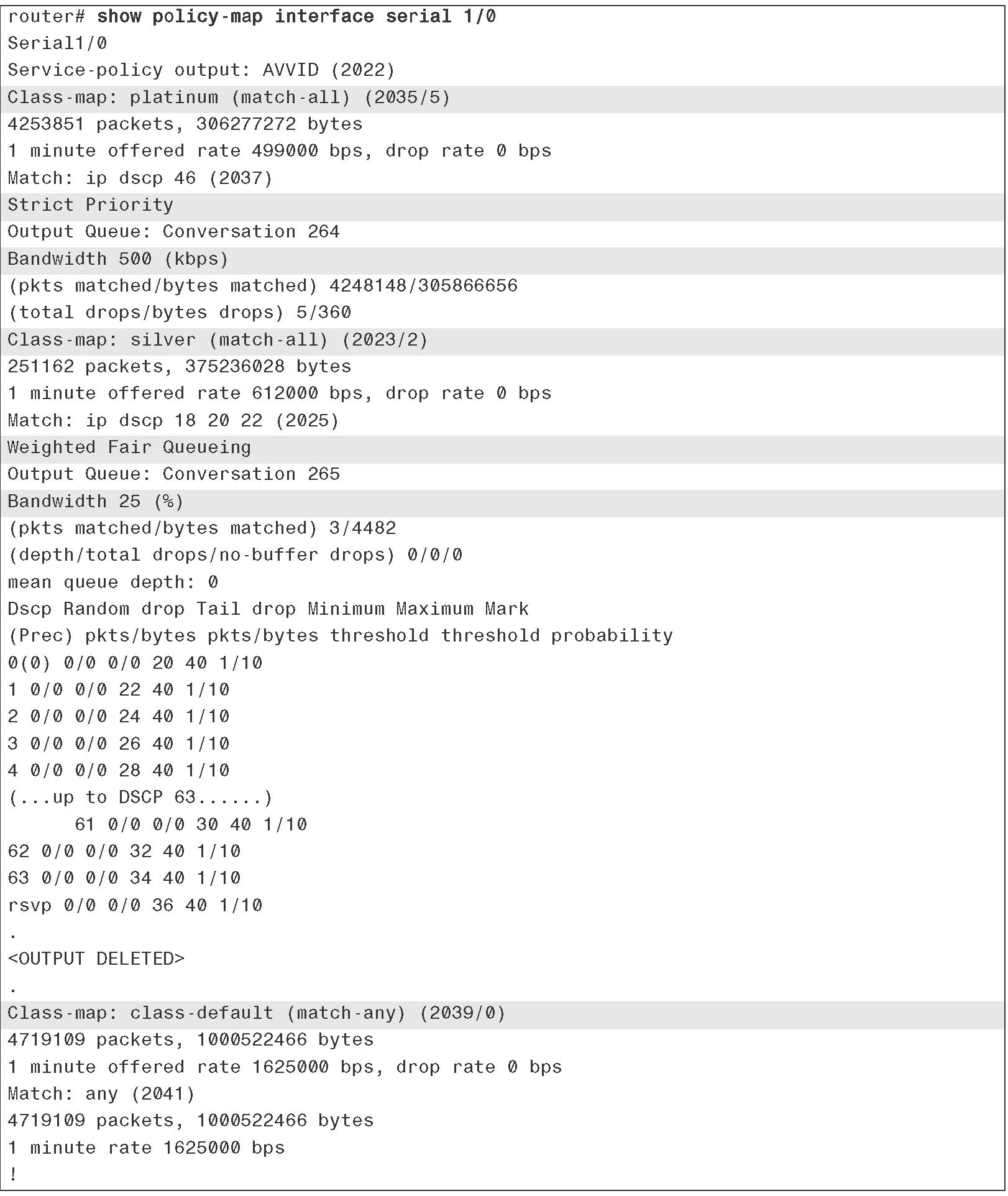
You can use the show policy-map interface interface command to see the packet statistics for all classes used within a policy map that is applied to an interface using the service-policy command. Example 4-8 shows (partial) output of this command for the serial 1/0 interface of a router.

Example 4-8 Sample Output of the show policy-map interface Command

Sample Output of the show policy-map interface Command

QoS template – bandwidth dependency calculation:

Cisco QoS features like LLQ and CBWFQ let us to prioritize and guarantee delay and bandwidth for defined class of traffic.
CBWFQ configuration allows to configure the BW requirements for specific class of service. First we have to defined the class and match the specific type of traffic, then assign BW limit in the policy that will be reserverd during interface congestion. Standard bandwidth command with BW in Kbps under class can be used for above. The drawback of this type of configuration is need to adjust the BW speed definition each time once we have changed the access speed.

IOS allows to tune the QoS configuration to define kind of QoS template that will use BW class ratio accross function similar devices without need for reconfiguration of BW parameters each time when access speed change. LLQ defines the priority queue for the delay sensetive traffic. Additionaly for business critical traffic CBWFQ needs to be configured. We have two options to confgure the QoS template: bandwidth percent and bandwidth remaining percent per class options.

I have defined 4 classes that will be used to presents configuration options.
class-map match-all TELNET
match protocol telnet
class-map match-all HTTP
match protocol http
class-map match-all SMTP
match protocol smtp
class-map match-all VoIP
match protocol rtp

Option 1 – bandwidth percent
First option to define BW template is to use bandwidth percent command instead of just bandwidth under class in policy map configuration. BW will be calculated based on the interface’s BW, so in case Fast Ethernet it will be 100Mbps. Priority percent 10 for PQ or bandwidth percent 10 in CBWFQ it’s 10% of 100Mbps.

By default, available interface BW is defined based on the physical port speed unless you configure the bandwidth command under interface to set access speed to something less (SLA access). Additionaly Cisco IOS has Default Class (class-default) with reserved the 25% of interface BW that match all undefined traffic (you can change it with max-reserved-bandwidth command under interface mode).

Let’s configure the first policy based on option 1:
R1(config)#policy-map LLQ
R1(config-pmap)#class VoIP
R1(config-pmap-c)#priority percent 10
R1(config-pmap-c)#class HTTP
R1(config-pmap-c)#bandwidth percent 10
R1(config-pmap-c)#class SMTP
R1(config-pmap-c)#bandwidth percent 50
R1(config-pmap-c)#class TELNET
R1(config-pmap-c)#bandwidth percent 30

The first way choice is to configure the bandwidth percent to fil 100% of interface speed, but due to class-default the available BW to share is 75%. In the above example we have defined 4 classed and assigned 100% of interface BW, here let’s try to assign the LLQ policy to the inerface:
R1#conf t
Enter configuration commands, one per line.  End with CNTL/Z.
R1(config)#int fa0/0
R1(config-if)#service-policy output LLQ
I/f FastEthernet0/0 class TELNET requested bandwidth 30%, available only 5%
R1(config-if)#

We can observe the error message that is saying that we have just 5% of available BW, this is due to 25% reserved for default class. OK so let change reserved BW for TELNET to 5%, assign policy to the interface and see the policy.
R1#show policy-map interface fastEthernet 0/0
FastEthernet0/0
Service-policy output: LLQ
Class-map: VoIP (match-all)
0 packets, 0 bytes
5 minute offered rate 0 bps, drop rate 0 bps
Match: protocol rtp
Queueing
Strict Priority
Output Queue: Conversation 264
Bandwidth 10 (%)
Bandwidth 10000 (kbps) Burst 250000 (Bytes)
(pkts matched/bytes matched) 0/0
(total drops/bytes drops) 0/0
Class-map: HTTP (match-all)
0 packets, 0 bytes
5 minute offered rate 0 bps, drop rate 0 bps
Match: protocol http
Queueing
Output Queue: Conversation 265
Bandwidth 10 (%)
Bandwidth 10000 (kbps)Max Threshold 64 (packets)
(pkts matched/bytes matched) 0/0
(depth/total drops/no-buffer drops) 0/0/0
Class-map: SMTP (match-all)
0 packets, 0 bytes
5 minute offered rate 0 bps, drop rate 0 bps
Match: protocol smtp
Queueing
Output Queue: Conversation 266
Bandwidth 50 (%)
Bandwidth 50000 (kbps)Max Threshold 64 (packets)
(pkts matched/bytes matched) 0/0
(depth/total drops/no-buffer drops) 0/0/0
Class-map: TELNET (match-all)
0 packets, 0 bytes
5 minute offered rate 0 bps, drop rate 0 bps
Match: protocol telnet
Queueing
Output Queue: Conversation 267
Bandwidth 5 (%)
Bandwidth 5000 (kbps)Max Threshold 64 (packets)
(pkts matched/bytes matched) 0/0
(depth/total drops/no-buffer drops) 0/0/0
Class-map: class-default (match-any)
0 packets, 0 bytes
5 minute offered rate 0 bps, drop rate 0 bps
Match: any

Policy has been defined for Fast Ethernet so LLQ and CBWFQ have 75Mbps traffic reserved, below BW calculation details:

VoIP = 100Mbps * 0,1 = 10Mbps
HTTP = 100Mbps * 0,1 = 10Mbps
SMTP = 100Mbps * 0,5 = 50Mbps
TELNET = 100Mbps * 0,05 = 5Mbps

Option 2 – bandwidth remaining percent
Second option to define BW is to use bandwidth remaining percent command. The idea of this type of configuration is to first reserve the BW for the PQ thru priority percent command and next divides the available remaining BW between defined classes.
Let’s configure below:
R1(config)#policy-map LLQ
R1(config-pmap)#class VoIP
R1(config-pmap-c)#priority percent 10
R1(config-pmap-c)#class HTTP
R1(config-pmap-c)#bandwidth remaining percent 10
R1(config-pmap-c)#class SMTP
R1(config-pmap-c)#bandwidth remaining percent 50
R1(config-pmap-c)#class TELNET
R1(config-pmap-c)#bandwidth remaining percent 40
R1(config-pmap-c)#int fa0/0
R1(config-if)#service-policy output LLQ

For class VoIP priority percent 10 will be equal 100Mbps*0,1=10Mbps, BW Remaining is = (100-10)Mbps * 0,75= 67,5Mbps. So BW Remaining will be used as reference for all classes.
For class HTTP bandwidth remaining percent 10 will be equal BW Remaining*0,1 = 67,5Mbps*0,1= 6,75 Mbps.
For class SMTP bandwidth remaining percent 50 will be equal BW Remaining*0,5 = 33,75 Mbps.
For class TELNET bandwidth remaining percent 40 will be equal BW Remaining*0,4 = 27 Mbps.
By default Burst for Strict Priority queue is equal 20% of the PQ’s BW so 20% of 10Mbps, (10000000bitów/8)*0,2=250000B

R1#show policy-map interface fa0/0
FastEthernet0/0
Service-policy output: LLQ
Class-map: VoIP (match-all)
0 packets, 0 bytes
5 minute offered rate 0 bps, drop rate 0 bps
Match: protocol rtp
Queueing
Strict Priority
Output Queue: Conversation 264
Bandwidth 10 (%)
Bandwidth 10000 (kbps) Burst 250000 (Bytes)
(pkts matched/bytes matched) 0/0
(total drops/bytes drops) 0/0
Class-map: HTTP (match-all)
0 packets, 0 bytes
5 minute offered rate 0 bps, drop rate 0 bps
Match: protocol http
Queueing
Output Queue: Conversation 265
Bandwidth remaining 10 (%)Max Threshold 64 (packets)
(pkts matched/bytes matched) 0/0
(depth/total drops/no-buffer drops) 0/0/0
Class-map: SMTP (match-all)
0 packets, 0 bytes
5 minute offered rate 0 bps, drop rate 0 bps
Match: protocol smtp
Queueing
Output Queue: Conversation 266
Bandwidth remaining 50 (%)Max Threshold 64 (packets)
(pkts matched/bytes matched) 0/0
(depth/total drops/no-buffer drops) 0/0/0
Class-map: TELNET (match-all)
0 packets, 0 bytes
5 minute offered rate 0 bps, drop rate 0 bps
Match: protocol telnet
Queueing
Output Queue: Conversation 267
Bandwidth remaining 40 (%)Max Threshold 64 (packets)
(pkts matched/bytes matched) 0/0
(depth/total drops/no-buffer drops) 0/0/0
Class-map: class-default (match-any)
30 packets, 2851 bytes
5 minute offered rate 0 bps, drop rate 0 bps
Match: any

Above examples are Cisco recommended ways to deploye CE QoS configuration for different access speed port.