9 Linux ethtool Examples to Manipulate Ethernet Card (NIC Card)

Ethtool utility is used to view and change the ethernet device parameters.

1. List Ethernet Device Properties

When you execute ethtool command with a device name, it displays the following information about the ethernet device.

# ethtool eth0
Settings for eth0:
        Supported ports: [ TP ]
        Supported link modes:   10baseT/Half 10baseT/Full
                                100baseT/Half 100baseT/Full
                                1000baseT/Full
        Supports auto-negotiation: Yes
        Advertised link modes:  10baseT/Half 10baseT/Full
                                100baseT/Half 100baseT/Full
                                1000baseT/Full
        Advertised auto-negotiation: Yes
        Speed: 100Mb/s
        Duplex: Full
        Port: Twisted Pair
        PHYAD: 1
        Transceiver: internal
        Auto-negotiation: on
        Supports Wake-on: d
        Wake-on: d
        Link detected: yes

This above ethtool output displays ethernet card properties such as speed, wake on, duplex and the link detection status. Following are the three types of duplexes available.

  • Full duplex : Enables sending and receiving of packets at the same time. This mode is used when the ethernet device is connected to a switch.
  • Half duplex : Enables either sending or receiving of packets at a single point of time. This mode is used when the ethernet device is connected to a hub.
  • Auto-negotiation : If enabled, the ethernet device itself decides whether to use either full duplex or half duplex based on the network the ethernet device attached to.

2. Change NIC Parameter Using ethtool Option -s autoneg

The above ethtool eth0 output displays that the “Auto-negotiation” parameter is in enabled state. You can disable this using autoneg option in the ethtool as shown below.

# ifdown eth0
    eth0      device: Broadcom Corporation NetXtreme II BCM5709 Gigabit Ethernet (rev 20)
    eth0      configuration: eth-bus-pci-0000:0b:00.0

# ethtool  -s eth0 autoneg off

# ethtool eth0
Settings for eth0:
        Supported ports: [ TP ]
        Supported link modes:   10baseT/Half 10baseT/Full
                                100baseT/Half 100baseT/Full
                                1000baseT/Full
        Supports auto-negotiation: Yes
        Advertised link modes:  Not reported
        Advertised auto-negotiation: No
        Speed: Unknown! (65535)
        Duplex: Unknown! (255)
        Port: Twisted Pair
        PHYAD: 1
        Transceiver: internal
        Auto-negotiation: off
        Supports Wake-on: g
        Wake-on: g
        Link detected: no
# ifup eth0

After the above change, you could see that the “link detection” value changed to down and auto-negotiation is in off state.

3. Change the Speed of Ethernet Device

Using ethtool you can change the speed of the ethernet device to work with the certain network devices, and the newly assign speed value should be within the limited capacity.

# ethtool -s eth0 speed 100 autoneg off

# ethtool eth0
Settings for eth0:
        Supported ports: [ TP ]
        Supported link modes:   10baseT/Half 10baseT/Full
                                100baseT/Half 100baseT/Full
                                1000baseT/Full
        Supports auto-negotiation: Yes
        Advertised link modes:  Not reported
        Advertised auto-negotiation: No
        Speed: Unknown! (65535)
        Duplex: Unknown! (255)
        Port: Twisted Pair
        PHYAD: 1
        Transceiver: internal
        Auto-negotiation: off
        Supports Wake-on: g
        Wake-on: g
        Link detected: no

Once you change the speed when the adapter is online, it automatically goes offline, and you need to bring it back online using ifup command.

# ifup eth0
    eth0      device: Broadcom Corporation NetXtreme II BCM5709 Gigabit Ethernet (rev 20)
    eth0      configuration: eth-bus-pci-0000:0b:00.0
Checking for network time protocol daemon (NTPD):                     running

# ethtool eth0
Settings for eth0:
        Supported ports: [ TP ]
        Supported link modes:   10baseT/Half 10baseT/Full
                                100baseT/Half 100baseT/Full
                                1000baseT/Full
        Supports auto-negotiation: Yes
        Advertised link modes:  Not reported
        Advertised auto-negotiation: No
        Speed: 100Mb/s
        Duplex: Full
        Port: Twisted Pair
        PHYAD: 1
        Transceiver: internal
        Auto-negotiation: off
        Supports Wake-on: g
        Wake-on: g
        Link detected: yes

As shown in the above output, the speed changed from 1000Mb/s to 100Mb/s and auto-negotiation parameter is unset.

To change the Maximum Transmission Unit (MTU), refer to our ifconfig examplesarticle.

4. Display Ethernet Driver Settings

ethtool -i option displays driver version, firmware version and bus details as shown below.

# ethtool -i eth0
driver: bnx2
version: 2.0.1-suse
firmware-version: 1.9.3
bus-info: 0000:04:00.0

5. Display Auto-negotiation, RX and TX of eth0

View the autonegotiation details about the specific ethernet device as shown below.

# ethtool -a eth0
Pause parameters for eth0:
Autonegotiate:  on
RX:             on
TX:             on

6. Display Network Statistics of Specific Ethernet Device

Use ethtool -S option to display the bytes transfered, received, errors, etc, as shown below.

# ethtool -S eth0
NIC statistics:
     rx_bytes: 74356477841
     rx_error_bytes: 0
     tx_bytes: 110725861146
     tx_error_bytes: 0
     rx_ucast_packets: 104169941
     rx_mcast_packets: 138831
     rx_bcast_packets: 59543904
     tx_ucast_packets: 118118510
     tx_mcast_packets: 10137453
     tx_bcast_packets: 2221841
     tx_mac_errors: 0
     tx_carrier_errors: 0
     rx_crc_errors: 0
     rx_align_errors: 0
     tx_single_collisions: 0
     tx_multi_collisions: 0
     tx_deferred: 0
     tx_excess_collisions: 0
     tx_late_collisions: 0
     tx_total_collisions: 0
     rx_fragments: 0
     rx_jabbers: 0
     rx_undersize_packets: 0
     rx_oversize_packets: 0
     rx_64_byte_packets: 61154057
     rx_65_to_127_byte_packets: 55038726
     rx_128_to_255_byte_packets: 426962
     rx_256_to_511_byte_packets: 3573763
     rx_512_to_1023_byte_packets: 893173
     rx_1024_to_1522_byte_packets: 42765995
     rx_1523_to_9022_byte_packets: 0
     tx_64_byte_packets: 3633165
     tx_65_to_127_byte_packets: 51169838
     tx_128_to_255_byte_packets: 3812067
     tx_256_to_511_byte_packets: 113766
     tx_512_to_1023_byte_packets: 104081
     tx_1024_to_1522_byte_packets: 71644887
     tx_1523_to_9022_byte_packets: 0
     rx_xon_frames: 0
     rx_xoff_frames: 0
     tx_xon_frames: 0
     tx_xoff_frames: 0
     rx_mac_ctrl_frames: 0
     rx_filtered_packets: 14596600
     rx_discards: 0
     rx_fw_discards: 0

7. Troubleshoot the Ethernet Connection Issues

When there is a problem with the network connection, you might want to check (or change) the ethernet device parameters explained in the above examples, when you see following issues in the output of ethtool command.

  • Speed and Duplex value is shown as Unknown
  • Link detection value is shown as No

Upon successful connection, the three parameters mentioned above gets appropriate values. i.e Speed is assigned with known value, Duplex become either Full/Half, and the Link detection becomes Yes.

After the above changes, if the Link Detection still says “No”, check whether there are any issues in the cables that runs from the switch and the system, you might want to dig into that aspect further.

To capture and analyze packets from a specific network interface, use tcpdump utility.

8. Identify Specific Device From Multiple Devices (Blink LED Port of NIC Card)

Let us assume that you have a machine with four ethernet adapters, and you want to identify the physical port of a particular ethernet card. (For example, eth0).

Use ethtool option -p, which will make the corresponding LED of physical port to blink.

# ethtool -p eth0

9. Make Changes Permanent After Reboot

If you’ve changed any ethernet device parameters using the ethtool, it will all disappear after the next reboot, unless you do the following.

On ubuntu, you have to modify /etc/network/interfaces file and add all your changes as shown below.

# vim /etc/network/interfaces
post-up ethtool -s eth2 speed 1000 duplex full autoneg off

The above line should be the last line of the file. This will change speed, duplex and autoneg of eth2 device permanently.

On SUSE, modify the /etc/sysconfig/network/ifcfg-eth-id file and include a new script using POST_UP_SCRIPT variable as shown below. Include the below line as the last line in the corresponding eth1 adpater config file.

# vim /etc/sysconfig/network/ifcfg-eth-id
POST_UP_SCRIPT='eth1'

Then, create a new file scripts/eth1 as shown below under /etc/sysconfig/network directory. Make sure that the script has execute permission and ensure that the ethtool utility is present under /sbin directory.

# cd /etc/sysconfig/network/

# vim scripts/eth1
#!/bin/bash
/sbin/ethtool -s duplex full speed 100 autoneg off
Changing the MTU on windows command prompt

  1. Open a command line window as an Administrator (ie. right click on All Programs > Accessories > Command Prompt and select Run as administrator) …
  2. Type the command netsh and wait for prompt
  3. Type the command interface and wait for prompt
  4. Type the command ipv4 and wait for prompt
  5. Type the command set subinterface “Local Area Connection” mtu=xxxx store=persistent

UNIX / Linux: Set your PATH Variable Using set or export Command

How do I add a new path to $PATH variable under Linux and UNIX like operating system? What is my path, and how do I set or modify it using csh/tcsh or bash/ksh/sh shell?

The PATH is an environment variable. It is a colon delimited list of directories that your shell searches through when you enter a command. All executables are kept in different directories on the Linux and Unix like operating systems.

Finding out your current path

To find out what your current path setting, type the following command at shell prompt. Open the Terminal and then enter:

 
echo "$PATH"

OR

 
printf "%s\n" "$PATH"

Sample outputs:

/usr/bin:/bin:/usr/sbin:/sbin:/usr/local/bin:/opt/X11/bin:/usr/local/sbin/modemZapp:/Users/vivek/gcutil-1.8.4

How do I modify my path?

To modify your path edit $PATH variable as per your shell. The syntax for setting path under UNIX / Linux dependent upon your login shell.

Bash, Sh, Ksh shell syntax to modify $PATH

If you are using bash, sh, or ksh, at the shell prompt, type:

## please note 'PATH' is CASE sensitivity and must be in UPPERCASE ##
export PATH=$PATH:/path/to/dir1
export PATH=$PATH:/path/to/dir1:/path/to/dir2

OR

## please note 'PATH' is CASE sensitivity and must be in UPPERCASE ##
PATH=$PATH:/path/to/dir1; export PATH

Please feel free to replace /path/to/dir1 with the directory you want the shell to search.

Tcsh or csh shell syntax to modify $PATH

If you are using tcsh or csh, shell enter:

 ## please note 'path' is case sensitivity and must be in lowercase ##
set path = ($path /path/to/dir1)
set path = ($path /path/to/dir1 /path/to/dir2)

OR

## please note 'PATH' is CASE sensitivity and must be in UPPERCASE ##
setenv PATH $PATH:/path/to/dir1
setenv PATH $PATH:/path/to/dir1:/path/to/dir2

Please feel free to replace /path/to/dir1 with the directory you want the shell to search.

Examples

In this example add /usr/local/bin to your path under BASH/ksh/sh shell, enter:

 
export PATH=$PATH:/usr/local/bin

OR

 
PATH=$PATH:/usr/local/bin; export PATH

To make these changes permanent, add the commands described above to the end of your~/.profile file for sh and ksh shell, or ~/.bash_profile file for bash shell:

## BASH SHELL ##
echo 'export PATH=$PATH:/usr/local/bin'  >> ~/.bash_profile

KSH/sh shell user try:

## KSH / SH SHELL ##
echo 'export PATH=$PATH:/usr/local/bin'  >> ~/.profile

In this final example add /usr/local/bin/ and /scripts/admin/ to your path under csh / tcsh shell, enter:

 
set path = ($path /usr/local/bin /scripts/admin)

OR

 
setenv PATH $PATH:/usr/local/bin:/scripts/admin

To make these changes permanent, add the commands described above to the end of your~/.cshrc file:

 
echo 'set path = ($path /usr/local/bin /scripts/admin)'  >> ~/.cshrc

OR

 
echo 'setenv PATH $PATH:/usr/local/bin:/scripts/admin'  >> ~/.cshrc

To verify new path settings, enter:
$ echo $PATH

5+ Practical “chgrp” Command Usage Examples in Linux

What is chgrp?


5 chgrp Examples

1. To change the group name of a file or directory

You can change the group of a file as shown below,

$ ls -l
-rw-r--r-- 1 john john 210 2011-01-04 16:01 /home/john/sample.txt

$ chgrp user /home/john/sample.txt

$ ls -l
-rw-r--r-- 1 john user 210 2011-01-04 16:01 /home/john/sample.txt

2. To change the group name of link files

Using –derefence option, the group of referent of symbolic link file can be changed and with –no-dereference option, the group of symbolic link file can be changed as shown below.

# the group name of actual file pointed by sym_link gets changed.
$ chgrp --dereference guest sym_link

# the group name of sym_link gets changed.
$ chgrp --no-dereference user sym_link

$ ls -l sym_link richard_readme.txt
lrw-r--r--  1 bala user    4  2011-01-04 15:52 sym_link -> readme.txt
-rw-r--r-- 1 bala guest  20 2011-01-04 15:52 readme.txt

Note : –dereference is the default option.

3. To change the group for list of files

Using -R option, the list of file’s group name can be modified as shown below,

$ chgrp -R guest dir/

$ ls -l dir/
total 8
-rw-r--r-- 1 bala guest 20 2011-01-04 16:50 readme.txt
-rw-r--r-- 1 bala guest 20 2011-01-04 16:50 changes.txt

4. To use the group value of another file instead of specifying explicitly

By using –reference=RFILE option, the group value of RFILE’s gets used instead of specifying the value explicitly.

$ ls -l /home/bala/sample.txt
-rw-r--r-- 1 bala guest 20 2011-01-04 16:50 /home/bala/query.txt

$ ls -l query.txt
-rw-r--r-- 1 steven user 20 2011-01-04 16:50 query.txt

$ chgrp --reference=/home/bala/query.txt query.txt

$ ls -l query.txt
-rw-r--r-- 1 steven guest 20 2011-01-04 16:50 query.txt

5. To print the verbose messages only when changes made

The -c option makes the verbose messages gets printed only when the changed is made in FILE.

$ chgrp -c user sample.txt 
changed group of `sample.txt' to user

Syntax and Options

chgrp [OPTIONS]… GROUP FILE…

Short Option Long Option Option Description
-c –changes to print verbose only when changes made
–dereference to change the group name of referent of symbolic link rather than symbolic link itself
-h –no-dereference to change the group name of symbolic link itself
–no-preserve-root do not treat ‘/’ specially ( default )
–preserve-root fail to operate recursively on ‘/’
-f –silent, –quiet to suppress most of the error messages
–reference=RFLIE to use RFILE’s group name instead of specifying it explicitly
-R –recursive to operate on files and directories recursively
-v –verbose to output a diagnostic for every file processed

Note:
Before using “chgrp” command, You should be aware of the users existing in your system, otherwise you will get “Invalid user name” Error.
To see the list of the users, You may use(cat /etc/group). But if you still want to add a particular user , then run in the terminal following command and then use “chgrp” command accordingly:

  sudo addgroup user_name_to_add

1. To change the group name of a file(chgrp group_name file_name):

sanfoundry-> touch 1.txt 
sanfoundry-> ls -l 1.txt 
-rw-rw-r-- 1 himanshu himanshu 0 Jun 12 18:57 1.txt
sanfoundry-> sudo chgrp user 1.txt 
sanfoundry-> ls -l 1.txt 
-rw-rw-r-- 1 himanshu user 0 Jun 12 18:57 1.txt
sanfoundry->

As you can see, Here user for the 1.txt was “himanshu” and after executing the “chgrp” command, user_name has been changed to “user”.

2. To change the group name of a folder(chgrp group_name folder_name):

sanfoundry-> mkdir sample_folder
sanfoundry-> ls -l 
drwxrwxr-x 2 himanshu himanshu  4096 Jun 12 19:04 sample_folder
 
sanfoundry-> sudo chgrp user sample_folder/
sanfoundry-> ls -l
drwxrwxr-x 2 himanshu user      4096 Jun 12 19:04 sample_folder

As you can see, Here user for the folder sample_folder was “himanshu” and after executing the “chgrp” command, user_name has been changed to “user”.

3. To change the group name of all contents in a folder(chgrp -R group_name folder_name):
“-R” option is for the recursive changes in the folder.

sanfoundry-> mkdir sample_folder
sanfoundry-> cd sample_folder/
sanfoundry-> touch x y 
sanfoundry-> mkdir folder1
sanfoundry-> cd ..
sanfoundry-> ls -l sample_folder/
total 4
drwxrwxr-x 2 himanshu himanshu 4096 Jun 12 19:09 folder1
-rw-rw-r-- 1 himanshu himanshu    0 Jun 12 19:09 x
-rw-rw-r-- 1 himanshu himanshu    0 Jun 12 19:09 y
sanfoundry-> sudo chgrp -R user sample_folder/
sanfoundry-> ls -l sample_folder/
total 4
drwxrwxr-x 2 himanshu user 4096 Jun 12 19:09 folder1
-rw-rw-r-- 1 himanshu user    0 Jun 12 19:09 x
-rw-rw-r-- 1 himanshu user    0 Jun 12 19:09 y

4. To print the verbose messages when changes made in the ownership(chgrp -c group_name file/folder name):

sanfoundry-> touch 1.txt 
sanfoundry-> sudo chgrp -c user 1.txt 
changed group of `1.txt' from himanshu to user

5. To use group name of a file instead of specifying a particular group_name( chgrp -–reference=file1 file2):

sanfoundry-> touch 1.txt 2.txt 
sanfoundry-> sudo chgrp user 1.txt 
sanfoundry-> ls -l 1.txt 2.txt 
-rw-rw-r-- 1 himanshu user     0 Jun 12 19:19 1.txt
-rw-rw-r-- 1 himanshu himanshu 0 Jun 12 19:19 2.txt
sanfoundry-> sudo chgrp --reference=1.txt 2.txt 
sanfoundry-> ls -l 1.txt 2.txt 
-rw-rw-r-- 1 himanshu user 0 Jun 12 19:19 1.txt
-rw-rw-r-- 1 himanshu user 0 Jun 12 19:19 2.txt

As you can see from the above example, 1.txt has group name “user” and with –reference option that has been given to the file “2.txt” and now both shares a common group name,”user”.

6. output a diagnostic for every file processed(chgrp -v group_name file_name):

sanfoundry-> touch 1.txt
sanfoundry-> sudo chgrp -v user 1.txt 
changed group of `1.txt' from himanshu to user

7. To change the group name of link files(chgrp –dereference group_name … file_name):
To create a symbolic link for a file, say 1.txt, You have to use ln -s command:

sanfoundry-> touch 1.txt
sanfoundry-> ln -s 1.txt symbolic_link

Here file symbolic_link is the link_name for file 1.txt.
* with “-dereference” option the group name of actual file pointed by symbolic_link gets changed.
* with “-no-dereference” option the group name of symbolic_link gets changed itself.

sanfoundry-> sudo  chgrp --dereference user symbolic_link
sanfoundry-> ls -l symbolic_link 1.txt 
-rw-rw-r-- 1 himanshu user     0 Jun 13 00:43 1.txt
lrwxrwxrwx 1 himanshu himanshu 5 Jun 13 00:43 symbolic_link -> 1.txt
 
sanfoundry-> sudo  chgrp --no-dereference hello symbolic_link
sanfoundry-> ls -l symbolic_link 
lrwxrwxrwx 1 himanshu hello 5 Jun 13 00:43 symbolic_link -> 1.txt

From the above example, You can see that with “–dereference” option the group name of the linked file 1.txt has been changed and group name of symbolic_link remains the same. But with “–no-dereference” option the group name of the symbolic link has been changed itself.

8. To change the group name of symbolic link itself without “–no-dereference” option(chgrp -h group_name link_name):

sanfoundry-> sudo  hello -h user symbolic_link
sanfoundry-> ls -l symbolic_link 
lrwxrwxrwx 1 himanshu hello 5 Jun 13 00:43 symbolic_link -> 1.txt

Some more options for chgrp
* “-f” To suppress most of the error messages
* “-RL” To traverse every symbolic link to a directory encountered

Note:
* As a security measure if you want to give permissions to a command to some group you can use this command.
* “chown” command is used to change ownership as well as group name associated to different one, where as “chgrp” can change only group associated to it.

Difference between chown and chgrp

1) chown command is used to change ownership as well as group name associated to different one, where as chgrp can change only group associated to it.

2) Many people say that regular user only able to use chgrp to change the group if the user belongs to them. But it’s not true a user can use chown and chgrpirrespective to change group to one of their group because chown is located in /bin folder so every can use it with some limited access.

Disk quota in Linux

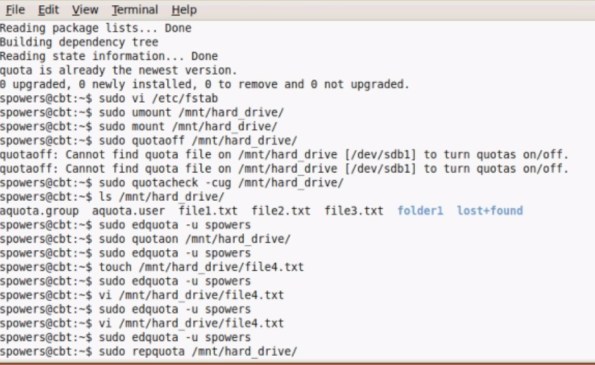
On Linux, you can setup disk quota using one of the following methods:

  • File system base disk quota allocation
  • User or group based disk quota allocation


On the user or group based quota, following are three important factors to consider:

  • Hard limit – For example, if you specify 2GB as hard limit, user will not be able to create new files after 2GB
  • Soft limit – For example, if you specify 1GB as soft limit, user will get a warning message “disk quota exceeded”, once they reach 1GB limit. But, they’ll still be able to create new files until they reach the hard limit
  • Grace Period – For example, if you specify 10 days as a grace period, after user reach their hard limit, they would be allowed additional 10 days to create new files. In that time period, they should try to get back to the quota limit.

1. Enable quota check on filesystem

First, you should specify which filesystem are allowed for quota check.

Modify the /etc/fstab, and add the keyword usrquota and grpquota to the corresponding filesystem that you would like to monitor.

The following example indicates that both user and group quota check is enabled on /home filesystem

# cat /etc/fstab
LABEL=/home    /home   ext2   defaults,usrquota,grpquota  1 2

Reboot the server after the above change.

2. Initial quota check on Linux filesystem using quotacheck

Once you’ve enabled disk quota check on the filesystem, collect all quota information initially as shown below.

# quotacheck -avug
quotacheck: Scanning /dev/sda3 [/home] done
quotacheck: Checked 5182 directories and 31566 files
quotacheck: Old file not found.

In the above command:

  • a: Check all quota-enabled filesystem
  • v: Verbose mode
  • u: Check for user disk quota
  • g: Check for group disk quota

The above command will create a aquota file for user and group under the filesystem directory as shown below.

# ls -l /home/

-rw-------    1 root     root        11264 Jun 21 14:49 aquota.user
-rw-------    1 root     root        11264 Jun 21 14:49 aquota.group

3. Assign disk quota to a user using edquota command

Use the edquota command as shown below, to edit the quota information for a specific user.

For example, to change the disk quota for user ‘ramesh’, use edquota command, which will open the soft, hard limit values in an editor as shown below.

# edquota ramesh

Disk quotas for user ramesh (uid 500):
  Filesystem           blocks       soft       hard     inodes     soft     hard
  /dev/sda3           1419352          0          0       1686        0        0

Once the edquota command opens the quota settings for the specific user in a editor, you can set the following limits:

  • soft and hard limit for disk quota size for the particular user.
  • soft and hard limit for the total number of inodes that are allowed for the particular user.

4. Report the disk quota usage for users and group using repquota

Use the repquota command as shown below to report the disk quota usage for the users and groups.

# repquota /home
*** Report for user quotas on device /dev/sda3
Block grace time: 7days; Inode grace time: 7days
                        Block limits                File limits
User            used    soft    hard  grace    used  soft  hard  grace
----------------------------------------------------------------------
root      --  566488       0       0           5401     0     0
nobody    --    1448       0       0             30     0     0
ramesh    -- 1419352       0       0           1686     0     0
john      --   26604       0       0            172     0     0

5. Add quotacheck to daily cron job

Add the quotacheck to the daily cron job. Create a quotacheck file as shown below under the /etc/cron.daily directory, that will run the quotacheck command everyday. This will send the output of the quotacheck command to root email address.

# cat /etc/cron.daily/quotacheck
quotacheck -avug

How to configure disk quota in Linux

Disk quotas are commonly used by ISPs, by Web hosting companies, on FTP sites, and on corporate file servers to ensure continued availability of their systems.

Quotas are used to limit a users or a group of users ability to consume disk space. This prevents a small group of users from monopolizing disk capacity and potentially interfering with other users or the entire system.

Without quotas, one or more users can upload files on an FTP server to the point of filling a file system. Once the affected partition is full, other users are effectively denied upload access to the disk. This is also a reason to mount different file system directories on different partitions. For example, if you only had partitions for your root (/) directory and swap space, someone uploading to your computer could fill up all of the space in your root directory (/). Without at least a little free space in the root directory (/), your system could become unstable or even crash.

You have two ways to set quotas for users. You can limit users by inodes or by kilobyte-sized disk blocks. Every Linux file requires an inode. Therefore, you can limit users by the number of files or by absolute space. You can set up different quotas for different file systems. For example, you can set different quotas for users on the /home and /tmp directories if they are mounted on their own partitions. Limits on disk blocks restrict the amount of disk space available to a user on your system. Older versions of Red Hat Linux included LinuxConf, which included a graphical tool to configure quotas. Red Hat no longer has a graphical quota configuration tool. Today, you can configure quotas on RHEL only through the command line interface.

Lets look few basic terms used for implementation of disk quota

  • Soft limit
    This is the maximum amount of space a user can have on that partition. If you have set a grace period, this will act as an alarm. The user will then be notified she is in quota violation. If you have set a grace period, you will also need to set a hard limit. A grace period is the number of days a user is allowed to be above the given quota. After the grace period is over, the user must get under the soft limit to continue. By default grace period have seven days limits.
  • Hard limit
    Hard limits are necessary only when you are using grace periods. If grace periods are enabled, this will be the absolute limit a user can use. Any attempt to consume resources beyond this limit will be denied. If you are not using grace periods, the soft limit is the maximum amount of available space for each user.
  • Grace Periods
    Linux has provided the default of seven days for both inodes and block usage. That is, a user may exceed the soft limit on either resource for up to seven days. After that, further requests by that user to use files will be denied.
Reference Table
Soft Limit Disk space a user can use
Hard limit Absolute limit a user can use
Grace Periods Time duration till user can use hard limit space
1 inode 1 KB
dd used to create a blank file of specific size
required RPM quota-3.13-1.2.3.2.el5
/etc/fstab options usrquota, grpquota
Quota files aquota.user, aquota.group
Necessary command mount, quotaon, quotacheck, edquota, quotaoff

Quota Tools

Quota checks can be implemented on the file system of a hard disk partition mounted on your system. The quotas are enabled using the quotacheck and quotaon programs. They are executed in the /etc/rc.d/rc.sysinit script, which is run whenever you start up your system. Each partition needs to be mounted with the quota options, usrquota or grpquota. usrquota enables quota controls for users, and grpquota works for groups.

You also need to create quota.user and quota.group files for each partition for which you enable quotas. These are the quota databases that hold the quota information for each user and group. You can create these files by running the quotacheck command with the -a option or the device name of the file system where you want to enable quotas.

edquota

You can set disk quotas using the edquota command. With it, you can access the quota record for a particular user and group, which is maintained in the disk quota database. You can also set default quotas that will be applied to any user or group on the file system for which quotas have not been set. edquota will open the record in your default editor, and you can use your editor to make any changes. To open the record for a particular user, use the -u option and the username as an argument for edquota

quotacheck, quotaon, and quotaoff

The quota records are maintained in the quota database for that partition. Each partition that has quotas enabled has its own quota database. You can check the validity of your quota database with the quotacheck command. You can turn quotas on and off using the quotaon and quotaoff commands. When you start up your system, quotacheck is run to check the quota databases, and then quotaon is run to turn on quotas.

repquota

As the system administrator, you can use the repquota command to generate a summary of disk usage for a specified file system, checking to see what users are approaching or exceeding quota limits. repquota takes as its argument the file system to check; the -a option checks all file systems.

quota

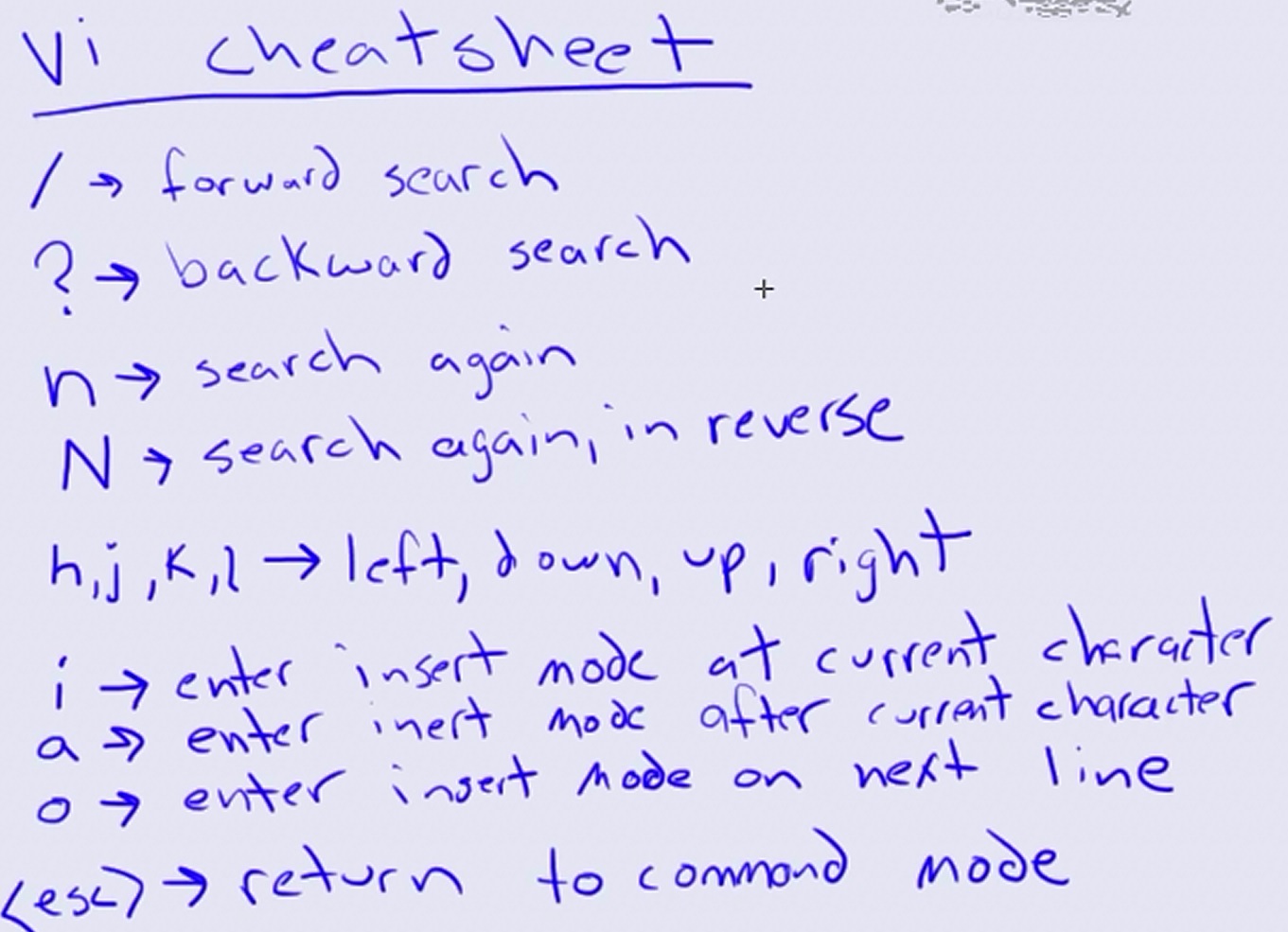
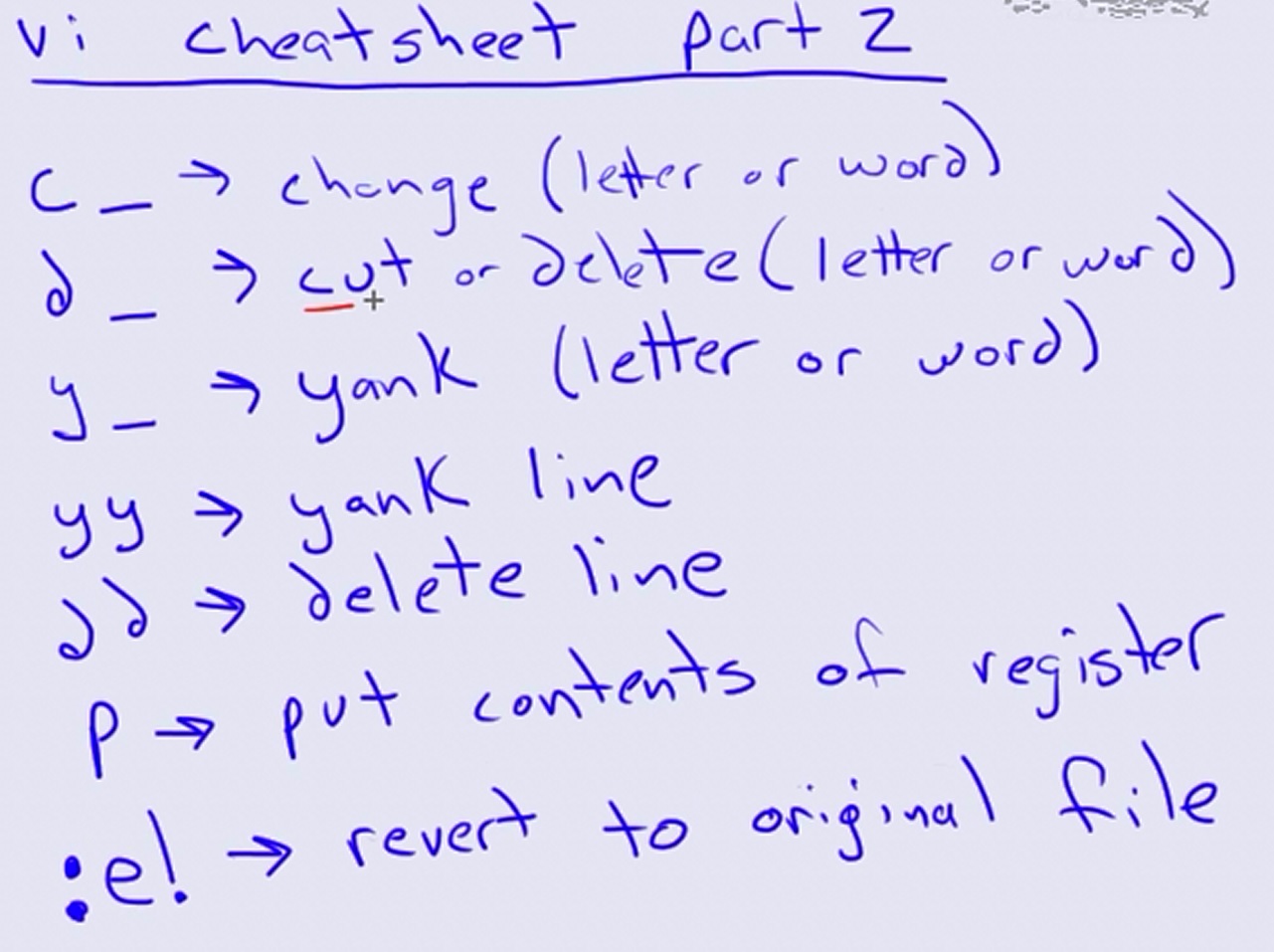
A Beginner’s Guide to Editing Text Files With Vi

vi1

vi2

vi3

Vi is a powerful text editor included with most Linux systems, even embedded ones. Sometimes you’ll have to edit a text file on a system that doesn’t include a friendlier text editor, so knowing Vi is essential.

Unlike Nano, an easy-to-use terminal text editor, Vi doesn’t hold your hand and provide a list of keyboard shortcuts on the screen. It’s a modal text editor, and it has both an insert and command mode.

Getting Started

Vi is a terminal application, so you’ll have to start it from a terminal window. Use the vi /path/to/file command to open an existing file with Vi. The vi /path/to/file command also works if the file doesn’t exist yet; Vi will create a new file and write it to the specified location when you save.

Remember to use sudo if you want to edit a system file. So, for example, you’d type sudo vi /etc/fstab if you wanted to edit your fstab file. Use the su command instead if you’re using a non-Ubuntu version of Linux that doesn’t use sudo.

Command Mode

This is what you’ll see when you open a file in vi. It looks like you can just start typing, but you can’t. Vi is a modal text editor, and it opens in command mode. Trying to type at this screen will result in unexpected behavior.

While in command mode, you can move the cursor around with the arrow keys. Press the x key to delete the character under the cursor. There are a variety of other delete commands — for example, typing dd (press the d key twice) deletes an entire line of text.

You can select, copy, cut and paste text in command mode. Position the cursor at the left or right side of the text you want to copy and press the v key. Move your cursor to select text, and then press y to copy the selected text or x to cut it. Position your cursor at the desired location and press the p key to paste the text you copied or cut.

Insert Mode

Aside from command mode, the other mode you need to know about is insert mode, which allows you to insert text in Vi. Entering insert mode is easy once you know it exists — just press the i key once after you’ve positioned the cursor in command mode. Start typing and Vi will insert the characters you type into the file rather than trying to interpret them as commands.

Once you’re done in insert mode, press the escape key to return to command mode.

Saving and Quitting

You can save and quit vi from command mode. First, ensure you’re in command mode by pressing the escape key (pressing the escape key again does nothing if you’re already in command mode.)

Type :wq and press enter to write the file to disk and quit vi. You can also split this command up — for example, type :w and press enter to write the file to disk without quitting or type :q to quit vi without saving the file.

Vi won’t let you quit if you’ve modified the file since you last saved, but you can type :q! and press enter to ignore this warning.

8 Essential Vim Editor Navigation Fundamentals

1. Vim Line Navigation

Following are the four navigation that can be done line by line.

  • k – navigate upwards
  • j – navigate downwards
  • l – navigate right side
  • h – navigate left side


By using the repeat factor in VIM we can do this operation for N times. For example, when you want to
go down by 10 lines, then type “10j”.

Within a line if you want to navigate to different position, you have 4 other options.

  • 0 – go to the starting of the current line.
  • ^ – go to the first non blank character of the line.
  • $ – go to the end of the current line.
  • g_ – go to the last non blank character of the line.

2. Vim Screen Navigation

Following are the three navigation which can be done in relation to text shown in the screen.

  • H – Go to the first line of current screen.
  • M – Go to the middle line of current screen.
  • L – Go to the last line of current screen.
  • ctrl+f – Jump forward one full screen.
  • ctrl+b – Jump backwards one full screen
  • ctrl+d – Jump forward (down) a half screen
  • ctrl+u – Jump back (up) one half screen

3. Vim Special Navigation

You may want to do some special navigation inside a file, which are:

  • N% – Go to the Nth percentage line of the file.
  • NG – Go to the Nth line of the file.
  • G – Go to the end of the file.
  • `” – Go to the position where you were in NORMAL MODE while last closing the file.
  • `^ – Go to the position where you were in INSERT MODE while last closing the file.
  • g – Go to the beginning of the file.

4. Vim Word Navigation

You may want to do several navigation in relation to the words, such as:

  • e – go to the end of the current word.
  • E – go to the end of the current WORD.
  • b – go to the previous (before) word.
  • B – go to the previous (before) WORD.
  • w – go to the next word.
  • W – go to the next WORD.


WORD – WORD consists of a sequence of non-blank characters, separated with white space.
word – word consists of a sequence of letters, digits and underscores.

Example to show the difference between WORD and word

  • 192.168.1.1 – single WORD
  • 192.168.1.1 – seven words.

5. Vim Paragraph Navigation

  • { – Go to the beginning of the current paragraph. By pressing { again and again move to the previous paragraph beginnings.
  • } – Go to the end of the current paragraph. By pressing } again and again move to the next paragraph end, and again.

6. Vim Search Navigation

  • /i – Search for a pattern which will you take you to the next occurrence of it.
  • ?i – Search for a pattern which will you take you to the previous occurrence of it.
  • * – Go to the next occurrence of the current word under the cursor.
  • # – Go to the previous occurrence of the current word under the cursor.

7. Vim Code Navigation

% – Go to the matching braces, or parenthesis inside code.

8. Vim Navigation from Command Line

Vim +N filename: Go to the Nth line of the file after opening it.

vim +10 /etc/passwd


Vim +/pattern filename: Go to the particular pattern’s line inside the file, first occurrence from first. In the following example, it will open the README file and jump to the first occurrence of the word “install”.

vim +/install README


Vim +?patten filename: Go to the particular pattern’s line inside the file, first occurrence from last. In the following example, it will open the README file and jump to the last occurrence of the word “bug”.

vim +?bug README

egrep and fgrep

An egrep example with multiple regular expressions

Summary: How to use the Linux egrep command with multiple regular expressions (regex patterns).

As a quick note here today, I just used the Linux egrep command to perform a case-insensitive search on multiple regular expressions (regex patterns). Really, what I did was a little more complicated:

locate -i calendar | grep Users | egrep -vi 'twiki|gif|shtml|drupal-7|java|PNG'

As you can see from that command, I did this:

  • Used to locate command with the case-insensitive option to find all files with the string “calendar” in them.
  • Used the grep command so the output would only display files and directories with the string “Users” in them.
  • Used the egrep command with multiple regex patterns to reduce the output much more. I used the -v argument to perform the “opposite” meaning of a normal egrepcommand, so strings with these patterns were not shown; and also used the -iargument to perform a case insensitive egrep search here.

While my original locate -i calendar command shows nearly 3,000 files, the locate command combined with grep and egrep in this manner shows only 15 files.

An easier egrep command

Before I go away, here’s an easier egrep command to look at:

egrep 'apple|banana|orange' *

That egrep command searches for those three strings (regular expressions, really) in all files in the current directory. This next command does the same thing, but in a case-insensitive manner:

egrep -i 'apple|banana|orange' *

3 UNIX / Linux egrep Command Examples

What is egrep?

egrep is same as ‘grep -E’ or ‘grep –extended-regex’, which uses extended regular expression.

3 egrep Examples

First create the following employee.txt sample file.

100  Thomas  Manager    Sales       $5,000
200  Jason   Developer  Technology  $5,500
300  Sanjay  Sysadmin   Technology  $7,000
400  Nisha   Manager    Marketing   $9,500
500  Randy   DBA        Technology  $6,000

1. Search for Specific Characters

The following example searches for either J, or N, or R.

$ egrep [JNR] employee.txt
200  Jason   Developer  Technology  $5,500
400  Nisha   Manager    Marketing   $9,500
500  Randy   DBA        Technology  $6,000

2. Search for a Range

The following example searches the range 6-9. i.e It searches for 6, or 7, or 8, or 9.

$ egrep [6-9] employee.txt
300  Sanjay  Sysadmin   Technology  $7,000
400  Nisha   Manager    Marketing   $9,500
500  Randy   DBA        Technology  $6,000

3. egrep OR Example

Pipe symbol is used for egrep OR. The following searches for either Marketing or DBA.

$ egrep 'Marketing|DBA' employee.txt
400  Nisha   Manager    Marketing   $9,500
500  Randy   DBA        Technology  $6,000

Note: egrep supports the extended grep characters: +, ?, |, and ( )

Syntax and Options

Syntax:

egrep [options] [regexp] [files]

The options of egrep are same as grep. Few of them are shown below.

Short Option Long Option Option Description
-c –count Suppress normal output; instead print a count of matching lines for each input file. With the -v, –invert-match option (see below), count non-matching lines.
-L –files-without-match Suppress normal output; instead print the name of each input file from which no output would normally have been printed. The scanning will stop on the first match.
-l –files-with-matches Suppress normal output; instead print the name of each input file from which output would normally have been printed. The scanning will stop on the first match.
-m –max-count Stop reading a file after NUM matching lines. If the input is standard input from a regular file, and NUM matching lines are output, grep ensures that the standard input is positioned to just after the last matching line before exiting, regardless of the presence of trailing context lines.
-o –only-matching Print only the matched (non-empty) parts of a matching line, with each such part on a separate output line.

A few of examples:

  • egrep ‘^(0|1)+ [a-zA-Z]+$’ searchfile.txt

match all lines in searchfile.txt which start with a non-empty bitstring, followed by a space, followed by a non-empty alphabetic word which ends the line

  • egrep -c ‘^1|01$’ lots_o_bits

count the number of lines in lots_o_bits which either start with 1 or end with 01

  • egrep -c ’10*10*10*10*10*10*10*10*10*10*1′ lots_o_bits

count the number of lines with at least eleven 1’s

  • egrep -i ‘\<the\>’ myletter.txt

list all the lines in myletter.txt containing the word the insensitive of case.

fgrep Command

Purpose

Searches a file for a literal string.

Description

The fgrep command searches the input files specified by the File Parameter (standard input by default) for lines matching a pattern. The fgrep command searches specifically for Pattern parameters that are fixed strings. The fgrep command displays the file containing the matched line if you specify more than one file in the File parameter.

Examples

  1. To search several files for a simple string of characters:
    fgrep"strcpy"*.c

    This searches for the string strcpy in all files in the current directory with names ending in the .c character string.

  2. To count the number of lines that match a pattern:
    fgrep-c"{"pgm.c
    fgrep-c"}"pgm.c

    This displays the number of lines in pgm.c that contain left and right braces.

    If you do not put more than one { (left brace) or one } (right brace) on a line in your C programs, and if the braces are properly balanced, the two numbers displayed are the same. If the numbers are not the same, you can display the lines that contain braces in the order that they occur in the file with:

    egrep "{|}" pgm.c
  3. To display the names of files that contain a pattern:
    fgrep-l"strcpy"*.c

    This searches the files in the current directory that end with .cand displays the names of those files that contain the strcpy string.

Bash Shell PS1: 10 Examples to Change Your Linux Prompt

1. Display username, hostname and current working directory in the prompt

The PS1 in this example displays the following three information in the prompt:

  • \u – Username
  • \h – Hostname
  • \w – Full path of the current working directory
-bash-3.2$ export PS1="\u@\h \w> "

ramesh@dev-db ~> cd /etc/mail
ramesh@dev-db /etc/mail>

2. Display current time in the prompt

In the PS1 environment variable, you can directly execute any Linux command, by specifying in the format $(linux_command). In the following example, the command $(date) is executed to display the current time inside the prompt.

ramesh@dev-db ~> export PS1="\u@\h [\$(date +%k:%M:%S)]> "

ramesh@dev-db [11:09:56]>

You can also use \t to display the current time in the hh:mm:ss format as shown below:

ramesh@dev-db ~> export PS1="\u@\h [\t]> "
ramesh@dev-db [12:42:55]>

You can also use \@ to display the current time in 12-hour am/pm format as shown below:

ramesh@dev-db ~> export PS1="[\@] \u@\h> "
[04:12 PM] ramesh@dev-db>

3. Display output of any Linux command in the prompt

You can display output of any Linux command in the prompt. The following example displays three items separated by | (pipe) in the command prompt:

  • \!: The history number of the command
  • \h: hostname
  • $kernel_version: The output of the uname -r command from $kernel_version variable
  • \$?: Status of the last command
ramesh@dev-db ~> kernel_version=$(uname -r)
ramesh@dev-db ~> export PS1="\!|\h|$kernel_version|\$?> "
473|dev-db|2.6.25-14.fc9.i686|0>

4. Change foreground color of the prompt

Display prompt in blue color, along with username, host and current directory information

$ export PS1="\e[0;34m\u@\h \w> \e[m"
[Note: This is for light blue prompt]

$ export PS1="\e[1;34m\u@\h \w> \e[m"
[Note: This is for dark blue prompt]
  • \e[ – Indicates the beginning of color prompt
  • x;ym – Indicates color code. Use the color code values mentioned below.
  • \e[m – indicates the end of color prompt

Color Code Table:

Black 0;30
Blue 0;34
Green 0;32
Cyan 0;36
Red 0;31
Purple 0;35
Brown 0;33
[Note: Replace 0 with 1 for dark color]

Make the color change permanent by adding the following lines to .bash_profile or .bashrc

STARTCOLOR='\e[0;34m';
ENDCOLOR="\e[0m"
export PS1="$STARTCOLOR\u@\h \w> $ENDCOLOR"

5. Change background color of the prompt

Change the background color by specifying \e[{code}m in the PS1 prompt as shown below.

$ export PS1="\e[47m\u@\h \w> \e[m"
[Note: This is for Light Gray background]

Combination of background and foreground

export PS1="\e[0;34m\e[47m\u@\h \w> \e[m"
[Note: This is for Light Blue foreground and Light Gray background]

Add the following to the .bash_profile or .bashrc to make the above background and foreground color permanent.

STARTFGCOLOR='\e[0;34m';
STARTBGCOLOR="\e[47m"
ENDCOLOR="\e[0m"
export PS1="$STARTFGCOLOR$STARTBGCOLOR\u@\h \w> $ENDCOLOR"

Play around by using the following background color and choose the one that suites your taste:

  • \e[40m
  • \e[41m
  • \e[42m
  • \e[43m
  • \e[44m
  • \e[45m
  • \e[46m
  • \e[47m

6. Display multiple colors in the prompt

You can also display multiple colors in the same prompt. Add the following function to .bash_profile

function prompt {
  local BLUE="\[33[0;34m\]"
  local DARK_BLUE="\[33[1;34m\]"
  local RED="\[33[0;31m\]"
  local DARK_RED="\[33[1;31m\]"
  local NO_COLOR="\[33[0m\]"
  case $TERM in
    xterm*|rxvt*)
      TITLEBAR='\[33]0;\u@\h:\w07\]'
      ;;
    *)
      TITLEBAR=""
      ;;
  esac
  PS1="\u@\h [\t]> "
  PS1="${TITLEBAR}\
  $BLUE\u@\h $RED[\t]>$NO_COLOR "
  PS2='continue-> '
  PS4='$0.$LINENO+ '
}

You can re-login for the changes to take effect or source the .bash_profile as shown below.

$. ./.bash_profile
$ prompt
ramesh@dev-db [13:02:13]>

7. Change the prompt color using tput

You can also change color of the PS1 prompt using tput as shown below:

$ export PS1="\[$(tput bold)$(tput setb 4)$(tput setaf 7)\]\u@\h:\w $ \[$(tput sgr0)\]"

tput Color Capabilities:

  • tput setab [1-7] – Set a background color using ANSI escape
  • tput setb [1-7] – Set a background color
  • tput setaf [1-7] – Set a foreground color using ANSI escape
  • tput setf [1-7] – Set a foreground color

tput Text Mode Capabilities:

  • tput bold – Set bold mode
  • tput dim – turn on half-bright mode
  • tput smul – begin underline mode
  • tput rmul – exit underline mode
  • tput rev – Turn on reverse mode
  • tput smso – Enter standout mode (bold on rxvt)
  • tput rmso – Exit standout mode
  • tput sgr0 – Turn off all attributes

Color Code for tput:

  • 0 – Black
  • 1 – Red
  • 2 – Green
  • 3 – Yellow
  • 4 – Blue
  • 5 – Magenta
  • 6 – Cyan
  • 7 – White

8. Create your own prompt using the available codes for PS1 variable

Use the following codes and create your own personal PS1 Linux prompt that is functional and suites your taste. Which code from this list will be very helpful for daily use? Leave your comment and let me know what PS1 code you’ve used for your Linux prompt.

  • \a an ASCII bell character (07)
  • \d the date in “Weekday Month Date” format (e.g., “Tue May 26″)
  • \D{format} – the format is passed to strftime(3) and the result is inserted into the prompt string; an empty format results in a locale-specific time representation. The braces are required
  • \e an ASCII escape character (033)
  • \h the hostname up to the first part
  • \H the hostname
  • \j the number of jobs currently managed by the shell
  • \l the basename of the shell’s terminal device name
  • \n newline
  • \r carriage return
  • \s the name of the shell, the basename of $0 (the portion following the final slash)
  • \t the current time in 24-hour HH:MM:SS format
  • \T the current time in 12-hour HH:MM:SS format
  • \@ the current time in 12-hour am/pm format
  • \A the current time in 24-hour HH:MM format
  • \u the username of the current user
  • \v the version of bash (e.g., 2.00)
  • \V the release of bash, version + patch level (e.g., 2.00.0)
  • \w the current working directory, with $HOME abbreviated with a tilde
  • \W the basename of the current working directory, with $HOME abbreviated with a tilde
  • \! the history number of this command
  • \# the command number of this command
  • \$ if the effective UID is 0, a #, otherwise a $
  • \nnn the character corresponding to the octal number nnn
  • \\ a backslash
  • \[ begin a sequence of non-printing characters, which could be used to embed a terminal control sequence into the prompt
  • \] end a sequence of non-printing character

9. Use bash shell function inside PS1 variable

You can also invoke a bash shell function in the PS1 as shown below.

ramesh@dev-db ~> function httpdcount {
>  ps aux | grep httpd | grep -v grep | wc -l
> }

ramesh@dev-db ~> export PS1="\u@\h [`httpdcount`]> "
ramesh@dev-db [12]>
[Note: This displays the total number of running httpd processes]

You can add the following line to .bash_profile or .bashrc to make this change permanent:

function httpdcount {
  ps aux | grep httpd | grep -v grep | wc -l
}
export PS1='\u@\h [`httpdcount`]> '

10. Use shell script inside PS1 variable

You can also invoke a shell script inside the PS1 variable. In the example below, the ~/bin/totalfilesize.sh, which calculates the total filesize of the current directory, is invoked inside the PS1 variable.

ramesh@dev-db ~> cat ~/bin/totalfilesize.sh

for filesize in $(ls -l . | grep "^-" | awk '{print $5}')
do
  let totalsize=$totalsize+$filesize
done
echo -n "$totalsize"

ramesh@dev-db ~> export PATH=$PATH:~/bin
ramesh@dev-db ~> export PS1="\u@\h [\$(totalfilesize.sh) bytes]> "
ramesh@dev-db [534 bytes]> cd /etc/mail
ramesh@dev-db [167997 bytes]>
[Note: This executes the totalfilesize.sh to display the total
       file size of the current directory in the PS1 prompt]

How do I use cpio command under Linux?

Q. Can you explain how do I use cpio under Linux / UNIX?

A. GNU cpio is a tool for creating and extracting archives, or copying files from one place to another. It handles a number of cpio formats as well as reading and writing tar files. cpio command works just like tar, only better.

As I said earlier, cpio works like tar but it can read input from the “find” command. This is nifty feature. For example you can find out all *.c files and backup with cpio command.# find / -name "*.c" | cpio -o --format=tar > c-file.backup.tar
# find / -iname "*.pl" | cpio -o -H tar > perl-files.tar
You can also specify file name using -F option:# find / -iname "*.pl" | cpio -o -H tar -F perl-files.tarWhere,

  • -o: Create archive
  • -F: Archive filename to use instead of standard input or output. To use a tape drive on another machine as the archive.
  • -H format: Specify file format to use.
  • -i: Restore archive

You can extract archive with the following command:# cpio -i -F perl-files.tarYou can list file inside archive i.e. list contents of the cpio file with following command:# cpio -it -F perl-files.tarYou can write archive of /home to tape (drive /dev/nst0), type the following command:# find /home | cpio -o -H tar -F /dev/nst0Restore backup using following command:# cpio -i -F /dev/nst0Backup /home dir, to remote system tape drive:# find /home | cpio -o -H tar -F user@backup.nixcraft.in:/dev/nst0 --rsh-command=/usr/bin/ssh

Examples:

(i)

  $ ls | cpio -ov &gt; di.cpio

The `-o’ option creates the archive, and the `-v’ option prints the names of the files archived as they are added.The `>’ redirects the cpio output to the file `di.cpio’
(ii)

$ find . -depth -print | cpio -o &gt;/path/archive.cpio

This example uses the find utility to generate a list of path names starting in the current directory to create an archive of the directory tree.

(iii) cpio works like tar but it can read input from the “find” command. This is nifty feature. For example you can find out all *.c files and backup with cpio command.

$ find / -name "*.c" | cpio -o --format=tar &gt; c-file.backup.tar

OR – Specifying format with -H option

$ find / -name "*.c" | cpio -o -H tar &gt; c-file.backup.tar

OR – Specifying Filename with -F option

$ find / -name "*.c" | cpio -o -H tar -F c-file.backup.tar

2. Extraction:

During the copy-in operation, initiated by the -i command line flag, cpio reads an archive from its standard input and recreates the archived files in the operating system’s file system.
Extracting an archive is tedious because cpio does not create directories by default and it does not overwrite existing files unless you tell it to.
(i)

$ cpio -ivd &lt;archive.cpio

This will retrieve the files archived in the file archive.cpio and place them in the present directory.
If you are dealing with an archived directory tree, you need to use the `-d’ option to create directories as necessary. The -v flag lists file names as they are extracted as explained before.
(ii)
If only files in the archive with matching names are to be copied from the archive, the following example shows that as it extracts etc/fstab from the archive.

$ cpio -id etc/fstab &lt;archive.cpio

3. Listing files within archive

You can list file inside archive i.e. list contents of the cpio file with following command:

$ cpio -it &lt; archive.cpio

List may be useful since a cpio archive may contain absolute rather than relative paths.

4. Copy

Cpio supports a third type of operation which copies files. It is initiated with the pass option (-p). cpio copies files from one directory tree to another, as specified by the path given as a command line argument, combining the copy-out and copy-in steps without actually using an archive.

$ find . -depth -print | cpio -pdumv new-path

This example copies the directory tree starting at the current directory to another path new-path in the file system, preserving file modes (-m), creating directories as needed (-d), replacing any existing files unconditionally (-u), while producing a progress listing on standard output (-v):

5 UNIX / Linux file Command Examples

What is file?

The file command accepts a file as an argument and performs certain tests to determine the correct file type. For example text, executable etc.

5 file Examples

1. A basic example

The following basic example determines the file type for all the files present in current directory.

$ file *
cmd:          ELF 32-bit LSB executable, Intel 80386, version 1 (SYSV), dynamically linked (uses shared libs), for GNU/Linux 2.6.24, BuildID[sha1]=0xfac3f75dfae01e0ac037c39099182eb5c51fca82, not stripped
cmd.c:        ASCII English text
file:         ELF 32-bit LSB executable, Intel 80386, version 1 (SYSV), dynamically linked (uses shared libs), for GNU/Linux 2.6.24, BuildID[sha1]=0xcd78d8859677bf20f34fa16142593494b01cd1ee, not stripped
file.c:       ASCII C program text
helloworld.c: ASCII text
helloworld.o: ELF 32-bit LSB relocatable, Intel 80386, version 1 (SYSV), not stripped
input.txt:    ASCII text
split:        directory

2. Change the delimiter using -F option

As can be seen in the above example, the default delimiter between file name and file type is ‘:’. This can be changed using -F option.

Here is an example :

$ file -F - *
cmd-          ELF 32-bit LSB executable, Intel 80386, version 1 (SYSV), dynamically linked (uses shared libs), for GNU/Linux 2.6.24, BuildID[sha1]=0xfac3f75dfae01e0ac037c39099182eb5c51fca82, not stripped
cmd.c-        ASCII English text
file-         ELF 32-bit LSB executable, Intel 80386, version 1 (SYSV), dynamically linked (uses shared libs), for GNU/Linux 2.6.24, BuildID[sha1]=0xcd78d8859677bf20f34fa16142593494b01cd1ee, not stripped
file.c-       ASCII C program text
helloworld.c- ASCII text
helloworld.o- ELF 32-bit LSB relocatable, Intel 80386, version 1 (SYSV), not stripped
input.txt-    ASCII text
split-        directory

3. Determine the file type of stdin using – option

To determine the file type of stdin file, use the ‘-‘ option.

Here is an example :

$ file  -
Hello World
/dev/stdin: ASCII text

4. Represent file type in form of mime-type using -i option

By default, the information related to file type is presented in form of human readable string. This can be changed to mime-type string using -i option.

Here is an example:

$ file -i *
cmd:          application/x-executable; charset=binary
cmd.c:        text/plain; charset=us-ascii
file:         application/x-executable; charset=binary
file.c:       text/x-c; charset=us-ascii
helloworld.c: text/plain; charset=us-ascii
helloworld.o: application/x-object; charset=binary
input.txt:    text/plain; charset=us-ascii
split:        inode/directory; charset=binary

5. Change alignment of output using -N option

The alignment of the output can be changed in way that there is no padding after file name by using -N option.

Here is an example :

$ file -N *
cmd: ELF 32-bit LSB executable, Intel 80386, version 1 (SYSV), dynamically linked (uses shared libs), for GNU/Linux 2.6.24, BuildID[sha1]=0xfac3f75dfae01e0ac037c39099182eb5c51fca82, not stripped
cmd.c: ASCII English text
file: ELF 32-bit LSB executable, Intel 80386, version 1 (SYSV), dynamically linked (uses shared libs), for GNU/Linux 2.6.24, BuildID[sha1]=0xcd78d8859677bf20f34fa16142593494b01cd1ee, not stripped
file.c: ASCII C program text
helloworld.c: ASCII text
helloworld.o: ELF 32-bit LSB relocatable, Intel 80386, version 1 (SYSV), not stripped
input.txt: ASCII text
split: directory

Syntax and Options

     file [-bchiklLNnprsvz0] [--apple] [--mime-encoding] [--mime-type]
          [-e testname] [-F separator] [-f namefile] [-m magicfiles] file ...
     file -C [-m magicfiles]
     file [--help]
Short Option Long Option Option Description
-b –brief Do not prepend filenames to output lines (brief mode).
-C –compile Write a magic.mgc output file that contains a pre-parsed version of the magic file or directory.
-c –checking-printout Cause a checking printout of the parsed form of the magic file. This is usually used in conjunction with the -m flag to debug a new magic file before installing it.
-e –exclude Exclude the test named in testname from the list of tests made to determine the file type
-F –separator Use the specified string as the separator between the filename and the file result returned. Defaults to ‘:’.
-h –no-dereference option causes symlinks not to be followed (on systems that support symbolic links). This is the default if the environment variable POSIXLY_CORRECT is not defined.
-i –mime Causes the file command to output mime type strings rather than the more traditional human readable ones. Thus it may say ‘text/plain; charset=us-ascii’ rather than “ASCII text”.
-k –keep-going Don’t stop at the first match, keep going. Subsequent matches will be have the string ‘12- ’ prepended. (If you want a new-line, see the -r option.)