How to retrieve and change partition’s UUID Universally Unique Identifier on linux

On some unix systems a hard drives partition is referred by to as Universally Unique Identifier( UUID ) instead of the location of the it relevant block device file for example like in /etc/fstab:

UUID=A00CB51F0CB4F180      /my/moutn/point     vfat    
defaults,umask=007,gid=46         0       0

In this case it would be harder to find which partition is mounted behind /my/moutn/point. Here are some ways how to retrieve relevant partition UUID. I have listed here 7 ways on how to retrieve UUID so let me know if you know more.

1. blkid

# blkid
/dev/sda1: UUID="A00CB51F0CB4F180" TYPE="ntfs"
/dev/sda2: UUID="333db32c-b91e-41da-86c7-801c88059660" 
TYPE="ext3"
/dev/hdb1: UUID="ec4dfd3a-5811-4967-a28d-ba76c8ad55a9" 
TYPE="ext3"
/dev/hdb5: TYPE="swap"

or you can specify argument to retrieve a single partition UUID:

# blkid /dev/sda2
/dev/sda2: UUID="333db32c-b91e-41da-86c7-801c88059660" 
TYPE="ext3"

2. /dev/disk/by-uuid/

another way is to consult /dev/disk/by-uuid/ :

ls -l /dev/disk/by-uuid/
total 0
lrwxrwxrwx 1 root root 10 2010-03-23 23:56 333db32c-b91e-41da-86c7-801c88059660 -> ../../sda2
lrwxrwxrwx 1 root root 10 2010-03-23 23:56 A00CB51F0CB4F180 -> ../../sda1
lrwxrwxrwx 1 root root 10 2010-03-23 23:56 ec4dfd3a-5811-4967-a28d-ba76c8ad55a9 -> ../../hdb1

3. /dev/.udev/db/

the partition information is also stored by udev. cat the file which ends as your block device file of your partition. For example lets get uuid for sda2:

# cat /dev/.udev/db/*sda2 | grep uuid
S:disk/by-uuid/333db32c-b91e-41da-86c7-801c88059660

in other words this is the same UUID which we retrieved previously.

4. udevadm

yet again retrieve the same information using udevadm command:

#udevadm info -q all -n /dev/sda2 | grep uuid
S: disk/by-uuid/333db32c-b91e-41da-86c7-801c88059660

5. udevinfo

Same as previous command now we use udevinfo which actually ‘udevadm info’:

#udevinfo -q all -n /dev/sda2 | grep uuid
S: disk/by-uuid/333db32c-b91e-41da-86c7-801c88059660

6. vol_id

As it was not already enough we can also use a vol_id command to retrieve UUID from partition:

# vol_id /dev/sda2 | grep UUID
ID_FS_UUID=333db32c-b91e-41da-86c7-801c88059660
ID_FS_UUID_ENC=333db32c-b91e-41da-86c7-801c88059660

7. hwinfo

another way on how to access a UUID and the hardrives/block devices is to use hwinfo command. hwinfo is not installed by defualt so you may need to install it first:

hwinfo --block

8. Change UUID

Now let’s talk about how to change a partition’s UUID. First we need to install uuid command ( if not already installed ) which will help us to generate uuid string: EXAMPLE:

# uuid
3fa4ae0a-365b-11df-9470-000c29e84ddd
# uuid
46a967c2-365b-11df-ae47-000c29e84ddd

NOTE: on some systems you can have uuidgen command instead of uuid !

let’s see how it works: old partition UUID:

# vol_id  /dev/hdb1
ID_FS_USAGE=filesystem
ID_FS_TYPE=ext3
ID_FS_VERSION=1.0
ID_FS_UUID=50722b6b-dfd8-4faf-bb27-220fd69b0deb
ID_FS_UUID_ENC=50722b6b-dfd8-4faf-bb27-220fd69b0deb
ID_FS_LABEL=
ID_FS_LABEL_ENC=
ID_FS_LABEL_SAFE=

now we use a tune2fs linux command to change /dev/hdb1 partition’s UUID:

# tune2fs /dev/hdb1 -U `uuid`
tune2fs 1.41.3 (12-Oct-2008)

confirm changes:

#vol_id  /dev/hdb1
ID_FS_USAGE=filesystem
ID_FS_TYPE=ext3
ID_FS_VERSION=1.0
ID_FS_UUID=94d5ceae-365b-11df-81ee-000c29e84ddd
ID_FS_UUID_ENC=94d5ceae-365b-11df-81ee-000c29e84ddd
ID_FS_LABEL=
ID_FS_LABEL_ENC=
ID_FS_LABEL_SAFE=

Linux modprobe Command Examples to View, Install, Remove Modules

modprobe utility is used to add loadable modules to the Linux kernel. You can also view and remove modules using modprobe command.

Linux maintains /lib/modules/$(uname-r) directory for modules and its configuration files (except /etc/modprobe.conf and /etc/modprobe.d).

In Linux kernel 2.6, the .ko modules are used instead of .o files since that has additional information that the kernel uses to load the modules. The example in this article are done with using modprobe on Ubuntu.

1. List Available Kernel Modules

modprobe -l will display all available modules as shown below.

$ modprobe -l | less
kernel/arch/x86/kernel/cpu/mcheck/mce-inject.ko
kernel/arch/x86/kernel/cpu/cpufreq/e_powersaver.ko
kernel/arch/x86/kernel/cpu/cpufreq/p4-clockmod.ko
kernel/arch/x86/kernel/msr.ko
kernel/arch/x86/kernel/cpuid.ko
kernel/arch/x86/kernel/apm.ko
kernel/arch/x86/kernel/scx200.ko
kernel/arch/x86/kernel/microcode.ko
kernel/arch/x86/crypto/aes-i586.ko
kernel/arch/x86/crypto/twofish-i586.ko

2. List Currently Loaded Modules

While the above modprobe command shows all available modules, lsmod command will display all modules that are currently loaded in the Linux kernel.

$ lsmod | less
soundcore          7264   1 snd
ppdev                6688   0
snd_page_alloc   9156    1 snd_pcm
psmouse            56180  0
lp                     8964    0

3. Install New modules into Linux Kernel

In order to insert a new module into the kernel, execute the modprobe command with the module name.

Following example loads vmhgfs module to Linux kernel on Ubuntu.

$ sudo modprobe vmhgfs

Once a module is loaded, verify it using lsmod command as shown below.

$ lsmod | grep vmhgfs
vmhgfs                 50772  0

The module files are with .ko extension. If you like to know the full file location of a specific Linux kernel module, use modprobe command and do a grep of the module name as shown below.

$ modprobe | grep vmhgfs
misc/vmhgfs.ko

$ cd /lib/modules/2.6.31-14-generic/misc

$ ls vmhgfs*
vmhgfs.ko

Note: You can also use insmod for installing new modules into the Linux kernel.

4. Load New Modules with the Different Name to Avoid Conflicts

Consider, in some cases you are supposed to load a new module but with the same module name another module got already loaded for different purposes.

If for some strange reasons, the module name you are trying to load into the kernel is getting used (with the same name) by a different module, then you can load the new module using a different name.

To load a module with a different name, use the modprobe option -o as shown below.

$ sudo modprobe vmhgfs -o vm_hgfs

$ lsmod  | grep vm_hgfs
vm_hgfs                   50772  0

5. Remove the Currently Loaded Module

If you’ve loaded a module to Linux kernel for some testing purpose, you might want to unload (remove) it from the kernel.

Use modprobe -r option to unload a module from the kernel as shown below.

modprobe -r vmhgfs

 Automatically load kernel modules during boot:

Other modules you may require are never loaded automatically but must be specified in your system configuration files.

The file you must edit to add any optional modules is ‘/etc/modules’.

You should edit this file with:

sudo nano /etc/modules

This will open the file in the nano text editor.

The entry for ‘snd-bcm2835‘ should already exist.

lsmod and lsusb

2 UNIX / Linux lsmod Command Examples

What is lsmod?

lsmod is used to view the modules that are currently loaded in the Linux kernel.

2 lsmod Examples

1. View all modules

To view all the modules that are currently loaded in the kernel use lsmod as shown below.

# lsmod
Module                  Size  Used by
michael_mic             1744  12
arc4                    1165  6
snd_hda_codec_idt      54919  1
drm_kms_helper         30200  1 i915
snd_hda_intel          22235  4
snd_hwdep               5040  1 snd_hda_codec
snd_pcm                71475  2 snd_hda_intel,snd_hda_codec
..

The output of the lsmod command contains the following three columns:
Module: Module Name
Size: Size of the Module
Used by: The dependent module that is using it.

2. View a specific module (along with it depedent modules)

Pipe the lsmod command output to grep to view whether a specific module is loaded in the kernel (along with all the dependent modules)

For example, the following example displays information abouge drm module, and it also displays the other two modules that are dependent on drm.

# lsmod | grep drm
drm_kms_helper         30200  1 i915
drm                   168060  6 i915,drm_kms_helper
agpgart                32011  2 drm,intel_agp

Syntax and Options

Syntax:

lsmod

root@t500:~# lsusb
Bus 008 Device 001: ID 1d6b:0001 Linux Foundation 1.1 root hub
Bus 007 Device 001: ID 1d6b:0001 Linux Foundation 1.1 root hub
Bus 006 Device 001: ID 1d6b:0001 Linux Foundation 1.1 root hub
Bus 005 Device 001: ID 1d6b:0001 Linux Foundation 1.1 root hub
Bus 004 Device 003: ID 0a5c:2145 Broadcom Corp. Bluetooth with Enhanced Data Rate II
Bus 004 Device 002: ID 08ff:2810 AuthenTec, Inc. AES2810
Bus 004 Device 001: ID 1d6b:0001 Linux Foundation 1.1 root hub
Bus 003 Device 001: ID 1d6b:0002 Linux Foundation 2.0 root hub
Bus 002 Device 001: ID 1d6b:0001 Linux Foundation 1.1 root hub
Bus 001 Device 002: ID 0781:b6d0 SanDisk Corp. 
Bus 001 Device 001: ID 1d6b:0002 Linux Foundation 2.0 root hub

7 Linux lspci Command Examples to Get PCI Bus Hardware Device Info

::To check the latest NIC drivers in the database for the Smoothwall’s linux kernel::

#lspci -nnn (to check the ethernet controllers and the hardware detected by smoothwall)(To check the company ID and the unique hardware ID i.e. PCI-ID) (to check the ethernet controllers and the hardware detected by smoothwall)

or # lspci -nn | grep Eth

#cat /lib/modules/3.13.0-1-smp/modules.pcimap | grep 1533 | grep 8086

(you can put the kernel you are looking the drivers in instead of 3.13.0-1-smp and the current kernel can be checked using #uname -r)

lspci stands for list pci. Think of this command as “ls” + “pci”.

This will display information about all the PCI bus in your server.

Apart from displaying information about the bus, it will also display information about all the hardware devices that are connected to your PCI and PCIe bus.

For example, it will display information about Ethernet cards, RAID controllers, Video cards, etc.

lspci utility is part of the pciutils package.

If you don’t have pciutilis, install it on your system as shown below.

# yum install pciutils

1. Default Usage

By default it will display all the device information as shown below. The first field is the slot information in this format: [domain:]bus:device.function

In this example, since all the domain are 0, lspci will not display the domain.

# lspci
00:00.0 Host bridge: Intel Corporation 5500 I/O Hub to ESI Port (rev 13)
00:01.0 PCI bridge: Intel Corporation 5520/5500/X58 I/O Hub PCI Express Root Port 1 (rev 13)
00:09.0 PCI bridge: Intel Corporation 7500/5520/5500/X58 I/O Hub PCI Express Root Port 9 (rev 13)
00:14.0 PIC: Intel Corporation 7500/5520/5500/X58 I/O Hub System Management Registers (rev 13)
00:14.1 PIC: Intel Corporation 7500/5520/5500/X58 I/O Hub GPIO and Scratch Pad Registers (rev 13)
00:14.2 PIC: Intel Corporation 7500/5520/5500/X58 I/O Hub Control Status and RAS Registers (rev 13)
00:1a.0 USB controller: Intel Corporation 82801I (ICH9 Family) USB UHCI Controller #4 (rev 02)
00:1c.0 PCI bridge: Intel Corporation 82801I (ICH9 Family) PCI Express Port 1 (rev 02)
00:1d.0 USB controller: Intel Corporation 82801I (ICH9 Family) USB UHCI Controller #1 (rev 02)
00:1e.0 PCI bridge: Intel Corporation 82801 PCI Bridge (rev 92)
00:1f.0 ISA bridge: Intel Corporation 82801IB (ICH9) LPC Interface Controller (rev 02)
00:1f.2 IDE interface: Intel Corporation 82801IB (ICH9) 2 port SATA Controller [IDE mode] (rev 02)
01:00.0 Ethernet controller: Broadcom Corporation NetXtreme II BCM5709 Gigabit Ethernet (rev 20)
01:00.1 Ethernet controller: Broadcom Corporation NetXtreme II BCM5709 Gigabit Ethernet (rev 20)
03:00.0 RAID bus controller: LSI Logic / Symbios Logic MegaRAID SAS 2108 [Liberator] (rev 05)
06:03.0 VGA compatible controller: Matrox Electronics Systems Ltd. MGA G200eW WPCM450 (rev 0a)

Note: In all the examples below, we’ll be showing only partial output by picking couple of devices from the above list.

2. Dump PCI Info in Different Format

If you want to pass the output of the lspci command to a shell script, you may want to use -m option (or -mm option) as shown below.

This option is also helpful when you want to view the subsystem information. For example, for the RAID controller, the default output just says that is is using LSI Logic RAID controller. But, the following output displays the subsystem, which is DELL PERC H700 Integrated RAID controller system.

# lspci -m
00:00.0 "Host bridge" "Intel Corporation" "5500 I/O Hub to ESI Port" -r13 "Dell" "PowerEdge R610 I/O Hub to ESI Port"
00:09.0 "PCI bridge" "Intel Corporation" "7500/5520/5500/X58 I/O Hub PCI Express Root Port 9" -r13 "" ""
00:14.0 "PIC" "Intel Corporation" "7500/5520/5500/X58 I/O Hub System Management Registers" -r13 "" ""
00:1a.0 "USB controller" "Intel Corporation" "82801I (ICH9 Family) USB UHCI Controller #4" -r02 "Dell" "PowerEdge R610 USB UHCI Controller"
00:1f.0 "ISA bridge" "Intel Corporation" "82801IB (ICH9) LPC Interface Controller" -r02 "Dell" "PowerEdge R610 82801IB (ICH9) LPC Interface Controller"
00:1f.2 "IDE interface" "Intel Corporation" "82801IB (ICH9) 2 port SATA Controller [IDE mode]" -r02 -p8f "Dell" "PowerEdge R610 SATA IDE Controller"
01:00.0 "Ethernet controller" "Broadcom Corporation" "NetXtreme II BCM5709 Gigabit Ethernet" -r20 "Dell" "PowerEdge R610 BCM5709 Gigabit Ethernet"
03:00.0 "RAID bus controller" "LSI Logic / Symbios Logic" "MegaRAID SAS 2108 [Liberator]" -r05 "Dell" "PERC H700 Integrated"
06:03.0 "VGA compatible controller" "Matrox Electronics Systems Ltd." "MGA G200eW WPCM450" -r0a "Dell" "PowerEdge R610 MGA G200eW WPCM450"

3. Output in Tree Format

The -t option will display the output in tree format with information about bus, and how devices are connected to those buses as shown below. The output will be only using the numerical ids.

# lspci -t
-[0000:00]-+-00.0
           +-01.0-[01]--+-00.0
           |            \-00.1
           +-03.0-[02]--+-00.0
           |            \-00.1
           +-07.0-[04]--
           +-09.0-[05]--
           +-14.0
           +-14.1
           +-1c.0-[03]----00.0
           +-1d.0
           +-1e.0-[06]----03.0
           +-1f.0

4. Detailed Device Information

If you want to look into details of a particular device, use -v to get more information. This will display information about all the devices. The output of this command will be very long, and you need to scroll down and view the appropriate section.

For additional level for verbosity, you can use -vv or -vvv.

In the following example, I’ve given output of only the RAID controller device.

# lspci -v
 03:00.0 RAID bus controller: LSI Logic / Symbios Logic MegaRAID SAS 2108 [Liberator] (rev 05)
        Subsystem: Dell PERC H700 Integrated
        Flags: bus master, fast devsel, latency 0, IRQ 16
        I/O ports at fc00 [size=256]
        Memory at df1bc000 (64-bit, non-prefetchable) [size=16K]
        Memory at df1c0000 (64-bit, non-prefetchable) [size=256K]
        Expansion ROM at df100000 [disabled] [size=256K]
        Capabilities: [50] Power Management version 3
        Capabilities: [68] Express Endpoint, MSI 00
        Capabilities: [d0] Vital Product Data
        Capabilities: [a8] MSI: Enable- Count=1/1 Maskable- 64bit+
        Capabilities: [c0] MSI-X: Enable+ Count=15 Masked-
        Capabilities: [100] Advanced Error Reporting
        Capabilities: [138] Power Budgeting <?>
        Kernel driver in use: megaraid_sas
        Kernel modules: megaraid_sas

5. Display Device Codes in the Output

If you want to display the PCI vendor code, and the device code only as the numbers, use -n option. This will not lookup the PCI file to get the corresponding values for the numbers.

# lspci -n
01:00.1 0200: 14e4:1639 (rev 20)
02:00.0 0200: 14e4:1639 (rev 20)
02:00.1 0200: 14e4:1639 (rev 20)
03:00.0 0104: 1000:0079 (rev 05)
06:03.0 0300: 102b:0532 (rev 0a)

If you want to display both the description and the number, use the option -nn as shown below.

# lspci -nn
01:00.0 Ethernet controller [0200]: Broadcom Corporation NetXtreme II BCM5709 Gigabit Ethernet [14e4:1639] (rev 20)
03:00.0 RAID bus controller [0104]: LSI Logic / Symbios Logic MegaRAID SAS 2108 [Liberator] [1000:0079] (rev 05)
06:03.0 VGA compatible controller [0300]: Matrox Electronics Systems Ltd. MGA G200eW WPCM450 [102b:0532] (rev 0a)
..

6. Lookup a Specific Device

When you know the slot number in the domain:bus:slot.func format, you can query for a particular device as shown below. In the following example, we didn’t specify the domain number, as it is 0, which can be left out.

# lspci -s 03:00.0
03:00.0 RAID bus controller: LSI Logic / Symbios Logic MegaRAID SAS 2108 [Liberator] (rev 05)

When you know the device number in the vendor:device format, you can query for a particular device as shown below.

# lspci -d 1000:0079
03:00.0 RAID bus controller: LSI Logic / Symbios Logic MegaRAID SAS 2108 [Liberator] (rev 05)

If you know only either the vendor id, or the device id, you can omit the other id. For example, both the following command will return the same output as the above.

lspci -d :0079
lspci -d 1000:

7. Display Kernel Drivers

This is very helpful when you like to know the name of the kernel module that will be handling the operations of a particular device. Please note that this option will work only on Kernel 2.6 version and above.

# lspci -k
00:1f.2 IDE interface: Intel Corporation 82801IB (ICH9) 2 port SATA Controller [IDE mode] (rev 02)
        Subsystem: Dell PowerEdge R610 SATA IDE Controller
        Kernel driver in use: ata_piix
        Kernel modules: ata_generic, pata_acpi, ata_piix
02:00.0 Ethernet controller: Broadcom Corporation NetXtreme II BCM5709 Gigabit Ethernet (rev 20)
        Subsystem: Dell PowerEdge R610 BCM5709 Gigabit Ethernet
        Kernel driver in use: bnx2
        Kernel modules: bnx2
03:00.0 RAID bus controller: LSI Logic / Symbios Logic MegaRAID SAS 2108 [Liberator] (rev 05)
        Subsystem: Dell PERC H700 Integrated
        Kernel driver in use: megaraid_sas
        Kernel modules: megaraid_sas


/dev Linux

On all Linux systems, users will find files that are named after devices along with other files. This is found under /dev/. This is the device folder. On Linux, devices are shown as files. Some of these device files allow users to funnel information into them like they are real files. For instance, users can send errors to /dev/null like this: “SOME_COMMAND 2>/dev/null”. Every user will have different device files. This depends on the kernel, installed features, and hardware present. This article will describe many of the device files under /dev/. However, not all will be included here and some of these may not be supported by your system.

alarm – This allows access the alarm.

ashmem – Android Shared MEMory. This is a shared memory allocator.

autofs – auto-mount filesystems. This virtual device auto-mounts filesystems. This is used when an USB memory card is plugged into the USB ports.

binder – This virtual device uses shared memory to make secure IPC. Inter-Process Communication (IPC) is the concept of many threads (within a process or between processes)to communicate.

block – This directory contains block devices like hard-drives or any other device that handles data in blocks.

bsg – This folder is for Block Scsi Generic drivers.

bus – This directory is for devices on the bus system. For example, when a USB device is plugged into the system, the device will appear in here as a device file.

cdrom – This is a link to /dev/sr0 which is the device file for the cdrom drive.

cdrw – This is a link to /dev/sr0 which is the device file for the cdrom drive. This is specifically used for writing to discs.

char – This device file is for character devices.

console – This device file is the monitor.

core – This is a link to /proc/kcore.

cpu – This is a directory for the CPU virtual devices. Since many systems have more than one processor, this folder would hold all of the device files.

cpu_dma_latency – This virtual device gives the user or process control over the CPU’s sleep state. This device will prevent the CPU from entering a deep sleep state when a zero is written to this virtual device.

disk – This folder contains links to the storage units.

dri – This directory contains device files for graphics cards.

dvd – This is a link to /dev/sr0 which is the device file for the cdrom drive. This is used for DVDs.

dvdrw – This is a link to /dev/sr0 which is the device file for the cdrom drive. This link is specifically used for writing to DVDs.

ecryptfs – This device file is used to handle encrypted filesystems.

fb0 – This device file is the currently displayed graphics on the screen. “fb” stands for Frame Buffer. On some systems, typing “sudo cat /dev/urandom > /dev/fb0” will make random pixels on the screen.

fd – This is a link to a directory (/proc/self/fd/). This pseudo-filesystem is the layer beneath the Virtual FileSystem (VFS).

full – This file is used for testing purposes to send software the ENOSPC error when the software tries to write to the virtual device. The ENOSPC error signal mean no space is left on the drive. When read, this virtual drive provides null characters like /dev/zero.

fuse – The FUSE filesystems use this device file.

hpet – The High Precision Event Timer is the device file for timers.

input – This folder holds device files for various input devices like mice and keyboards.

kmsg – Any writes to this device file goes to the kernel’s printk buffer.

log – This is a Unix Domain Socket for syslogd. When a process writes to this device file, syslogd will receive the input.

loop0 – This device file can be used to mount “.img” files and ISO files.

loop-control – This device file permits users to create more loop devices as needed.

mapper – This directory contains device files for mapping a block device (like a hard-drive) onto another. These files are important for RAID systems. This is also used for symbolic links.

mcelog – This is the Machine Check Exceptions (MCE) log.

mem – This is the device file for the physical memory. This should not be dealt with unless you know what you are doing.

mouse – This device file represents the mouse. However, most systems do not have this file and have /dev/input/mice and/or /dev/input/mouse0 instead.

net – This directory contains network device files for dealing with packets.

network_latency – This device file deals with power saving features for wireless network devices like Wifi.

null – This is the most commonly known /dev/ device file. Many users use this device file as the end point for data that comes from stderr and sometimes even stdout. For illustration, if a user does not want to see any errors produced by a command, they can type “COMMAND 2> /dev/null”. The normal output (stdout) will still be displayed in the terminal.

oldmem – This device file allows users to access the old memory that the crashed kernel was using. This is perfect for debugging purposes.

port – IO ports can be access through /dev/ports.

ppp – The Point-to-Point Protocol is used to dial the ISP via an analog modem.

psaux – PS/2 mice use these device files.

ptmx – This device file is the pseudoterminal master multiplexer (PTM) which is used with the pseudoterminal slaves (PTS).

pts – Pseudoterminal slaves (PTS) belong in this folder.

ram0 – This device file is for the first RAM chip.

random – This special file is used for random number generation.

rfkill – This device file is used to disable radio transmitters that are part of the system.

rtc – This is a link to /dev/rtc0.

rtc0 – This device file is the Real Time Clock.

sda – This device file is the first SCSI hard-drive.

sda1 – This device represents the first partition of the first SCSI hard-drive.

sg0 – This device file can be the same as /dev/sr0 if /dev/sr0 is also a cd-burner.

sg1 – This is the second cd-burner on the system.

shm – Shared Memory. This device file is tmpfs. If a temporary filesystem is mounted, that memory on RAM can be used to store files. Any mounted tmpfs storage unit is using /dev/shm to use memory space.

snd – This folder contains different audio devices that can be used to make random noise. This folder also shows the installed and active sound drivers.

sr0 – This device file is the first cd/dvd-rom. Some device links link to this file like /dev/cdrom. When a user types “mount -t iso9660 -o ro /dev/cdrom /cdrom”, the system will mount /dev/sr0 to /cdrom/ instead of the link /dev/cdrom.

stderr – This is a link to /proc/self/fd/2. stderr includes the errors that are produced by processes. For example, when a user types a command in a terminal and the command returns an error, that error is stderr.

stdin – This is a link to /proc/self/fd/0. stdin is the input that a user types in a terminal.

stdout – This is a link to /proc/self/fd/1. stdout is the output of processes. For instance, when a user types “date” in a command-line, the output is stdout. When the output of a command is directed to a file, stdout is being directed.

tty – This device file is the currently used terminal. If the user is currently using the system through tty7, then /dev/tty refers to /dev/tty7. “tty” stands for TeleTYpe.

tty1 – This is the first usable virtual console. Press ctrl + left alt + f1 to use tty1. On many laptops, the key combination is ctrl + left alt + fn + f1. Using a different f* key will allow the user to use that virtual console. Usually, f7 is the console that contains the graphical user interface if one is installed.

ttyprintk – This fake (pseudo) TTY device allows users to make printk messages. Printk prints to the kernel log which can be seen by running “dmesg”.

ttyS0 – This is the first serial port. This can be used by old serial mice.

uinput – This file is the interface between the kernel’s input system and applications. “uinput” stands for “user input”.

urandom – This device file is like /dev/random except it never locks and will reuse the same internal entropy pool to generate random numbers.

vcs – This file refers to the memory of /dev/tty. “vcs” stands for “Virtual ConSole” or “Virtual Console Screen” (the last is more common).

vcs1 – This file refers to the memory of /dev/tty1.

vcsa – This device file is the same as /dev/vcs but with attributes.

vcsa1 – This device file is the same as /dev/vcs1 but with attributes.

vga_arbiter – This device file is for legacy VGA devices.

watchdog – When a process reads this file, the system will reboot. For illustration, typing “cat /dev/watchdog” will reboot your system.

zero – When this device file is read, it will provide null characters until the reader stops reading this file.

After reading this, many of you may be concerned about security. For example, a virus could use /dev/watchdog to reboot your computer on startup. Well, actually not. Thankfully, the many of these device files and links can only be used by Root. Some, like /dev/cdrom, /dev/stdin, /dev/null, and other such files regular users can use. Linux is a very secure system, so this device system is safe.

procfs Linux ( /proc )

What is the function of procfs?

Created in RAM when the computer boots.

proc

anything you write under proc will be temporary.

/proc is a real-time api to the kernel. You can set kernel variables, or retrieve kernel information. procfs is analogically a file system simulation to be able to communicate with the kernel via the file system.

Each process has its own directory under /proc with the process id as the name. In this directory you can find all kind of information the kernel has for the particular process.

Other directories allow to either get kernel statistics (like /proc/meminfo) or information (like /proc/cpuinfo) or you can configure certain things (like /proc/sys/vm/swappiness allows you to change how the kernel will use the swap space).

Exploring /proc File System in Linux

Today, we are going to take a look inside the /proc directory and develop a familiarity with it. The /proc directory is present on all Linux systems, regardless of flavor or architecture.

One misconception that we have to immediately clear up is that the /proc directory is NOT a real File System, in the sense of the term. It is a Virtual File System. Contained within the procfs are information about processes and other system information. It is mapped to /proc and mounted at boot time.

Linux proc file system

First, lets get into the /proc directory and have a look around:

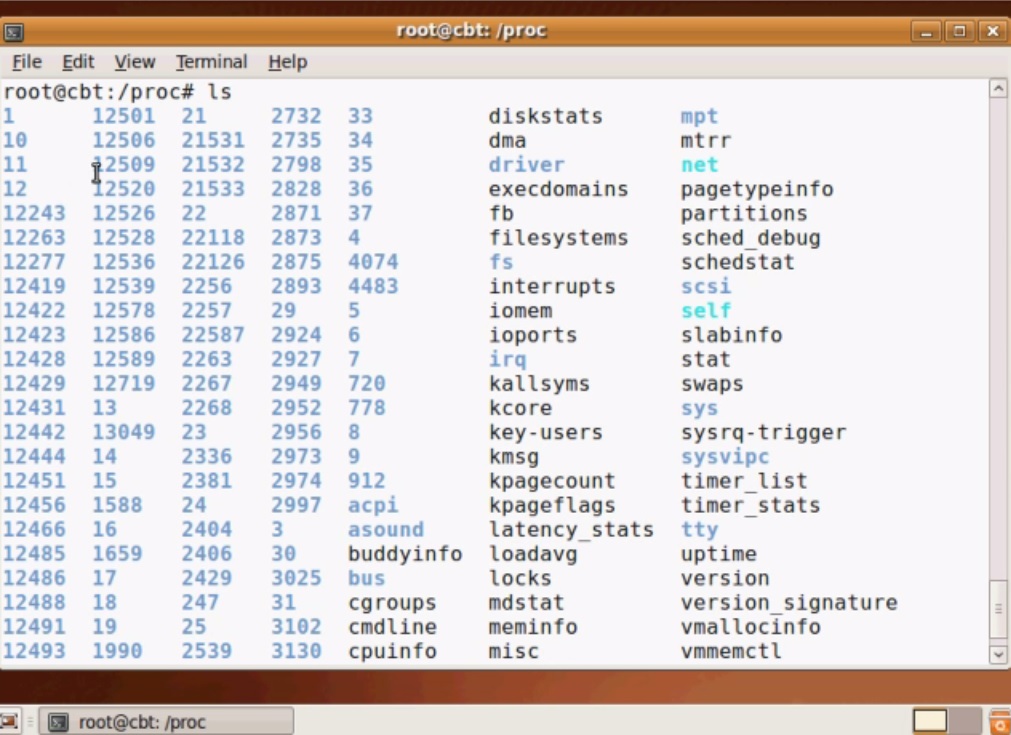
# cd /proc

The first thing that you will notice is that there are some familiar sounding files, and then a whole bunch ofnumbered directories. The numbered directories represent processes, better known as PIDs, and within them, a command that occupies them. The files contain system information such as memory (meminfo), CPU information (cpuinfo), and available filesystems.

Read Also:  Linux Free Command to Check Physical Memory and Swap Memory

Let’s take a look at one of the files first:

# cat /proc/meminfo
Sample Output

which returns something similar to this:

MemTotal:         604340 kB
MemFree:           54240 kB
Buffers:           18700 kB
Cached:           369020 kB
SwapCached:            0 kB
Active:           312556 kB
Inactive:         164856 kB
Active(anon):      89744 kB
Inactive(anon):      360 kB
Active(file):     222812 kB
Inactive(file):   164496 kB
Unevictable:           0 kB
Mlocked:               0 kB
SwapTotal:             0 kB
SwapFree:              0 kB
Dirty:                 0 kB
Writeback:             0 kB
AnonPages:         89724 kB
Mapped:            18012 kB
Shmem:               412 kB
Slab:              50104 kB
SReclaimable:      40224 kB
...

As you can see, /proc/meminfo contains a bunch of information about your system’s memory, including the total amount available (in kb) and the amount free on the top two lines.

Running the cat command on any of the files in /proc will output their contents. Information about any files is available in the man page by running:

# man 5 /proc/

I will give you quick rundown on /proc’s files:

  1. /proc/cmdline – Kernel command line information.
  2. /proc/console – Information about current consoles including tty.
  3. /proc/devices – Device drivers currently configured for the running kernel.
  4. /proc/dma – Info about current DMA channels.
  5. /proc/fb – Framebuffer devices.
  6. /proc/filesystems – Current filesystems supported by the kernel.
  7. /proc/iomem – Current system memory map for devices.
  8. /proc/ioports – Registered port regions for input output communication with device.
  9. /proc/loadavg – System load average.
  10. /proc/locks – Files currently locked by kernel.
  11. /proc/meminfo – Info about system memory (see above example).
  12. /proc/misc – Miscellaneous drivers registered for miscellaneous major device.
  13. /proc/modules – Currently loaded kernel modules.
  14. /proc/mounts – List of all mounts in use by system.
  15. /proc/partitions – Detailed info about partitions available to the system.
  16. /proc/pci – Information about every PCI device.
  17. /proc/stat – Record or various statistics kept from last reboot.
  18. /proc/swap – Information about swap space.
  19. /proc/uptime – Uptime information (in seconds).
  20. /proc/version – Kernel version, gcc version, and Linux distribution installed.

Within /proc’s numbered directories you will find a few files and links. Remember that these directories’ numbers correlate to the PID of the command being run within them. Let’s use an example. On my system, there is a folder name /proc/12:

# cd /proc/12
# ls
Sample Output
attr        coredump_filter  io         mounts      oom_score_adj  smaps    wchan
autogroup   cpuset           latency    mountstats  pagemap        stack
auxv        cwd              limits     net         personality    stat
cgroup      environ          loginuid   ns          root           statm
clear_refs  exe              maps       numa_maps   sched          status
cmdline     fd               mem        oom_adj     schedstat      syscall
comm        fdinfo           mountinfo  oom_score   sessionid      task

If I run:

# cat /proc/12/status

I get the following:

Name:	xenwatch
State:	S (sleeping)
Tgid:	12
Pid:	12
PPid:	2
TracerPid:	0
Uid:	0	0	0	0
Gid:	0	0	0	0
FDSize:	64
Groups:
Threads:	1
SigQ:	1/4592
SigPnd:	0000000000000000
ShdPnd:	0000000000000000
SigBlk:	0000000000000000
SigIgn:	ffffffffffffffff
SigCgt:	0000000000000000
CapInh:	0000000000000000
CapPrm:	ffffffffffffffff
CapEff:	ffffffffffffffff
CapBnd:	ffffffffffffffff
Cpus_allowed:	1
Cpus_allowed_list:	0
Mems_allowed:	00000000,00000001
Mems_allowed_list:	0
voluntary_ctxt_switches:	84
nonvoluntary_ctxt_switches:	0

So, what does this mean? Well, the important part is at the top. We can see from the status file that this process belongs to xenwatch. Its current state is sleeping, and its process ID is 12, obviously. We also can see who is running this, as UID and GID are 0, indicating that this process belongs to the root user.

In any numbered directory, you will have a similar file structure. The most important ones, and their descriptions, are as follows:

  1. cmdline – command line of the process
  2. environ – environmental variables
  3. fd – file descriptors
  4. limits – contains information about the limits of the process
  5. mounts – related information

You will also notice a number of links in the numbered directory:

  1. cwd – a link to the current working directory of the process
  2. exe – link to the executable of the process
  3. root – link to the work directory of the process

This should get you started with familiarizing yourself with the /proc directory. It should also provide insight to how a number of commands obtain their info, such as uptime, lsof, mount, and ps, just to name a few.

cat /proc/cpuinfo Which gave me

processor   : 0
vendor_id   : GenuineIntel
cpu family  : 6
model       : 69
model name  : Intel(R) Core(TM) i7-4500U CPU @ 1.80GHz
stepping    : 1
microcode   : 0x17
cpu MHz     : 774.000
cache size  : 4096 KB
physical id : 0
siblings    : 4
core id     : 0
cpu cores   : 2
apicid      : 0
initial apicid  : 0
fpu     : yes
fpu_exception   : yes
cpuid level : 13
wp      : yes
flags       : fpu vme de pse tsc msr pae mce cx8 apic sep mtrr pge mca cmov pat pse36 clflush dts acpi mmx fxsr sse sse2 ss ht tm pbe syscall nx pdpe1gb rdtscp lm constant_tsc arch_perfmon pebs bts rep_good nopl xtopology nonstop_tsc aperfmperf eagerfpu pni pclmulqdq dtes64 monitor ds_cpl vmx est tm2 ssse3 fma cx16 xtpr pdcm pcid sse4_1 sse4_2 movbe popcnt tsc_deadline_timer aes xsave avx f16c rdrand lahf_lm abm ida arat epb xsaveopt pln pts dtherm tpr_shadow vnmi flexpriority ept vpid fsgsbase tsc_adjust bmi1 avx2 smep bmi2 erms invpcid
bogomips    : 3591.40
clflush size    : 64
cache_alignment : 64
address sizes   : 39 bits physical, 48 bits virtual
power management:

processor   : 1
vendor_id   : GenuineIntel
cpu family  : 6
model       : 69
model name  : Intel(R) Core(TM) i7-4500U CPU @ 1.80GHz
stepping    : 1
microcode   : 0x17
cpu MHz     : 1600.000
cache size  : 4096 KB
physical id : 0
siblings    : 4
core id     : 0
cpu cores   : 2
apicid      : 1
initial apicid  : 1
fpu     : yes
fpu_exception   : yes
cpuid level : 13
wp      : yes
flags       : fpu vme de pse tsc msr pae mce cx8 apic sep mtrr pge mca cmov pat pse36 clflush dts acpi mmx fxsr sse sse2 ss ht tm pbe syscall nx pdpe1gb rdtscp lm constant_tsc arch_perfmon pebs bts rep_good nopl xtopology nonstop_tsc aperfmperf eagerfpu pni pclmulqdq dtes64 monitor ds_cpl vmx est tm2 ssse3 fma cx16 xtpr pdcm pcid sse4_1 sse4_2 movbe popcnt tsc_deadline_timer aes xsave avx f16c rdrand lahf_lm abm ida arat epb xsaveopt pln pts dtherm tpr_shadow vnmi flexpriority ept vpid fsgsbase tsc_adjust bmi1 avx2 smep bmi2 erms invpcid
bogomips    : 3591.40
clflush size    : 64
cache_alignment : 64
address sizes   : 39 bits physical, 48 bits virtual
power management:

processor   : 2
vendor_id   : GenuineIntel
cpu family  : 6
model       : 69
model name  : Intel(R) Core(TM) i7-4500U CPU @ 1.80GHz
stepping    : 1
microcode   : 0x17
cpu MHz     : 800.000
cache size  : 4096 KB
physical id : 0
siblings    : 4
core id     : 1
cpu cores   : 2
apicid      : 2
initial apicid  : 2
fpu     : yes
fpu_exception   : yes
cpuid level : 13
wp      : yes
flags       : fpu vme de pse tsc msr pae mce cx8 apic sep mtrr pge mca cmov pat pse36 clflush dts acpi mmx fxsr sse sse2 ss ht tm pbe syscall nx pdpe1gb rdtscp lm constant_tsc arch_perfmon pebs bts rep_good nopl xtopology nonstop_tsc aperfmperf eagerfpu pni pclmulqdq dtes64 monitor ds_cpl vmx est tm2 ssse3 fma cx16 xtpr pdcm pcid sse4_1 sse4_2 movbe popcnt tsc_deadline_timer aes xsave avx f16c rdrand lahf_lm abm ida arat epb xsaveopt pln pts dtherm tpr_shadow vnmi flexpriority ept vpid fsgsbase tsc_adjust bmi1 avx2 smep bmi2 erms invpcid
bogomips    : 3591.40
clflush size    : 64
cache_alignment : 64
address sizes   : 39 bits physical, 48 bits virtual
power management:

processor   : 3
vendor_id   : GenuineIntel
cpu family  : 6
model       : 69
model name  : Intel(R) Core(TM) i7-4500U CPU @ 1.80GHz
stepping    : 1
microcode   : 0x17
cpu MHz     : 774.000
cache size  : 4096 KB
physical id : 0
siblings    : 4
core id     : 1
cpu cores   : 2
apicid      : 3
initial apicid  : 3
fpu     : yes
fpu_exception   : yes
cpuid level : 13
wp      : yes
flags       : fpu vme de pse tsc msr pae mce cx8 apic sep mtrr pge mca cmov pat pse36 clflush dts acpi mmx fxsr sse sse2 ss ht tm pbe syscall nx pdpe1gb rdtscp lm constant_tsc arch_perfmon pebs bts rep_good nopl xtopology nonstop_tsc aperfmperf eagerfpu pni pclmulqdq dtes64 monitor ds_cpl vmx est tm2 ssse3 fma cx16 xtpr pdcm pcid sse4_1 sse4_2 movbe popcnt tsc_deadline_timer aes xsave avx f16c rdrand lahf_lm abm ida arat epb xsaveopt pln pts dtherm tpr_shadow vnmi flexpriority ept vpid fsgsbase tsc_adjust bmi1 avx2 smep bmi2 erms invpcid
bogomips    : 3591.40
clflush size    : 64
cache_alignment : 64
address sizes   : 39 bits physical, 48 bits virtual
power management:

 /proc/uptime

This file contains information detailing how long the system has been on since its last restart. The output of /proc/uptime is quite minimal:

350735.47 234388.90

The first number is the total number of seconds the system has been up. The second number is how much of that time the machine has spent idle, in seconds.

sysfs Linux ( /sys )

This is where HAL (Hardware Abstraction Layer) keeps the database of devices that are connected to the computer, but HAL uses udev to show these devices in a user-friendly way under /dev/

hal

Linux has two complimentary virtual filesystems – sysfs and configfs. A virtual filesystem is a filesystem on top of another filesystem

The mount point for sysfs is /sys/ or /sysfs/.

sysfs – At one point in kernel development, the kernel lacked a general hot-plug system and procfs contain information not relating to processes. As a result, sysfs (SYStem FileSystem) was created for kernel v2.5. This virtual filesystem contains device and driver information as well as various kernel data. sysfs provides an interface between kernelspace and userspace. Just like procfs, sysfs is highly organized and standardized, although some changes and tweaks exist between different kernel versions. Some of the directories are discussed below.

*/sys/block/ – This directory contains shortcuts to the sysfs files of the selected block device.

*/sys/bus/ – This directory contains the sysfs files and data for the different buses on the system.

*/sys/class/ – This directory contains folders named by device type like “printers”, “mem”, “leds”, “input”, etc. The subdirectories then contain shortcuts to the sysfs files pertaining to the selected device. This is useful for when a user is looking for a particular device. They can then go through this route.

*/sys/dev/ – Inside, there are two folders – “block” and “char” which direct users to the block and character devices respectively.

*/sys/devices/ – Most of the symbolic/soft links (shortcuts) in the sysfs system link to devices and files here.

*/sys/firmware/ – Files containing information and settings for the system’s firmware resides here.

*/sys/fs/ – Information and settings pertaining to each individual mounted filesystem is placed here by filesystem type. This means there is a folder titled “ext4” which holds the folders for each device/partition with ext4.

*/sys/hypervisor/ – Data pertaining to the hypervisor is stored here.

*/sys/kernel/ – Settings, information, and security policies reside in this folder.

*/sys/module/ – All of the loaded modules can be seen here. Each folder contains information and settings for that particular module.

*/sys/power/ – This directory contains files with information on the power state, the number of times the system hibernated/slept, etc.

Conceptual Understanding of Sysfs, Udev, Hald, Dbus

These daemons all build on one another to provide services that for a Linux operating system to allow user space applications to accesses and manage hardware and hardware related events. The rough dependency order of the services are:

  • sysfs – system file system – exports hardware information to user space.
  • udev – there appears to be no acronym for udev, but probably relates to user space dev, responsible for creating device nodes uder /dev
  • hald – Hardware Abstraction Layer Daemon, provides services to the desktop,
  • dbus – Desktop Bus, an interprocess communications mechanism,

As you move up the  stack higher level services are provided, till you reach dbus which performs a lot of desktop inter process communication requirements besides just informing desktop applications of new hardware or changes in hardware status, such as passing information between applications like instance messenger status.

How Linux Exports Hardware Information From Kernel Space to User Space

A device driver is a kernel space program that allows user space applications to interact with the underlying hardware. Kernel space refers to privileged code which has full access to hardware and runs in ring 0 which is a hardware enforced privileged execution mode. User space applications run in a less privileged mode, ring 3, and cannot access hardware directly. User space application can only interact with hardware by making system calls to the kernel to perform actions on their behalf.

How the Sysfs Filesystem Works

The Linux kernel exports information about the devices from the device drivers to a pseudo filesystem mounted under /sys. This file system tells user space what devices are available. It is populated at system boot but when a hot plug device is inserted or removed the /sys file system is updated and the kernel fires events to let user space know that there has been a change.

One of these user space applications is the kernel device manager, udev, which creates a device node under the /dev directory to allow user space application access to the device. The name of the device node or file is determined by the device drivers naming convention or by user defined rules in /etc/udev/rules.d/.  It is through the entries under /dev that user space application can interact with the device driver.

How Udev works

The udev daemon is also responsible for informing other user land applications of changes. The applications that are most important here are  the HAL (hardware abstraction layer) daemon, and D-Bus (desktop bus). These applications are mainly used by desktop environment to carry out tasks when an event occurs such as open the file browser when a USB drive is inserted or image application when a camera is inserted.

How HALD and DBus work

While udev creates the relevant entries under the /dev file system if anything useful need to happen when the event occurs HAL and D-Bus are needed. (Note: HAL is now deprecated as it is being merged into udev). HAL is a single daemon responsible for discovering, enumerating and mediating access to most of the hardware on the host computer for desktop applications to which it provides a hardware abstraction layer. Application register with the D-Bus daemon to receive notifications of events and also post event notifications that other applications may be interested in. D-Bus is used for example to launch media players when a audio CD is inserted and to notify other applications of the currently playing song for example.


4 Examples To Grant Normal User Root Privileges In Linux

“root” super user is the king of the users in Linux/Unix. Having root access grant full and unlimited access to the Linux box. I will show how to allow root access to a user in a Linux system. Typically root level access used in system administration. It’s always a pain to give others (users) root access. You need to be careful and withdraw the access once need is finished.

According to Linux file system permissions root or super user has full permission read(r), write (w) and execute(x) to any file. By default root user id is 0.

I am going to crate two users namely user1 and user2. Then I will give root access to user1 .

Method : 1 Using Usermod Command

[root@mypc Desktop]# adduser user1
[root@mypc Desktop]# adduser user2
[root@mypc Desktop]# groupadd test

These are the groups I have in my Linux box

[root@mypc /]# groups
root bin daemon sys adm disk wheel

I am going to add user1 to root group

[root@mypc Desktop]# usermod -G root user1

Below command provide existing user the root privilege

[root@mypc Desktop]# usermod -g 0 -o root_user

Method 2 : Using Useradd Command

I have add new user user3 to root group using one single command

[root@mypc /]# useradd -m -G root user3
[root@mypc /]# groups user3
user3 : user3 root

Another option using useradd command

Useradd -c “Imitation Root” -d /home/root_user -m -k /etc/skel -s /bin/bash -u 0 -o -g root root_user

Method 3 : Editing /etc/passwd file

Edit /etc/passwd for the particular user. Change that user’s UID and GID to 0 then the user will have the permissions of root.

root:x:0:0:root:/root:/bin/bash
temproot:x:128:128:temproot

Now temproot user should have root privilege

root:x:0:0:root:/root:/bin/bash
temproot:x:0:0:temproot

Method 4 : Setting as Sudo User

The sudo configuration file is /etc/sudoers and you can edit this file using visudo command: # visudo. Using visudo protects from conflicts and guarantees that the right syntax is used.

Full Access to Specific Users

Add below entry in the file

bob, tom ALL=(ALL) ALL

This method is not a good idea because this allows bob and tom to use the su command to grant themselves permanent root privileges thereby skipping the command logging features of sudo.

Grant access to specific user to specific files

This entry allows bob and all the members of the group operator to gain access to all the program files in the /sbin and /usr/sbin directories, plus the privilege of running the command /usr/oracle/backup.pl.

bob, %operator ALL= /sbin/, /usr/sbin, /usr/oracle/backup.pl

what is difference between /etc/shadow and /etc/passwd

passwd is the file where the user information (like username, user ID, group ID, location of home directory, login shell, …) is stored when a new user is created.

shadow is the file where important information (like an encrypted form of the password of a user, the day the password expires, whether or not the passwd has to be changed, the minimum and maximum time between password changes, …) is stored when a new user is created.

  • In the line:
    • root:my_password:0:0:root:/root:/bin/bash
  • The field match:
    • login:pwd:iduser:idgroup:homedirectory:shell
  • /etc/passwd is readable by everyone but the passwords are stored in /etc/shadow, are only readable only under root account. They are encoded with MD5 for better security.