User Types (sudo, su, id, w, who and id commands)

There are three basic types of Linux user accounts: administrative (root), regular, and service.

The Linux administrative root account is automatically created when you install Linux, and it has administrative privileges for all services on Linux Operating System. The root account is also known as super user

Regular users have the necessary privileges to perform standard tasks on a Linux computer such as running word processors, databases, and Web browsers. They can store files in their own home directories. Since regular users do not normally have administrative privileges, they cannot accidentally delete critical operating system configuration files.

Services such as Apache, Squid, mail, games, and printing have their own individual service accounts. These accounts exist to allow each of these services to interact with your computer.

Each user on a Red Hat Enterprise Linux system is assigned a unique user identification number, also known as a UID. UIDs below 500 are reserved for system users such as the root user and service users.

A user group is a group of one or more users. A user can be a member of more than one group. In Red Hat Enterprise Linux, when a user is added, a private user group (primary group) is created—meaning that a user group of the same name is created and that the new user is the sole user in that group.

There are 3 types of user accounts in linux.They are:

1> System Users
2> Root User(Administrator)
3> Other Users(Normal User)

In linux, Uid from 1 to 500 has been reserved for system
users,these are the default users of linux,so if anyone try
to assign Uid 500 to normal user then it wil give the error.

Linux User Types

There are different types of  accessibility options provided by Linux, from which one can choose respective access as per requirement. Linux provides 5 different alternatives to choose the accessibility.

They are as listed below.

  1. Super User or Root UserA special kind of user account which holds all kind’s of permissions to do any alteration to a programs or services of Linux. Especially this kind of  user account is used for  system administration. He can control and limit the access of other User’s. As  all the powers is vested for Root User, care has to be taken before performing each and every modifications, if anything goes wrong, no option left other than crash of  Kernel. It is so sensitive with unlimited accessibility. 🙂 . Take care while logged in as Root 🙂
  2.  System User: It is created by default by the OS. This type of user is similar to normal user but got more privileges and access to secure programs which normal user doesn’t got authentication.
  3. Normal User : These are the users which have been created by the Root and has limited access to the resources and need permission from Root to access any secure resources and services.
  4. Network User : Users opt this type of user account to check network activity and to manage them. Especially system administrator‘s and network engineer‘s uses this account for various network activities and to connect to different systems on the network using various services like LDAP, NFS, SAMBA,APACHE, NTP etc.  {We will discuss about this services on the par in coming future}.
  5. Pseudo User: It’s a replica of Root User, is used when a user needs the permissions similar to  Root User. Only  Root User can give the access to thisuser account for others.

Every Users got their own identity and authenticity. When i say Identity of the User,UID (User identifier) comes into picture.  UID  is a unique identity, simply a number given to the user.

Every kind of User type as discussed above are given a particular range of UID’s.

Root User got the UID0‘ . {As root user is prime and supreme authoritative, so he got the UID ” 0 “, This can be altered in the configuration file, which we come across later}

UID for System User lies with in the range of 1 to 499. {Don’t come to a conclusion that Linux OS can only provide 500 System Users. It’s just a default range provided by the OS, it can be altered and can add system users greater than 500 but less than a saturation value which depends on a type Linux OS}

UID for Normal User lies with in the range of > 500 <6000.

UID for Network User lies with in the range of  >6000.

If you want to verify yourself or wanna see who you logged in as …

just simply do the following.

[root@localhost~]# whoami

root

Feed  the above command to the terminal, that’s it. The output clears your ambiguity of as whom you are logged in. Ha  ha.

ubuntu_root_user

Or else you can also try the below possibilities too . 🙂

[root@localhost~]#id

uid=0( root ) gid=0( root ) groups=0( root )

[root@localhost~]#

ubuntu_root_id 

Hmm that’s cool. let’s give a try to below command too.

[root@localhost~]#id root 

uid=0( root ) gid=0( root ) groups=0( root ), 1( bin ), 2 ( daemon ), 3 (sys ), 4 ( adm ), 6 ( disk ), 10 ( wheel )

[root@localhost~]#

rootuser_id

The above commands are only to show and give an idea about the UID of root user, Don’t try to analyse the other stuff of output, they simply confuse you. So as of now you are in no hurry to know about them, in latter stages you can understand them in deeper and succinctly.

If you want to switch from one user account  to other user account, we use a command called ” su “.

Syntax: su username

Ex:

[root@localhost~] # su charan

Password: ********* { Enter the password of charan}

[charan@localhost~]$

We can find the type of user as logged in easily by observing above commands. Root User is accompanied by the symbol ‘ # ‘, where as normal user is accompanied with ‘ $‘. It’s simple rite.

How To Use ‘Sudo’ And ‘Su’ Commands In Linux : An Introduction

Today We’re going to discuss sudo and su, the very important and mostly used commands in Linux. It is very important for a Linux user to understand these two to increase security and prevent unexpected things that a user may have to go through. Firstly we will see what these commands do then we’ll know the difference between both of them. So let’s get started.

Note: This article is specific for Ubuntu users, although many things are also in other distributions. 

Introduction to Linux command ‘sudo’

7 Linux sudo Command Tips and Tricks

Using sudo command, an user can execute root only commands.

In this article, let us review how to setup sudo environment along with some sudo command examples, tips, and tricks.

1. Set up sudo Environment in /etc/sudoers

You can provide sudo privilege to an individual user or a group by modifying /etc/sudoers.

sudo access to an user

To provide sudo access to an individual user, add the following line to the /etc/sudoers file.

sathiya    ALL=(ALL) ALL

In the above example:

  • sathiya : name of user to be allowed to use sudo
  • ALL : Allow sudo access from any terminal ( any machine ).
  • (ALL) : Allow sudo command to be executed as any user.
  • ALL : Allow all commands to be executed.

sudo access to a group

To provide sudo access to a group, add the following line to the /etc/sudoers file.

%programmers    ALL=(ALL) ALL

In the above example:

  • programmers : name of group to be allowed to use sudo. Group name should be preceded with percentage symbol.
  • ALL : Allow sudo access from any terminal ( any machine ).
  • (ALL) : Allow sudo command to be executed as any user.
  • ALL : Allow all commands to be executed.

Note: Ubuntu users are already familiar with sudo command, as you’ll use sudo apt-get install to install any package. On Ubuntu, sudo is already setup for your username as shown below. i.e All users who belong to admin group has access to execute root commands using sudo.

$ sudo cat /etc/sudoers
%admin ALL=(ALL) ALL

$ grep admin /etc/group
admin:x:115:sathiya

2. Executing a command as super user

Once the sudo access is provided to your account in /etc/sudoers, you can pass any root command as an argument to the sudo command. For example, mount can only be done by root. But, a normal user can do mount as shown below using sudo.

$ sudo mount /dev/sda3 /mnt

Note: If you are executing sudo for the first time in a shell it will ask for the password ( current user password ) by default.

3. Forgot to Use Sudo in Vim? No Worries. Save file Trick in vim with sudo

When you have opened a file that can be saved only by root user using vim (without using the sudo command), you can do the following.

For example, if you want to edit the file /etc/group that can only be saved by root user, you typically do the following. When you do a :w, no problem, it will work, as it was opened using sudo command.

$ sudo vim /etc/group
:w

What if you’ve forgot to give sudo when you’ve opened the /etc/group file as shown below? In this case, instead of coming out of the file (and loosing all your changes) and executing the vim command with sudo, you can do the following.

$ vim /etc/group

:w !sudo tee %

Note: “:w !sudo tee %” will save the file as root privilege, even if you didn’t use sudo command to open it.

4. Forgot to give sudo for root command? Do it again using !!

If you’ve forgot to give sudo for a command that requires root privilege, instead of typing the command with sudo again, you can simply do sudo !! as shown below.

$ head -n 4 /etc/sudoers
head: cannot open `/etc/sudoers' for reading: Permission denied

$ sudo !!
sudo head -n 4 /etc/sudoers
# /etc/sudoers
#
# This file MUST be edited with the 'visudo' command as root.
#

5. Get Root Shell Access using Sudo

To get a root shell from your user account, do the following.

$ sudo bash

Once you get the root shell, you can execute any root command without having to enter sudo in front of it every time.

6. Built in commands won’t work with Sudo – Command not found

sudo invokes an executable as the another user, so bash built in commands won’t work. It will give “sudo command not found” error as shown below.

For example, umask is a bash built-in command, which will not work when used along with sudo as shown below.

$ sudo umask
sudo: umask: command not found

Work-around: To use bash shell built-in command in sudo, first get the root shell, by doing ‘sudo bash’ and then execute the shell built in command.

7. View Unauthorized Sudo command executions from auth.log

When an user who doesn’t have sudo permission, tries to execute sudo command, they’ll get following error message.

$ sudo ls /
[sudo] password for test:
raj is not in the sudoers file.  This incident will be reported.

Anytime this happens, it will be logged in the /var/log/auth.log file for sysadmins to view any unauthorized sudo access.

Sep 25 18:41:35 sathiya sudo:   raj : user NOT in sudoers ; TTY=pts/4 ; PWD=/home/raj ; USER=root ; COMMAND=/bin/ls /

Linux / Unix: id Command Examples

Iam a new Linux and Unix system user. How do I find out the user and groups names and numeric IDs of the current user or any users on my server? How can I display and effective IDs on the system using command line options? In Linux, how do I find a user’s UID or GID?

To find a user’s UID (user ID) or GID (group ID) and other information in Linux/Unix-like operating systems, use the id command.

This command is useful to find out the following information:

  1. Find a specific user’s UID
  2. Find a specific user’s UID
  3. Find out all the groups a user belongs to
  4. Find the UID and all groups associated with a user
  5. Display security context of the current user

Purpose

Displays the system identifications of a specified user.

id command syntax

The basic syntax is:

id
id [UserNameHere]
id [options]
id [options] [UserNameHere]

By default id command shows the the user and group names and numeric IDs, of the calling process i.e. the current user who runs the id command on screen. If a login name or user ID ([UserNameHere]) given on command line, the user and group IDs of that user are displayed.

id command examples

Let us see how to find a user’s UID or GID on Linux or Unix-like operating systems using 13 id command practical examples. First, open the Terminal application and then type:

Display your own UID and GID

Type the command:
id
Sample outputs:

Fig. 01: id command in action

How do I find a specific user’s UID?

In this example, find a vivek user’s UID, type:
id -u {UserNameHere}
id -u vivek

Sample outputs:

501

How do I find a specific user’s GID?

In this example, find a vivek user’s GID, run:
id -g {UserNameHere}
id -g vivek

Sample outputs:

20

How do I see the UID and all groups associated with a user name?

In this example, find the UID and all groups associated with a user called ‘root’, enter:
id {UserNameHere}
id root

Sample outputs:

uid=0(root) gid=0(wheel) groups=0(wheel),1(daemon),2(kmem),3(sys),4(tty),5(operator),8(procview),9(procmod),12(everyone),20(staff),29(certusers),61(localaccounts),80(admin),33(_appstore),98(_lpadmin),100(_lpoperator),204(_developer),398(com.apple.access_screensharing),399(com.apple.access_ssh)

Find out all the groups a user belongs to…

In this example, display the UID and all groups associated (secondary groups) with a user called ‘vivek’, run:
id -G {UserNameHere}
id -G vivek

Sample outputs

20 12 61 79 80 81 98 33 100 204 398 399

Display a name instead of a UID/GID

By default, id command displays number for the -G, -g and -u options. You can force id command to display the name of the UID or GID instead of the number for the -G, -g and -u options by passing the -n option as follows:
id -ng {UserNameHere}
id -nu {UserNameHere}
id -nG {UserNameHere}
id -nG vivek

Sample outputs:

staff everyone localaccounts _appserverusr admin _appserveradm _lpadmin _appstore _lpoperator _developer com.apple.access_screensharing com.apple.access_ssh

How do I display real ID instead of the effective ID for specified user?

You can show the real ID for the -g, -G and -u options instead of the effective ID by passing the -r option:

id -r -g {UserNameHere}
id -r -u {UserNameHere}
 
### [NOTE]###########################
### -r and -G only works on Linux ###
#####################################
id -r -G {UserNameHere}
 
id -r -u vivek

Sample outputs:

501

How do I display SELinux show security context on Linux?

To display only the security context of the current user, type:

### [NOTE]###########################
### This is a Linux only option   ###
#####################################
id -Z

Sample outputs:

unconfined_u:unconfined_r:unconfined_t:s0-s0:c0.c1023

Unix specific feature: Show process audit user ID

To display the process audit user ID and other process audit properties, which requires privilege. This option works on a few Unix-like operating systems such as FreeBSD or Unix:

### [NOTE]###########################
### This is a Unix only option    ###
#####################################
id -A

Output is displayed in the following format from my Apple OS X/FreeBSD:

auid=501
mask.success=0xffffffff
mask.failure=0xffffffff
termid.port=0x03000002
asid=100004

Shell variables related to UID and EID

Modern shell such as bash/ksh may set the following variables:

  • EUID – Expands to the effective user ID of the current user, initialized at shell startup. This variable is readonly.
  • UID – Expands to the user ID of the current user, initialized at shell startup. This variable is readonly.

You can print them using echo or printf shell commands as follows:

 
echo "Your UID : $UID"
echo "Your EID : $EUID"

Sample outputs:

Your UID : 501
Your EID : 501

Your shell use id command to set EUID and UID in the system-wide startup file such as /etc/profile. Here is a snippet from Linux based system:

....
..
 
if [ -x /usr/bin/id ]; then
    if [ -z "$EUID" ]; then
        # ksh workaround
        EUID=`id -u`
        UID=`id -ru`
    fi
    USER="`id -un`"
    LOGNAME=$USER
    MAIL="/var/spool/mail/$USER"
fi
 
....
..

Determining root privileges in a script

Linux and Unix sysadmin relates shell scripts must be run by root user. The following shell script shows how to determining root privileges in a script:

#!/bin/bash
 
## if root user not running this script, die with a message on screen ##
if [ $(id -u -r) -ne 0 ]
then
        echo "Requires root privileges. Please re-run using sudo."
        exit 1
fi
## add sysadmin related command below ##

Or you can use EUID as described above in a shell script:

 
(( EUID )) && { echo 'Requires root privileges. Please re-run using sudo.'; exit 1; }
           || echo 'Running script as root...'

id command options

Option Purpose OS
-g Display only the effective group ID ALL
-G Display all group IDs ALL
-u Display only the effective user ID ALL
-n Display a name instead of a number, for -u or -g ALL
-r Display the real ID instead of the effective ID, with -u or -g ALL
-Z Show only the security context of the current user SELinux
-A Display the process audit user ID and other process audit properties Selected Unix-like

Linux / Unix: w Command Examples

Iam a new Linux and Unix system user. How do I list current users and find out what they’re doing on Linux or Unix-like operating system using shell prompt?

The w command displays a list of all logged in to the server and what they are doing. This command is similar to who command, but ends up displaying more information about logged in users.

Purpose

Display who is logged into the Linux/Unix server and what they are doing at command execution time.

Syntax

The basic syntax is as follows:

w
w [UserNameHere]
w [UserNameHere1] [UserNameHere2]
w [options]
w [options] [UserNameHere]

Understanding w command output / header

The w command shows the following information about each user and their process on the system:

  1. USER – User name.
  2. TTY – Terminal type such as pts/0 or console.
  3. FROM – The remote host name or IP address.
  4. LOGIN@ – Login time.
  5. IDLE – Idel time.
  6. JCPU – The JCPU time is the time used by all processes attached to the tty.
  7. PCPU – The PCPU time is the time used by the current process displayed in WHAT field.
  8. WHAT – The command line of USER’s current process.

w command examples

To see who is currently logged in and what they are doing on your Linux/Unix-based server, type:
$ w
Sample outputs:

Fig. 01: w command in action

The first line of output in this example, displays the current time of day, how long the system has been running, the number of users logged into the system, and the load averages.

Hide the header

To suppress the heading pass the -h option:
$ w
Sample outputs:

vivek    pts/0    192.168.1.6      14:10    3:24m  2.15s  0.00s dbus-launch --auto
root     pts/1    192.168.1.6      14:51    1:41m  0.16s  0.00s pager -s
nixcraft pts/2    192.168.1.6      14:52   13:07   0.41s  0.02s vi /etc/passwd
root     pts/3    192.168.1.6      17:21    3.00s  0.12s  0.01s w -h

Ignore usernames

$ w -u

Use short output format

To hide the login time, JCPU or PCPU times:
$ w -s
Sample outputs:

 17:42:36 up  3:36,  4 users,  load average: 0.00, 0.01, 0.05
USER     TTY      FROM              IDLE WHAT
vivek    pts/0    192.168.1.6       3:31m dbus-launch --autolaunch 9ee90112ba2cb
root     pts/1    192.168.1.6       1:48m pager -s
nixcraft pts/2    192.168.1.6      20:12  vi /etc/passwd
root     pts/3    192.168.1.6       4.00s w -s

Hide/show the FROM field

Toggle printing the from (remote hostname) field. The default as released is for the from field to not be printed:
$ w -f

How do I show information about the specified user only?

To see information about user named ‘vivek’, type:
$ w vivek
Sample outputs:

 17:40:02 up  3:34,  4 users,  load average: 0.00, 0.01, 0.05
USER     TTY      FROM             LOGIN@   IDLE   JCPU   PCPU WHAT
vivek    pts/0    192.168.1.6      14:10    3:29m  2.15s  0.00s dbus-launch --auto

w command options

Option Description
-h Do not print header
-u Ignore current process username
-s Short format
-f Show remote hostname field
-o Old style output
--help Display this help and exit
-V Output version information and exit

Linux / Unix: who Command Examples To List Users on The Systems

Iam a new Linux and Unix system user. How do I display who is logged on my Linux or Unix-like operating system using shell prompt?

You need to use who command to display users who are currently logged in your server.

This command is useful to find out the following information:

  1. Time of last system boot.
  2. Current run level.
  3. List of logged in users and more.

Purpose

Display who is on the system.

Syntax

The basic syntax is as follows:

who
who am i
who [options] [File]
who --help
who --version
who | grep 'userNameHere'

Where,

  • If no non-options provided, who displays the following information for each user currently logged on:
    • login name
    • terminal line
    • login time
    • remote hostname or X display
  • If you give one non-option argument, who uses that instead of a default system-maintained file such s /var/run/utmp as the name of the file containing the record of users logged on.
  • If given two non-option arguments, who prints only the entry for the user running it preceded by the hostname. Traditionally, the two arguments given are ‘am i’, as in ‘who am i’.

who command examples

To show a list of all the users currently logged in to the system, type:
$ who
Sample outputs:

Fig. 01: Identifying who is logged on your server
The sample output in this example shows that the user vivek is logged in on pts/0, and has been on since 14:10 on 27 January. To display line of column headings pass the -H option:
$ who -H
To show only hostname and user associated with stdin (usually keyboard), enter:
$ who -m
To show active processes spawned by init:
$ who -p
To show user’s message status as +, – or ?, enter:
$ who -T

Show or list users logged in

Type the command:
$ who -u

Show time of last system boot

To display time of last system boot pass the -b option to who command:
$ who -b
Sample outputs:

         system boot  2014-01-05 10:02

The output in this example, shows that the system was booted since 10:02 on 05 January.

Show dead processes on the system

You need pass the -d option to who command:
$ who -d
OR
$ who -d -H
Sample outputs:

NAME     LINE         TIME             IDLE          PID COMMENT  EXIT
         pts/1        2014-01-11 09:17             56094 id=ts/1  term=0 exit=0
         pts/2        2014-01-05 15:46             11070 id=ts/2  term=0 exit=0
         pts/2        2014-01-08 03:31              3614 id=/2    term=0 exit=0
         pts/1        2014-01-11 16:54             64559 id=/1    term=0 exit=0
         pts/3        2014-01-11 17:13             15818 id=/3    term=0 exit=0
         pts/4        2014-01-25 11:02             46807 id=ts/4  term=0 exit=0

Show system login processes

To just display system login processes pass the -l option:
$ who -l
OR
$ who -l -H
Sample outputs:

NAME     LINE         TIME             IDLE          PID COMMENT
LOGIN    tty2         2014-01-05 10:03              8750 id=2
LOGIN    tty1         2014-01-05 10:03              8748 id=1
LOGIN    tty3         2014-01-05 10:03              8752 id=3
LOGIN    /dev/ttyS1   2014-01-05 10:03              8747 id=v/tt
LOGIN    tty4         2014-01-05 10:03              8754 id=4
LOGIN    tty5         2014-01-05 10:03              8756 id=5
LOGIN    tty6         2014-01-05 10:03              8758 id=6

Count all login names and number of users logged on the system

To count all login names and number of users logged on:
$ who -q
Sample outputs:

Fig.02: Displaying and counting all users logged on

Display the current runlevel

To display the current system runlevel, type:
$ who -r
Sample outputs:

         run-level 3  2014-01-05 10:02

You can combine -r and -b options as follows:
$ who -r -b
Sample outputs:

         system boot  2014-01-05 10:02
         run-level 3  2014-01-05 10:02

Display all

The -a is same as same as -bdprtTu options as discussed earlier:
Sample outputs:

NAME       LINE         TIME             IDLE          PID COMMENT  EXIT
           system boot  2014-01-05 10:02
           run-level 3  2014-01-05 10:02
LOGIN      tty2         2014-01-05 10:03              8750 id=2
LOGIN      tty1         2014-01-05 10:03              8748 id=1
LOGIN      tty3         2014-01-05 10:03              8752 id=3
LOGIN      /dev/ttyS1   2014-01-05 10:03              8747 id=v/tt
LOGIN      tty4         2014-01-05 10:03              8754 id=4
LOGIN      tty5         2014-01-05 10:03              8756 id=5
LOGIN      tty6         2014-01-05 10:03              8758 id=6
root     + pts/0        2014-01-27 03:37   .         11149 (10.1.6.120)
           pts/1        2014-01-11 09:17             56094 id=ts/1  term=0 exit=0
           pts/2        2014-01-05 15:46             11070 id=ts/2  term=0 exit=0
           pts/2        2014-01-08 03:31              3614 id=/2    term=0 exit=0
           pts/1        2014-01-11 16:54             64559 id=/1    term=0 exit=0
           pts/3        2014-01-11 17:13             15818 id=/3    term=0 exit=0
           pts/4        2014-01-25 11:02             46807 id=ts/4  term=0 exit=0

who command options

Option Description
-a Same as -b -d –login -p -r -t -T -u
-b Time of last system boot
-d Print dead processes
-H Print line of column headings
-l Print system login processes
-m Only hostname and user associated with stdin
-p Print active processes spawned by init
-q All login names and number of users logged on
-r Print current runlevel
-t Print last system clock change
-T Add user’s message status as +, – or ?
-u List users logged in

wc and nl commands in Linux (word count)

6 WC Command Examples to Count Number of Lines, Words, Characters in Linux

cut command in Linux

10 Practical Linux Cut Command Examples to Select File Columns

Linux command cut is used for text processing. You can use this command to extract portion of text from a file by selecting columns.

This tutorial provides few practical examples of cut command that you can use in your day to day command line activities.

For most of the example, we’ll be using the following test file.

$ cat test.txt
cat command for file oriented operations.
cp command for copy files or directories.
ls command to list out files and directories with its attributes.

1. Select Column of Characters

To extract only a desired column from a file use -c option. The following example displays 2nd character from each line of a file test.txt

$ cut -c2 test.txt
a
p
s

As seen above, the characters a, p, s are the second character from each line of the test.txt file.

2. Select Column of Characters using Range

Range of characters can also be extracted from a file by specifying start and end position delimited with -. The following example extracts first 3 characters of each line from a file called test.txt

$ cut -c1-3 test.txt
cat
cp
ls

3. Select Column of Characters using either Start or End Position

Either start position or end position can be passed to cut command with -c option.

The following specifies only the start position before the ‘-‘. This example extracts from 3rd character to end of each line from test.txt file.

$ cut -c3- test.txt
t command for file oriented operations.
 command for copy files or directories.
 command to list out files and directories with its attributes.

The following specifies only the end position after the ‘-‘. This example extracts 8 characters from the beginning of each line from test.txt file.

$ cut -c-8 test.txt
cat comm
cp comma
ls comma

The entire line would get printed when you don’t specify a number before or after the ‘-‘ as shown below.

$ cut -c- test.txt
cat command for file oriented operations.
cp command for copy files or directories.
ls command to list out files and directories with its attributes.

4. Select a Specific Field from a File

Instead of selecting x number of characters, if you like to extract a whole field, you can combine option -f and -d. The option -f specifies which field you want to extract, and the option -d specifies what is the field delimiter that is used in the input file.

The following example displays only first field of each lines from /etc/passwd file using the field delimiter : (colon). In this case, the 1st field is the username. The file

$ cut -d':' -f1 /etc/passwd
root
daemon
bin
sys
sync
games
bala

5. Select Multiple Fields from a File

You can also extract more than one fields from a file or stdout. Below example displays username and home directory of users who has the login shell as “/bin/bash”.

$ grep "/bin/bash" /etc/passwd | cut -d':' -f1,6
root:/root
bala:/home/bala

To display the range of fields specify start field and end field as shown below. In this example, we are selecting field 1 through 4, 6 and 7

$ grep "/bin/bash" /etc/passwd | cut -d':' -f1-4,6,7
root:x:0:0:/root:/bin/bash
bala:x:1000:1000:/home/bala:/bin/bash

6. Select Fields Only When a Line Contains the Delimiter

In our /etc/passwd example, if you pass a different delimiter other than : (colon), cut will just display the whole line.

In the following example, we’ve specified the delimiter as | (pipe), and cut command simply displays the whole line, even when it doesn’t find any line that has | (pipe) as delimiter.

$ grep "/bin/bash" /etc/passwd | cut -d'|'  -f1
root:x:0:0:root:/root:/bin/bash
bala:x:1000:1000:bala,,,:/home/bala:/bin/bash

But, it is possible to filter and display only the lines that contains the specified delimiter using -s option.

The following example doesn’t display any output, as the cut command didn’t find any lines that has | (pipe) as delimiter in the /etc/passwd file.

$ grep "/bin/bash" /etc/passwd | cut -d'|' -s -f1

7. Select All Fields Except the Specified Fields

In order to complement the selection field list use option –complement.

The following example displays all the fields from /etc/passwd file except field 7

$ grep "/bin/bash" /etc/passwd | cut -d':' --complement -s -f7
root:x:0:0:root:/root
bala:x:1000:1000:bala,,,:/home/bala

8. Change Output Delimiter for Display

By default the output delimiter is same as input delimiter that we specify in the cut -d option.

To change the output delimiter use the option –output-delimiter as shown below. In this example, the input delimiter is : (colon), but the output delimiter is # (hash).

$ grep "/bin/bash" /etc/passwd | cut -d':'  -s -f1,6,7 --output-delimiter='#'
root#/root#/bin/bash
bala#/home/bala#/bin/bash

9. Change Output Delimiter to Newline

In this example, each and every field of the cut command output is displayed in a separate line. We still used –output-delimiter, but the value is $’\n’ which indicates that we should add a newline as the output delimiter.

$ grep bala /etc/passwd | cut -d':' -f1,6,7 --output-delimiter=$'\n'
bala
/home/bala
/bin/bash

10. Combine Cut with Other Unix Command Output

The power of cut command can be realized when you combine it with the stdout of some other Unix command.

Once you master the basic usage of cut command that we’ve explained above, you can wisely use cut command to solve lot of your text manipulation requirements.

The following example indicates how you can extract only useful information from the ps command output. We also showed how we’ve filtered the output of ps command using grep and sed before the final output was given to cut command. Here, we’ve used cut option -d and -f which we’ve explained in the above examples.

$ ps axu | grep python | sed 's/\s\+/ /g' | cut -d' ' -f2,11-
2231 /usr/bin/python /usr/lib/unity-lens-video/unity-lens-video
2311 /usr/bin/python /usr/lib/unity-scope-video-remote/unity-scope-video-remote
2414 /usr/bin/python /usr/lib/ubuntuone-client/ubuntuone-syncdaemon
2463 /usr/bin/python /usr/lib/system-service/system-service-d
3274 grep --color=auto python

Linux cut Command with Useful Examples

Linux cut command is used for extracting file content on fields basis. text files do not have row/column like databases and some times we need the data of single column only. Cut identified columns on basis of separator (eg: colon ‘:’, semicolon ‘;’, comma ‘,’ etc).

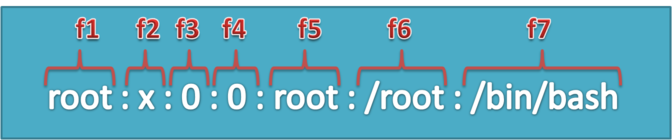
For this example we are taking /etc/passwd file. All the rows are stored as below format with colon (:) separated like below. We use -f to specify field number and -d for delimiter (separator).

Linux-cut-command-example

As per above screen-cast this file has 7 fields. Cut also support to fetch values on character basis suing -c command line switch. Lets read below examples, for which I am using/etc/passwd file.

1. Select Single Field from File –

For example we need the list of usernames from our /etc/passwd file. We know that first column stored username, Entire file is separated by colon (:).

# cut -d":" -f1  < /etc/passwd

root
bin
daemon
adm
lp
sync
shutdown
halt

We can also use pipeline ” | ” for passing the file content as input to cut command, like below –

# cat  /etc/passwd | cut -d":" -f1

2. Select Multiple Columns from File –

We can specify multiple field names with command separated, like below example will show the 1’st, 2’nd and 7’th fields only.

# cut -d":" -f1,2,7 < /etc/passwd

root:x:/bin/bash
bin:x:/sbin/nologin
daemon:x:/sbin/nologin
adm:x:/sbin/nologin
lp:x:/sbin/nologin
sync:x:/bin/sync
shutdown:x:/sbin/shutdown
halt:x:/sbin/halt
mail:x:/sbin/nologin
uucp:x:/sbin/nologin

We can also specify the range of columns with hyphen (-) on fields as well as both option’s together like below example commands.

    • Here first command will select 1’st, 2’nd,3’rd and 4’th fields.
    • Second command will select 3’rd, 4’th and 5’th fields.
    • Last command will show 2’nd, 3’rd, 4’th, 6’th and 10’th fields.
# cut -d":" -f1-4 < /etc/passwd
# cut -d":" -f3-5 < /etc/passwd
# cut -d":" -f2-4,6,10 < /etc/passwd

To get values of all columns except one use following command. For example if we need to select all columns but not 6.

# cut -d":" --complement -s -f6 < /etc/passwd

3. Selecting Single Character’s from File –

Except fields we can also select values from file on basis of single characters, while using characters we don’t need to specify separator.

# cut -c1 < /etc/passwd

r
b
d
a
l
s
s

Similarly fields we can also specify multiple comma separated characters or range of characters.

# cut -c1,2,3,6,7 < /etc/passwd
# cut -c1-3,6,7 < /etc/passwd

sort command in Linux

14 Useful Examples of Linux ‘sort’ Command

15 examples of sort command in Linux

sort command is used to sort a file, arranging the records in a particular order. By default, the sort command sorts file assuming the contents are ascii. Using options in sort command, it can also be used to sort numerically. Let us discuss it with some examples:

File with Ascii data:
Let us consider a file with the following contents:

$ cat file
Unix
Linux
Solaris
AIX
Linux
HPUX

1. sort simply sorts the file in alphabetical order:

$ sort file
AIX
HPUX
Linux
Linux
Solaris
Unix

All records are sorted alphabetically.

 2. sort removes the duplicates using the -u option:

$ sort -u file
AIX
HPUX
Linux
Solaris
Unix

The duplicate ‘Linux’ record got removed. ‘-u’ option removes all the duplicate records in the file. Even if the file have had 10 ‘Linux’ records, with -u option, only the first record is retained.

File with numbers:
Let us consider a file with numbers:

$ cat file
20
19
5
49
200

3. The default sort ‘might’ give incorrect result on a file containing numbers:

$ sort file
19
20
200
49
5

In the above result, 200 got placed immediately below 20, not at the end which is incorrect. This is because the sort did  ASCII sort. If the file had not contained ‘200’, the default sort would have given proper result. However, it is incorrect to sort a numerical file in this way since the sorting logic is incorrect.

 4. To sort a file numericallly:

$ sort -n file
5
19
20
49
200

-n option can sort the decimal numbers as well.

5. sort file numerically in reverse order:

$ sort -nr file
200
49
20
19
5

‘r’ option does a reverse sort.

Multiple Files:
Let us consider examples with multiple files, say file1 and file2, containing numbers:

$ cat file1
20
19
5
49
200
$ cat file2
25
18
5
48
200

6. sort can sort multiple files as well.

$ sort -n file1 file2
5
5
18
19
20
25
48
49
200
200

The result of sort with multiple files will be a sorted and merged output of the multiple files.

 7. Sort, merge and remove duplicates:

$ sort -nu file1 file2
5
18
19
20
25
48
49
200

-u option becomes more handy in case of multiple files. With this, the output is now sorted, merged and without duplicate records.

Files with multiple fields and delimiter:
Let us consider a file with multiple fields:

$ cat file
Linux,20
Unix,30
AIX,25
Linux,25
Solaris,10
HPUX,100

8. sorting a file containing multiple fields:

$ sort file
AIX,25
HPUX,100
Linux,20
Linux,25
Solaris,10
Unix,30

As shown above, the file got sorted on the 1st field, by default.

 9. sort file on the basis of 1st field:

$ sort -t"," -k1,1 file
AIX,25
HPUX,100
Linux,20
Linux,25
Solaris,10
Unix,30

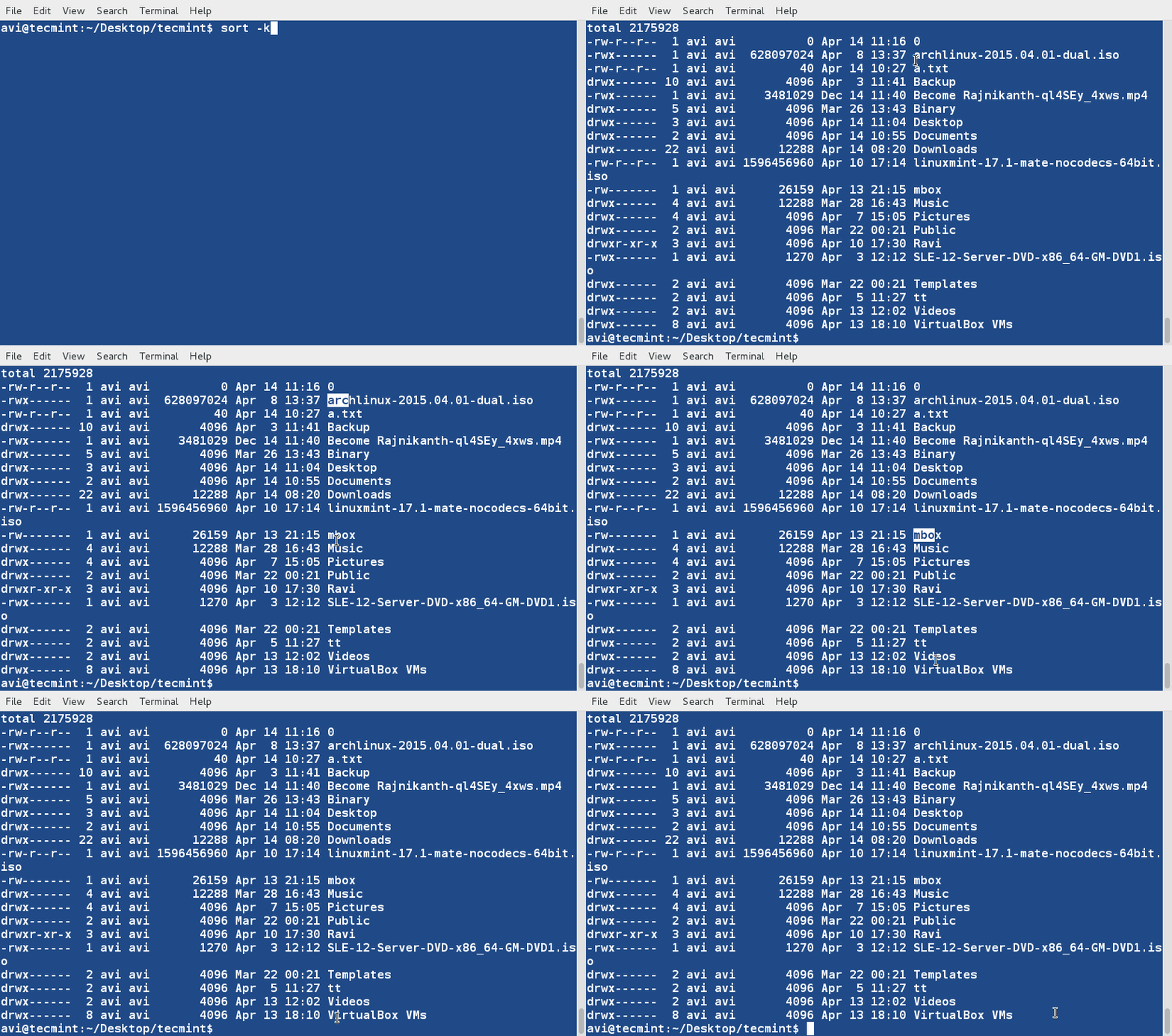
This is being more explicit. ‘-t’ option is used to provide the delimiter in case of files with delimiter. ‘-k’ is used to specify the keys on the basis of which the sorting has to be done. The format of ‘-k’ is : ‘-km,n’ where m is the starting key and n is the ending key. In other words, sort can be used to sort on a range of fields just like how the group by in sql does. In our case, since the sorting is on the 1st field alone, we speciy ‘1,1’. Similarly, if the sorting is to be done on the basis of first 3 fields, it will be: ‘-k 1,3’.

Note: For a file which has fields delimited by a space or a tab, there is no need to specify the “-t” option since the white space is the delimiter by default in sort.

 10. sorting file on the basis of the 2nd field:

$ sort -t"," -k2,2 file
Solaris,10
HPUX,100
Linux,20
AIX,25
Linux,25
Unix,30

11. sorting file on the basis of 2nd field , numerically:

$ sort -t"," -k2n,2 file
Solaris,10
Linux,20
AIX,25
Linux,25
Unix,30
HPUX,100

12. Remove duplicates from the file based on 1st field:

$ sort -t"," -k1,1 -u file
AIX,25
HPUX,100
Linux,20
Solaris,10
Unix,30

The duplicate Linux record got removed. Keep in mind, the command “sort -u file” would not have worked here becuase both the ‘Linux’ records are not same, the values were different. However, in the above, sort is told to remove the duplicates based on the 1st key, and hence the duplicate ‘Linux’ record got removed. According to sort, in case of a group of similar records, except the first one, the rest are considered duplicate.

13. Sort the file numerically on the 2nd field in reverse order:

$ sort -t"," -k2nr,2 file
HPUX,100
Unix,30
AIX,25
Linux,25
Linux,20
Solaris,10

14. sort the file alphabetically on the 1st field, numerically on the 2nd field:

$ sort -t"," -k1,1 -k2n,2 file
AIX,25
HPUX,100
Linux,20
Linux,25
Solaris,10
Unix,30

15. sort a file based on the 1st and 2nd field, and numerically on 3rd field on  a file containing 5 columns:

$ sort -t"," -k1,2 -k3n,3 file

grep command in Linux

12 Practical Examples of Linux grep Command

Have you ever been confronted with the task of looking for a particular string or pattern in a file, yet have no idea where to start looking? Well then, here is grep to the rescue!


grep is a powerful file pattern searcher that comes equipped on every distribution of Linux. If, for whatever reason, it is not installed on your system, you can easily install it via your package manager (apt-get onDebian/Ubuntu and yum on RHEL/CentOS/Fedora).

$ sudo apt-get install grep         #Debian/Ubuntu
$ sudo yum install grep             #RHEL/CentOS/Fedora

I have found that the easiest way to get your feet wet with grep is to just dive right in and use some real world examples.

1. Search and Find Files

Let’s say that you have just installed a fresh copy of the new Ubuntu on your machine, and that you are going to give Python scripting a shot. You have been scouring the web looking for tutorials, but you see that there are two different versions of Python in use, and you don’t know which one was installed on your system by theUbuntu installer, or if it installed any modules. Simply run this command:

# dpkg –l | grep –i python
Sample Output
ii  python2.7                        2.7.3-0ubuntu3.4                    Interactive high-level object-oriented language (version 2.7)
ii  python2.7-minimal                2.7.3-0ubuntu3.4                    Minimal subset of the Python language (version 2.7)
ii  python-openssl                   0.12-1ubuntu2.1                     Python wrapper around the OpenSSL library
ii  python-pam                       0.4.2-12.2ubuntu4                   A Python interface to the PAM library

First, we ran dpkg –l, which lists installed *.deb packages on your system. Second, we piped that output to grep –i python, which simple states “go to grep and filter out and return everything with ‘python’ in it.” The –i option is there to ignore-case, as grep is case-sensitive. Using the –i option is a good habit of getting into, unless of course you are trying to nail down a more specific search.

2. Search and Filter Files

The grep can also be used to search and filter within individual files or multiple files. Lets take this scenario:

You are having some trouble with your Apache Web Server, and you have reached out to one of the many awesome forums on the net asking for some help. The kind soul who replies to you has asked you to post the contents of your /etc/apache2/sites-available/default-ssl file. Wouldn’t it be easier for you, the guy helping you, and everyone reading it, if you could remove all of the commented lines? Well you can! Just run this:

# grep –v “#”  /etc/apache2/sites-available/default-ssl

The –v option tells grep to invert its output, meaning that instead of printing matching lines, do the opposite and print all of the lines that don’t match the expression, in this case, the # commented lines.

3. Find all .mp3 Files Only

The grep can be very useful for filtering from stdout. For example, let’s say that you have an entire folder full of music files in a bunch of different formats. You want to find all of the *.mp3 files from the artist JayZ, but you don’t want any of the remixed tracks. Using a find command with a couple of grep pipes will do the trick:

# find . –name “*.mp3” | grep –i JayZ | grep –vi “remix”

In this example, we are using find to print all of the files with a *.mp3 extension, piping it to grep –i to filter out and prints all files with the name “JayZ” and then another pipe to grep –vi which filters out and does not print all filenames with the string (in any case) “remix”.

  1. 35 Practical Examples of Linux Find Command

4. Display Number of Lines Before or After Search String

Another couple of options are the –A and –B switches, which displays the matched line and number of lines either that come before or after the search string. While the man page gives a more detailed explanation, I find it easiest to remember the options as –A = after, and –B = before:

# ifconfig | grep –A 4 eth0
# ifconfig | grep  -B 2 UP

5. Prints Number of Lines Around Match

The grep’s –C option is similar, but instead of printing the lines that come either before or after the string, it prints the lines in either direction:

# ifconfig | grep –C 2 lo

6. Count Number of Matches

Similar to piping a grep string to word count (wc program) grep’s built-in option can perform the same for you:

# ifconfig | grep –c inet6

7. Search Files by Given String

The –n option for grep is very useful when debugging files during compile errors. It displays the line number in the file of the given search string:

# grep –n “main” setup..py

8. Search a string Recursively in all Directories

If you would like to search for a string in the current directory along with all of the subdirectories, you can specify the –r option to search recursively:

# grep –r “function” *

9. Searches for the entire pattern

Passing the –w option to grep searches for the entire pattern that is in the string. For example, using:

# ifconfig | grep –w “RUNNING”

Will print out the line containing the pattern in quotes. On the other hand, if you try:

# ifconfig | grep –w “RUN”

Nothing will be returned as we are not searching for a pattern, but an entire word.

10. Search a string in Gzipped Files

Deserving some mention are grep’s derivatives. The first is zgrep, which, similar to zcat, is for use on gzippedfiles. It takes the same options as grep and is used in the same way:

# zgrep –i error /var/log/syslog.2.gz

11. Match Regular Expression in Files

The egrep is another derivative that stands for “Extended Global Regular Expression”. It recognizes additional expression meta-characters such at + ? | and (). egrep is very useful for searching source files, and other pieces of code, should the need arise. It can be invoked from regular grep by specifying the –E option.

# grep –E

12. Search a Fixed Pattern String

The fgrep searches a file or list of files for a fixed pattern string. It is the same as grep –F. A common way of using fgrep is to pass a file of patterns to it:

# fgrep –f file_full_of_patterns.txt file_to_search.txt

This is just a starting point with grep, but as you are probably able to see, it is invaluable for a variety of purposes. Aside from the simple one line commands we have implemented, grep can be used to write powerfulcron jobs, and robust shell scripts, for a start. Be creative, experiment with the options in the man page, and come up with grep expressions that serve your own purposes!

HowTo: Use grep Command In Linux / UNIX – Examples

ow do I use grep command on Linux, Apple OS X, and Unix-like operating systems? Can you give me a simple examples of the grep command?

The grep command is used to search text or searches the given file for lines containing a match to the given strings or words. By default, grep displays the matching lines. Use grep to search for lines of text that match one or many regular expressions, and outputs only the matching lines. grep is considered as one of the most useful commands on Linux and Unix-like operating systems.

Did you know?

The name, “grep”, derives from the command used to perform a similar operation, using the Unix/Linux text editor ed:
g/re/p

The grep command syntax

The syntax is as follows:

 
grep 'word' filename
grep 'word' file1 file2 file3
grep 'string1 string2'  filename
cat otherfile | grep 'something'
command | grep 'something'
command option1 | grep 'data'
grep --color 'data' fileName

How do I use grep command to search a file?

Search /etc/passwd file for boo user, enter:
$ grep boo /etc/passwd
Sample outputs:

foo:x:1000:1000:foo,,,:/home/foo:/bin/ksh

You can force grep to ignore word case i.e match boo, Boo, BOO and all other combination with the -i option:
$ grep -i "boo" /etc/passwd

Use grep recursively

You can search recursively i.e. read all files under each directory for a string “192.168.1.5”
$ grep -r "192.168.1.5" /etc/
OR
$ grep -R "192.168.1.5" /etc/
Sample outputs:

/etc/ppp/options:# ms-wins 192.168.1.50
/etc/ppp/options:# ms-wins 192.168.1.51
/etc/NetworkManager/system-connections/Wired connection 1:addresses1=192.168.1.5;24;192.168.1.2;

You will see result for 192.168.1.5 on a separate line preceded by the name of the file (such as /etc/ppp/options) in which it was found. The inclusion of the file names in the output data can be suppressed by using the -h option as follows:
$ grep -h -R "192.168.1.5" /etc/
OR
$ grep -hR "192.168.1.5" /etc/
Sample outputs:

# ms-wins 192.168.1.50
# ms-wins 192.168.1.51
addresses1=192.168.1.5;24;192.168.1.2;

Use grep to search words only

When you search for boo, grep will match fooboo, boo123, barfoo35 and more. You can force the grep command to select only those lines containing matches that form whole words i.e. match only boo word:
$ grep -w "boo" file

Use grep to search 2 different words

Use the egrep command as follows:
$ egrep -w 'word1|word2' /path/to/file

Count line when words has been matched

The grep can report the number of times that the pattern has been matched for each file using -c(count) option:
$ grep -c 'word' /path/to/file
Pass the -n option to precede each line of output with the number of the line in the text file from which it was obtained:
$ grep -n 'root' /etc/passwd
Sample outputs:

1:root:x:0:0:root:/root:/bin/bash
1042:rootdoor:x:0:0:rootdoor:/home/rootdoor:/bin/csh
3319:initrootapp:x:0:0:initrootapp:/home/initroot:/bin/ksh

Grep invert match

You can use -v option to print inverts the match; that is, it matches only those lines that do not contain the given word. For example print all line that do not contain the word bar:
$ grep -v bar /path/to/file

UNIX / Linux pipes and grep command

grep command often used with shell pipes. In this example, show the name of the hard disk devices:
# dmesg | egrep '(s|h)d[a-z]'
Display cpu model name:
# cat /proc/cpuinfo | grep -i 'Model'
However, above command can be also used as follows without shell pipe:
# grep -i 'Model' /proc/cpuinfo
Sample outputs:

model		: 30
model name	: Intel(R) Core(TM) i7 CPU       Q 820  @ 1.73GHz
model		: 30
model name	: Intel(R) Core(TM) i7 CPU       Q 820  @ 1.73GHz

How do I list just the names of matching files?

Use the -l option to list file name whose contents mention main():
$ grep -l 'main' *.c
Finally, you can force grep to display output in colors, enter:
$ grep --color vivek /etc/passwd
Sample outputs:

Grep command in action

15 Practical Grep Command Examples In Linux / UNIX

You should get a grip on the Linux grep command.

This is part of the on-going 15 Examples series, where 15 detailed examples will be provided for a specific command or functionality.  Earlier we discussed 15 practical examples for Linux find command,  Linux command line history andmysqladmin command.


In this article let us review 15 practical examples of Linux grep command that will be very useful to both newbies and experts.


First create the following demo_file that will be used in the examples below to demonstrate grep command.

$ cat demo_file
THIS LINE IS THE 1ST UPPER CASE LINE IN THIS FILE.
this line is the 1st lower case line in this file.
This Line Has All Its First Character Of The Word With Upper Case.

Two lines above this line is empty.
And this is the last line.

1. Search for the given string in a single file

The basic usage of grep command is to search for a specific string in the specified file as shown below.

Syntax:
grep "literal_string" filename
$ grep "this" demo_file
this line is the 1st lower case line in this file.
Two lines above this line is empty.
And this is the last line.

2. Checking for the given string in multiple files.

Syntax:
grep "string" FILE_PATTERN


This is also a basic usage of grep command. For this example, let us copy the demo_file to demo_file1. The grep output will also include the file name in front of the line that matched the specific pattern as shown below. When the Linux shell sees the meta character, it does the expansion and gives all the files as input to grep.

$ cp demo_file demo_file1

$ grep "this" demo_*
demo_file:this line is the 1st lower case line in this file.
demo_file:Two lines above this line is empty.
demo_file:And this is the last line.
demo_file1:this line is the 1st lower case line in this file.
demo_file1:Two lines above this line is empty.
demo_file1:And this is the last line.

3. Case insensitive search using grep -i

Syntax:
grep -i "string" FILE


This is also a basic usage of the grep. This searches for the given string/pattern case insensitively. So it matches all the words such as “the”, “THE” and “The” case insensitively as shown below.

$ grep -i "the" demo_file
THIS LINE IS THE 1ST UPPER CASE LINE IN THIS FILE.
this line is the 1st lower case line in this file.
This Line Has All Its First Character Of The Word With Upper Case.
And this is the last line.

4. Match regular expression in files

Syntax:
grep "REGEX" filename


This is a very powerful feature, if you can use use regular expression effectively. In the following example, it searches for all the pattern that starts with “lines” and ends with “empty” with anything in-between. i.e To search “lines[anything in-between]empty” in the demo_file.

$ grep "lines.*empty" demo_file
Two lines above this line is empty.

From documentation of grep: A regular expression may be followed by one of several repetition operators:

  • ? The preceding item is optional and matched at most once.
  • * The preceding item will be matched zero or more times.
  • + The preceding item will be matched one or more times.
  • {n} The preceding item is matched exactly n times.
  • {n,} The preceding item is matched n or more times.
  • {,m} The preceding item is matched at most m times.
  • {n,m} The preceding item is matched at least n times, but not more than m times.

5. Checking for full words, not for sub-strings using grep -w

If you want to search for a word, and to avoid it to match the substrings use -w option. Just doing out a normal search will show out all the lines.

The following example is the regular grep where it is searching for “is”. When you search for “is”, without any option it will show out “is”, “his”, “this” and everything which has the substring “is”.

$ grep -i "is" demo_file
THIS LINE IS THE 1ST UPPER CASE LINE IN THIS FILE.
this line is the 1st lower case line in this file.
This Line Has All Its First Character Of The Word With Upper Case.
Two lines above this line is empty.
And this is the last line.


The following example is the WORD grep where it is searching only for the word “is”. Please note that this output does not contain the line “This Line Has All Its First Character Of The Word With Upper Case”, even though “is” is there in the “This”, as the following is looking only for the word “is” and not for “this”.

$ grep -iw "is" demo_file
THIS LINE IS THE 1ST UPPER CASE LINE IN THIS FILE.
this line is the 1st lower case line in this file.
Two lines above this line is empty.
And this is the last line.

6. Displaying lines before/after/around the match using grep -A, -B and -C

When doing a grep on a huge file, it may be useful to see some lines after the match. You might feel handy if grep can show you not only the matching lines but also the lines after/before/around the match.


Please create the following demo_text file for this example.

$ cat demo_text
4. Vim Word Navigation

You may want to do several navigation in relation to the words, such as:

 * e - go to the end of the current word.
 * E - go to the end of the current WORD.
 * b - go to the previous (before) word.
 * B - go to the previous (before) WORD.
 * w - go to the next word.
 * W - go to the next WORD.

WORD - WORD consists of a sequence of non-blank characters, separated with white space.
word - word consists of a sequence of letters, digits and underscores.

Example to show the difference between WORD and word

 * 192.168.1.1 - single WORD
 * 192.168.1.1 - seven words.

6.1 Display N lines after match

-A is the option which prints the specified N lines after the match as shown below.

Syntax:
grep -A <N> "string" FILENAME


The following example prints the matched line, along with the 3 lines after it.

$ grep -A 3 -i "example" demo_text
Example to show the difference between WORD and word

* 192.168.1.1 - single WORD
* 192.168.1.1 - seven words.

6.2 Display N lines before match

-B is the option which prints the specified N lines before the match.

Syntax:
grep -B <N> "string" FILENAME


When you had option to show the N lines after match, you have the -B option for the opposite.

$ grep -B 2 "single WORD" demo_text
Example to show the difference between WORD and word

* 192.168.1.1 - single WORD

6.3 Display N lines around match

-C is the option which prints the specified N lines before the match. In some occasion you might want the match to be appeared with the lines from both the side. This options shows N lines in both the side(before & after) of match.

$ grep -C 2 "Example" demo_text
word - word consists of a sequence of letters, digits and underscores.

Example to show the difference between WORD and word

* 192.168.1.1 - single WORD

7. Highlighting the search using GREP_OPTIONS

As grep prints out lines from the file by the pattern / string you had given, if you wanted it to highlight which part matches the line, then you need to follow the following way.

When you do the following export you will get the highlighting of the matched searches. In the following example, it will highlight all the this when you set the GREP_OPTIONS environment variable as shown below.

$ export GREP_OPTIONS='--color=auto' GREP_COLOR='100;8'

$ grep this demo_file
this line is the 1st lower case line in this file.
Two lines above this line is empty.
And this is the last line.

8. Searching in all files recursively using grep -r

When you want to search in all the files under the current directory and its sub directory. -r option is the one which you need to use. The following example will look for the string “ramesh” in all the files in the current directory and all it’s subdirectory.

$ grep -r "ramesh" *

9. Invert match using grep -v

You had different options to show the lines matched, to show the lines before match, and to show the lines after match, and to highlight match. So definitely You’d also want the option -v to do invert match.

When you want to display the lines which does not matches the given string/pattern, use the option -v as shown below. This example will display all the lines that did not match the word “go”.

$ grep -v "go" demo_text
4. Vim Word Navigation

You may want to do several navigation in relation to the words, such as:

WORD - WORD consists of a sequence of non-blank characters, separated with white space.
word - word consists of a sequence of letters, digits and underscores.

Example to show the difference between WORD and word

* 192.168.1.1 - single WORD
* 192.168.1.1 - seven words.

10. display the lines which does not matches all the given pattern.

Syntax:
grep -v -e "pattern" -e "pattern"
$ cat test-file.txt
a
b
c
d

$ grep -v -e "a" -e "b" -e "c" test-file.txt
d

11. Counting the number of matches using grep -c

When you want to count that how many lines matches the given pattern/string, then use the option -c.

Syntax:
grep -c "pattern" filename
$ grep -c "go" demo_text
6


When you want do find out how many lines matches the pattern

$ grep -c this demo_file
3


When you want do find out how many lines that does not match the pattern

$ grep -v -c this demo_file
4

12. Display only the file names which matches the given pattern using grep -l

If you want the grep to show out only the file names which matched the given pattern, use the -l (lower-case L) option.

When you give multiple files to the grep as input, it displays the names of file which contains the text that matches the pattern, will be very handy when you try to find some notes in your whole directory structure.

$ grep -l this demo_*
demo_file
demo_file1

13. Show only the matched string

By default grep will show the line which matches the given pattern/string, but if you want the grep to show out only the matched string of the pattern then use the -o option.

It might not be that much useful when you give the string straight forward. But it becomes very useful when you give a regex pattern and trying to see what it matches as

$ grep -o "is.*line" demo_file
is line is the 1st lower case line
is line
is is the last line

14. Show the position of match in the line

When you want grep to show the position where it matches the pattern in the file, use the following options as

Syntax:
grep -o -b "pattern" file
$ cat temp-file.txt
12345
12345

$ grep -o -b "3" temp-file.txt
2:3
8:3


Note: The output of the grep command above is not the position in the line, it is byte offset of the whole file.

15. Show line number while displaying the output using grep -n

To show the line number of file with the line matched. It does 1-based line numbering for each file. Use -n option to utilize this feature.

$ grep -n "go" demo_text
5: * e - go to the end of the current word.
6: * E - go to the end of the current WORD.
7: * b - go to the previous (before) word.
8: * B - go to the previous (before) WORD.
9: * w - go to the next word.
10: * W - go to the next WORD.

find command in Linux

Ten ‘Find’ Command Examples for Beginners

find command is used for locate files in a directory hierarchy on Linux/Unix systems. You can search for files according to name, owner, group, type, permissions, date and other criteria.

The search is recursive in that it will search all sub directories too. If you are a beginner, the following examples will make you clear about the find command.

1. Find full path of all files in the current and its sub-directories

The following commands locate and display the full path names of all files in the current directory and its sub-directories:

sk@sk:~$ find .
sk@sk:~$ find . -print
sk@sk:~$ find -print

2. Find files using name in current directory

The following commands will search the files with their name. Say for example, if your file name is unixmen.txt, then you can find this file using anyone of the below commands.

To find the file whose name is unixmen.txt in your current directory, enter the following command:

sk@sk:~$ find -name unixmen.txt
./unixmen.txt
./Downloads/unixmen.txt
./Documents/unixmen.txt

or

sk@sk:~$ find . -name unixmen.txt
./unixmen.txt
./Downloads/unixmen.txt
./Documents/unixmen.txt

3. Find files using name in a particular directory

This command will find the file from the directory that you have mentioned with find command. For example, to find the file whose name is unixmen.txt in ~/directory, enter the following command:

sk@sk:~$ find /home/ -name unixmen.txt
/home/sk/unixmen.txt
/home/sk/Downloads/unixmen.txt
/home/sk/Documents/unixmen.txt

4. Find files in your whole Computer

If you are not sure where exactly is your file (eg. unixmen.txt), the following command will find it for you:

sk@sk:~$ sudo find / -name unixmen.txt
/home/sk/unixmen.txt
/home/sk/Downloads/unixmen.txt
/home/sk/Documents/unixmen.txt

The above command will search the file unixmen.txt in your root (/) directory and all its sub-directories.

5. Find files ignoring case sensitivity

To find a file ignoring case sensitivity (whether the file name contain small or uppercase letters) use -iname parameter with find command:

sk@sk:~$ find -iname UniXmeN.txt
./unixmen.txt
./Downloads/unixmen.txt
./Documents/unixmen.txt

As you seen in the above command, I have used combination of small and capital letters. The find command will ignore the case sensitivity and find the actual fileunixmen.txt.

6. Limit search to specific directory level

The following command will find the file unixmen.txt upto one directory level from root directory:

sk@sk:~$ find -maxdepth 2 -name unixmen.txt
./unixmen.txt
./Downloads/unixmen.txt
./Documents/unixmen.txt

To find the file up to two directory level specify the maxdepth as example 3:

sk@sk:~$ find -maxdepth 3 -name unixmen.txt
./unixmen.txt
./Downloads/unixmen.txt
./Downloads/Unixmen/unixmen.txt
./Documents/unixmen.txt

7. Find file using with its extension

For instance if you want to find all files with extensions FLV, enter the following command:

sk@sk:~$ find -type f -name *.FLV
./Entertainment/Video Songs/RightNow.FLV

If you know the exact name and extension of the file, then the command should be:

sk@sk:~$ find -type f -name RightNow.FLV
./Entertainment/Video Songs/RightNow.FLV

8. Find Files depending upon the size

To search files based on their size, use the parameter -size with find command.

To find the files which are 1GB or more enter the following command:

sk@sk:~$ find -size +1G 
./VirtualBox VMs/Ubuntu 12.10 server_ 1 nic_ Internet_ Bridge/Ubuntu 12.10 server_ 1 nic_ Internet_ Bridge.vdi
./Soft_Backup/OS Images/CentOS-6.3-i386-bin-DVD2.iso
./Soft_Backup/OS Images/CentOS-6.3-i386-bin-DVD1.iso
./Soft_Backup/OS Images/Win 7 Pro.iso

To search files in a particular directory which are 1GB or more, the command should be:

sk@sk:~$ find Soft_Backup/ -size +1G 
Soft_Backup/OS Images/CentOS-6.3-i386-bin-DVD2.iso
Soft_Backup/OS Images/CentOS-6.3-i386-bin-DVD1.iso
Soft_Backup/OS Images/Win 7 Pro.iso

To search files which are less than 1GB, enter the following command:

sk@sk:~$ find -size -1G

If your file size is exactly 10MB, just ignore the + or – sign. The command will be:

sk@sk:~$ find -size 10M

9. Find files with their Owner or Group name

To search the files whose Owner is sk, enter the following command:

sk@sk:~$ find -user sk -name unixmen.txt
./unixmen.txt
./Downloads/unixmen.txt
./Downloads/Unixmen/unixmen.txt
./Documents/unixmen.txt

To search files whose Group is sk, find them using the following command:

sk@sk:~$ find -group sk -name unixmen.txt
./unixmen.txt
./Downloads/unixmen.txt
./Downloads/Unixmen/unixmen.txt
./Documents/unixmen.txt

10. Find files with their permissions

Search for a particular file whose permissions is set to 777 using the following command:

sk@sk:~$ find -perm 777 -name unixmen.txt

Search for all files whose permissions are set to 777 using the following command:

sk@sk:~$ find -perm 775

Search a particular file whose owner permissions are set to read-only:

sk@sk:~$ find -perm /u=r

Search all files whose permissions are set to executable to all:

sk@sk:~$ find -perm /a=x

For more information about find command usages, refer the man pages.

sk@sk:~$ man find

35 Practical Examples of Linux Find Command

The Linux Find Command is one of the most important and much used command in Linux sytems. Find command used to search and locate list of files and directories based on conditions you specify for files that match the arguments. Find can be used in variety of conditions like you can find files by permissions, users, groups, file type, date, size and other possible criteria.

Linux Find Command

Through this article we are sharing our day-to-day Linux find command experience and its usage in the form of examples. In this article we will show you the most used 35 Find Commandsexamples in Linux. We have divided the section into Five parts from basic to advance usage of find command.

  1. Part I: Basic Find Commands for Finding Files with Names
  2. Part II: Find Files Based on their Permissions
  3. Part III: Search Files Based On Owners and Groups
  4. Part IV: Find Files and Directories Based on Date and Time
  5. Part V: Find Files and Directories Based on Size
Part I – Basic Find Commands for Finding Files with Names

1. Find Files Using Name in Current Directory

Find all the files whose name is tecmint.txt in a current working directory.

# find . -name tecmint.txt

./tecmint.txt

2. Find Files Under Home Directory

Find all the files under /home directory with name tecmint.txt.

# find /home -name tecmint.txt

/home/tecmint.txt

3. Find Files Using Name and Ignoring Case

Find all the files whose name is tecmint.txt and contains both capital and small letters in /homedirectory.

# find /home -iname tecmint.txt

./tecmint.txt
./Tecmint.txt

4. Find Directories Using Name

Find all directories whose name is Tecmint in / directory.

# find / -type d -name Tecmint

/Tecmint

5. Find PHP Files Using Name

Find all php files whose name is tecmint.php in a current working directory.

# find . -type f -name tecmint.php

./tecmint.php

6. Find all PHP Files in Directory

Find all php files in a directory.

# find . -type f -name "*.php"

./tecmint.php
./login.php
./index.php
Part II – Find Files Based on their Permissions

7. Find Files With 777 Permissions

Find all the files whose permissions are 777.

# find . -type f -perm 0777 -print

8. Find Files Without 777 Permissions

Find all the files without permission 777.

# find / -type f ! -perm 777

9. Find SGID Files with 644 Permissions

Find all the SGID bit files whose permissions set to 644.

# find / -perm 2644

10. Find Sticky Bit Files with 551 Permissions

Find all the Sticky Bit set files whose permission are 551.

# find / -perm 1551

11. Find SUID Files

Find all SUID set files.

# find / -perm /u=s

12. Find SGID Files

Find all SGID set files.

# find / -perm /g+s

13. Find Read Only Files

Find all Read Only files.

# find / -perm /u=r

14. Find Executable Files

Find all Executable files.

# find / -perm /a=x

15. Find Files with 777 Permissions and Chmod to 644

Find all 777 permission files and use chmod command to set permissions to 644.

# find / -type f -perm 0777 -print -exec chmod 644 {} \;

16. Find Directories with 777 Permissions and Chmod to 755

Find all 777 permission directories and use chmod command to set permissions to 755.

# find / -type d -perm 777 -print -exec chmod 755 {} \;

17. Find and remove single File

To find a single file called tecmint.txt and remove it.

# find . -type f -name "tecmint.txt" -exec rm -f {} \;

18. Find and remove Multiple File

To find and remove multiple files such as .mp3 or .txt, then use.

# find . -type f -name "*.txt" -exec rm -f {} \;

OR

# find . -type f -name "*.mp3" -exec rm -f {} \;

19. Find all Empty Files

To file all empty files under certain path.

# find /tmp -type f -empty

20. Find all Empty Directories

To file all empty directories under certain path.

# find /tmp -type d -empty

21. File all Hidden Files

To find all hidden files, use below command.

# find /tmp -type f -name ".*"
Part III – Search Files Based On Owners and Groups

22. Find Single File Based on User

To find all or single file called tecmint.txt under / root directory of owner root.

# find / -user root -name tecmint.txt

23. Find all Files Based on User

To find all files that belongs to user Tecmint under /home directory.

# find /home -user tecmint

24. Find all Files Based on Group

To find all files that belongs to group Developer under /home directory.

# find /home -group developer

25. Find Particular Files of User

To find all .txt files of user Tecmint under /home directory.

# find /home -user tecmint -iname "*.txt"
Part IV – Find Files and Directories Based on Date and Time

26. Find Last 50 Days Modified Files

To find all the files which are modified 50 days back.

# find / -mtime 50

27. Find Last 50 Days Accessed Files

To find all the files which are accessed 50 days back.

# find / -atime 50

28. Find Last 50-100 Days Modified Files

To find all the files which are modified more than 50 days back and less than 100 days.

# find / -mtime +50 –mtime -100

29. Find Changed Files in Last 1 Hour

To find all the files which are changed in last 1 hour.

# find / -cmin -60

30. Find Modified Files in Last 1 Hour

To find all the files which are modified in last 1 hour.

# find / -mmin -60

31. Find Accessed Files in Last 1 Hour

To find all the files which are accessed in last 1 hour.

# find / -amin -60
Part V – Find Files and Directories Based on Size

32. Find 50MB Files

To find all 50MB files, use.

# find / -size 50M

33. Find Size between 50MB – 100MB

To find all the files which are greater than 50MB and less than 100MB.

# find / -size +50M -size -100M

34. Find and Delete 100MB Files

To find all 100MB files and delete them using one single command.

# find / -size +100M -exec rm -rf {} \;

35. Find Specific Files and Delete

Find all .mp3 files with more than 10MB and delete them using one single command.

# find / -type f -name *.mp3 -size +10M -exec rm {} \;


Tail command in Linux

10+ useful tail command’s switches with example – Unix/Linux

The tail command
By default, the tail command prints the last 10 lines from the file which is given followed by the tail command. In the case of more than one file with tail command displays separate output with a header identifying the file name. Tail command has a lot of useful and also very helpful switches.

Useful switches with example:
“I’ve copied the ‘/etc/passwd’ and ‘/etc/shadow’ files to pass.txt and sha.txt respectively to demonstrate examples.”

1. tail : The tail command alone
Which displays the last 10 line by-default.
Example:

# tail pass.txt
cpanelphppgadmin:x:32004:32004::/var/cpanel/userhomes/cpanelphppgadmin:/usr/local/cpanel/bin/noshell
......................
......................
tomcat:x:495:99:Apache Tomcat:/home/tomcat:/bin/nologin
crybit:x:503:504::/home/crybit:/usr/local/cpanel/bin/noshell

2. tail : More than one file
Displays separate output with a header identifying the file name.
Example:

# tail pass.txt sha.txt
==> pass.txt <== 
cpanelphppgadmin:x:32004:32004::/var/cpanel/userhomes/cpanelphppgadmin:/usr/local/cpanel/bin/noshell 
...................... 
...................... 
tomcat:x:495:99:Apache Tomcat:/home/tomcat:/bin/nologin 
crybit:x:503:504::/home/crybit:/usr/local/cpanel/bin/noshell 
==> sha.txt <==
cpanelphppgadmin:*:16073::::::
......................
......................
tomcat:!!:16074::::::
crybit:$6$xbycY1hCeTldon5.$.J6ZtPA77351rLQdo23tKi4o5cTrjlJOOzkZJs11AeMqeGlsnTdLzuo2x7HtOzf0JigQ42AlrfTRzj5Bdcl/D.:16085:0:99999:7:::

3. tail -n : Displays last “n” lines from the text file
Example:

# tail -n3 pass.txt
cpses:x:496:497::/var/cpanel/cpses:/sbin/nologin
tomcat:x:495:99:Apache Tomcat:/home/tomcat:/bin/nologin
crybit:x:503:504::/home/crybit:/usr/local/cpanel/bin/noshell

4. -c, –bytes=K
Output the last K bytes; alternatively, use -c +K to output bytes starting with the Kth of each file.
Example:

# tail -c 100  pass.txt
pache Tomcat:/home/tomcat:/bin/nologin
crybit:x:503:504::/home/crybit:/usr/local/cpanel/bin/noshell

5. -f, –follow[={name|descriptor}]
Output appended data as the file grows; -f, –follow, and –follow=descriptor are equivalent

6. -F same as –follow=name –retry

7. –max-unchanged-stats=N
with –follow=name, reopen a FILE which has not changed size after N (default 5) iterations to see if it has been unlinked or renamed (this is the usual case of rotated log files). With inotify, this option is rarely useful.

8. –pid=PID
With -f, terminate after process ID, PID dies

9. -q, –quiet, –silent
never output headers giving file names

10. –retry
Keep trying to open a file even when it is or becomes inaccessible; useful when following by name, i.e., with –follow=name

11. -s, –sleep-interval=N
With -f, sleep for approximately N seconds (default 1.0) between iterations.

12. –version
Displays the version.

13. –help
Displays the help messages.

The “-f” switch is very useful for analyzing the log files dynamically.
Examples: Watching apache error log dynamically.

# tail -f /usr/local/apache/logs/error_log
Or
# tailf /usr/local/apache/logs/error_log

Linux Tail Command Options With Examples

The linux tail command does something like its name. It displays the last few lines of a file. It is mostly used for viewing log file updates as these updates are appended to the log files. This article explains tail command with most common options.

Tail Command Options

The tail command accepts input from STDIN. By default, the tail command displays last ten lines. So at STDIN, if you enter more than 10 lines, only last 10 lines will be displayed. In the following example, I will input numbers in descending order from 12 and after inputting 1, I will ctrl+d (i.e. end of file marker)

$ tail
12
11
10
9
8
7
6
5
4
3
2
1
10
9
8
7
6
5
4
3
2
1

With a file name as argument, it displays last 10 lines for that file.

$ tail file1.txt
memtest86+_multiboot.bin
System.map-2.6.38-12-generic
System.map-2.6.38-13-generic
System.map-2.6.38-8-generic
vmcoreinfo-2.6.38-12-generic
vmcoreinfo-2.6.38-13-generic
vmcoreinfo-2.6.38-8-generic
vmlinuz-2.6.38-12-generic
vmlinuz-2.6.38-13-generic
vmlinuz-2.6.38-8-generic

If multiple files are given as argument, it precedes each with a header displaying the name of the file.

$ tail file1.txt file2.txt
==> file1.txt <==
memtest86+_multiboot.bin
System.map-2.6.38-12-generic
System.map-2.6.38-13-generic
System.map-2.6.38-8-generic
vmcoreinfo-2.6.38-12-generic
vmcoreinfo-2.6.38-13-generic
vmcoreinfo-2.6.38-8-generic
vmlinuz-2.6.38-12-generic
vmlinuz-2.6.38-13-generic
vmlinuz-2.6.38-8-generic

==> file2.txt <==
smi.conf
snmp
sound
speech-dispatcher
ssh
ssl
sudoers
sudoers.d
sysctl.conf
sysctl.d

If you do not want to print the headers, you can use quiet mode with -q or –quiet or –silent option.

$ tail -q file1.txt file2.txt
memtest86+_multiboot.bin
System.map-2.6.38-12-generic
System.map-2.6.38-13-generic
System.map-2.6.38-8-generic
vmcoreinfo-2.6.38-12-generic
vmcoreinfo-2.6.38-13-generic
vmcoreinfo-2.6.38-8-generic
vmlinuz-2.6.38-12-generic
vmlinuz-2.6.38-13-generic
vmlinuz-2.6.38-8-generic
smi.conf
snmp
sound
speech-dispatcher
ssh
ssl
sudoers
sudoers.d
sysctl.conf
sysctl.d

And if you always want to print headers, even when only one file name is provided as argument, you can use -v or –verbose option

$ tail -v file1.txt
==> file1.txt <==
memtest86+_multiboot.bin
System.map-2.6.38-12-generic
System.map-2.6.38-13-generic
System.map-2.6.38-8-generic
vmcoreinfo-2.6.38-12-generic
vmcoreinfo-2.6.38-13-generic
vmcoreinfo-2.6.38-8-generic
vmlinuz-2.6.38-12-generic
vmlinuz-2.6.38-13-generic
vmlinuz-2.6.38-8-generic

Print last K number of lines

When you want to change the default behavior and change the last number of lines from 10 to something else, -n option is used

$ tail -n3 file1.txt
vmlinuz-2.6.38-12-generic
vmlinuz-2.6.38-13-generic
vmlinuz-2.6.38-8-generic

You can use -3 directly to print last 3 lines

$ tail -3 file1.txt
vmlinuz-2.6.38-12-generic
vmlinuz-2.6.38-13-generic
vmlinuz-2.6.38-8-generic

Print last K bytes

For printing the last K bytes of the file, use -c or –bytes=K option

$ tail -c 30 file2.txt
udoers.d
sysctl.conf
sysctl.d

This prints last 30 bytes of the file. Alternatively, you can use -c +K to output bytes starting with the Kth of each file.

$ tail -c +300 file1.txt
nfig-2.6.38-8-generic
grub
initrd.img-2.6.38-12-generic
initrd.img-2.6.38-13-generic
initrd.img-2.6.38-8-generic
memtest86+.bin
memtest86+_multiboot.bin
System.map-2.6.38-12-generic
System.map-2.6.38-13-generic
System.map-2.6.38-8-generic
vmcoreinfo-2.6.38-12-generic
vmcoreinfo-2.6.38-13-generic
vmcoreinfo-2.6.38-8-generic
vmlinuz-2.6.38-12-generic
vmlinuz-2.6.38-13-generic
vmlinuz-2.6.38-8-generic

View a growing file

When viewing some log file, if you want to check some changes being made at the end of the file, i.e. if you want to output appended data as the file grows, you will use -f or –follow option. For the illustration of this option, let us display the last 3 lines with follow option

$ tail -n3 -f file2.txt
sudoers.d
sysctl.conf
sysctl.d

You will not get the prompt back and it will wait for the appended data. Now in the other terminal, let us append some line in the file

$ echo “hello” >> file2.txt

It will appear on the previous terminal as

$ tail -n3 -f file2.txt
sudoers.d
sysctl.conf
sysctl.d
hello

You can adjust the sleep interval between the iterations, i.e. it will check after the provided number of seconds for the append updates with -s or –sleep-interval=N (default is 1) seconds.

$ tail -n 3 -f -s 4 file2.txt
sysctl.conf
sysctl.d
hello

The follow option does not exit by itself. But you can tell the command to terminate after some process with Process ID PID dies with –pid=PID option.

$ tail -f file2.txt –pid=4309
snmp
sound
speech-dispatcher
ssh
ssl
sudoers
sudoers.d
sysctl.conf
sysctl.d
hello

The command will exit as soon as the process with PID 4309 dies.

Linux Tail Command Version

$ tail –version
tail (GNU coreutils) 8.13
Copyright (C) 2011 Free Software Foundation, Inc.
License GPLv3+: GNU GPL version 3 or later .
This is free software: you are free to change and redistribute it.
There is NO WARRANTY, to the extent permitted by law.

Tail Command Examples in Unix / Linux Tutorials

The tail command in unix or linux system is used to print the last N lines from the file on the terminal. Tail command is especially used with log files to read the last few lines to know about the error messages. The syntax of tail command is

tail [options] [files]

The tail command options are:

  • c : Prints the last N bytes of file; With leading +, prints the characters from the N byte in the file.
  • n : Prints last N lines; With leading + prints lines from the Nth line in the file.
  • f : Prints the appended lines on the terminal as the file grows.

Tail Command Examples
Create the following file in your linux or unix operating system for practising the examples:

> cat example.txt
virtual storage
oracle virtual instance
mysql backup
dedicated hosting server
cloud servers

1. Display last 10 lines

By default, the tail command prints the last 10 lines from the file.

> tail example.txt

2. Display last N lines

Use the -n option to print the last n lines from the file. The following example prints the last 2 lines from the file:

> tail -n2 example.txt
dedicated hosting server
cloud servers

3. Print lines from the Nth line

You can print lines starting from the Nth line in a file. The following example prints lines from the 2nd line.

> tail -n+2 example.txt
oracle virtual instance
mysql backup
dedicated hosting server
cloud servers

4. Print the last n bytes.

use the -c option to print the last N bytes from the file. The following example prints the last 8 bytes from the file.

> tail -c8 example.txt
servers

5. Print characters from the Nth byte.

Use the leading “+” with -c option to print the characters from the Nth byte. The following example prints the characters from the 79th byte.

> tail -c+79 example.txt
cloud servers

6. Print last lines from dynamically changing file.

The -f option print the lines from file that is growing dynamically. When you run the tail -f filename command, it prints the last 10 lines and waits for new lines to be added to the file. Whenever the new lines are appended to the file, the tail command also appends the new lines on the standard output. The -f option is useful when debugging applications. In general, the applications writes error messages to log files. You can use the -f option to check for the error messages as and when they appear in the log file.

> tail -f logfile


Linux head Command Options with Examples – Display First Part of Files

In Linux system, we have some alternatives about how to display a content of text files. We can use cat command, more command or less command. Another command to do it is head command.

What is head command

Head is command that will print only the first part of a text file. So when you know you need only the first part of the file, head will help you. By default, it will display the first 10 lines.

How to use head command

To use head command is quite easy. We just need to type :

$ head file_name

For example, we have a file with 15 lines inside it.

Original file

When we run head command, then the result will be like the screenshot below.

Head command

This output will be the same if we use -q option.

Display based on line

We already know that head by default will print the first 10 lines. But we can override this setting using -noption followed by the number of line. For example, if we want to display the first 5 lines, then the command will be like this :

$ head -n 5 doc_10.txt

or

$ head -5 doc_10.txt

Display based on lines

Display based on file size

We can also view the content based on file size. For example, the doc_10.txt file has a size of 447 bytes. If we want to know the content of the first 100 bytes, we can use -c option followed by the size. Here’s an example.

Display by size

Please notice that the result may not look neat, since head will cut the result based on size.
-n option may have a multiplier suffix :

  • b =512
  • kB = 1000
  • K = 1024
  • MB = 1000 * 1000
  • M = 1024 * 1024
  • GB = 1000 * 1000 * 1000
  • G = 1024 * 1024 * 1024

Display the file name as header

You may need this information if you copy the result into another file. Here’s a sample of the header of a file named doc_10.txt

$ head -v doc_10.txt

Print the file name

Display multiple files

To display multiple files, you can put the files separated by space. Here’s a sample.

$ head -7 doc_10.txt doc_30.txt

View multiple files

Conclusion

This command is also one of the basic command in Linux system. Once again, if you are only need the first part of the file, head may the right tool for you. As usual, you can alway type man head or head –help to display its manual page to explore more detail.

5 UNIX / Linux head Command Examples

What is head?

Head prints the first N number of data of the given input. By default, it prints first 10 lines of each given file.

5 head Examples

1. Print the first N number of lines

To view the first N number of lines, pass the file name as an argument with -n option as shown below.

$ head -n 5 flavours.txt 
Ubuntu
Debian
Redhat
Gentoo
Fedora core

Note: When you simply pass the file name as an argument to head, it prints out the first 10 lines of the file.

2. Print N number of lines by specifying N with –

You don’t even need to pass the -n option as an argument, simply specify the N number of lines followed by ‘-‘ as shown below.

$ head -4 flavours.txt
Ubuntu
Debian
Redhat
Gentoo

3. Print all but not the last N lines

By placing ‘-‘ in front of the number with -n option, it prints all the lines of each file but not the last N lines as shown below,

$ head -n -5 flavours.txt 
Ubuntu

4. Print the N number of bytes

You can use the -c option to print the N number of bytes from the initial part of file.

$ head -c 5 flavours.txt
Ubuntu

Note : As like -n option, here also you can pass ‘-‘ in front of number to print all bytes but not the last N bytes.

5. Passing Output of Other command to Head Input

You may pass the output of other commands to the head command via pipe as shown below,

$ ls | head
bin
boot
cdrom
dev
etc
home
initrd.img
lib
lost+found
media

Syntax and Options

head [OPTIONS]… [FILE]…

Short Option Long Option Option Description
-c –bytes to print N bytes from each input file.
-n –lines to print N lines from each input file.
-q –silent, –quiet Prevent printing of header information that contains file name
-v –verbose to print header information always.

7+ useful head command’s switches with example – Unix/Linux

The head command
By default, the head command prints the first 10 lines from the file which is given followed by the head command. In the case of more than one file with head command displays separate output with a header identifying the file name. Head command has a lot of useful and also very helpful switches.

Useful switches with example:
“I’ve copied the ‘/etc/passwd’ and ‘/etc/shadow’ files to pass.txt and sha.txt respectively to demonstrate examples.”

1. head : The head command alone
Which displays the first 10 line by-default.
Example:

# head pass.txt
root:x:0:0:root:/root:/bin/bash
bin:x:1:1:bin:/bin:/sbin/nologin
daemon:x:2:2:daemon:/sbin:/sbin/nologin
........................
........................

2. head : More than one file
Displays separate output with a header identifying the file name.
Example:

# head pass.txt sha.txt
==> pass.txt <== 
root:x:0:0:root:/root:/bin/bash bin:x:1:1:bin:/bin:/sbin/nologin 
........................ 
........................ 
==> sha.txt <==
root:$6$XbQGdyHM$BAYUxjJ46PNxBY.Yky8D8WrW9NAulFJT/Qd.9krMk/wL4oxK.OMFkaTF/2A8mQ47e4w.5URA5hG/1Cb7YHhwV0:16073:0:99999:7:::
bin:*:15240:0:99999:7:::
........................
........................

3. head -n : Displays last “n” lines from the text file
Example:

# head -n 3 pass.txt
root:x:0:0:root:/root:/bin/bash
bin:x:1:1:bin:/bin:/sbin/nologin
daemon:x:2:2:daemon:/sbin:/sbin/nologin

4. -c, –bytes=K
Output the first K bytes; alternatively, use -c +K to output bytes starting with the Kth of each file.
Example:

# head -c 100 pass.txt
root:x:0:0:root:/root:/bin/bash
bin:x:1:1:bin:/bin:/sbin/nologin

5. -q, –quiet, –silent
Never print headers giving file names.

6. -v, –verbose
Always print headers giving file names.

7. –help
Display this help and exit.

8. –version
Output version information and exit.

less command in linux with examples

less is part of the GNU project and is free software. It is a program similar to more, but which allows backward movement in the file as well as forward movement. Also, less does not have to read the entire input file before starting, so with large input files it starts up faster than text editors like vi. Less uses termcap (or terminfo on some systems), so it can run on a variety of terminals.

For opening file we just write less /path/to/file in terminal.

system1:~ # less /etc/inittab

Forward Search

/  search for a pattern which will take you to the next occurrence.
n  for next match in forward
N  for previous match in backward

less searching word run

Once you have opened a file using less command, any content that is appended to the file after that will not be displayed automatically. However, you can press F less command will show the status ‘waiting for data‘. This is as similar to ‘tail -f’.
Go to end of file or beginning

G - go to end of file
g - go to beginning of file

Navigation

e  ^E  j  ^N  CR  *  Forward  one line   (or N lines).
y  ^Y  k  ^K  ^P  *  Backward one line   (or N lines).
z                 *  Forward  one window (and set window to N).
w                 *  Backward one window (and set window to N).
d  ^D             *  Forward  one half-window (and set half-window to N).
u  ^U             *  Backward one half-window (and set half-window to N).

Changing files

:e [file]         *  Examine a new file.
:n                *  Examine the (N-th) next file from the command line.
:p                *  Examine the (N-th) previous file from the command line.
:q                *  Exit program.

tcpdump command

12 Tcpdump Commands – A Network Sniffer Tool