Difference between terminal and console

The short answer is that

  • terminal = text input/output environment
  • console = physical terminal
  • shell = command line interpreter

In the linux world they can all look the same from the point of view of the user at the keyboard. The differences are in how they interact with each other.

The shell is the program which actually processes commands and returns output. Most shells also manage foreground and background processes, command history and command line editing. These features (and many more) are standard in bash, the most common shell in modern linux systems.

A terminal refers to a wrapper program which runs a shell. Decades ago, this was a physical device consisting of little more than a monitor and keyboard. As unix/linux systems added better multiprocessing and windowing systems, this terminal concept was abstracted into software. Now you have programs such as Gnome Terminal which launches a window in a Gnome windowing environment which will run a shell into which you can enter commands.

The console is a special sort of terminal. Historically, the console was a single keyboard and monitor plugged into a dedicated serial console port on a computer used for direct communication at a low level with the operating system. Modern linux systems provide virtual consoles. These are accessed through key combinations (e.g. Alt+F1 or Ctrl+Alt+F1; the function key numbers different consoles) which are handled at low levels of the linux operating system — this means that there is no special service which needs to be installed and configured to run. Interacting with the console is also done using a shell program.

Linux Desktop Environments and Desktop Managers

Untitled

GNOME Shell

Five Best Linux Desktop Environments

GNOME is one of the oldest Linux desktop environments, and certainly one of the most popular. GNOME—specifically GNOME Shell, the most recent iteration of the platform—has been designed to be easy to use, modern looking and attractive, and easy to customize and personalize. The break between GNOME 2 and GNOME Shell (the UI in version 3) upset many users, with several preferring the flatter, classic look of the DE and others preferring the more modern and less dated look of the most recent iteration. In any case, GNOME Shell has all the features you would expect from a DE, including a customizable application launcher, a top menu and status bar, system-wide search in the form of Dash, a window, application, and file manager, a notifications tray, and more. It even has window “snapping,” similar to Windows 7’s Aero Snap, support for touchpads and multi-touch gestures, and tons of extensions and system add-ons, widgets, and shell themes thanks to its broad adoption and huge user community. Even if you don’t prefer GNOME Shell, countless other DEs and offshoots are based on previous iterations of GNOME, so you’re likely using it as a bedrock for your preferred DE in some form or fashion.

Those of you who nominated GNOME did so in a couple of threads, some of you highlighting specifically that you preferred it in Classic Mode, so it looks a bit more like GNOME 2, and others praising the way it handles features like virtual desktops, system settings and customization options, and desktop search. It also doesn’t hurt that GNOME has its own stable of supported apps rolled in, many of which are some of the best in their categories. Some of you called GNOME Shell out for performance issues, especially with the newer, more graphically heavy versions, but that’s been a topic for debate in the nomination threads.


Cinnamon

Five Best Linux Desktop Environments

Originally developed as part of Linux Mint and a fork of GNOME Shell, Cinnamon grew into a desktop environment that’s portable, good looking, feature-rich, and compatible with just about every popular Linux distro. It’s based on the GTK+ 3 toolkit, and compatible with everything from its original home, Linux Mint, to other distros like Arch and Fedora. Cinnamon has been praised for bringing a very Windows-like UI to Linux, which breaks down the door to users who may be intimidated by the unfamiliar look and feel of other distributions and their interfaces. You get a customizable, easy to use menu from which to launch applications, and a bar across the bottom to switch between applications, and a tray that shows you applications in the background. Beyond that, Cinnamon customizable interface elements like that application menu that are movable around the screen, customizable applets and desktop extensions, themes, and more. It’s simple and elegant, although certainly not for everyone.

Those of you who nominated Cinnamon recalled its roots in GNOME Shell. Many of you specifically noted that it was great for getting people comfortable with Linux who may not be or may be intimidated by it. Others of you mentioned specifically that Mint works so well because it’s simple, customizable, looks great, and works smoothly, so you choose it for those reasons—not because you want to spend a lot of time getting your DE running and looking like a modern operating system.


Xfce

Five Best Linux Desktop Environments

Xfce is a lightweight desktop environment that’s based on the GTK+ 2, and built for Linux, Solaris, and BSD-based systems. It’s fast, flexible, actively updated, and designed to be fast and light on system resources, so your system doesn’t drag down just because your DE is heavy with graphical elements and effects. That doesn’t mean that Xfce is barebones though—it’s anything but. The UI is sharp and modern, looks great, and is overall user friendly. Xfce comes with all of the basic features you’d want in a desktop environment, including a panel for managing system settings and tweaks, window and desktop managers, a simple file manager, and an application launcher. Perhaps best of all though, Xfce is slim enough that you can load it up with your own customization elements to add to or replace the built-in ones and still wind up using less resources than some other DEs. Several distros even use Xfce as the default, including Xubuntu, Manjaro Linux, Mythbuntu, and more. Even where it’s not the default, it’s available as an option.

XFCE turned up a couple of times in our nominations thread, most often with you mentioning your preferred distribution along with it. Putting all of those nominees together, and it was clearly one of the most popular DEs you guys mentioned. Some of you preferred it with Xubuntu, some of you added it to Linux Mint, and others slapped it on top of Compiz and went to town. All of you praised it for being super lightweight and adaptable even to embedded and really old (or just light service) hardware. At least one of you pointed out that you loved the fact that Xfce’s file explorer is a root file explorer, which is definitely a nice touch.


KDE

Five Best Linux Desktop Environments

KDE is actually a collection of applications called the KDE Software Compilation, of which the desktop environment is just one. The original DE, first called the K Desktop Environment back in the day, was originally designed to give Linux desktop applications and tools a unifying look and feel, as well as to make them easier to use all-around. KDE uses the Qt framework. One of the best things about KDE is that not only do you get a desktop environment when you use it, you also open the door to an entire OS’s worth of additional applications, utilities, and tools that play nicely with the DE, work in the Qt framework, and are equally easy to install and regularly updated. The current iteration of the DE, “Plasma,” has variants for fully-featured systems where you want a more traditional interface, and a small-screen version for netbooks and other lightweight uses. KDE looks great, offers an extremely well polished experience, and doesn’t skimp on the customization and personalization aspects. From widgets to whole themes, you can make KDE your own pretty easily, and the fact that there’s a massive development and enthusiast community behind it doesn’t hurt either.

Those of you who nominated KDE highlighted it’s long tradition, and praised it for its good looks, sharp design, and attention to detail. Many of you highlighted the fact that you can download themes, wallpapers, and other customization elements easily without ever opening a web browser, and others of you noted that you’d defected from other GNOME-based DEs. Others of you praised it for its wide app support, and support for apps you may not be able to get working in other DEs. It’s not the most lightweight option in the top five, but it was certainly one of the most well loved.


Unity

Five Best Linux Desktop Environments

Unity is a graphical desktop environment based on GNOME Shell. It was developed byCanonical specifically for use with Ubuntu Linux, and debuted in a netbook/lightweight version of Ubuntu before making its way to the desktop version. Unlike other DEs, Unity isn’t a collection of applications or tools designed to complete a user experience—instead it’s designed to be an interface that work with whatever other applications you download and install, and it makes those applications easier to find. Unity is controversial to say the least—many people consider it bloated and slow, others consider it a beautiful and polished user experience. Part of Unity’s allure is that it provides a single user experience that works just as well on keyboard/mouse, touchscreen, and touchpad environments. It’s not feature light, to be fair—it comes with its own integrated desktop search tool and launcher in the form of Dash, Unity Preview, which is similar to OS X’s QuickLook, a top menu bar and a launcher along the left side of the screen, and integrated application finder, and built-in web search. Even so, Unity’s interface and design has turned off a number of users, and it remains an environment available largely for Ubuntu users, with elements of it available in other distributions, but none of them officially supporting Unity entirely.

Those of you who nominated Unity—and supported its nomination—explicitly said that you knew that its inclusion would be controversial, but sure enough it collected enough nominations to get into the top five on its own. You praised Unity for simple and easy to use keyboard commands for search and app launching, and smart search terms that will put you in the right direction even if you’re not searching for exactly the thing you’re looking for. Some of you noted it can be slow, and lacks some of the full and rich customization options available in other DEs, while others of you noted that it’s a great option for people familiar with Windows looking for something like what they’re used to. Read more in its nomination thread here.

Ubuntu Software Center – Install And Remove Applications

This tutorial’s intention is to teach newbies how to download, install and remove software in Ubuntu. I know this tutorial is for newbies like my Grandmother, but if we geeks don’t help newbies, who is going to help them?

When I first heard about Ubuntu I didn’t even know how to delete items. I was used to having a recycle bin in Windows OS and I did not know about Trash in Ubuntu. “Linux is very hard to use.”. “Terminal, terminal…”. These words haunted me until I learned about Software Center.

There are many people like my Father out there who want to learn Linux and this is the right article for them. How can my Father install software from the terminal when he does not know what a terminal is? Installing applications has been a difficult task and it scares away a lot of new users to Ubuntu, but Software Center makes the installation process dramatically easy.

Find the application you want, click and install. You got to thank Ubuntu Software Center for making application installation so easy. Also, Software Center helps you to find the software you need and does not allow you to get lost in the ocean of search engines. Software Center was originally codenamed AppCenter and it is coded in my favorite programming language, Python. The goal of Software Center is to give the user a comfortable environment for downloading, installing and removing software and packages.

Geeks love to type terminal commands to perform their tasks, but normal users want an easy way to install or remove applications. Click on ‘Install’ and the software is installed,. Click on ‘Remove’ and the software is removed. This is the way to go for beginners.

You will need an internet connection in order to download and install applications from Software Center. Most applications are free and licensed under GPL license. You can launch Software Center by clicking on its icon and after you launch, it will look as shown in Figure 1.

Figure 1

You can perform advanced application search by using the list of categories  on the left of Software Center. To install a new software, type the name of the software you want to install in the search box like shown in Figure 2.

Figure 2

Click on the software title to get more info or install it like shown in Figure 3.

Figure 3

Figure 4

To install VLC Media Player, I click ‘Install’. Software Center now prompts me for a password and I type my password. Then Software Center starts downloading the software and it shows a progress bar which gives you information about the download.

After the download is finished the software installation starts. Now, if I am bored with VLC Media Player and want to remove it, I type VLC in the Search Box, click on the software and click ‘Remove’. If you ask me to define Ubuntu Software Center in three words, I would say “Smart, simple and sexy!”.

I hope this helps beginners become familiar in how to use Software Center to Install and Remove software and packages in Ubuntu.

Major Open source (Linux) Applications

Linux is embedded in:
Roku
Chromebooks
Kindle
Android Phones
PS4 runs Orbis OS, a modified version of FreeBSD that’s similar to Linux

ESXi

Factory autmation

Raspberry Pi

Mars Rovers

Linux Firewalls:
Smoothwall
PfSense
Monowall

Major open source applications:
Apache
Libre Office
Samba
NFS
MySQL
Postfix
Firefx
OpenOffice
THunderbird
Chromium
Webmin
SSH Clients
Mobile Browsers
C
C++
PHP
Perl
Shell
Java

How To Install Webmin with SSL on Ubuntu 14.04

Introduction

Webmin is a web-based system administration tool for Unix-like systems. It provides an easy alternative to command line system administration and can be used to manage various aspects of a system, such as users and services, through the use of the provided Webmin modules. If you want to manage your own server but you are uncomfortable with the command line, Webmin is a good tool to help you get started.

This tutorial covers the installation of Webmin with SSL using apt-get on Ubuntu 14.04.

Prerequisites

To install Webmin, you will need to have access to a user with root privileges. It is recommended that you set up a non-root user with sudo access by following steps 1-3 of this link: Initial Server Setup with Ubuntu 14.04. This user will also be used to login to the Webmin interface, and Webmin will use the credentials to administer your server.

Note that you are required to use password-based authentication enabled to log in to your server via Webmin.

Log in Via SSH

Log in to your server as the new user that you created (or root) via SSH (substitute your user name and server IP address here):

ssh new_user@server_IP_address

Answer the password prompt to complete the login process.

Let’s get started with the Webmin installation!

Install Webmin

To install Webmin via apt-get, you must first add the Webmin repository to your sources.list file.

On your server, open the sources.list file in your favorite text editor. We will use nano in this tutorial:

sudo nano /etc/apt/sources.list

If you are prompted for a “[sudo] password”, enter your user’s password.

Now press Ctrl-W then Ctrl-V to navigate to the end of the file, then add the following lines to the file:

deb http://download.webmin.com/download/repository sarge contrib
deb http://webmin.mirror.somersettechsolutions.co.uk/repository sarge contrib

When you are finished editing, save the file by pressing Ctrl-X, then y, RETURN.

Now add the Webmin GPG key to apt, so the source repository you added will be trusted. This command will do that:

wget -q http://www.webmin.com/jcameron-key.asc -O- | sudo apt-key add -

Before installing Webmin, you must update apt-get’s package lists:

sudo apt-get update

Now run this apt-get command to install Webmin:

sudo apt-get install webmin

Enter y to confirm the installation.

After the installation is complete, the Webmin service will start automatically.

Log in to Webmin

In a web browser, access your server’s Webmin login page via its public IP address (the same IP address you used to login via SSH) on port 10000. By default, Webmin will start with SSL/TLS enabled, so you will need to use HTTPS to connect to it.

Open this URL in your web browser (substitute the IP address):

https://server_IP_address:10000

You will be prompted with a warning that says your server’s SSL certificate is not trusted. This is because Webmin automatically generates and installs an SSL certificate upon installation, and this SSL certificate was not issued by a certificate authority that is trusted by your computer. Although your computer cannot verify the validity of the certificate, you know that you are, in fact, accessing your own server. It is fine to proceed.

Instruct your web browser to trust the certificate. If you are using Chrome, for example, click the Advancedlink, then click the Proceed to serverIPaddress (unsafe) link. If you are using Firefox, click I Understand the Risks, then the Add Exception… button, then the Confirm Security Exception button.

At this point, you will see the Webmin login screen:

Webmin login screen

Enter the same login credentials that you used to log in to your server via SSH. This user must have rootprivileges via sudo.

Congratulations! You have successfully installed Webmin, and it is ready to be used. Remember that, because you are using a privileged user to access Webmin, the Webmin application has full access to your server—keep your login credentials secure!

Using Webmin

When you first log into Webmin, you will be taken to the System Information page, which will show you an overview of your system’s resources and other miscellaneous information. This view also shows you any Webmin updates that are available.

Webmin Dashboard

On the left side, you will see the navigation menu, which you can use to access the various Webmin modules and manage your server. The navigation menu is organized into categories, and each category has its own set of modules. The Webmin category is special because contains modules that are used to configure the Webmin application, while the other categories are used to perform various system administration tasks.

Take some time to explore the modules that are available, to familiarize yourself with Webmin.

Example: Create a New User

A basic system administration task that you can perform with Webmin is user management. We will show you how to create a new user with the Users and Groups module.

Expand the System category in the navigation menu, then click on Users and Groups.

Then click the Create a new user. link.

Create user

Enter the Username and any other settings you want to assign to the new user, then click the Createbutton.

The user will be created on the server, with the specified settings.

The Users and Groups module can also be used to perform other user management tasks, such as deleting and disabling users and groups.

Example: Install Apache

Webmin comes with a large variety of modules that manage different software packages. We will demonstrate how to install a web server using the the Apache Webserver module, as an example.

In the navigation menu, click Un-used Modules to expand the category, and then click Apache Webserver.

If you do not have Apache installed on your server, the module will notify you and provide you with a way to install Apache.

Use the Click here link (in the last sentence) to install Apache via apt-get through Webmin.

After the Apache installation is complete, your server will be running the default Apache server.

The Apache Webserver module will be moved to the Servers category, and you may use it to manage the configuration of your Apache server.

Conclusion

Now that you have Webmin installed on your Ubuntu server, you should be able to use it to perform basic system administration tasks.

Good luck!

https://www.youtube.com/watch?v=igfWmrzvrds

https://www.youtube.com/watch?v=H2wwoKKuSnM

https://www.youtube.com/watch?v=spJAzHOpz5U

https://www.youtube.com/watch?v=nqnwl_pyt3w

How to Install and Configure phpMyAdmin on Ubuntu 14.04

phpMyAdmin is an open source tool used for the administration of MySQL. In addition to offering the capability to perform administration tasks such as creating, editing, or deleting databases, and managing users and permissions, phpMyAdmin provides a graphical user interface to do all of these tasks and more.

Pre-Flight Check
  • These instructions are intended specifically for installing phpMyAdmin on Ubuntu 14.04 LTS.
  • I’ll be working from a Liquid Web Core Managed Ubuntu 14.04 LTS server, and I’ll be logged in as root.
  • A LAMP, Linux, Apache, MySQL and PHP, must be installed on your server. If you’re working from a Liquid Web Core Managed Ubuntu 14.04 LTS server as I am, then the LAMP stack is already installed!
Step 1: Install phpMyAdmin

First, you’ll follow a simple best practice: ensuring the list of available packages is up to date before installing anything new.

apt-get -y update

Then it’s a matter of just running one command for installation via apt-get:

apt-get -y install phpmyadmin

Step 2: Basic Configuration

As the installation runs you’ll be asked a few simple questions regarding the basic configuration of phpMyAdmin.

At the first screen, select apache2 by using the space bar, then hit enter to continue.

How To Install and Secure phpMyAdmin on Ubuntu 12.04

At the second screen, which asks “configure the database for phpmyadmin with dbconfig-common?”, select Yes , then hit enter to continue.

How to Install and Secure phpMyAdmin on Ubuntu 12.04

At the third screen enter your MySQL password, then hit enter to continue.

How to Install and Secure phpMyAdmin on Ubuntu 12.04

And finally at the fourth screen set the password you’ll use to log into phpmyadmin, hit enter to continue, and confirm your password.

How to Install and Secure phpMyAdmin on Ubuntu 12.04

Step 3: Finish the Configuration of Apache

For a refresher on editing files with vim see: New User Tutorial: Overview of the Vim Text Editor

vim /etc/apache2/apache2.conf

Add the following to the bottom of the file:

# phpMyAdmin Configuration
Include /etc/phpmyadmin/apache.conf

Then exit and save the file with the command :wq .

And, restart Apache 2 with the following command:

service apache2 restart

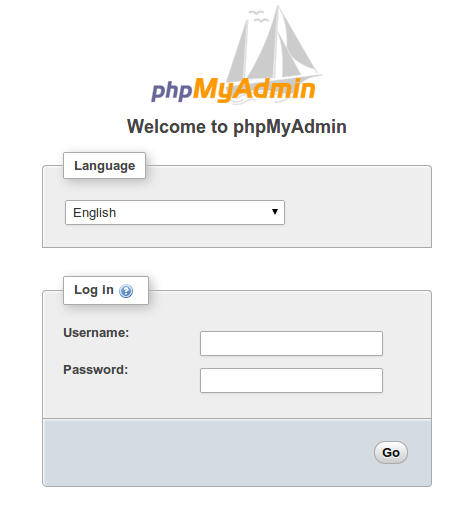
Verify that phpMyAdmin is working by visiting the_IP_of_your_server/phpmyadmin. For example: http://127.0.0.1/phpmyadmin

http://domain_name_or_IP/phpmyadmin

phpmyadmin login screen

You can now log into the interface using the root username and the administrative password you set up during the MySQL installation.

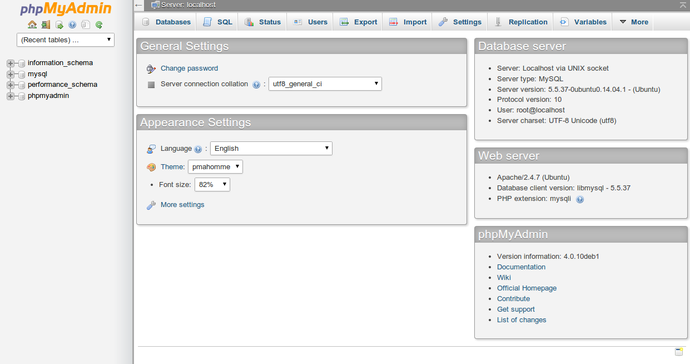
When you log in, you’ll see the user interface, which will look something like this:

phpmyadmin user interface

Step Two — Secure your phpMyAdmin Instance

We were able to get our phpMyAdmin interface up and running fairly easily. However, we are not done yet. Because of its ubiquity, phpMyAdmin is a popular target for attackers. We need to secure the application to help prevent unauthorized use.

One of the easiest way of doing this is to place a gateway in front of the entire application. We can do this using Apache’s built-in .htaccess authentication and authorization functionalities.

Configure Apache to Allow .htaccess Overrides

First, we need to enable the use of .htaccess file overrides by editing our Apache configuration file.

We will edit the linked file that has been placed in our Apache configuration directory:

sudo nano /etc/apache2/conf-available/phpmyadmin.conf

We need to add an AllowOverride All directive within the <Directory /usr/share/phpmyadmin>section of the configuration file, like this:

<Directory /usr/share/phpmyadmin>
    Options FollowSymLinks
    DirectoryIndex index.php
    AllowOverride All
    . . .

When you have added this line, save and close the file.

To implement the changes you made, restart Apache:

sudo service apache2 restart

Create an .htaccess File

Now that we have enabled .htaccess use for our application, we need to create one to actually implement some security.

In order for this to be successful, the file must be created within the application directory. We can create the necessary file and open it in our text editor with root privileges by typing:

sudo nano /usr/share/phpmyadmin/.htaccess

Within this file, we need to enter the following information:

AuthType Basic
AuthName "Restricted Files"
AuthUserFile /etc/phpmyadmin/.htpasswd
Require valid-user

Let’s go over what each of these lines mean:

  • AuthType Basic: This line specifies the authentication type that we are implementing. This type will implement password authentication using a password file.
  • AuthName: This sets the message for the authentication dialog box. You should keep this generic so that unauthorized users won’t gain any information about what is being protected.
  • AuthUserFile: This sets the location of the password file that will be used for authentication. This should be outside of the directories that are being served. We will create this file shortly.
  • Require valid-user: This specifies that only authenticated users should be given access to this resource. This is what actually stops unauthorized users from entering.

When you are finished, save and close the file.

Create the .htpasswd file for Authentication

Now that we have specified a location for our password file through the use of the AuthUserFiledirective within our .htaccess file, we need to create this file.

We actually need an additional package to complete this process. We can install it from our default repositories:

sudo apt-get install apache2-utils

Afterward, we will have the htpasswd utility available.

The location that we selected for the password file was “/etc/phpmyadmin/.htpasswd“. Let’s create this file and pass it an initial user by typing:

sudo htpasswd -c /etc/phpmyadmin/.htpasswd username

You will be prompted to select and confirm a password for the user you are creating. Afterwards, the file is created with the hashed password that you entered.

If you want to enter an additional user, you need to do so without the -c flag, like this:

sudo htpasswd /etc/phpmyadmin/.htpasswd additionaluser

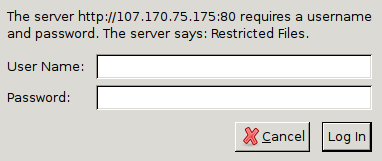
Now, when you access your phpMyAdmin subdirectory, you will be prompted for the additional account name and password that you just configured:

http://domain_name_or_IP/phpmyadmin

phpMyAdmin apache password

After entering the Apache authentication, you’ll be taken to the regular phpMyAdmin authentication page to enter your other credentials. This will add an additional layer of security since phpMyAdmin has suffered from vulnerabilities in the past.

Conclusion

You should now have phpMyAdmin configured and ready to use on your Ubuntu 14.04 server. Using this interface, you can easily create databases, users, tables, etc., and perform the usual operations like deleting and modifying structures and data.

To learn how to further secure your interactions with the server by encrypting your communication with SSL, check out our article on setting up SSL certificates with phpMyAdmin.

PhpMyAdmin Tutorial: Create Database

In this part of our PhpMyAdmin tutorial we will describe the steps which must be followed in order to create a new database, add a table with records, create a database backup and perform a database restore procedure.

We will start with the database creation.

How to Create a MySQL Database?

Please note that you can not create a database directly through cPanel->PhpMyAdmin due to the lack of user privileges. However, you can easily create a new database from your cPanel->MySQL Databases. Navigate to the Create New Database box. Enter the database name in the New Database text field and click on the Create Database button.

The database name will be preceded by the cPanel username. For example, if your cPanel user name is user and you want to have a database named test, the actual database name will be user_test. You will get a confirmation message.

How to Add MySQL Database Tables?

Navigate to your cPanel->PhpMyAdmin tool and open the newly create database. It is empty and there are no tables.

Enter the table name and the number of fields. Click on the Go button to create the table.

On the next screen you should enter the fields’ names and the corresponding properties. The properties are:

Type

Here you should pick the type of the data, which will be stored in the corresponding field. More details about the possible choices can be found in the official MySQL Data Types documentation.

Length/Values

Here you should enter the length of the field.  If the field type is “enum” or “set”, enter the values using the following format: ‘a’,’b’,’c’…

Collation

Pick the data collation for each of the fields.

Attributes

The possible attributes’ choices are:

BINARY – the collation for the field will be binary, for example utf8_bin;

UNSIGNED –  the field numeric values will be positive or 0;

UNSIGNED ZEROFILL – the field numeric values will be positive or 0 and leading zeros will be added to a number;

ON UPDATE CURRENT_TIMESTAMP – the value for a data type field has the current timestamp as its default value, and is automatically updated;

Null

Here you define whether the field value can be NULL. More about the NULL value can be found in the corresponding MySQL documentation.

Default

This property allows you to set the default value for the field.

Extra

In the Extra property you can define whether the field value is auto-increment.

The radio buttons that come below define whether there is an Index defined for the particular field and specify the Index type.

Comments

Here you can add comments, which will be included in the database sql code.

At the end you can include Table comments and pick the MySQL Storage Engine and the Collation. Once you are ready, click on the Save button.

If you want to add more fields you should specify their number and click on the Go button instead of Save.

The database table will be created and you will see the corresponding MySQL query.

Now we will proceed with the populating of the table with data.

How to Add Content in a Database Table?

In order to add records in a database table click on the Insert tab.

Enter the data in the corresponding fields and click on the Go button to store it.

At the bottom of the page you will see a drop-down menu labelled Restart insertion with x rows . There you can pick the number of the rows that you can populate with data and insert at once. By default the value is 2.

The Ignore check box will allow you to ignore the data entered below it. It will not be added.

You can see the newly inserted record by clicking on the Browse tab.

You can edit or delete the record by clicking on the corresponding icons.

To insert more records, return to the Insert tab and repeat the procedure.

How to Backup a Database?

Once you are ready, you can create a backup of your database through the Export tab.

Select the tables which you want to be exported.

Leave the radio button selection to the SQL option.  The Structure and the Data check boxes should remain checked.

Select the Save as file check box and then click on the Go button.

In this way you will save the dump SQL file with your database structure and content on your local computer.

If you have a large database with a lot of records, the server timeout value can be reached. In such a case you can export the database in several batches. You can find more details in our MySQL Knowledge Base.

How to Restore a Database Backup?

You can restore your database backup from the Import tab.

Click on the Browse button to select your database backup file from your local computer.

Pick the charset of the file from the corresponding drop-down menu.

If the file is too big, the MySQL server timeout can be reached. In such a case you can interrupt the import action. Then you can continue with the data import defining the number of the queries to be skipped from the file beginning. In this way you will skip the imported queries and continue from the point of the interruption.

Installing MySQL Server on Ubuntu

Meet MySQL

MySQL is an open-source relational database. In a nutshell, for those unfamiliar with it: A database is where an application keeps its stuff.

To break it down a little further, “relational database” is a term that refers to how data is organized and accessed within the database. The “SQL” part refers to the language used by application queries to retrieve and store data (“Structured Query Language”).

MySQL is free and widely used, meaning you can find a lot of application support, tools, and community help for it. MySQL is a safe choice if you know you need a database but don’t know what to make of the options that are out there.

This article covers a basic installation of a MySQL server on Ubuntu Linux – just enough to get you started. Remember that you might need to install other packages to let apps use MySQL, like extensions for PHP. Check your application documentation for details.

Installing MySQL

The easiest way to install the MySQL server is through the Ubuntu package manager:

sudo aptitude update
sudo aptitude install mysql-server

The installer should ask you to set a root password. It’s strongly advised you do so, but if you miss your chance during the install we’ll show you how to set the root password a little further on.

iptables

If you have iptables enabled and want to connect to MySQL from another machine you’ll need to open a port in your server’s firewall (the default port is 3306). You don’t need to do this if the application using MySQL is running on the same machine.

If you do need to open a port (again, only if you’re accessing MySQL from a different machine from the one you’re installing on), you can use the following rules in iptables to open port 3306:

-I INPUT -p tcp --dport 3306 -m state --state NEW,ESTABLISHED -j ACCEPT
-I OUTPUT -p tcp --sport 3306 -m state --state ESTABLISHED -j ACCEPT

Launch MySQL

Now that MySQL is installed you can make sure it’s running by trying to launch it:

sudo service mysql start

If you see a message that it’s already running that’s okay (it means that, well, it’s already running).

Launching at boot

This should also have been done for you at install time, but just in case:

sudo /usr/sbin/update-rc.d mysql defaults

That makes sure your machine will launch the MySQL server when it reboots.

The MySQL shell

There is more than one way to manage a MySQL server, so we’ll focus on the most basic and compatible approach: The mysql shell.

At the command prompt, run:

/usr/bin/mysql -u root -p

That will attempt to launch the mysql client and enter the shell as user “root”. When you’re prompted for a password enter the one you set at install time or, if you haven’t set one, just hit enter to submit no password.

You should be greeted by the mysql shell prompt:

mysql>

Setting the root password

If you got in by entering a blank password, or want to change the root password you’ve set, you can do it by entering the following command in the mysql shell. Replace the “password” in quotes with your desired password:

UPDATE mysql.user SET Password = PASSWORD('password') WHERE User = 'root';

It’s kind of a mouthful. The reason for this is that MySQL keeps user data in its own database, so to change the password we have to run an SQL command to update the database.

Next we’ll reload the stored user information to make our change go into effect:

FLUSH PRIVILEGES;

Note that we’re using all-caps for SQL commands. If you type those commands in lowercase they’ll work too. By convention the commands are written in all-caps to make them stand out from field names and other data that’s being manipulated.

Looking at users

As mentioned in the previous section, MySQL stores the user information in its own database. The name of the database is “mysql”. Inside that database the user information is in a “table”, a dataset, named “User”.

If you want to see what users are set up in MySQL you need to run a query against the “user” table in the “mysql” database. Let’s do that now:

SELECT User, Host, Password FROM mysql.user;

Breaking that down…

The “SELECT” command tells MySQL you’re asking for data.

The “User, Host, Password” part tells MySQL what fields you want it to look in. Fields are categories for the data in a table. In this case we’re looking for the username, the host associated with the username, and the encrypted password entry.

Finally, the “FROM mysql.user” part of the command tells MySQL to get the data from the “mysql” database and the “user” table.

And then the command ends with a semicolon

About that semicolon

All SQL queries end with a semicolon. MySQL will wait for you to keep entering additions to a query until it sees a semicolon.

That means that you can break lines up into smaller parts to make them easier to read. For example, the above command also works if you enter it in multiple lines in the mysql shell, as in:

mysql> SELECT User, Host, Password
    -> FROM mysql.user;

When you hit “enter” after the “Password” part you’ll get a new line so you can keep typing. The “->” indicates that the shell thinks you’re still in the middle of a statement. You can type a semicolon by itself to end the command if you simply forgot it on the first line.

User hosts

Okay, with that important aside about the semicolon done, let’s look at the output of that query:

SELECT User, Host, Password FROM mysql.user;
+------------------+-----------+-------------------------------------------+
| User             | Host      | Password                                  |
+------------------+-----------+-------------------------------------------+
| root             | localhost | *2470C0C06DEE42FD1618BB99005ADCA2EC9D1E19 |
| root             | demohost  | *2470C0C06DEE42FD1618BB99005ADCA2EC9D1E19 |
| root             | 127.0.0.1 | *2470C0C06DEE42FD1618BB99005ADCA2EC9D1E19 |
| debian-sys-maint | localhost | *03C2F472E5290DDE27E889681C90EA91FD6800F3 |
|                  | %         |                                           |
+------------------+-----------+-------------------------------------------+

As you can see, users are associated with a host – specifically, the host they connect to. The “root” user in this case is defined for localhost, for the IP address of localhost, and the hostname of the server (“demohost” in this example). You’ll usually only need to set a user for one host, the one you typically connect from.

If you’re running your application on the same machine as the MySQL server the host it connects to by default will be “localhost”. That means any new users you create will need to have “localhost” in its “host” field.

If your application connects remotely the “host” entry MySQL will look for is the IP address or DNS hostname of the remote machine (the one the client is coming from).

A special value for the host is “%”, as you’ll see for the blank user (more on that shortly). That’s a wildcard that applies to any host value. You usually won’t want to use that because it’s more secure to limit access specifically to trusted hosts.

Anonymous users

In the example output above you’ll notice there’s one entry that has a host value but no username or password. That’s an “anonymous user”. When a client connects with no username specified it’s trying to connect as an anonymous user.

You usually don’t want one of those in there, but some MySQL installations include one by default. If you see one of those you should either delete the user (refer to the username with empty quotes, like ”) or set a password for it (we cover both tasks later in this series).

Create a database

That covers some basic concepts surrounding users, so now let’s look at creating a database.

It’s worth noting at this point that there is a difference between a “database server” and an actual “database”, even though you’ll often see those terms used interchangeably. MySQL itself is a database server, meaning that it keeps track of databases and controls access to them. An actual database is where all the data goes. That’s what applications are trying to get at when they talk to MySQL.

Some applications will create a database as part of their setup process, while others require you to create a database yourself and tell the application about it later. Fortunately it’s an easy process.

To create a database, log into the mysql shell and run:

CREATE DATABASE demodb;

That’s all there is to it. Replace “demodb” with the name of the database you want to create, of course. You can make sure it’s there by running a query to list all databases:

SHOW DATABASES;
+--------------------+
| Database           |
+--------------------+
| information_schema |
| demodb             |
| mysql              |
+--------------------+
3 rows in set (0.00 sec)

Add a database user

It’s not a good idea to have applications connecting to the database using the root user. That gives them more privileges than they need. We’ll create a user named “demouser” that applications can use to connect to the new database.

To make the user run the following in the mysql shell:

INSERT INTO mysql.user (User,Host,Password) VALUES('demouser','localhost',PASSWORD('demopassword'));

When you make changes to the user table in the mysql database you need to tell MySQL to read the changes by flushing the privileges. To wit:

FLUSH PRIVILEGES;

You can make sure the user is there by running that “select” query again:

SELECT User, Host, Password FROM mysql.user;
+------------------+-----------+-------------------------------------------+
| User             | Host      | Password                                  |
+------------------+-----------+-------------------------------------------+
| root             | localhost | *2470C0C06DEE42FD1618BB99005ADCA2EC9D1E19 |
| root             | demohost  | *2470C0C06DEE42FD1618BB99005ADCA2EC9D1E19 |
| root             | 127.0.0.1 | *2470C0C06DEE42FD1618BB99005ADCA2EC9D1E19 |
| debian-sys-maint | localhost | *03C2F472E5290DDE27E889681C90EA91FD6800F3 |
| demouser         | localhost | *0756A562377EDF6ED3AC45A00B356AAE6D3C6BB6 |
+------------------+-----------+-------------------------------------------+

Grant database user permissions

Right now our new user has no privileges. It can be used to log on, but it can’t be used to make any database changes. Let’s give it full permissions for our new database by running:

GRANT ALL PRIVILEGES ON demodb.* to demouser@localhost;

And follow it up with the usual:

FLUSH PRIVILEGES;

To check those privileges were set, we’ll run:

SHOW GRANTS FOR 'demouser'@'localhost';
+-----------------------------------------------------------------------------------------------------------------+
| Grants for demouser@localhost                                                                                   |
+-----------------------------------------------------------------------------------------------------------------+
| GRANT USAGE ON *.* TO 'demouser'@'localhost' IDENTIFIED BY PASSWORD '*0756A562377EDF6ED3AC45A00B356AAE6D3C6BB6' |
| GRANT ALL PRIVILEGES ON `demodb`.* TO 'demouser'@'localhost'                                                    |
+-----------------------------------------------------------------------------------------------------------------+
2 rows in set (0.00 sec)

What you get back are the commands needed to reproduce that user’s permissions if you were to rebuild the server. The “USAGE on *.*” part basically means they get no privileges on anything by default. Then that gets overridden by the second command, which is the grant you ran for the new database.

Summary

And that’s all you need if you’re just creating a database and a user. We were a bit long on concepts there but that should give you a solid grounding from which to learn more. Good work.

Configuring MySQL server on Ubuntu

Beyond the defaults

In the previous article we covered a basic MySQL server setup on Ubuntu Linux. We set the root password, created a database, and created a user for the database. Now let’s look at MySQL in a little more detail so we can tweak its configuration and be ready in case something goes wrong.

Finding the config files

By default you’ll find MySQL’s configuration files in:

/etc/mysql

If they’re not there, however, you can ask mysqld where it looks for its config. Run the command:

/usr/sbin/mysqld --help --verbose

You’ll get a flood of text back. The first part describes the options you can send to the server when you launch it. The second part is all the configuration stuff that was set when the server was compiled.

What we’re looking for shows up near the start of the output. Find a couple lines that look like:

Default options are read from the following files in the given order:
/etc/my.cnf /etc/mysql/my.cnf /usr/etc/my.cnf ~/.my.cnf

And there we are. The server works down that list until it finds a configuration file.

my.cnf

With the location in hand, open the my.cnf file and have a look inside.

/etc/mysql/my.cnf

Any lines starting with “#” are comments, and they mostly document what the different settings are for. They’re good to read through. You’ll find details like the location of log files and where the database files are kept.

Config groups

There are lines in the config file that just contain a word in square brackets, like “[client]” or “[mysqld]”. Those are “config groups” and they tell the programs that read the configuration file which parts they should pay attention to.

See, while we’ve been focusing on the server part of MySQL, it’s technically a collection of tools. That includes the server (mysqld), the client (mysql), and some other tools we’ll talk about in a bit. Those programs look in my.cnf to see how they should behave.

There’s a bit more to it, but basically: The “client” config section controls the mysql client, and the “mysqld” section controls the server config.

Log files

If something does go wrong the best place to start troubleshooting any program is its logs. By default MySQL stores its log files in the directory:

/var/log/mysql

You may need to use sudo to get a listing of the files in that directory.

If you don’t find the MySQL logs in the default directory you’ll need to check MySQL’s config. Look in the my.cnf file and look for a “log_error” line, as in:

log_error = /var/log/mysql/error.log

If you don’t see a line like that, create one in the “mysqld” section so MySQL will use its own error log. We recommend using the location in the example, creating the “/var/log/mysql” directory if it doesn’t already exist. Then restart MySQL to make the change.

Make sure the log directory you choose can be written to by the user controlling the MySQL process (usually “mysql”). The user running the process will be defined in the “user” config value for mysqld in my.cnf.

Network settings

There might be a “port” setting under both the client and server config sections. The port under the server section controls what port the server will listen to. By default that’s 3306 but you can change it to anything you’d like.

The port in the client section tells the client what port to connect to by default. You’ll generally want the two port settings to match up.

If you don’t see the port entries in the config file that just means they’re using the default. If you want to change the port you would add the lines in the appropriate categories:

[client]
port = 3306
 
[mysqld]
port = 3306

The other network setting to look for is the “bind-address” value. That usually gets set to the address for localhost, 127.0.0.1. By binding to localhost the server makes sure no one can connect to it from outside the local machine.

If you’re running your MySQL server on a different machine from your application you’ll want to bind to a remotely-accessible address instead of localhost. Change the bind-address setting to match your public IP address (or, better, a backend IP address on a network that fewer machines can access).

If you don’t see a “bind-address” entry you should put one into the “mysqld” category to help control access to the server:

[mysqld]
bind-address = 127.0.0.1

Remember to account for the client’s hostname when you set up your database users and to poke a hole in your firewall if you’re running iptables.

mysqld and mysqld_safe

Behind the scenes there are actually two versions of the MySQL server, “mysqld” and “mysqld_safe”. Both read the same config sections. The main difference is that mysqld_safe launches with a few more safety features enabled to make it easier to recover from a crash or other problem.

Both mysqld and mysqld_safe will read config entries in the “mysqld” section. If you include a “mysqld_safe” section, then only mysqld_safe will read those values in.

By default the mysql service launches “mysqld_safe”. That’s a good thing, and you should only look to change that if you really know what you’re doing.

mysqladmin

The mysqladmin tool lets you perform some administrative functions from the command line. We won’t talk much about it here because we’re just trying to get you up and running with enough basics to get by. It’s worth looking at the tool in more depth later to see what it can do, particularly if you need to build scripts that perform functions like checking the status of the server or creating and dropping databases.

Backups

You have a few options when it comes to making backups of your databases apart from the usual “back up the whole machine” approach. The main two are copying the database files and using mysqldump.

File copy

By default MySQL creates a directory for each database in its data directory:

/var/lib/mysql

Once you’ve found the data directory, hold off a moment before making a copy of it. When the database server is active it could be writing new values to tables at any time. That means if it writes to a table halfway through your copy some files will change and lead to a corrupt backup. Not a good thing if you’re trying to plan for disaster recovery.

To make sure the database files are copied cleanly you can shut the MySQL server down entirely before the copy. That’s safe but isn’t always ideal.

Another approach you can take is to lock the database as read-only for the duration of the copy. Then when you’re done, release the lock. That way your applications can still read data while you’re backing up files.

Lock the databases to read-only by running, from the command line:

mysql -u root -p -e "FLUSH TABLES WITH READ LOCK;"

To unlock the database when you’re done, run:

mysql -u root -p -e "UNLOCK TABLES;"

We’re using a new option with the mysql client, “-e”. That tells the client to run the query in quotes as if we’d entered it in the mysql shell proper.

Note that if you’re setting these commands up in a script you can put the password in quotes right after “-p” with no space between the two, as in:

mysql -u root -p"password" -e "FLUSH TABLES WITH READ LOCK;"
mysql -u root -p"password" -e "UNLOCK TABLES;"

Just make sure you set the permissions on that file to restrict read access. We don’t want just anyone to be able to see that password.

mysqldump

Another approach to backing up your database is to use the “mysqldump” tool. Rather than copying the database files directly, mysqldump generates a text file that represents the database. By default the text file contains a list of SQL statements you would use to recreate the database, but you can also export the database in another format like CSV or XML. You can read the man page for mysqldump to see all its options.

The statements generated by mysqldump go straight to standard output. You’ll want to specify a file to redirect the output to when you run it. For example:

mysqldump -u root -p demodb > dbbackup.sql

That command will tell mysqldump to recreate the “demodb” database in SQL statements and to write them to the file “dbbackup.sql”. Note that the username and password options function the same as the mysql client, so you can include the password directly after “-p” in a script.

Restore from mysqldump

Restoring a mysqldumped database looks similar to what was used to create it, but we use plain old “mysql” instead of “mysqldump”:

mysql -u root -p demodb < dbbackup.sql

We also change from a greater-than to a less-than sign. That switches the command from redirecting its output to telling it to read its input from the existing file. That input is sent to the “mysql” command, causing the mysqldumped instructions to recreate the database.

Note that by default the SQL statements generated would just add to existing database tables, not overwrite them. If you’re restoring a backup over an existing database you should drop the database’s tables first, or drop and recreate the database itself. You can change that behavior by using the “–add-drop-table” option with the command that creates the mysqldump. That causes mysqldump to add a command to the backup files it writes that will drop tables before recreating them.

Database engine

The last concept we’ll talk about here is that of the “database engine”. The engine is the process that’s churning away behind the scenes, writing to and reading data from files. You won’t usually need to know anything other than that it’s there, but sometimes you’ll want to run an application that’s been optimized for a particular database engine.

The engine type is set when a table is created. Tables are usually created by the application that’s going to use them, which is why we aren’t going to get into that syntax here.

To see the engine used by your database’s tables you can run the following command in the MySQL shell:

SHOW TABLE STATUS FROM demodb;

Change “demodb” to the name of your database.

Choosing an engine

Ideally you won’t need to choose an engine. If you’re not very familiar with MySQL that’s certainly the safest way to go – let the application do its thing, and if you’re writing the application, use the default engine until you’re more comfortable with your options.

If you have a database administrator, do whatever he or she says. They’re smart people, they know what they’re talking about.

The two database engines used most often with MySQL are “MyISAM” and “InnoDB”. The default database engine for MySQL version 5.1 and earlier is MyISAM, while InnoDB is the default database engine starting with MySQL version 5.5.

MyISAM

Because MyISAM has been the default in MySQL for a while it’s the most compatible choice of the two main engines. Certain types of searches perform better on MyISAM than InnoDB. Just because it’s the older of the two doesn’t mean it can’t be the best for a given application type.

InnoDB

InnoDB is more fault-tolerant than MyISAM and handles crashes and recovery with a much smaller chance of database corruption. This is a good thing.

The main trouble with InnoDB is that for best performance it requires a lot of tweaking for your environment and access patterns. If you have a DBA that’s no problem, but if you’re a developer who just wants a database up and running for a test server you probably won’t want to deal with tuning InnoDB.

It’s possible you may be running an application that requires InnoDB, and if you’re using MySQL 5.1 or earlier there might not be any settings already in the my.cnf config file. That can be a problem if you’re running on a server that doesn’t have an abundance of memory.

Some settings to get you started with InnoDB on a shared server with 256 megs of RAM are:

innodb_buffer_pool_size = 32M
innodb_log_file_size = 8M
innodb_thread_concurrency = 8
innodb_file_per_table

Add those to the [mysqld] section of the config file. Again, those are only rough guides – enough to get you running, but definitely not optimized. For that you’ll probably want a DBA, or at least to experiment with incremental changes over time.

Summary

Now you should have MySQL configured for your environment, and might even have accounted for the database engine being used by your tables.

How To Install KVM On Ubuntu And Run Virtual Machines

How To Install KVM On Ubuntu And Run Virtual Machines

Kernel Virtual Machine (KVM) is one of the popular virtualization solutions available today to run guest  Operating Systems (Virtual Machines) on a Linux hosts (Physical Machines). Few other popular alternatives are Oracle VirtualBox, VMware Player / Workstation and Xen. In this article, we will focus on installing KVM on Ubuntu and running a guest Virtual Machine.

Recommended Prerequisites

You will need a processor that supports hardware virtualization. To see if your processor supports it, run “egrep -c ‘(vmx|svm)’ /proc/cpuinfo“. If the output is greater than 0 then your all set. But you still need to check if the feature has been enable in your  BIOS, to check run “kvm-ok“. This should generate the following output,

output-1

Note: To run “kvm-ok” command you will need the “cpu-checker” package installed. To install, simply run the command “sudo apt-get install cpu-checker“.

It is also recommended to run a 64 bit host operating system, but not required. First, to check if you have a 64 bit processor, run “egrep -c ‘ lm ‘ /proc/cpuinfo“. Again, if the output is greater than 0, then you should be good. Next, to check if your OS is running a 64 bit kernel, run command “uname -m“. This should generate the below output,

output-2

KVM Installation

Once you have sufficed the pre-requisites, to install KVM on Ubuntu and run guest Virtual Machines, simply run the command “sudo apt-get install qemu-kvm libvirt-bin ubuntu-vm-builder bridge-utils“. This will install the related software packages. Also optionally, to manage Virtual Machines using a GUI front-end, install the “virt-manager” package by running the command “sudo apt-get install virt-manager“. Once done, reboot the machine and you should be ready to use KVM. To verify if your  installation was successful, run “virsh -c qemu:///system list” or alternatively launch the Virtual Machine Manager application. The earlier command should generate the below output if the install was a success.

output-3

Creating & Running a Virtual Machine

Now that we are done installing KVM and related packages we can create and run Virtual Machines. To get started, lets create a Virtual Machine as an example. Launch the Virtual Machine Manager and click on the “Create a new virtual machine” icon in the top left. (See below screen shot)

kvm-1This brings up the “New VM” wizard. Follow the wizard as shown in the screen shots below to create a new Virtual Machine.

kvm-2

kvm-3kvm-4kvm-5kvm-6Lastly, click “Finish” to begin guest operating system installation on the new Virtual Machine. If you have tried or use other similar virtualization products, let me know how you like KVM in contrast.

How to Install KVM and Create Virtual Machines on Ubuntu

If you’re using Linux, you don’t need VirtualBox or VMware to create virtual machines. You can use KVM – the kernel-based virtual machine – to run both Windows and Linux in virtual machines.

You can use KVM directly or with other command-line tools, but the graphical Virtual Machine Manager (Virt-Manager) application will feel most familiar to people that have used other virtual machine programs.

Installing KVM

KVM only works if your CPU has hardware virtualization support – either Intel VT-x or AMD-V. To determine whether your CPU includes these features, run the following command:

egrep -c ‘(svm|vmx)’ /proc/cpuinfo

A 0 indicates that your CPU doesn’t support hardware virtualization, while a 1 or more indicates that it does. You may still have to enable hardware virtualization support in your computer’s BIOS, even if this command returns a 1 or more.

image

Use the following command to install KVM and supporting packages. Virt-Manager is a graphical application for managing your virtual machines — you can use the kvm command directly, but libvirt and Virt-Manager simplify the process.

sudo apt-get install qemu-kvm libvirt-bin bridge-utils virt-manager

Only the root user and users in the libvirtd group have permission to use KVM virtual machines. Run the following command to add your user account to the libvirtd group:

sudo adduser name libvirtd

image

After running this command, log out and log back in. Run this command after logging back in and you should see an empty list of virtual machines. This indicates that everything is working correctly.

virsh -c qemu:///system list

image

Creating Virtual Machines

Once you’ve got KVM installed, the easiest way to use it is with the Virtual Machine Manager application. You’ll find it in your Dash.

image

Click the Create New Virtual Machine button on the toolbar and the Virtual Machine Manager will walk you through selecting an installation method, configuring your virtual machine’s virtual hardware, and installing your guest operating system of choice.

image

The process will by familiar if you’ve ever used VirtualBox, VMware, or another virtual machine application. You can install from a disc, ISO image, or even a network location.

image

To assign more than 2GB of memory to a virtual machine, you’ll need a 64-bit Linux kernel. Systems running 32-bit kernels can assign a maximum of 2 GB of RAM to a virtual machine.

image

By default, KVM gives you NAT-like bridged networking – your virtual machine won’t appear on the network as its own device, but it will have network access through the host operating system. If you’re running server software in your virtual machine and want it accessible from other devices on the network, you’ll have to tweak the networking settings.

image

After selecting your installation method, Virt-Manager will boot the guest operating system in a window. Install the guest operating system as you would on a physical machine.

image

Managing Virtual Machines

The Virtual Machine Manager window displays a list of your installed virtual machines. Right-click virtual machines in the window to perform actions, including starting, shutting down, cloning, or migrating them.

image

You can view information about the virtual machine and configure its virtual hardware by clicking the i-shaped toolbar icon in the virtual machine’s window.

image

What is JeOS? (Minimal Ubuntu’s OS install)

JeOS (just enough operating system) is a highly customized operating system built for a specific application. The acronym is pronounced “juice.”

JeOS builds are popular with software vendors and developers who are creating test systems or virtual appliances.  A virtual appliance is simply a virtual machine (VM) image file that has a preconfigured operating system (OS) and a single application. (The preconfigured OS is the JeOS.)

A JeOS only includes the bits of a full-blown operating system that are required to support the application and any other third-party components that are packaged in the appliance.  Configuring the JeOS and the application together in a single package helps avoid installation issues and errors.

How To Install and configure Munin on an Ubuntu Server/Client

What the Red Means

The lines that the user needs to enter or customize will be in red in this tutorial! The rest should mostly be copy-and-pastable.

About Munin

Munin is a helpful utility that provides a visual way to monitor a VPS. It is set up to be extremely plug and play. It can be installed very quickly through apt-get. We will be using Ubuntu 12.04 in this guide.

First, we will install and configure Munin on a monitoring server, and then we will add configuration options that will allow Munin to monitor a remote server.

Prerequisites

To start off, be sure that apache2 is installed on the VPS you will use for monitoring. You can ensure that this is the case by checking the apache version number:

apache2 –v

If it is not yet installed, you can go ahead and install it:

sudo apt-get install apache2

Step One—Install Munin

Munin itself can be installed through apt-get. Once has it has been downloaded, there are very few steps required to get the graphs displayed. The initial configuration will take place on the monitoring server.

Start by installing munin on the monitoring server. The munin package contains both the server components and the client components necessary to monitor the machine it is installed on. The server component can be used to monitor behavior across multiple servers, as we will be demonstrating later.

Install the server and client components with the following command:

sudo apt-get install munin

Once the package is installed, you only need to make a few changes to get your installation working.

Step Two—Configure Munin

Start off by opening the main munin configuration file:

sudo nano /etc/munin/munin.conf

There are a few lines that we have to pay particular attention to:

# dbdir /var/lib/munin
# htmldir /var/cache/munin/www
# logdir /var/log/munin
# rundir  /var/run/munin

Dbdir stores all of the rrdfiles containing the actual monitoring information, htmldir stores the images and site files, logdir maintains the logs, and rundir holds the state files. All four lines should be uncommented.

Additionally the htmldir line should be changed to point your web directory. For this guide, we will point it to /var/www/munin.

The four lines should now look like this:

dbdir /var/lib/munin
htmldir /var/www/munin
logdir /var/log/munin
rundir  /var/run/munin

Additionlly, two other lines should be changed within the configuration file. “Tmpldir” should be uncommented and the server name on the line localhost.localdomain should be updated to display the hostname, domain name, or other identifier you’d like to use for your monitoring server. We will use “MuninMonitor” in this guide:

tmpldir /etc/munin/templates


[MuninMonitor]
    address 127.0.0.1
    use_node_name yes

Save and close this file for now.

Next, you will be editing Munin’s apache configuration file to point apache in the right direction when you request the monitoring information. Open Munin’s apache configuration file:

sudo nano /etc/munin/apache.conf

There are a few items that need to be addressed at the top of this file. We need to change both the alias declaration and the directory path to point to the “htmldir” attribute we set in the munin.conf file.

We also need to allow connections from outside of the local computer, since you are likely accessing this cloud server remotely.

Change the beginning of this file to reflect this information:

Alias /munin /var/www/munin
<Directory /var/www/munin>
	Order allow,deny
	#Allow from localhost 127.0.0.0/8  ::1
	Allow from all
	Options None

Next, you will need to create the directory path that you referenced in the munin.conf file and modify the ownership to allow munin to write to it:

sudo mkdir /var/www/munin
sudo chown munin:munin /var/www/munin

Once all of these changes are in place, you can restart apache and munin to make the changes effective.

sudo service munin-node restart
sudo service apache2 restart

It might take a few minutes to generate the necessary graphs and html files. After about five minutes, your files should be created and you will be able to access your data. You should be able to access your munin details at:

your_ip_address/munin

If you get an error message in your browser similar to the following, you need to wait longer for munin to create the files:

Forbidden

You don't have permission to access /munin/ on this VPS.

Step Three—Configure Remote Monitoring

Munin can easily monitor multiple servers at once. The remainder of the article will focus on configuring a client setup that sends its data to the Munin monitoring server that we have configured. This scenario can easily scale to accommodate a number of clients.

Remote Client Setup

Log into the client VPS that you want to monitor.

The remote client machine does not need all of the munin components or apache2 installed. It only requires the client tools. You can install these through apt-get with the following commands:

sudo apt-get update
sudo apt-get install munin-node

Next, you need to edit the munin-node.conf file to specify that your monitoring server is allowed to poll the client for information. Open the file for editing:

sudo nano /etc/munin/munin-node.conf

Search for the section that has the line “allow ^127\.0\.0\.1$”. Modify the IP address to reflect your monitoring server’s IP address.

The IP entry should begin with a carat character (^), have four sets of numbers separated by a backslash and dot (\.), and end with a dollar sign ($). Below is a sample entry that you will need to change for your own setup:

allow ^\.123\.456\.78\.100$

Save and close the file.

Restart the munin-node service:

sudo service munin-node restart

Monitoring Server Setup

You now need to edit the configuration files for the monitoring server again. Log into the monitoring server now.

First, edit the munin.conf file:

sudo nano /etc/munin/munin.conf

Find the host list that you modified with your monitoring server’s name:

[MuninMonitor]
	address 127.0.0.1
	use_node_name yes

Copy that section and paste it below the current entry. We will modify the name and the IP address to reflect the client server’s information that we are configuring:

[MuninClient]
	address 111.222.333.444
	use_node_name yes

Save and close the file.

Restart the apache server to reload the configuration:

sudo service apache2 restart

Once again, it will take a few minutes for the correct files to be generated and pulled from the remote client.

After a few moments, if you return to your “MonitoringServerIPAddress/munin” page, you should see an option to view your remote client machine.

Protect The Munin Output Directory with Password

To protect the munin Output Directory with Password, open and edit /etc/munin/apache.conf with following configuration below:

sudo nano /etc/munin/apache.conf
Alias /munin /var/cache/munin/www
<Directory /var/cache/munin/www>
       Order allow,deny
#      Allow from localhost 127.0.0.0/8 ::1
       Allow from all
       Options None
#      This file can be used as a .htaccess file, or a part of your apache
#      config file.
#
#      For the .htaccess file option to work the munin www directory
#      (/var/cache/munin/www) must have "AllowOverride all" or something
#      close to that set.
#
       AllowOverride None
       AuthUserFile /etc/munin/munin-htpasswd
       AuthName "Munin"
       AuthType Basic
       require valid-user
#      This next part requires mod_expires to be enabled.
#
#      Set the default expiration time for files to 5 minutes 10 seconds from
#      their creation (modification) time. There are probably new files by
#      that time.
#
      <IfModule mod_expires.c>
               ExpiresActive On
               ExpiresDefault M310
      </IfModule>
</Directory>

You must create the password for /etc/munin/munin-htpasswd. on this case we want to log in to munin with the username Munin, run the following command:

sudo htpasswd -c /etc/munin/munin-htpasswd Munin

Enter a password for Munin, restart your apache and munin-node, you’re done!

sudo service apache2 restart
sudo service munin-node restart

Access it from your favorite browser , on address bar type http://host/munin

Munin - Authentication

ubuntu server - munin