Shrink/Enlarge/Resize Ubuntu Partitions with GParted

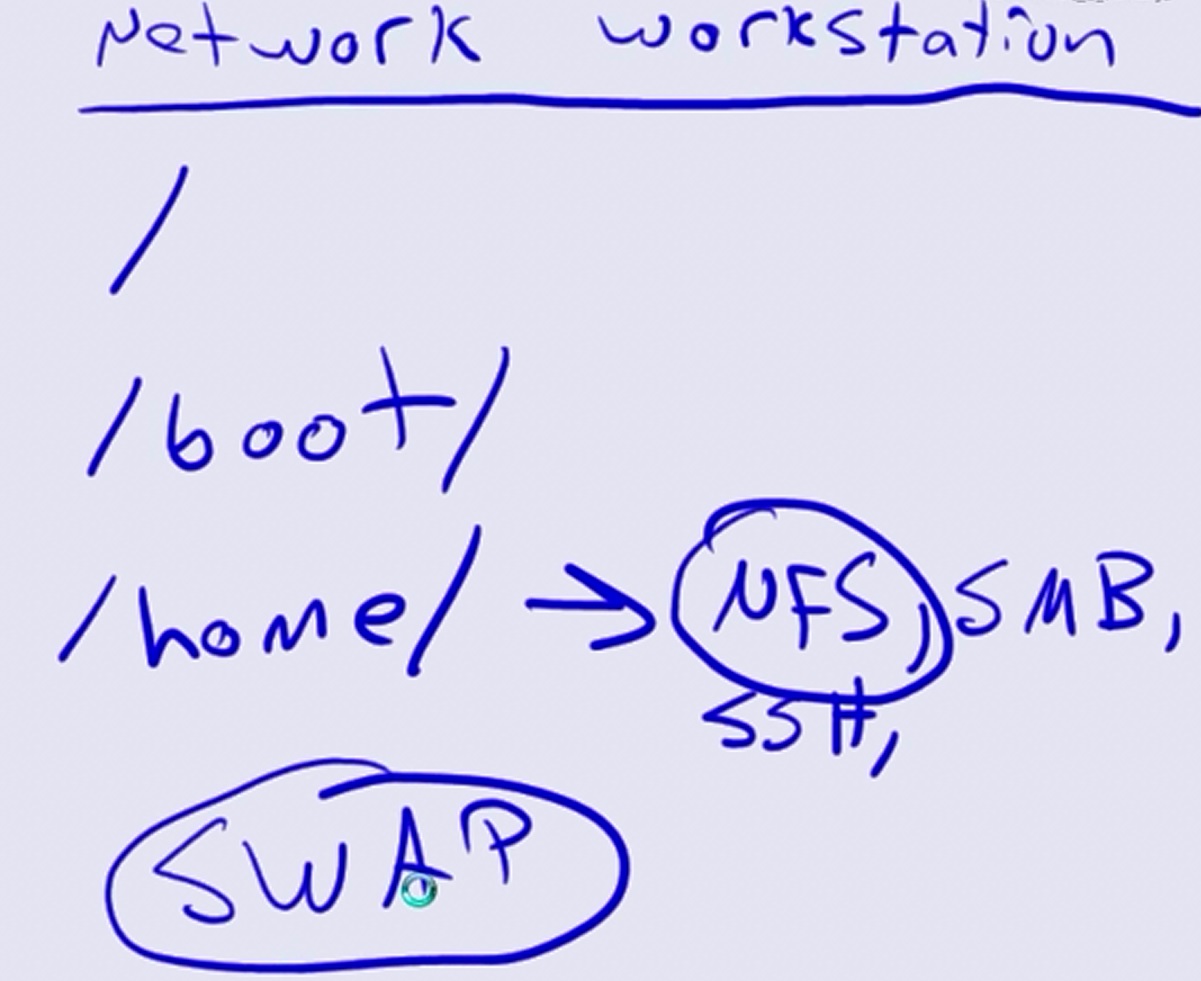
Best Partitions (Disks) allocation:

/ (root has separate Disk)
/boot (same disk but separate partition, not used anymore)
/var (separate Disk as used massively for logs)

/swap (separate Disk which is probably SSD)
/home (usually separate Disk)
/usr   (optional)
/opt  (optional)
part3
partition1
part4
When you want to resize any partition in Ubuntu, whether shrinking it or enlarging it, or divide it into number of partitions, you won’t be able to do it while it is being used. It requires an Ubuntu live CD or USB stick to adjust the partitions.
The Ubuntu live CD comes with a partition editor- GParted, with which you can change your partitions. GParted brings to you a partition editor with graphical user interface that acts as a front-end to various terminal commands.

Creating Ubuntu Live Media

First of all you will need an ISO image of Ubuntu, which you can download fromhere. To create Ubuntu live CD, insert the disc in your system, right-click the downloaded file and select “Write to Disc” option.
gparted gparted gparted gparted gparted gparted gparted gparted gparted gparted gparted gparted gparted gparted gparted gparted gparted gparted gparted gparted gparted gparted gparted gparted gparted gparted gparted gparted gparted gparted gparted gparted gparted gparted gparted gparted gparted gparted gparted gparted gparted gparted gparted gparted gparted gparted gparted gparted gparted gparted gparted gparted
If you wish to create bootable USB drive, you can either use UNetBootin or Startup Disk Creator application present in Ubuntu Dash.
gparted gparted gparted gparted gparted gparted gparted gparted gparted gparted gparted gparted gparted gparted gparted gparted gparted gparted gparted gparted gparted gparted gparted gparted gparted gparted gparted gparted gparted gparted gparted gparted gparted gparted gparted gparted gparted gparted gparted gparted gparted gparted gparted gparted gparted gparted gparted gparted gparted gparted gparted gparted
Provide the necessary information about Ubuntu ISO file and USB drive in Startup Disk Creator application and it will start creating Ubuntu live USB drive for you.
gparted gparted gparted gparted gparted gparted gparted gparted gparted gparted gparted gparted gparted gparted gparted gparted gparted gparted gparted gparted gparted gparted gparted gparted gparted gparted gparted gparted gparted gparted gparted gparted gparted gparted gparted gparted gparted gparted
Insert the Ubuntu live media into your computer and reboot. Check the BIOS settings and adjust the boot order so that it will boot from the Ubuntu live media.

GParted

GParted utility doesn’t come as a pre-installed package in Ubuntu system, but it is present in the Ubuntu live environment. Get started with GParted by launching it from the Ubuntu Dash.
partition manager partition manager partition manager partition manager partition manager partition manager partition manager partition manager partition manager partition manager partition manager partition manager partition manager partition manager partition manager partition manager partition manager partition manager partition manager partition manager partition manager partition manager partition manager partition manager partition manager partition manager partition manager partition manager partition manager partition manager partition manager partition manager partition manager partition manager partition manager partition manager partition manager partition manager partition manager partition manager partition manager partition manager partition manager partition manager partition manager partition manager partition manager partition manager partition manager partition manager partition manager partition manager partition manager partition manager partition manager partition manager partition manager partition manager partition manager partition manager partition manager partition manager partition manager partition manager partition manager partition manager partition manager partition manager partition manager partition manager partition manager partition manager partition manager partition manager
Select the appropriate partition of your computer from the drop-down menu located at top-right corner of the GParted window.
partition manager partition manager partition manager partition manager partition manager partition manager partition manager partition manager partition manager partition manager partition manager partition manager partition manager partition manager partition manager partition manager partition manager partition manager partition manager partition manager partition manager partition manager partition manager partition manager partition manager partition manager partition manager partition manager partition manager partition manager partition manager partition manager partition manager partition manager partition manager partition manager partition manager partition manager partition manager partition manager partition manager partition manager partition manager partition manager partition manager partition manager partition manager partition manager partition manager partition manager partition manager partition manager partition manager partition manager partition manager partition manager partition manager partition manager partition manager partition manager partition manager partition manager partition manager partition manager partition manager partition manager partition manager partition manager partition manager partition manager partition manager partition manager partition manager partition manager partition manager partition manager partition manager partition manager partition manager partition manager partition manager partition manager partition manager partition manager partition manager partition manager partition manager partition manager partition manager
You won’t be able to modify the partitions while they are being used – such partitions will be indicated by a key icon present in front of them. Unmount the partition by ejecting them from file manager. Ubuntu live will enable swap partitions in your computer it. To disable those swap partitions, right-click and choose Swapoff.
partition manager partition manager partition manager partition manager partition manager partition manager partition manager partition manager partition manager partition manager partition manager partition manager partition manager partition manager partition manager partition manager partition manager partition manager partition manager partition manager partition manager partition manager partition manager partition manager partition manager partition manager partition manager partition manager partition manager partition manager partition manager partition manager partition manager partition manager partition manager partition manager partition manager partition manager partition manager partition manager partition manager partition manager partition manager partition manager partition manager partition manager partition manager partition manager partition manager partition manager partition manager partition manager partition manager partition manager partition manager partition manager partition manager

In order to resize any partition, right click on it and choose “Resize/Move”

partition manager partition manager partition manager partition manager partition manager partition manager partition manager partition manager partition manager partition manager partition manager partition manager partition manager partition manager partition manager partition manager partition manager partition manager partition manager partition manager partition manager partition manager partition manager partition manager partition manager partition manager partition manager partition manager partition manager partition manager partition manager partition manager partition manager partition manager partition manager partition manager partition manager partition manager partition manager partition manager partition manager partition manager partition manager partition manager partition manager partition manager partition manager partition manager partition manager partition manager partition manager partition manager partition manager partition manager partition manager partition manager partition manager partition manager partition manager partition manager partition manager partition manager partition manager partition manager
An easy and sophisticated way to resize a partition is to click and drag the sliders on  both sides. You may provide the required partition size in terms of exact numbers. Partition can be shrunk if it has free space available.
partition manager partition manager partition manager partition manager partition manager partition manager partition manager partition manager partition manager partition manager partition manager partition manager partition manager partition manager partition manager partition manager partition manager partition manager partition manager partition manager partition manager partition manager partition manager partition manager partition manager partition manager partition manager partition manager partition manager partition manager partition manager partition manager partition manager partition manager partition manager partition manager partition manager partition manager partition manager partition manager partition manager partition manager partition manager partition manager partition manager partition manager partition manager partition manager partition manager partition manager partition manager partition manager partition manager partition manager partition manager partition manager partition manager partition manager partition manager partition manager partition manager partition manager partition manager partition manager partition manager partition manager partition manager partition manager partition manager partition manager partition manager partition manager partition manager partition manager partition manager partition manager partition manager partition manager partition manager partition manager partition manager partition manager partition manager partition manager partition manager partition manager partition manager partition manager partition manager partition manager
Every modification you do will be lined-up in a queue which is listed at the bottom of the window. No modification will be activated instantaneously.
partition manager partition manager partition manager partition manager partition manager partition manager partition manager partition manager partition manager partition manager partition manager partition manager partition manager partition manager partition manager partition manager partition manager partition manager partition manager partition manager partition manager partition manager partition manager partition manager partition manager partition manager partition manager partition manager partition manager partition manager partition manager partition manager partition manager partition manager partition manager partition manager partition manager partition manager partition manager partition manager partition manager partition manager partition manager partition manager partition manager partition manager partition manager partition manager partition manager partition manager partition manager partition manager partition manager partition manager partition manager partition manager partition manager partition manager partition manager partition manager partition manager partition manager partition manager partition manager partition manager partition manager partition manager partition manager partition manager
After shrinking a partition, the free “unallocated” hard drive space left behind can be transformed into a new partition.
partitioning partitioning partitioning partitioning partitioning partitioning partitioning partitioning partitioning partitioning partitioning partitioning partitioning partitioning partitioning partitioning partitioning partitioning partitioning partitioning partitioning partitioning partitioning partitioning partitioning partitioning partitioning partitioning partitioning partitioning partitioning partitioning partitioning partitioning partitioning partitioning partitioning partitioning partitioning partitioning partitioning partitioning partitioning partitioning partitioning partitioning
If there is an unallocated space adjacent to any partition,you can enlarge the partition by merging the free space into the partition. Simply right click the free space and select Resize/Move.
partitioning partitioning partitioning partitioning partitioning partitioning partitioning partitioning partitioning partitioning partitioning partitioning partitioning partitioning partitioning partitioning partitioning partitioning partitioning partitioning partitioning partitioning partitioning partitioning partitioning partitioning partitioning partitioning partitioning partitioning partitioning partitioning partitioning partitioning partitioning partitioning partitioning partitioning partitioning partitioning partitioning partitioning partitioning partitioning partitioning partitioning partitioning partitioning partitioning partitioning partitioning partitioning partitioning partitioning partitioning partitioning partitioning
As mentioned above, you can determine the newly formed partition size by adjusting the sliders or entering the numbers.
partitioning partitioning partitioning partitioning partitioning partitioning partitioning partitioning partitioning partitioning partitioning partitioning partitioning partitioning partitioning partitioning partitioning partitioning partitioning partitioning partitioning partitioning partitioning partitioning partitioning partitioning partitioning partitioning partitioning partitioning partitioning partitioning partitioning partitioning partitioning partitioning partitioning partitioning partitioning partitioning partitioning partitioning partitioning partitioning partitioning partitioning partitioning partitioning partitioning partitioning partitioning partitioning partitioning partitioning partitioning partitioning partitioning partitioning partitioning partitioning partitioning
Once you are done with partitioning, click the green check mark to apply the operations.
partitioning partitioning partitioning partitioning partitioning partitioning partitioning partitioning partitioning partitioning partitioning partitioning partitioning partitioning partitioning partitioning partitioning partitioning partitioning partitioning partitioning partitioning partitioning partitioning partitioning partitioning partitioning partitioning partitioning partitioning partitioning partitioning partitioning partitioning partitioning partitioning partitioning partitioning partitioning partitioning partitioning partitioning partitioning partitioning partitioning partitioning partitioning partitioning partitioning partitioning partitioning partitioning partitioning partitioning partitioning partitioning
Before you resize any partition, it is always important to have backup of all the data within the partition. It may happen that you may lose your crucial data in the proceedings.
partition partition partition partition partition partition partition partition partition partition partition partition partition partition partition partition partition partition partition partition partition partition partition partition partition partition partition partition partition partition partition partition partition partition partition partition partition partition partition partition partition partition partition partition partition partition partition partition partition partition partition partition partition partition partition partition partition partition partition

When you click Apply, it will start processing your modifications and after some time, your changes will take effect permanently.

partition partition partition partition partition partition partition partition partition partition partition partition partition partition partition partition partition partition partition partition partition partition partition partition partition partition partition partition partition partition partition partition partition partition partition partition partition partition partition partition partition partition partition partition partition partition partition partition partition partition partition partition partition partition partition partition partition partition partition partition partition partition partition partition partition partition partition partition partition partition

When everything is finished, remove the bootable media and restart the system.

Ubuntu – How to Create Software RAID 1 in 12.04 Ubuntu Linux – Tutorial

There are several guides for creating software RAID’s on Ubuntu on the internet. Most of them we’ve found to be not very comprehensive or difficult to understand and follow. This is why we’ve created this tutorial as easy to use as we could. Pictures on every step and detailed instructions. In fact, it may be a little to comprehensive, but that’s ok. At least you’ll be confident you created the RAID correctly. If you do have any questions or run into a problem, feel free to leave a comment below and we’ll try to help.

Linux software RAIDs work differently than normal hardware RAID’s. They are partition based, instead of disk based. This means that you must create matching partitions on all disks before creating the RAID. Hardware RAIDs have you add the disks to the RAID and then create the partition.

This tutorial was created while installing Ubuntu 12.04 64 bit Server Edition. It’s intended to be the first in a series of Linux software RAID tutorials. Future tutorials will cover topics such as how to recover from a failed disk.

This server has two 16GB disks installed. We will be creating 2 partitions: a 2GB swap partition and a 14GB root partition. After we are done, the server will stay in operation if one of the two disks fails. Most of the pictures in this tutorial are self-explanatory. The option you need to choose will be highlighted. We will provide comments on the picture if there is any special considerations.

To begin, run the Ubuntu installer. When you get the ‘Partition disks’ menu, choose ‘Manual’:

Ubuntu Linux - How to Configure Software RAID Tutorial 1

In this case, the disks are new and there are no partition tables on it. Select each disk to create a partition table:

Ubuntu Linux - How to Configure Software RAID Tutorial 2

Ubuntu Linux - How to Configure Software RAID Tutorial 3

Select the free space on the first disk to create partitions on it:

Ubuntu Linux - How to Configure Software RAID Tutorial 4

Ubuntu Linux - How to Configure Software RAID Tutorial 5

The first partition will be 2GB at the beginning of the disk (this will be used for swap space):

Ubuntu Linux - How to Configure Software RAID Tutorial 6

Ubuntu Linux - How to Configure Software RAID Tutorial 7

Ubuntu Linux - How to Configure Software RAID Tutorial 8

You can leave partition settings the default. After the RAID is created, these partitions will be overwritten, so there is no need to configure them here:

Ubuntu Linux - How to Configure Software RAID Tutorial 9

Select the remaining free space on the first disk to create the 2nd partition. In this case, we will be using the remaining free space for this partition:

Ubuntu Linux - How to Configure Software RAID Tutorial 10

Ubuntu Linux - How to Configure Software RAID Tutorial 5

Ubuntu Linux - How to Configure Software RAID Tutorial 11

Ubuntu Linux - How to Configure Software RAID Tutorial 7

Again, do not worry about configuring the partition here. Leave it at the defaults:

Ubuntu Linux - How to Configure Software RAID Tutorial 12

After creating the 2 partitions on the first disk, repeat the process and create identical partitions on the second disk.

You should now see identical partition sizes on both disks. Choose ‘Configure software RAID’ to begin creating the software RAID:

Ubuntu Linux - How to Configure Software RAID Tutorial 13

Ubuntu Linux - How to Configure Software RAID Tutorial 14

Again, the Linux software RAID is partition based, so we will need to create 2 RAIDs, 1 for each of our set of 2 partitions. Choose ‘Create MD device’ to begin creating the first:

Ubuntu Linux - How to Configure Software RAID Tutorial 15

Ubuntu Linux - How to Configure Software RAID Tutorial 16

This step can be confusing for some people. Our first RAID will consist of 2 partitions (the 2GB partitions on each of the disks), so choose 2 active devices:

Ubuntu Linux - How to Configure Software RAID Tutorial 17

We aren’t using any spare devices in this example:

Ubuntu Linux - How to Configure Software RAID Tutorial 18

Only select the 2GB partitions. There should be one on each disk:

Ubuntu Linux - How to Configure Software RAID Tutorial 19

Ubuntu Linux - How to Configure Software RAID Tutorial 20

You’ll be taken back to the RAID configuration menu. Choose ‘Create MD device’ to begin creating the 2nd RAID:

Ubuntu Linux - How to Configure Software RAID Tutorial 15

Ubuntu Linux - How to Configure Software RAID Tutorial 16

Ubuntu Linux - How to Configure Software RAID Tutorial 17

Ubuntu Linux - How to Configure Software RAID Tutorial 18

Choose both of the 14GB partitions (again, there should be one on each disk):

Ubuntu Linux - How to Configure Software RAID Tutorial 21

Ubuntu Linux - How to Configure Software RAID Tutorial 20

Choose ‘Finish’ to complete the RAID configuration.

Now we partition the 2 RAIDs. You’ll see ‘RAID1 device #0’ and ‘RAID1 device #1’. These are the only to we need to partition.

To configure the swap RAID partition, select the 2GB RAID device listed under ‘RAID1 device #0’:

Ubuntu Linux - How to Configure Software RAID Tutorial 23

For ‘Use as’, select ‘swap area’ and then choose ‘Done setting up the partition’:

Ubuntu Linux - How to Configure Software RAID Tutorial 24

You will be taken back to the partitioning menu. Select the 2nd RAID device (in this case, it’s the 14GB one) from the menu. You can configure the RAID device with whatever file system you need, but we are going with the default, Ext4. For the ‘Mount point’, make it the root by selecting “/”. Now choose ‘Done setting up the partition’:

Ubuntu Linux - How to Configure Software RAID Tutorial 26

Your RAID devices should be partitioned similar to what is listed below. Choose ‘Finish partitioning and write changes to disk’:

Ubuntu Linux - How to Configure Software RAID Tutorial 27

Typically, the reason why RAID is implemented is so the operating system will continue to operate in the event of a single disk failure. Choose ‘Yes’ here so you will not see any interruptions when booting with a failed disk:

Ubuntu Linux - How to Configure Software RAID Tutorial 28

Ubuntu Linux - How to Configure Software RAID Tutorial 29

Almost done! The operating system will continue to install on the RAID you setup:

Ubuntu Linux - How to Configure Software RAID Tutorial 30

After the operating system installs, you will be prompted to install GRUB. Choose YES to install it to the Master Boot Record:

Ubuntu - How to Create Software RAID 1 in 12.04 Ubuntu Linux

As you can see, installing GRUB to the Master Boot Record will install it to both hard disks, (/dev/sda & /dev/sdb).

Ubuntu - How to Create Software RAID 1 in 12.04 Ubuntu Linux

That’s it! After the install is complete, you should be able to boot into the OS. If you loose a hard disk, the OS will continue to run without interuption.

Linux Create Software RAID 1 (Mirror) Array

How do I create Software RAID 1 arrays on Linux systems without using GUI tools or installer options? How do I setup RAID 1 array under Linux systems?

You need to install mdadm which is used to create, manage, and monitor Linux software MD (RAID) devices. RAID devices are virtual devices created from two or more real block devices. This allows multiple devices (typically disk drives or partitions) to be combined into a single device to hold (for example) a single filesystem. Some RAID levels include redundancy and can survive some degree of device failure.

Linux Support For Software RAID

Currently, Linux supports the following RAID levels (quoting from the man page):

  1. LINEAR
  2. RAID0 (striping)
  3. RAID1 (mirroring)
  4. RAID4
  5. RAID5
  6. RAID6
  7. RAID10
  8. MULTIPATH, and FAULTY.

MULTIPATH is not a Software RAID mechanism, but does involve multiple devices: each device is a path to one common physical storage device. FAULTY is also not true RAID, and it only involves one device. It provides a layer over a true device that can be used to inject faults.

Install mdadm

Type the following command under RHEL / CentOS / Fedora Linux:
# yum install mdadm
Type the following command under Debian / Ubuntu Linux:
# apt-get update && apt-get install mdadm

How Do I Create RAID1 Using mdadm?

Type the following command to create RAID1 using /dev/sdc1 and /dev/sdd1 (20GB size each). First run fdisk on /dev/sdc and /dev/sdd with “Software Raid” type i.e. type 0xfd:
# fdisk /dev/sdc
# fdisk /dev/sdd

See fdisk(8) man page to setup partition type. Do not format partition. Just create the same. Now, create RAID-1 as follows.

If the device contains a valid md superblock, the block is overwritten with zeros:

# mdadm --zero-superblock /dev/sdc /dev/sdd

Create RAID1 using /dev/sdc1 and /dev/sdd1

# mdadm --create /dev/md0 --level=1 --raid-devices=2 /dev/sdc1 /dev/sdd1

Format /dev/md0 as ext3:

# mkfs.ext3 /dev/md0

Mount /dev/md0

# mkdir /raid1
# mount /dev/md0 /raid1
# df -H

Edit /etc/fstab

Make sure RAID1 get mounted automatically. Edit /etc/fstab and append the following line:

/dev/md0 /raid1 ext3 noatime,rw 0 0

Save and close the file.

How Do I See RAID Array Building Progress and Current Status?

Type the following command:
# watch -n 2 cat /proc/mdstat
OR
# tail -f /proc/mdstat

Update /etc/mdadm.conf File

Update or edit /etc/mdadm/mdadm.conf or /etc/mdadm.conf (distro specific location) file as follows:

ARRAY /dev/md0 devices=/dev/sdc1,/dev/sdd1 level=1 num-devices=2 auto=yes

This config file lists which devices may be scanned to see if they contain MD super block, and gives identifying information (e.g. UUID) about known MD arrays. Please note that Linux kernel v2.6.xx above can use both /dev/mdX or /dev/md/XX names. You can also create partitions for /dev/md/XX as /dev/md/d1/p2.

How Do I Get Information On Existing Array?

Type the following command
# mdadm --query /dev/md0
This will find out if a given device is a raid array, or is part of one, and will provide brief information about the device.

Configuring a Software RAID on a Linux General Purpose Cloud Server

Raid 0 example

This article will demonstrate how to put multiple data disks on a General Purpose server into a RAID level 0.  We will mount a single data disk and perform read and write tests, then continue by putting two data disks into a RAID 0.

A RAID 0 stripes (combines) two disks to look like one drive to the system, usually increasing performance (particularly read access).  While a RAID level of 0 only stripes the disks and offers no data redundancy, the hypervisor (host server) is backed by a RAID 10.  This RAID 10 provides redundancy for your data on the backend.

Prerequisites

Creating a RAID level 0 requires a General Purpose server with at least two data disks.

To configure the RAID we will use the mdadm software RAID utility, which may need to be installed.

Redhat/Centos/Fedora/Scientific Linux mdadm installation

sudo yum install mdadm

Ubuntu/Debian mdadm installation

sudo apt-get update
sudo apt-get install mdadm

Identifying available data disks

Disks on Linux are referenced using their device name.  The/dev/xvda device is your system disk and contains your operating system.  We will use the fdisk utility to identify your data disk devices (usually /dev/xvde and /dev/xvdf).

sudo fdisk -l

The output will list full details about the disks attached to the system.  One disk entry would look like this:

Disk /dev/xvde: 322.1 GB, 322122547200 bytes
255 heads, 63 sectors/track, 39162 cylinders
Units = cylinders of 16065 * 512 = 8225280 bytes
Sector size (logical/physical): 512 bytes / 512 bytes
I/O size (minimum/optimal): 512 bytes / 512 bytes
Disk identifier: 0x000ea711

    Device Boot      Start         End      Blocks   Id  System
    /dev/xvde1             1       37349   300000000   83  Linux

The first line shows the device name and size.  The last line of the block shows any partitions currently configured on the drive, with their device names (like /dev/xvde1).

Creating the RAID 0

Now that we have the device names of our data disks we can start to provision the RAID 0 with the following commands.

sudo mdadm --create /dev/md0 --level=0 --raid-devices=2 /dev/xvde /dev/xvdf

You will get a warning if any partitions exist on the disks being provisioned.  Confirm that the partitions can be overwritten and mdadm will create the RAID.

Verify the RAID 0 by checking the /proc/mdstat system file.

cat /proc/mdstat

The file’s contents should look something like this:

Personalities : [raid0]
    md0 : active raid0 xvdf[1] xvde[0]
          629144576 blocks super 1.2 512k chunks

     unused devices: <none>

The beginning of the second line in the example shows the device name (md0), which means we can reference the array as /dev/md0.

Partitioning the RAID 0

Once the array is created we can partition it to make a file system.  We’ll use the fdisk utility to create a single partition on the RAID 0.

sudo fdisk /dev/md0

After displaying some information about the device we’re editing (the array), you’ll see a command prompt.

We’ll need to create a new partition using all available disk space, then write the changes to the array’s partition table.

Start by entering “n” for new partition, then “p” for a primary partition, and “1” for the partition number.  Just hit enter when asked for the starting and ending cylinders so fdisk will use the defaults, filling the disk with the single partition.  Once the partition is created enter “w” to write the changes to the disk.

The process will look something like this:

Command (m for help): n

Command action
   e   extended
   p   primary partition (1-4)
p
Partition number (1-4): 1
First cylinder (1-157286144, default 257): 
Using default value 257
Last cylinder, +cylinders or +size{K,M,G} (257-157286144, default 157286144): 
Using default value 157286144

Command (m for help): w
The partition table has been altered!

Calling ioctl() to re-read partition table.
Syncing disks.

After writing the partition table, fdisk should exit.  Running fdisk again should let you see the array and its new partition (along with the partition’s device name).

sudo fdisk -l

Creating the file system on the RAID 0

For the purposes of this article we’ll use ext4 for our demonstration and performance testing.

Note:  If you use ext4 on your array, make sure your system supports it.  Recent distributions support ext4 by default, but if you’re using an older base operating system (like CentOS 5.3) the included kernel and disk formatting utility may not support ext4.  In this case, it’s safer to use ext3 (with the mkfs.ext3 command).

Creating the file system will be easy and seamless.  Run the appropriate mkfs command for the file system (mkfs.ext4 to format as ext4, for example) on the array’s partition, usually /dev/md0p1.

sudo mkfs.ext4 /dev/md0p1

With the new file system created you are free to mount the array to any mount point that you would like.  Edit your /etc/fstab file to add a line for the new disk.  If we wanted to mount the disk on our example system on /var/lib/mysql, we would add the following line:

/dev/md0p1          /var/lib/mysql  ext4    defaults,noatime      0      2

To mount the RAID 0 after saving the fstab file, run:

sudo mount -a

Performance testing

For the performance testing on our example RAID 0 we ran several read and write tests, with the following results (including commands and output):

RAID level 0 with data disk 60 GB performance server 

[READ] /dev/md0

[root@performance-60GB ~]# echo 3 > /proc/sys/vm/drop_caches 

[root@performance-60GB ~]# dd if=/mnt/speed.file of=/dev/null bs=1024 count=50000
50000+0 records in
50000+0 records out
51200000 bytes (51 MB) copied, 0.166875 s, 307 MB/s

[root@performance-60GB ~]# echo 3 > /proc/sys/vm/drop_caches 

[root@performance-60GB ~]# dd if=/mnt/speed.file of=/dev/null bs=1024 count=50000
50000+0 records in
50000+0 records out
51200000 bytes (51 MB) copied, 0.16641 s, 308 MB/s

[root@performance-60GB ~]# echo 3 > /proc/sys/vm/drop_caches 

[root@performance-60GB ~]# dd if=/mnt/speed.file of=/dev/null bs=1024 count=50000
50000+0 records in
50000+0 records out
51200000 bytes (51 MB) copied, 0.166675 s, 307 MB/s

[Write] /dev/md0

[root@performance-60GB ~]# dd if=/dev/zero of=/mnt/speed.file bs=1024 count=50000
50000+0 records in
50000+0 records out
51200000 bytes (51 MB) copied, 0.343796 s, 149 MB/s

[root@performance-60GB ~]# rm -fv /mnt/speed.file 
removed `/mnt/speed.file'

[root@performance-60GB ~]# dd if=/dev/zero of=/mnt/speed.file bs=1024 count=50000
50000+0 records in
50000+0 records out
51200000 bytes (51 MB) copied, 0.343648 s, 149 MB/s

[root@performance-60GB ~]# rm -fv /mnt/speed.file 
removed `/mnt/speed.file'
[root@performance-60GB ~]# dd if=/dev/zero of=/mnt/speed.file bs=1024 count=50000
50000+0 records in
50000+0 records out
51200000 bytes (51 MB) copied, 0.345652 s, 148 MB/s

[root@performance-60GB ~]# cat /proc/mdstat
Personalities : [raid0] 
md0 : active raid0 xvde[1] xvdf[0]
      629144576 blocks super 1.2 512k chunks
      
unused devices: <none>


No RAID level 0 


[READ] 

[root@performance-60GB ~]# echo 3 > /proc/sys/vm/drop_caches 

[root@performance-60GB ~]# dd if=/mnt/speed.file of=/dev/null bs=1024 count=50000
50000+0 records in
50000+0 records out
51200000 bytes (51 MB) copied, 0.195058 s, 262 MB/s
[root@performance-60GB ~]# echo 3 > /proc/sys/vm/drop_caches 

[root@performance-60GB ~]# dd if=/mnt/speed.file of=/dev/null bs=1024 count=50000
50000+0 records in
50000+0 records out
51200000 bytes (51 MB) copied, 0.198602 s, 258 MB/s

[root@performance-60GB ~]# echo 3 > /proc/sys/vm/drop_caches 

[root@performance-60GB ~]# dd if=/mnt/speed.file of=/dev/null bs=1024 count=50000
50000+0 records in
50000+0 records out
51200000 bytes (51 MB) copied, 0.199001 s, 257 MB/s


[WRITE]

[root@performance-60GB ~]# dd if=/dev/zero of=/mnt/speed.file bs=1024 count=50000
50000+0 records in
50000+0 records out
51200000 bytes (51 MB) copied, 0.337723 s, 152 MB/s

[root@performance-60GB ~]# rm -fv /mnt/speed.file 
removed `/mnt/speed.file'

[root@performance-60GB ~]# dd if=/dev/zero of=/mnt/speed.file bs=1024 count=50000
50000+0 records in
50000+0 records out
51200000 bytes (51 MB) copied, 0.34109 s, 150 MB/s

[root@performance-60GB ~]# rm -fv /mnt/speed.file 
removed `/mnt/speed.file'

[root@performance-60GB ~]# dd if=/dev/zero of=/mnt/speed.file bs=1024 count=50000
50000+0 records in
50000+0 records out
51200000 bytes (51 MB) copied, 0.33958 s, 151 MB/s

Data Results :

RAID 0 -

Read Avg : 307 MB/s
Write Avg : 148 MB/s

No RAID -

Read Avg : 259 MB/s
Write Avg : 151 MB/s

Our results from the testing showed a 16% increase in reads while utilizing (2) SSDs in a RAID 0, with a 2% decrease in write performance. The performance gains from the reads is substantial enough to warrant utilizing the RAID 0 for most purposes, but if you’re running an application that performs more writes than reads you may benefit more from using the data disks stand-alone instead of going with the RAID 0 option.

How to set up a proper mail server SPF TXT record in Bind (named) DNS server

About SPF Record

An SPF record is a type of Domain Name Service (DNS) record that identifies which mail servers are permitted to send email on behalf of your domain. It is as easy to adding as MX or A records in your DNS zone.

Why It Is Important?

Today, nearly all abusive e-mail messages carry fake sender addresses. Spammers send email from their mail servers but with your ‘domain’ as the sending email. The victims whose addresses are being abused often suffer from the consequences, because their reputation gets diminished and they have to disclaim liability for the abuse or waste their time sorting out misdirected bounce messages.

The purpose of an SPF record is to prevent spammers from sending messages with forged ‘From Addresses’ at your domain. Recipients can refer to the SPF record to determine whether a message purporting to be from your domain comes from an authorized mail server.

I’ve recently figured out that some of the SPF records I’m using for some of the administrated by me mail servers, was found to be incorrect by Microsoft’s mail servers for hotmail.com, msn.net and live.com .

Probably the SPF records that I used by so far were found to be incorrect by other mail account service providers also.
As a consequence of this wrongly considered SPFs” Microsoft mail servers were either rejecting my mail server messages or putting the received messages in the Junk folder.

The SPF records which were shown as incorrect according to Microsoft SPF checking Mechanism called SenderID SPF Record Wizard were defined in my bind dns domain zone file as follows:

mydomainname.com. IN TXT "v=spf1 mx ip4:123.124.128.125 ~all"

Using this TXT SPF record dns configuration Microsoft’s Sender ID SPF Record Wizard claimed I had no SPF records at all e.g., checking with the wizard I was returning the error

No SPF Record Found

Microsoft’s Sender ID Framework SPF Record Wizard is available from: The URL address http://www.microsoft.com/mscorp/safety/content/technologies/senderid/wizard/.

Therefore if you’re experiencing some kind of difficulties with sending properly email messages to Microsoft mail domain names or to some other major mail providers like Yahoo, it’s very likely that you might have a misconfigured SPF record just like me.

To deal with the situation I had to check my SPF record with the simple:

"v=spf1 a -all"

The complete TXT record which needs to be placed in the zone file of your domain name looks like so:

mydomainname.com. IN TXT "v=spf1 a -all"

The the meaning of this TXT SPF record is that the IP address in the “A” record for the name is theonly IP address that’s allowed to use that server’s name

After that change hopefully if you’re experiencing mails entering automatically in Junk filter / mail folder with msn.com, hotmail.com, live.com or yahoo.com this problems should be immediately solved.

Checking again with the the Microsoft SenderID online tool I got an output that my SPF record is correct like you read below the output that poped up from Microsoft’s page:

Sender ID Framework SPF Record Wizard

Step 2 of 4: Display Published DNS Records

The wizard has checked DNS for information about prize.bg  including: SPF, MX and A records. This information is displayed below.

If an SPF record was found, you can verify its contents here and use the remaining steps of this wizard to modify the record if necessary. If no SPF record was found, you can use information from the domain’s MX and A records to create a new SPF record.

Click Next to continue.

SPF Record Found
One or more functional SPF record(s) have been found for the domain mydomain.com
The full text of the domain’s SPF record is as follows.

v=spf1 a -all

Another tool which helped me a lot in debugging problems with my SPF records is found on the address http://www.kitterman.com/spf/validate.html so it might be wise to use it as well in order to check that your SPF records are correct.

Setup Local Mail Server Using Postfix, Dovecot And Squirrelmail On CentOS 6.5/6.4

Postfix is a free open source mail transfer agent (MTA). It is easy to administer, fast and as well as the secure MTA. It’s an alternative to Sendmail, which is the default MTA for RHEL.

Well, let us see how to setup a basic local mail server using Postfix, Dovecot and Squirrelmail On CentOS 6.5, although it should work on RHEL, Scientific Linux 6.x series.

For this tutorial, I use CentOS 6.5 32 bit minimal installation, with SELinux disabled. My test box details are given below.

OS : CentOS 6.5 32 bit Minimal Installation (fresh installation)
IP Address : 192.168.1.101/24
Hostname: server.unixmen.local

Prerequisites

1. Remove default MTA sendmail first if it’s already installed. Sendmail will not be installed by default in minimalinstallation, so you can skip this step.

# yum remove sendmail

2. Setup DNS server and add the Mail server MX records in the forward and reverse zone files. To install and configure DNS server, navigate to this link. And you’ll need to contact your ISP to point your external static IP to your mail domain.

3. Add hostname entries in /etc/hosts file as shown below:

# vi /etc/hosts
127.0.0.1   localhost localhost.localdomain localhost4 localhost4.localdomain4
::1         localhost localhost.localdomain localhost6 localhost6.localdomain6
192.168.1.101   server.unixmen.local      server

4. I disabled SELinux to reduce complexity in postfix configuration.

If you want to keep SELinux on, enter the following command in Terminal:

# togglesebool httpd_can_network_connect

Note: I didn’t check it and disabled SELinux completely. It was suggested by one of the unixmen regular readerMr. Bob. I appreciate and thank him for the helpful tip.

5. Install EPEL Repository:

We will use Squirrelmail for webmail client. Squirrelmail will not be found on CentOS official repositories, so let us enable EPEL repository. Follow the below link to install and enable EPEL repository.

Install EPEL Repository On CentOS / RHEL / Scientific Linux 6

6. Allow the Apache default port 80 through your firewall/router:

# vi /etc/sysconfig/iptables
[...]
-A INPUT -m state --state NEW -m tcp -p tcp --dport 80 -j ACCEPT
[...]

Install Postfix

Let us install postfix package using the command:

# yum install postfix -y

Configuring Postfix

Edit /etc/postfix/main.cf,

# vi /etc/postfix/main.cf

find and edit the following lines:

## Line no 75 - Uncomment and set your mail server FQDN ##
myhostname = server.unixmen.local

## Line 83 - Uncomment and Set domain name ##
mydomain = unixmen.local

## Line 99 - Uncomment ##
myorigin = $mydomain

## Line 116 - Set ipv4 ##
inet_interfaces = all

## Line 119 - Change to all ##
inet_protocols = all

## Line 164 - Comment ##

#mydestination = $myhostname, localhost.$mydomain, localhost,

## Line 165 - Uncomment ##\
mydestination = $myhostname, localhost.$mydomain, localhost, $mydomain

## Line 264 - Uncomment and add IP range ##
mynetworks = 192.168.1.0/24, 127.0.0.0/8

## Line 419 - Uncomment ##
home_mailbox = Maildir/

Save and exit the file. Start/restart Postfix service now:

# service postfix restart
# chkconfig postfix on

Testing Postfix mail server

First, create a test user called SK.

# useradd sk
# passwd sk

Access the server via Telnet and enter the commands manually shown in red colored text.

# telnet localhost smtp
Trying ::1...
Connected to localhost.
Escape character is '^]'.
220 server.unixmen.local ESMTP Postfix
ehlo localhost     ## type this command ##
250-server.unixmen.local
250-PIPELINING
250-SIZE 10240000
250-VRFY
250-ETRN
250-ENHANCEDSTATUSCODES
250-8BITMIME
250 DSN
mail from:<sk>     ## Type this - mail sender address##
250 2.1.0 Ok
rcpt to:<sk>     ## Type this - mail receiver address ##
250 2.1.5 Ok
data     ## Type this to input email message ##
354 End data with <CR><LF>.<CR><LF>
welcome to unixmen mail server     ## Enter the boddy of the email ##.
     ## type dot (.) to complete message ##
250 2.0.0 Ok: queued as B822221522
quit     ## type this to quit from mail ##
221 2.0.0 Bye
Connection closed by foreign host.

Now navigate to the user sk mail directory and check for the new mail:

# ls /home/sk/Maildir/new/

Sample output:

1390215275.Vfd00Ie04f8M357080.server.unixmen.local

A new mail is received to the user “sk“. To read the mail, enter the following command:

# cat /home/sk/Maildir/new/1390215275.Vfd00Ie04f8M357080.server.unixmen.local 

Sample output:

Return-Path: <sk@unixmen.local>
X-Original-To: sk
Delivered-To: sk@unixmen.local
Received: from localhost (localhost [IPv6:::1])
    by server.unixmen.local (Postfix) with ESMTP id B822221522
    for <sk>; Mon, 20 Jan 2014 16:23:54 +0530 (IST)
Message-Id: <20140120105404.B822221522@server.unixmen.local>
Date: Mon, 20 Jan 2014 16:23:54 +0530 (IST)
From: sk@unixmen.local
To: undisclosed-recipients:;

welcome to unixmen mail server

Installing Dovecot

Dovecot is an open source IMAP and POP3 mail server for Unix/Linux systems. To install:

# yum install dovecot

Configuring Dovecot

Edit the file /etc/dovecot/dovecot.conf file,

# vi /etc/dovecot/dovecot.conf

Uncomment the following line:

## Line 20 - umcomment ##
protocols = imap pop3 lmtp

Edit file /etc/dovecot/conf.d/10-mail.conf file

# vi /etc/dovecot/conf.d/10-mail.conf 

Make the changes as shown below:

## Line 24 - uncomment ##
mail_location = maildir:~/Maildir

Edit /etc/dovecot/conf.d/10-auth.conf

# vi /etc/dovecot/conf.d/10-auth.conf 

And make the changes as shown below:

## line 9 - uncomment##
disable_plaintext_auth = yes

## Line 97 - Add a letter "login" ##
auth_mechanisms = plain login

Edit file /etc/dovecot/conf.d/10-master.conf,

# vi /etc/dovecot/conf.d/10-master.conf 

Make changes as shown below:

## Line 83, 84 - Uncomment and add "postfix"
#mode = 0600
   user = postfix
   group = postfix

Start Dovecot service:

# service dovecot start
# chkconfig dovecot on

Testing Dovecot

It’s time to test Dovecot configuration. Enter the following command in Terminal:

# telnet localhost pop3

Enter the commands manually marked in red color:

Trying ::1...
Connected to localhost.
Escape character is '^]'.
+OK Dovecot ready.
user sk     ## log in as user sk ##
+OK
pass centos     ## input user password ##
+OK Logged in.
retr 1
+OK 439 octets
Return-Path: <sk@unixmen.local>
X-Original-To: sk
Delivered-To: sk@unixmen.local
Received: from localhost (localhost [IPv6:::1])
    by server.unixmen.local (Postfix) with ESMTP id B822221522
    for <sk>; Mon, 20 Jan 2014 16:23:54 +0530 (IST)
Message-Id: <20140120105404.B822221522@server.unixmen.local>
Date: Mon, 20 Jan 2014 16:23:54 +0530 (IST)
From: sk@unixmen.local
To: undisclosed-recipients:;

welcome to unixmen mail server
.
quit
+OK Logging out.
Connection closed by foreign host.

As you see in the above, Dovecot is working!

Working with mail in command modes little bit difficult for us. So we will install a webmail client calledSquirrelmail to send/receive emails via a web browser.

Installing Squirrelmail

Make sure that you’ve installed and enabled EPEL repository. Now install Squirrelmail using the following command:

# yum install squirrelmail -y

Configuring Squirrelmail

Navigate to /usr/share/squirrelmail/config/ directory and run the command conf.pl:

# cd /usr/share/squirrelmail/config/
# ./conf.pl

The following wizard will open. Enter choice “1” to set your organization details:

SquirrelMail Configuration : Read: config.php (1.4.0)
---------------------------------------------------------
Main Menu --
1.  Organization Preferences
2.  Server Settings
3.  Folder Defaults
4.  General Options
5.  Themes
6.  Address Books
7.  Message of the Day (MOTD)
8.  Plugins
9.  Database
10. Languages

D.  Set pre-defined settings for specific IMAP servers

C   Turn color off
S   Save data
Q   Quit

Command >> 1

The following wizard will open. Enter “1” again to modify your organization details:

SquirrelMail Configuration : Read: config.php (1.4.0)
---------------------------------------------------------
Organization Preferences
1.  Organization Name      : SquirrelMail
2.  Organization Logo      : ../images/sm_logo.png
3.  Org. Logo Width/Height : (308/111)
4.  Organization Title     : SquirrelMail $version
5.  Signout Page           : 
6.  Top Frame              : _top
7.  Provider link          : http://squirrelmail.org/
8.  Provider name          : SquirrelMail

R   Return to Main Menu
C   Turn color off
S   Save data
Q   Quit

Command >> 1

Set your Organization name and press Enter:

We have tried to make the name SquirrelMail as transparent as
possible.  If you set up an organization name, most places where
SquirrelMail would take credit will be credited to your organization.

If your Organization Name includes a '$', please precede it with a \. 
Other '$' will be considered the beginning of a variable that
must be defined before the $org_name is printed.
$version, for example, is included by default, and will print the
string representing the current SquirrelMail version.

[SquirrelMail]: Unixmen

By this way, setup all the details such as organization title, logo, provider name in the above wizard. Once youdone, press “S” to save changes and press “R” to return back to your main menu:

SquirrelMail Configuration : Read: config.php (1.4.0)
---------------------------------------------------------
Organization Preferences
1.  Organization Name      : Unixmen
2.  Organization Logo      : ../images/sm_logo.png
3.  Org. Logo Width/Height : (308/111)
4.  Organization Title     : SquirrelMail $version
5.  Signout Page           : 
6.  Top Frame              : _top
7.  Provider link          : http://squirrelmail.org/
8.  Provider name          : Unixmen Mail

R   Return to Main Menu
C   Turn color off
S   Save data
Q   Quit

Command >> s

Now enter “2” to setup mail Server settings such as domain name and mail agent etc.:

SquirrelMail Configuration : Read: config.php (1.4.0)
---------------------------------------------------------
Main Menu --
1.  Organization Preferences
2.  Server Settings
3.  Folder Defaults
4.  General Options
5.  Themes
6.  Address Books
7.  Message of the Day (MOTD)
8.  Plugins
9.  Database
10. Languages

D.  Set pre-defined settings for specific IMAP servers

C   Turn color off
S   Save data
Q   Quit

Command >> 2

Enter “1”, Enter your mail domain (ex. unixmen. local) and press Enter key.

SquirrelMail Configuration : Read: config.php (1.4.0)
---------------------------------------------------------
Server Settings

General
-------
1.  Domain                 : localhost
2.  Invert Time            : false
3.  Sendmail or SMTP       : Sendmail

A.  Update IMAP Settings   : localhost:143 (uw)
B.  Change Sendmail Config : /usr/sbin/sendmail

R   Return to Main Menu
C   Turn color off
S   Save data
Q   Quit

Command >> 1
The domain name is the suffix at the end of all email addresses.  If
for example, your email address is jdoe@example.com, then your domain
would be example.com.

[localhost]: unixmen.local

Enter “3” and change from sendmail to Postfix MTA (i.e. SMTP):

SquirrelMail Configuration : Read: config.php (1.4.0)
---------------------------------------------------------
Server Settings

General
-------
1.  Domain                 : unixmen.local
2.  Invert Time            : false
3.  Sendmail or SMTP       : Sendmail

A.  Update IMAP Settings   : localhost:143 (uw)
B.  Change Sendmail Config : /usr/sbin/sendmail

R   Return to Main Menu
C   Turn color off
S   Save data
Q   Quit

Command >> 3

Enter “2” to switch from sendmail MTA to postfix.

You now need to choose the method that you will use for sending
messages in SquirrelMail.  You can either connect to an SMTP server
or use sendmail directly.

  1.  Sendmail
  2.  SMTP
Your choice [1/2] [1]: 2

Now enter “S” followed by “Q” to save and exit Squirrelmail configuration.

Create a squirrelmail vhost in apache config file:

# vi /etc/httpd/conf/httpd.conf 

Add the following lines at the end:

Alias /squirrelmail /usr/share/squirrelmail
<Directory /usr/share/squirrelmail>
    Options Indexes FollowSymLinks
    RewriteEngine On
    AllowOverride All
    DirectoryIndex index.php
    Order allow,deny
    Allow from all
</Directory>

Restart the Apache service:

# service httpd restart

Create users

Create some users for testing. In my case i create two users called senthil and kumar respectively.

# useradd senthil
# useradd kumar
# passwd senthil
# passwd kumar

Access Webmail

Now navigate to http://ip-address/webmail or http://domain-name/webmail from your browser. The following screen should appear. Enter the username and password of the user.

Unixmen-Login-Mozilla-Firefox_001

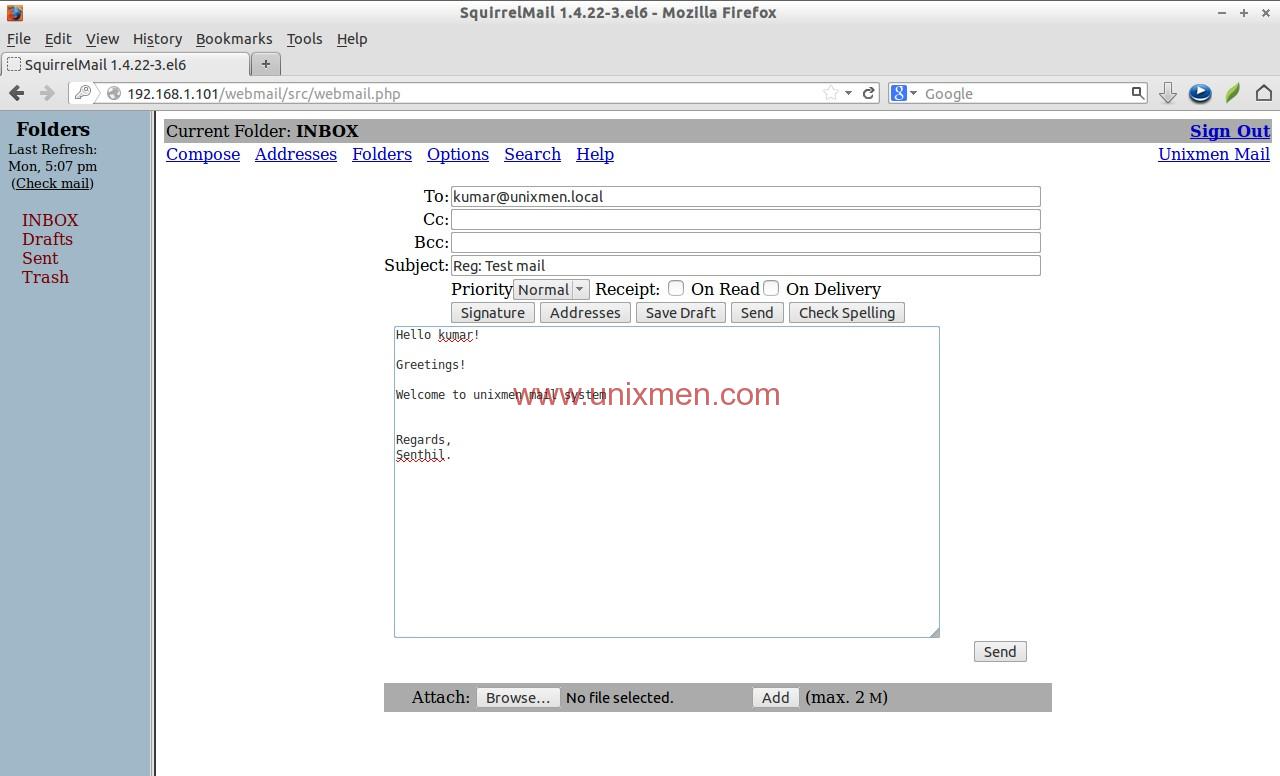
Now you’ll be able to access the user senthil mail box. Let us compose a test mail from user senthil to userkumar. Click on the Compose link on the top. Enter the recipient mail id (ex. kumar@unixmen.local), subject and body of the mail and click Send.

SquirrelMail 1.4.22-3.el6 - Mozilla Firefox_002

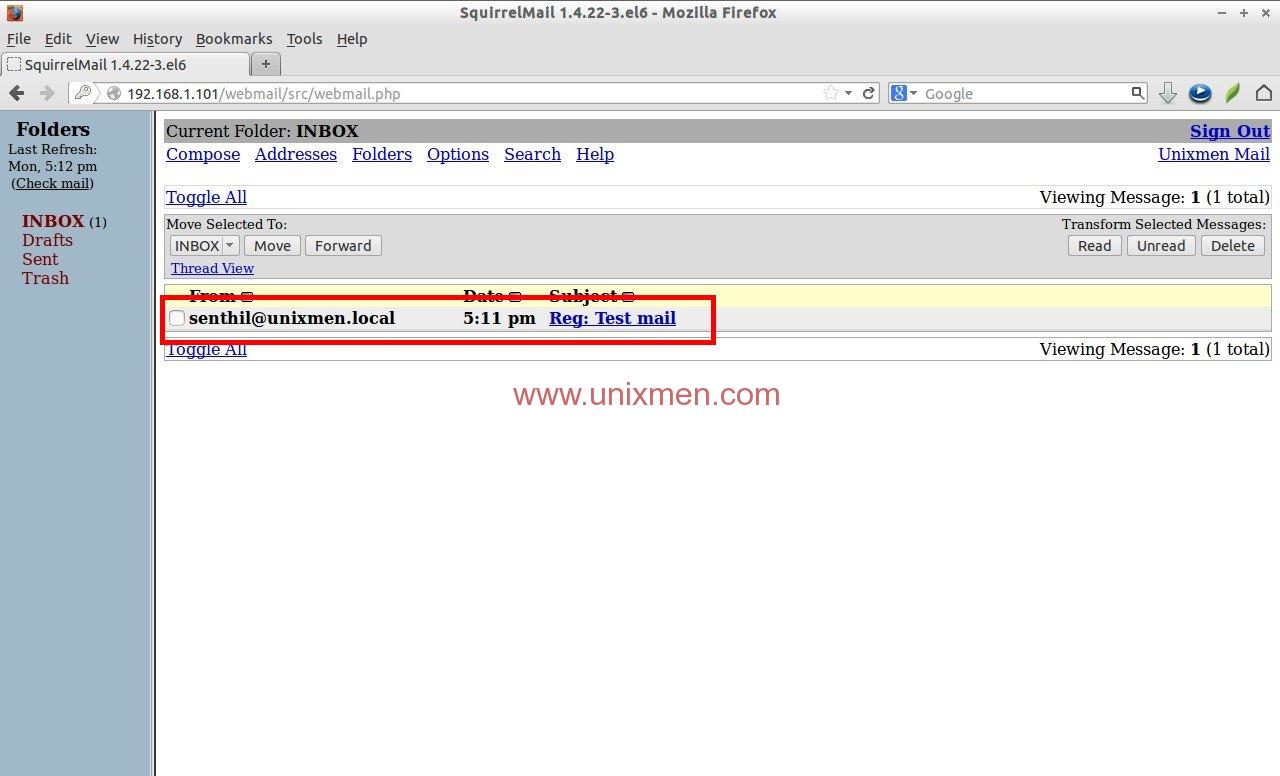
Now log out from user senthil and log in to user kumar mail and check for any new mail.

SquirrelMail 1.4.22-3.el6 - Mozilla Firefox_003

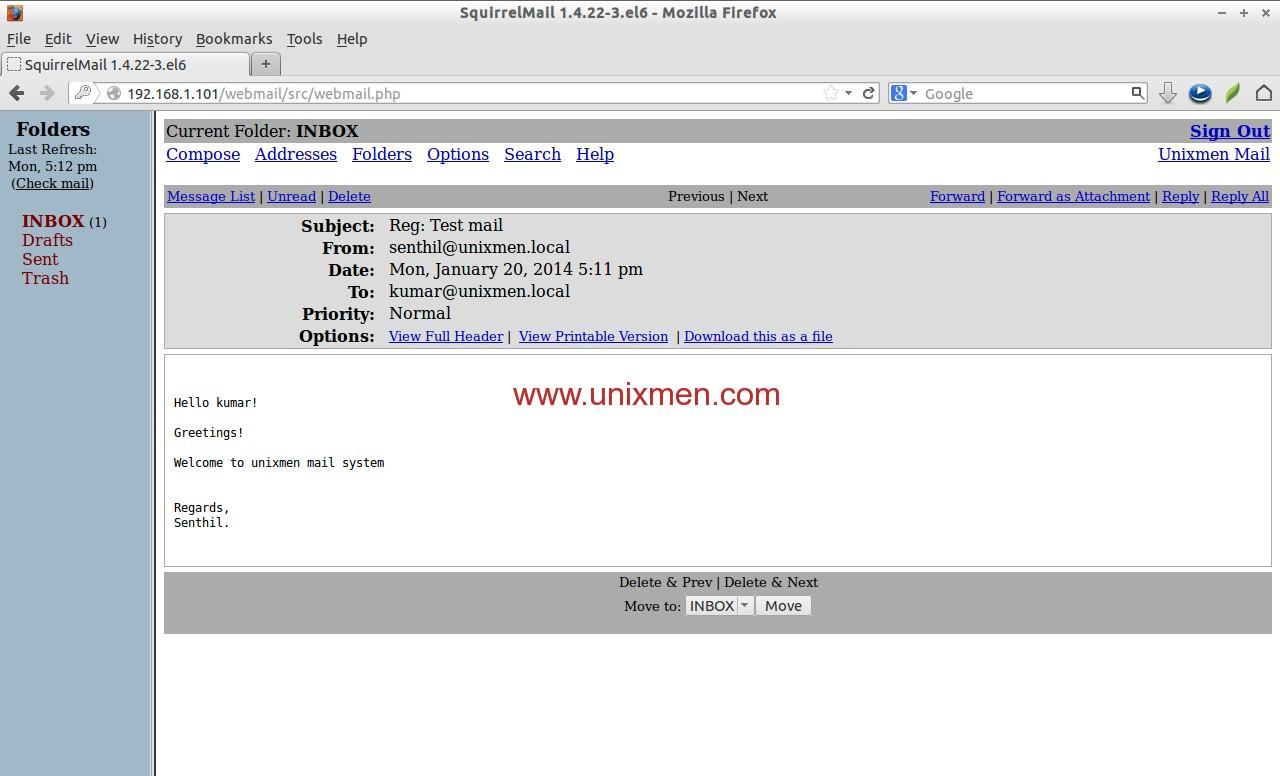
Hurrah! We have got a new mail from senthil@unixmen.local mail id. To read the mail, click on it. You’ll now be able to read, reply, delete or compose a new mail.

SquirrelMail 1.4.22-3.el6 - Mozilla Firefox_004

That’s it for now. We’ve successfully configured a local mail server that will serve in/out mails within a local areanetwork. But i want to configure a public mail server to send and receive mails to outside of our LAN, what should i do? That’s not that difficult either.

You should configure mail server with a public IP and request your ISP to put the MX record of your mail server into their DNS server and you’re done! Everything will be same as i described above.
How to set up a mail server in Ubuntu or Debian

This tutorial will discuss how to set up a working mail server in Ubuntu or Debian. As we know, the two major protocols used in a mail server are SMTP and POP/IMAP. In this tutorial, postfix will be used for SMTP, whiledovecot will be used for POP/IMAP. Both are open source, stable and highly customizable.

Please note that securing a mail server is beyond the scope of this tutorial, and will be covered in future tutorials.

Prerequisites

Each domain should have a DNS server. It is recommended NOT to use a live domain for testing purposes. In this tutorial, a test domain example.tst will be used in a lab environment. A DNS server for this hypothetical domain should have the following records at the least.

  • Forward zone for example.tst:
    			IN MX 10	mail.example.tst.
    mail.example.tst.	IN A		192.168.10.1
    
  • Reverse zone for example.tst:
    192.168.10.1		IN PTR	mail.example.tst.
    

    While configuring a live mail server, these records can be changed based on system requirements.

    Setting Hostname

    First, the hostname of the mail server must be specified in /etc/hostname and /etc/hosts. The former should contain the hostname only.

    root@mail:~# vim /etc/hostname
    mail
    
    root@mail:~# vim /etc/hosts
    ## IP			Fully Qualified Domain Name 	Hostname ##
    192.168.10.1		mail.example.tst			mail
    

    Adding Users

    Every Linux user, by default, has a mailbox automatically created. These users and mailboxes will be used as email accounts and their respective mailboxes. Creating a user is very easy.

    root@mail:~# adduser sarmed

    Install and Configure SMTP

    Service Profile: postfix
    Configuration file directory /etc/postfix/
    Script /etc/init.d/postfix
    Log file /var/log/mail.log
    Script /etc/init.d/postfix
    Port number TCP/25

    SMTP: Installing postfix

    postfix is one of the most widely used SMTP servers because it is stable, lightweight, scalable, and highly customizable. Setting up postfix can be done using apt-get.

    root@mail:~# apt-get install postfix

    During installation, the type of email server and the domain name are specified.

    Since this mail server will send emails directly towards destination, “Internet Site” is used.

    The domain name of the mail server is also set. This will cause all mails originating from this mail server to have@example.tst as the sender’s domain.

    The configuration files of postfix are stored in /etc/postfix. The following configuration files are important. Some of them may not be present and need to be created manually.

    • transport: Primarily used to define how a mail should be routed towards specific destination domains. Bypassing DNS queries can be a good example. In that case, one may need to send emails destined to domain XYZ.com directly to IP address X.Y.Y.X regardless of any DNS query results.
    • access: Can be used for security purposes like blocking senders/recipients and their domains.
    • aliases: Is used to define user aliases. For example, emails sent to userA should be received by userB and userC as well.
    • main.cf: Is the configuration file for postfix.

    SMTP: Preparing Configuration Files

    Time to prepare the configuration files. The transport and aliases files are not provided with the installation, and created manually.

    root@mail:~# cd /etc/postfix
    root@mail:/etc/postfix# touch transport aliases
  • main.cf

main.cf is backed up and then modified. The following lines are added/modified in the configuration file. For more detailed info about the parameters, refer to the official README and configuration document.

root@mail:/etc/postfix# vim main.cf
## the name of the server ##
myhostname = mail.example.tst

## alias definitions ##
alias_maps = hash:/etc/postfix/aliases
alias_database = hash:/etc/postfix/aliases

## transport definition ##
transport_maps = hash:/etc/postfix/transport

## myorigin defines the domain name for emails originated from this server. In this case, all outgoing mail should have '@example.tst' as sender domain ##
myorigin = example.tst

## mydestination parameter specifies what domains this machine will deliver locally, instead of forwarding to another machine. ##
mydestination = mail.example.tst, localhost.example.tst, localhost, hash:/etc/postfix/transport

## the smarthost address. Not used in this tutorial and will be covered in the future##
relayhost =

## the trusted sender networks. postfix will not forward mails originated from other subnets ##
mynetworks = 127.0.0.0/8 [::ffff:127.0.0.0]/104 [::1]/128 192.168.10.0/24

## mailbox size in bytes. 0 denotes no limit ##
mailbox_size_limit = 0

## postfix will listen on all available interfaces i.e. eth0, eth1, eth2 and so on ##
inet_interfaces = all
  • transport

Mails destined to domain example.tst are defined to be delivered locally without any DNS queries.

root@mail:/etc/postfix# vim transport
example.tst	local:
.example.tst	local:
root@mail:/etc/postfix# postmap transport
  • aliases

Assuming all mails sent to userA should be received by userB as well, the aliases file is modified as stated below.

root@mail:/etc/postfix# vim aliases
userA: userA, userB
root@mail:/etc/postfix# postalias aliases

Note: The syntax ‘userA: userB’ specifies that the mail should be forwarded to userB only. userA will not receive a copy of the email.

SMTP: Initiating the Service

postfix can be started using the command.

root@mail:~# service postfix restart

The log file at /var/log/mail.log should provide useful information in case something fails. Whether or not the mail server is listening on TCP port 25 can also be verified using netstat.

root@mail:~# netstat -nat
tcp     0        0        0.0.0.0:25       0.0.0.0:*    LISTEN

As it can be seen from the output, the server is listening on TCP port 25 for incoming connection requests.

Install and Configure POP/IMAP

Service Profile: dovecot
Configuration file directory /etc/dovecot
Script /etc/init.d/dovecot
Log file /var/log/mail.log
Script /etc/init.d/dovecot
Port number TCP: 110 (POP3), 143 (IMAP), 993 (IMAPS), 995 (POP3S)

POP/IMAP: Installing dovecot

dovecot is without a doubt leading IMAP and POP server software used in the open source community. It is very easy to set up and configure dovecot. Once again, apt-get will be used to install dovecot.

root@mail:~# apt-get install dovecot-common dovecot-pop3d dovecot-imapd

Out of the box, dovecot can support POP3 and IMAP (plain text), as well as encrypted POP3S and IMAPS (secured). By default, dovecot will create and use a self-signed certificate for SSL encryption. Certificates can be manually created or imported later based on requirements. In this tutorial, a self-signed certificate generated bydovecot will be used.

POP/IMAP: Preparing Configuration Files

The following parameters are modified as needed.

root@mail:~# vim /etc/dovecot/conf.d/10-mail.conf
## the location of the mailbox is specified in 'mbox' format ##
mail_location = mbox:~/mail:INBOX=/var/mail/%u

## dovecot is granted necessary permission to read/write user mailboxes ##
mail_privileged_group = mail

That should be enough to start POP/IMAP service in the mail server.

POP/IMAP: Initiating the Service

Now that dovecot is installed and configured, it can be launched using the following command.

root@mail:~# service dovecot restart

Again, The log file (/var/log/mail.log) can provide important clues should something go wrong. Whetherdovecot is running can also be verified using netstat.

root@mail:/etc/dovecot/conf.d# netstat -nat
tcp      0      0      0 0.0.0.0:110      0.0.0.0:*      LISTEN
tcp      0      0      0 0.0.0.0:143      0.0.0.0:*      LISTEN
tcp      0      0      0 0.0.0.0:993      0.0.0.0:*      LISTEN
tcp      0      0      0 0.0.0.0:995      0.0.0.0:*      LISTEN

Using the Mail Server with Mail User Agent (MUA)

The mail server is now ready to be used. Email accounts can be configured using your favorite email client software in desktop, laptop, tablet or phone. Webmail can also be configured in the server, but setting up webmail will be covered in future tutorials. The following is a screenshot with necessary parameters in Mozilla Thunderbird.

Troubleshooting Mail Server

  • The log file /var/log/mail.log is your best friend. Any clue about why email is not working can be found here.
  • Make sure that the firewall is properly configured.
  • Make sure that the DNS server has proper entries.

To sum up, the demonstration in this tutorial is meant to run in a lab environment. A test DNS server with all necessary records can be deployed, and mails can be exchanged between users in the same server, i.e., same domain. To make things more interesting, multiple mail servers with different domains can be deployed to check how email communication works across domains, given that necessary DNS records are present.

Valid DNS records are needed for live mail servers. The settings of postfix and dovecot can be tuned based on needs.

Warning: For those who want to deploy live mail servers, or any mail server that has access to the Internet, make sure that your SMTP is secured. Attacks on SMTP can commonly originate from the Internet, as well as from malicious software within the LAN.

Hope this helps.

Client auth LDAP on CentOS

You can run authconfig-gtk to get an idea of the things authconfig can modify.

screenshots of GUI

ss #1

ss #2

In general most of the information in these tabs is manipulating information under the directory /etc/sysconfig. There are a number of files there that pertain to the configuration of a RedHat based distro such as Fedora, CentOS, or RHEL.

For example, there’s a file called, ironically, authconfig which contains the choices from the dialogs in the screenshots above.

$ more /etc/sysconfig/authconfig
USEMKHOMEDIR=no
USEPAMACCESS=no
CACHECREDENTIALS=yes
USESSSDAUTH=no
USESHADOW=yes
USEWINBIND=no
USEDB=no
FORCELEGACY=no
USEFPRINTD=no
FORCESMARTCARD=no
PASSWDALGORITHM=sha512
USELDAPAUTH=no
USEPASSWDQC=no
USELOCAUTHORIZE=yes
USECRACKLIB=yes
USEWINBINDAUTH=no
USESMARTCARD=no
USELDAP=no
USENIS=no
USEKERBEROS=no
USESYSNETAUTH=no
USESSSD=no
USEHESIOD=no

How To Configure Linux Clients To Authenticate Using OpenLDAP

This is the continuation of our previous tutorial. In our previous tutorial we learned how to install and configure OpenLDAP server on Debian and Ubuntu systems. In this guide let us see how to a authenticate a Linux client using OpenLDAP server. This guide was tested on Debian 7 Desktop, although it will work on all Debian and Ubuntu derivatives. If you encounter any difficulties, do let me know. I will check and update this how-to.

Install LDAP client package on Debian 7

I assume that you’ve have a working LDAP server already. Now let us install the required packages in our LDAP client. All steps should be done by ‘root’ user or use ‘sudo’ in-front of every command.

# apt-get install libnss-ldap libpam-ldap nscd

During installation, you will be asked a variety of questions. Read them carefully and enter the appropriate values.

First enter the ldap server IP address as shown in the below screenshot.

sk@sk: ~_001Note that you should enter LDAP server URI as ldap://ip-address-of-ldapserver/.

Then enter the distinguished name of the search base. This value should match as per your LDAP server /etc/phpldaadmin/config.php file values. In my case it’s dc=unixmen, dc=com.

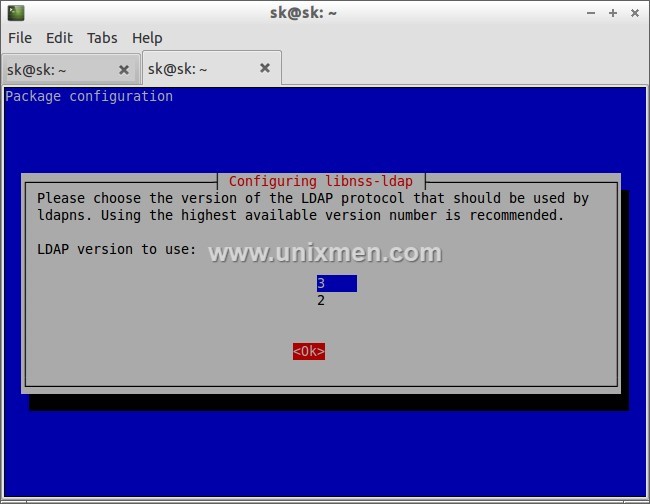
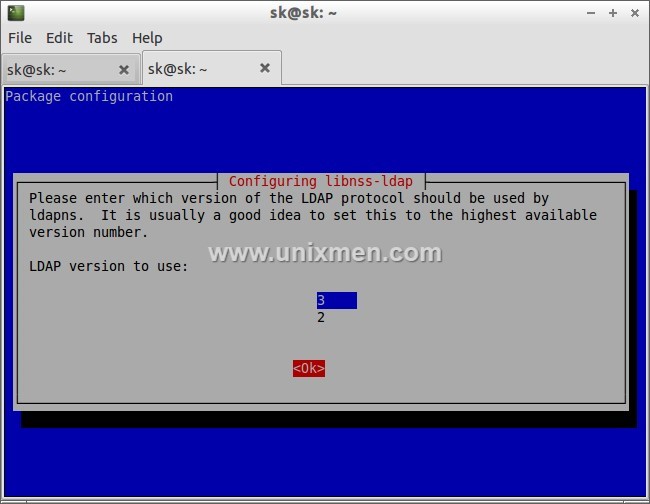
sk@sk: ~_002Select Ldap version to use as 3.

sk@sk: ~_003Enter LDAP administrative account details. In our case it was: cn=admin, dc=unixmen.com, dc=com.

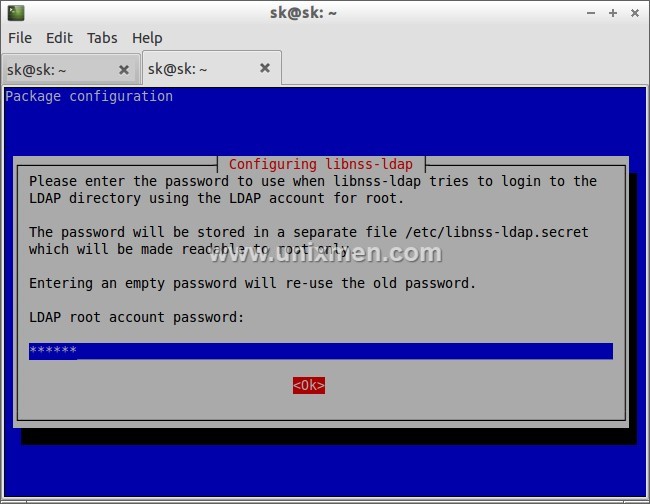
sk@sk: ~_004Enter LDAP administrative password:

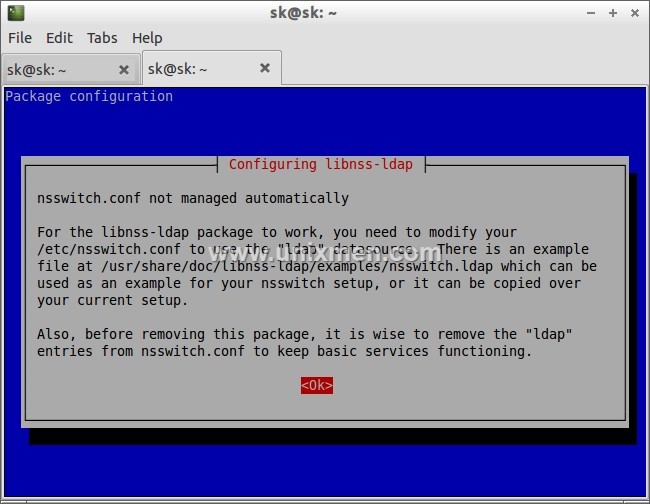
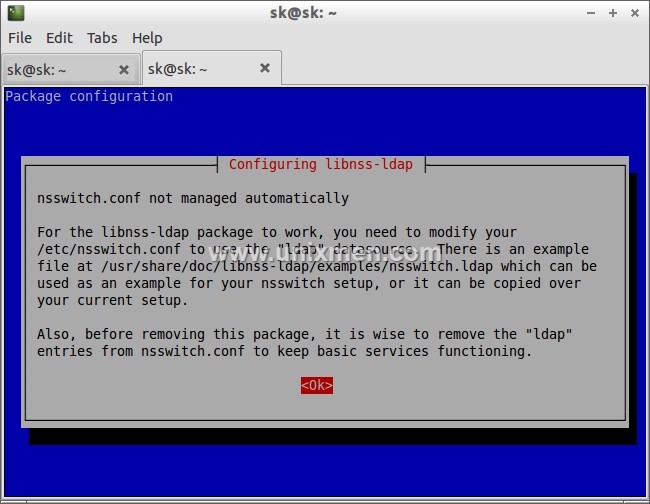
sk@sk: ~_005The next window will say that you have to manually edit nsswitch.conf file. Click Ok to continue.

sk@sk: ~_006Now the libnss-ldap package has been installed. Now the above questions will be repeated for libpam-ldap.

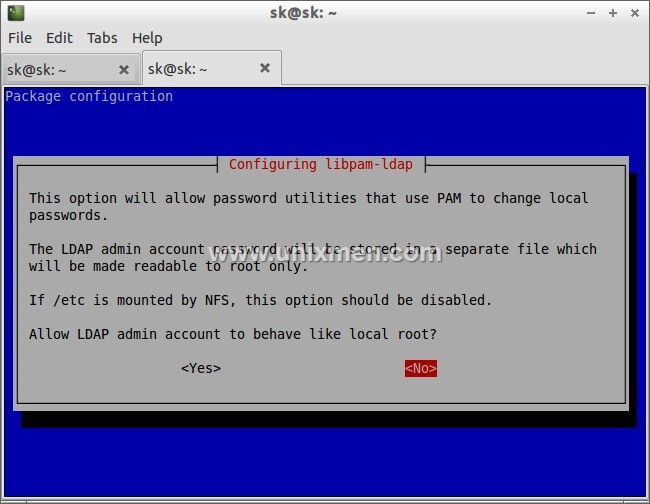
We don’t need to act the client LDAP admin account as local root, hence we will select No.

sk@sk: ~_001Select No.

sk@sk: ~_008Now let us reconfigure libnss-ldap to improve debconf configuration by entering the following command:

# dpkg-reconfigure libnss-ldap

Make sure that the LDAP server URI is correct.

sk@sk: ~_003Make sure that the LDAP server search base:

sk@sk: ~_004LDAP version to use:

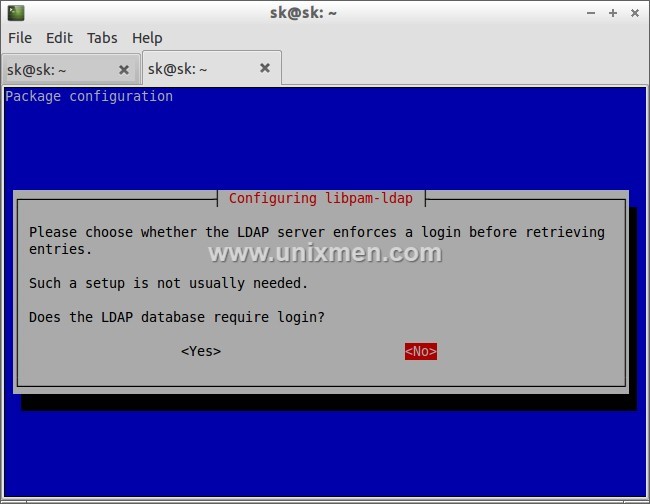
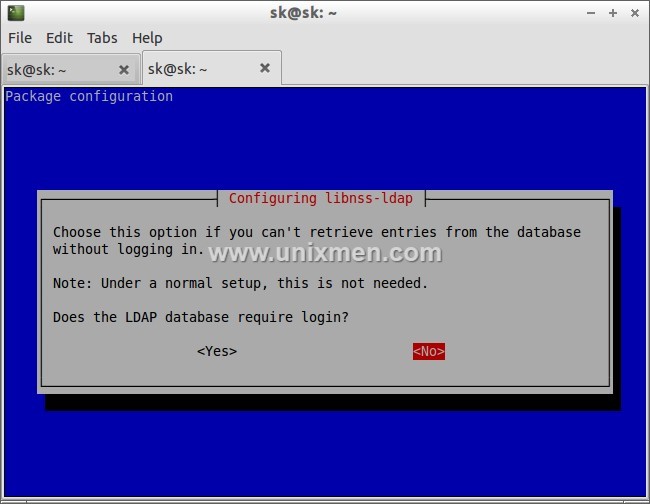
sk@sk: ~_005LDAP database doesn’t require login, hence we select No.

sk@sk: ~_006Select No.

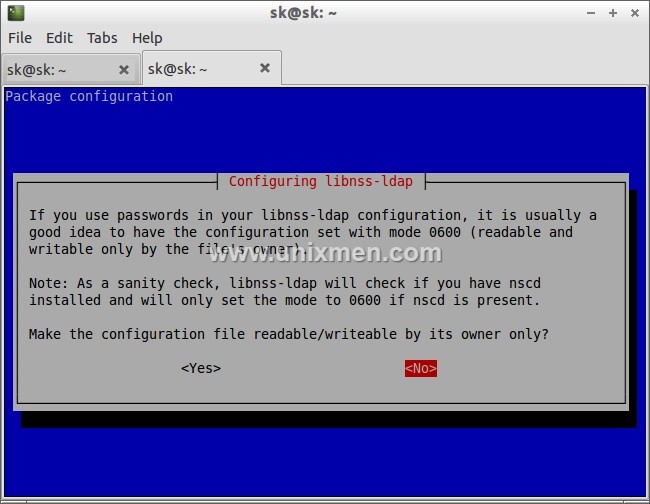
sk@sk: ~_007Select No.

sk@sk: ~_008Select Ok.

sk@sk: ~_009That’s it. Now we have installed ldap client packages. 

Configure Client

We should tell our client system to look for LDAP server by adjusting their configuration files.

To do so, First edit file /etc/ldap/ldap.conf,

# nano /etc/ldap/ldap.conf

Uncomment the following lines and Enter your LDAP server search BASE and URI as shown below.

[...]
BASE    dc=unixmen,dc=com
URI     ldap://192.168.1.200
[...]

Edit file /etc/nsswitch.conf,

# nano /etc/nsswitch.conf

Find the following three lines and adjust them as shown below.

[...]
passwd:         compat ldap
group:          compat ldap
shadow:         compat ldap
[...]
netgroup:       ldap
[...]

Now restart nscd service:

# /etc/init.d/nscd restart

PAM Configuration

Now we should verify the PAM configuration. The PAM configuration is modified during libnss-ldap installation. But it is advisable to verify the PAM configuration files as look like below.

Edit file /etc/pam.d/common-auth,

# nano /etc/pam.d/common-auth

Make sure this file contains the following lines.

[...]
auth    [success=2 default=ignore]      pam_unix.so nullok_secure try_first_pass
auth    [success=1 default=ignore]      pam_ldap.so use_first_pass
[...]
auth    requisite                       pam_deny.so
[...]
auth    required                        pam_permit.so
[...]

Edit file /etc/pam.d/common-account,

# nano /etc/pam.d/common-account
[...]
account [success=2 new_authtok_reqd=done default=ignore]        pam_unix.so
account [success=1 default=ignore]      pam_ldap.so
[...]
account requisite                       pam_deny.so
[...]
account required                        pam_permit.so
[...]

Edit file nano /etc/pam.d/common-password,

# nano /etc/pam.d/common-password
[...]
password        [success=2 default=ignore]      pam_unix.so obscure sha512
password        [success=1 user_unknown=ignore default=die]     pam_ldap.so use_authtok try_first_pass
[...]
password        requisite                       pam_deny.so
[...]
password        required                        pam_permit.so
[...]

Edit file /etc/pam.d/common-session,

# nano /etc/pam.d/common-session

Add the following line at the bottom.

[...]
session  required                                         pam_mkhomedir.so

The above line will create a HOME directory for LDAP users who does not have home directory when login to LDAP server.

Edit file /etc/pam.d/common-session-noninteractive,

# nano /etc/pam.d/common-session-noninteractive
[...]
session [default=1]                     pam_permit.so
[...]
session requisite                       pam_deny.so
[...]
session required                        pam_permit.so
[...]
session required        pam_unix.so
session optional                        pam_ldap.so

Restart nscd service to save changes.

# /etc/init.d/nscd restart

Log In To LDAP Server

Now we have configured our client to be able to log in to our OpenLDAP server. Let us try to login using any ldap users created in the openldap server. Please note that this user doesn’t exist in the local client system. Don’t be confused.

I have already created a user called “kumar” in my OpenLDAP server. Refer the section Sample Configuration in my previous tutorial. So let us login with user “kumar”.

Reboot your client system and try to login with your LDAP user from client system.

Enter LDAP user name.

Debian 7 Desktop, 1 nic, internet, bridge [Running] - Oracle VM VirtualBox_010Enter LDAP user password.

Debian 7 Desktop, 1 nic, internet, bridge [Running] - Oracle VM VirtualBox_012You will be able to log in to your client system with LDAP user.

Debian 7 Desktop, 1 nic, internet, bridge [Running] - Oracle VM VirtualBox_013Issue the print working directory (pwd) command from the Terminal:

Debian 7 Desktop, 1 nic, internet, bridge [Running] - Oracle VM VirtualBox_014

You should see that the home directory you selected for your user on the LDAP server is being used on this machine. It has been created on-demand to serve the LDAP user.

You should now be able to authenticate multiple computers using a centralized LDAP server. Your LDAP users will be allowed to use any of the machines you configure in this way, as long as they have the valid login credentials.

Initially this how-to will look bit difficult, but if you follow the steps carefully you will be able to setup the complete LDAP server/client.

Good Luck!

Setup FTP server on centos 7 ( VSFTP )

FTP server is used to exchange files between computers over network . This guide helps you to setup ftp server on centos 7 . This guide contains configuration steps for both FTP and SFTP as well as user creation . Here i’ve used VSFTP package which is secure and less vulnerable .
1. FTP Server
2. SFTP Server
3. User creation

Setup FTP server on centos 7

Step 1 » Update your repository and install VSFTPD package .
[root@krizna ~]# yum check-update
[root@krizna ~]# yum -y install vsftpd

Step 2 » After installation you can find /etc/vsftpd/vsftpd.conf file which is the main configuration file for VSFTP.
Take a backup copy before making changes .
[root@krizna ~]# mv /etc/vsftpd/vsftpd.conf /etc/vsftpd/vsftpd.conf.orgNow open the file and make changes as below
[root@krizna ~]# nano /etc/vsftpd/vsftpd.confFind this line anonymous_enable=YES ( Line no : 12 ) and change value to NO to disable anonymous FTP access.
anonymous_enable=NOUncomment the below line ( Line no : 100 ) to restrict users to their home directory.
chroot_local_user=YESand add the below lines at the end of the file to enable passive mode and allow chroot writable.
allow_writeable_chroot=YES
pasv_enable=Yes
pasv_min_port=40000
pasv_max_port=40100

Step 3 » Now restart vsftpd service and make it start automatically after reboot.
[root@krizna ~]# systemctl restart vsftpd.service
[root@krizna ~]# systemctl enable vsftpd.service

Step 4 » Add FTP service in firewall to allow ftp ports .
[root@krizna ~]# firewall-cmd --permanent --add-service=ftp
[root@krizna ~]# firewall-cmd --reload

Step 5 » Setup SEinux to allow ftp access to the users home directories .
[root@krizna ~]# setsebool -P ftp_home_dir on
Step 6 » Now create an User for ftp access. Here /sbin/nologin shell is used to prevent shell access to the server .
[root@krizna ~]# useradd -m dave -s /sbin/nologin
[root@krizna ~]# passwd dave
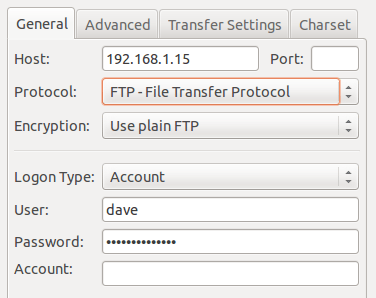
Now user dave can able to login ftp on port 21 .
You can filezilla or winscp client for accessing files.
Setup ftp server centos 7

SFTP server

SFTP ( Secure File Transfer Protocol ) is used to encrypt connections between clients and the FTP server. It is highly recommended to use SFTP because data is transferred over encrypted connection using SSH-tunnel on port 22 .
Basically we need openssh-server package to enable SFTP .
Install openssh-server package, if its not already installed.
[root@krizna ~]# yum -y install openssh-server
Step 7 » Create a separate group for FTP access.
[root@krizna ~]# groupadd ftpaccess
Step 8 » Now open /etc/ssh/sshd_config file and make changes as below.
Find and comment the below line ( Line no : 147 ).
#Subsystem sftp /usr/libexec/openssh/sftp-serverand add these lines below.
Subsystem sftp internal-sftp
Match group ftpaccess
ChrootDirectory %h
X11Forwarding no
AllowTcpForwarding no
ForceCommand internal-sftp

Step 9 » Now restart sshd service.
[root@krizna ~]# systemctl restart sshdNow your SFTP server is configured and ready .

User creation

Step 10 » Create user jack with /sbin/nologin shell and ftpaccess group
[root@krizna ~]# useradd -m jack -s /sbin/nologin -g ftpaccess
[root@krizna ~]# passwd jack
Now assign root ownership for the home directory for chroot access and modify permission.
[root@krizna ~]# chown root /home/jack
[root@krizna ~]# chmod 750 /home/jack
Create a directory www inside home directory for writing and modify ownership .
[root@krizna ~]# mkdir /home/jack/www
[root@krizna ~]# chown jack:ftpaccess /home/jack/www

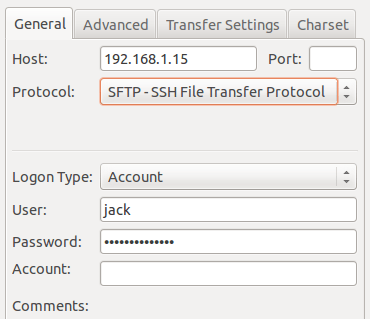
Now jack can use both ftp and sftp services . He can upload files in www directory .
Setup ftp server centos 7
If you are going to use FTP and SFTP together in the same server, you should follow above steps while creating users . For existing users add them to ftpaccess and make below changes.
[root@krizna ~]# usermod dave -g ftpaccess
[root@krizna ~]# chown root /home/dave
[root@krizna ~]# chmod 750 /home/dave
[root@krizna ~]# mkdir /home/dave/www
[root@krizna ~]# chown dave:ftpaccess /home/dave/www