How to setup FTP server on ubuntu 14.04 ( VSFTPD )

FTP is used to transfer files from one host to another over TCP network. This article explains how to setup FTP server on ubuntu 14.04 .
There are 3 popular FTP server packages available PureFTPD, VsFTPD and ProFTPD. Here i’ve used VsFTPD which is lightweight and less Vulnerability.

Setup FTP server on Ubuntu 14.04

Step 1 » Update repositories .
krizna@leela:~$ sudo apt-get update
Step 2 » Install VsFTPD package using the below command.
krizna@leela:~$ sudo apt-get install vsftpd
Step 3 » After installation open /etc/vsftpd.conf file and make changes as follows.
Uncomment the below lines (line no:29 and 33).
write_enable=YES
local_umask=022
» Uncomment the below line (line no: 120 ) to prevent access to the other folders outside the Home directory.
chroot_local_user=YESand add the following line at the end.
allow_writeable_chroot=YES» Add the following lines to enable passive mode.
pasv_enable=Yes
pasv_min_port=40000
pasv_max_port=40100

Step 4 » Restart vsftpd service using the below command.
krizna@leela:~$ sudo service vsftpd restart
Step 5 » Now ftp server will listen on port 21. Create user with the below command.Use /usr/sbin/nologin shell to prevent access to the bash shell for the ftp users .
krizna@leela:~$ sudo useradd -m john -s /usr/sbin/nologin
krizna@leela:~$ sudo passwd john

Step 6 » Allow login access for nologin shell . Open /etc/shells and add the following line at the end.
/usr/sbin/nologin
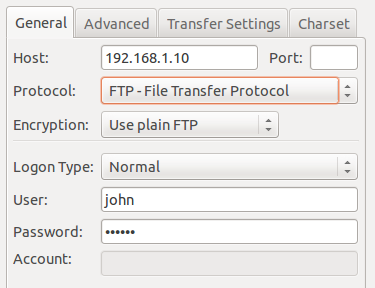
Now try to connect this ftp server with the username on port 21 using winscp orfilezilla client and make sure that user cannot access the other folders outside the home directory.
setup FTP server ubuntu 14.04
Please note using ftp on port 21 is a big security risk . it’s highly recommended to use SFTP. Please continue for SFTP configuration

Secure FTP ( SFTP )

SFTP is called as “Secure FTP” which generally use SSH File Transfer Protocol . so we need openssh-server package installed , Issue the below command if it’s not already installed.
krizna@leela:~$ sudo apt-get install openssh-server
Step 7 » Create a new group ftpaccess for FTP users.
krizna@leela:~$ sudo groupadd ftpaccess
Step 8 » Now make changes in this /etc/ssh/sshd_config file.
» Find and comment the below line
Subsystem sftp /usr/lib/openssh/sftp-serverand Add these lines at the end of the file.
Subsystem sftp internal-sftp
Match group ftpaccess
ChrootDirectory %h
X11Forwarding no
AllowTcpForwarding no
ForceCommand internal-sftp

Step 9 » Restart sshd service.
krizna@leela:~$ sudo service ssh restart
Step 10 » The below steps must be followed while creating Users for sftp access.
Create user john with ftpaccess group and /usr/bin/nologin shell.
krizna@leela:~$ sudo useradd -m john -g ftpaccess -s /usr/sbin/nologin
krizna@leela:~$ sudo passwd john
Change ownership for the home directory.
krizna@leela:~$ sudo chown root /home/johnCreate a folder inside home directory for writing and change ownership of that folder.
krizna@leela:~$ sudo mkdir /home/john/www
krizna@leela:~$ sudo chown john:ftpaccess /home/john/www

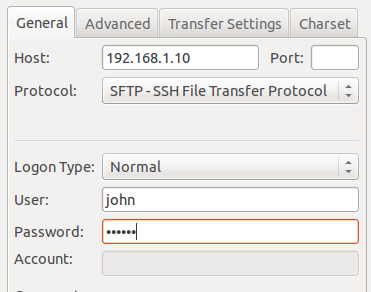
Now try to connect server using SFTP ( port : 22 ) and makesure Users can upload files to www directory and cannot access other folders outside home directory.setup FTP server ubuntu 14.04
If you want use both FTP and SFTP together, please perform above steps ( Step 10 ) while creating users . For existing users, move them to ftpaccess group and create folder structure and ownership changes as below.
krizna@leela:~$ sudo usermod john -g ftpaccess -s /usr/sbin/nologin
krizna@leela:~$ sudo chown root /home/john
krizna@leela:~$ sudo mkdir /home/john/www
krizna@leela:~$ sudo chown john:ftpaccess /home/john/www

Now john can able to upload files to www folder using FTP as well as SFTP.

3 Steps to Perform SSH Login Without Password Using ssh-keygen & ssh-copy-id

You can login to a remote Linux server without entering password in 3 simple steps using ssky-keygen and ssh-copy-id as explained in this article.

ssh-keygen creates the public and private keys. ssh-copy-id copies the local-host’s public key to the remote-host’s authorized_keys file. ssh-copy-id also assigns proper permission to the remote-host’s home, ~/.ssh, and ~/.ssh/authorized_keys.

This article also explains 3 minor annoyances of using ssh-copy-id and how to use ssh-copy-id along with ssh-agent.

Step 1: Create public and private keys using ssh-key-gen on local-host

jsmith@local-host$ [Note: You are on local-host here]

jsmith@local-host$ ssh-keygen
Generating public/private rsa key pair.
Enter file in which to save the key (/home/jsmith/.ssh/id_rsa):[Enter key]
Enter passphrase (empty for no passphrase): [Press enter key]
Enter same passphrase again: [Pess enter key]
Your identification has been saved in /home/jsmith/.ssh/id_rsa.
Your public key has been saved in /home/jsmith/.ssh/id_rsa.pub.
The key fingerprint is:
33:b3:fe:af:95:95:18:11:31:d5:de:96:2f:f2:35:f9 jsmith@local-host

Step 2: Copy the public key to remote-host using ssh-copy-id

jsmith@local-host$ ssh-copy-id -i ~/.ssh/id_rsa.pub remote-host
jsmith@remote-host's password:
Now try logging into the machine, with "ssh 'remote-host'", and check in:

.ssh/authorized_keys

to make sure we haven't added extra keys that you weren't expecting.

Note: ssh-copy-id appends the keys to the remote-host’s .ssh/authorized_key.

Step 3: Login to remote-host without entering the password

jsmith@local-host$ ssh remote-host
Last login: Sun Nov 16 17:22:33 2008 from 192.168.1.2
[Note: SSH did not ask for password.]

jsmith@remote-host$ [Note: You are on remote-host here]


The above 3 simple steps should get the job done in most cases.

We also discussed earlier in detail about performing SSH and SCP from openSSH to openSSH without entering password.

If you are using SSH2, we discussed earlier about performing SSH and SCP without password from SSH2 to SSH2 , from OpenSSH to SSH2 and from SSH2 to OpenSSH.

Using ssh-copy-id along with the ssh-add/ssh-agent

When no value is passed for the option -i and If ~/.ssh/identity.pub is not available, ssh-copy-id will display the following error message.

jsmith@local-host$ ssh-copy-id -i remote-host
/usr/bin/ssh-copy-id: ERROR: No identities found


If you have loaded keys to the ssh-agent using the ssh-add, then ssh-copy-id will get the keys from the ssh-agent to copy to the remote-host. i.e, it copies the keys provided by ssh-add -L command to the remote-host, when you don’t passoption -i to the ssh-copy-id.

jsmith@local-host$ ssh-agent $SHELL

jsmith@local-host$ ssh-add -L
The agent has no identities.

jsmith@local-host$ ssh-add
Identity added: /home/jsmith/.ssh/id_rsa (/home/jsmith/.ssh/id_rsa)

jsmith@local-host$ ssh-add -L
ssh-rsa AAAAB3NzaC1yc2EAAAABIwAAAQEAsJIEILxftj8aSxMa3d8t6JvM79DyBV
aHrtPhTYpq7kIEMUNzApnyxsHpH1tQ/Ow== /home/jsmith/.ssh/id_rsa

jsmith@local-host$ ssh-copy-id -i remote-host
jsmith@remote-host's password:
Now try logging into the machine, with "ssh 'remote-host'", and check in:

.ssh/authorized_keys

to make sure we haven't added extra keys that you weren't expecting.
[Note: This has added the key displayed by ssh-add -L]

Three Minor Annoyances of ssh-copy-id

Following are few minor annoyances of the ssh-copy-id.

  1. Default public key: ssh-copy-id uses ~/.ssh/identity.pub as the default public key file (i.e when no value is passed to option -i). Instead, I wish it uses id_dsa.pub, or id_rsa.pub, or identity.pub as default keys. i.e If any one of them exist, it should copy that to the remote-host. If two or three of them exist, it should copy identity.pub as default.
  2. The agent has no identities: When the ssh-agent is running and the ssh-add -L returns “The agent has no identities” (i.e no keys are added to the ssh-agent), the ssh-copy-id will still copy the message “The agent has no identities” to the remote-host’s authorized_keys entry.
  3. Duplicate entry in authorized_keys: I wish ssh-copy-id validates duplicate entry on the remote-host’s authorized_keys. If you execute ssh-copy-id multiple times on the local-host, it will keep appending the same key on the remote-host’s authorized_keys file without checking for duplicates. Even with duplicate entries everything works as expected. But, I would like to have my authorized_keys file clutter free.

How To Enable Password-less SSH Logon On Ubuntu Servers

This brief tutorial is going to show you how to easily enable password-less SSH logon when using Ubuntu as your server. With this setup, only workstations that have the correct matching key pair (private and public) will be allowed to logon to the SSH server. Without the key paring, access will always be denied.

Most SSH setup allow for password logon. A user connects to the SSH and he/she gets prompted to enter his/her username and password. If the combination is correct, access is granted.

Well, if you want to enable a more secured option, you can disable password-logon for SSH altogether and only allow logon using an encryption key. When using encryption keys option, the client computer generates a private and public key pair.

The client then must upload it public key to the SSH server authorized_key file. Before access is granted, the server and client computer validate the key pair. If the public key on the server matches the private key submitted via the client, access will be granted.

This is very secure way authenticating to a SSH server and it’s a recommended method if you wish to implement secure logon.

  • Enabling Password-less SSH logon

Now before you begin, first install SSH server on the server computer. To do that in Ubuntu, run the commands below

sudo apt-get -y install openssh-server

To start up SSH server, run the commands below in Ubuntu

sudo service ssh start

Or

/etc/init.d/ssh start

  • Generating the  client encryption key pair

After installing SSH server on the server computer, you can now go and generate the client private and public key pair. To do that, run the commands below

ssh-keygen -t rsa

After running the above commands, you’ll be prompted to complete a series of tasks. The first will be where to save the keys, press Enter to choose the default location which is in a hidden .ssh folder in your home directory.

The next prompt will be to Enter a passphrase. I personally leave this blank (just press enter) to continue. It will then create the key pair and you’re done.

After generating the keys, you will then need to copy the client’s public key to the SSH server computer or host it wants to create trust relationship with.

Run the commands below to copy the client public key to the server.

ssh-copy-id user@server_ip_address or hostname

After the public key is transferred to the server, you can now go and disable password logon via SSH.

Next, logon to the server and open the configuration file for SSH. To do that, run the commands below.

vi /etc/ssh/sshd_config

Then make sure these lines are uncomment and value are set as shown below.

PubkeyAuthentication yes

AuthorizedKeyFile    .ssh/authorized_keys

PasswordAuthentication no

Restart the SSH server and you’re done.

sudo service ssh restart

Or

sudo /etc/init.d/ssh restart

Enjoy!

SSH Passwordless Login Using SSH Keygen in 5 Easy Steps

SSH (Secure SHELL) is an open source and most trusted network protocol that is used to login into remote servers for execution of commands and programs. It is also used to transfer files from one computer to another computer over the network using secure copy (SCP) Protocol.

In this article we will show you how to setup password-less login on RHEL/CentOS 7.x/6.x/5.x and Fedora usingssh keys to connect to remote Linux servers without entering password. Using Password-less login with SSH keys will increase the trust between two Linux servers for easy file synchronization or transfer.

SSH Passwordless Login

My Setup Environment
SSH Client : 192.168.0.12 ( Fedora 21 )
SSH Remote Host : 192.168.0.11 ( CentOS 7 )

If you are dealing with number of Linux remote servers, then SSH Password-less login is one of the best way to automate tasks such as automatic backups with scripts, synchronization files using scp and remote command execution.

In this example we will setup SSH password-less automatic login from server 192.168.0.12 as user tecmint to192.168.0.11 with user sheena.

Step 1: Create Authentication SSH-Kegen Keys on – (192.168.0.12)

First login into server 192.168.0.12 with user tecmint and generate a pair of public keys using following command.

[tecmint@tecmint.com ~]$ ssh-keygen -t rsa

Generating public/private rsa key pair.
Enter file in which to save the key (/home/tecmint/.ssh/id_rsa): [Press enter key]
Created directory '/home/tecmint/.ssh'.
Enter passphrase (empty for no passphrase): [Press enter key]
Enter same passphrase again: [Press enter key]
Your identification has been saved in /home/tecmint/.ssh/id_rsa.
Your public key has been saved in /home/tecmint/.ssh/id_rsa.pub.
The key fingerprint is:
5f:ad:40:00:8a:d1:9b:99:b3:b0:f8:08:99:c3:ed:d3 tecmint@tecmint.com
The key's randomart image is:
+--[ RSA 2048]----+
|        ..oooE.++|
|         o. o.o  |
|          ..   . |
|         o  . . o|
|        S .  . + |
|       . .    . o|
|      . o o    ..|
|       + +       |
|        +.       |
+-----------------+

Create SSH RSA Key

Step 2: Create .ssh Directory on – 192.168.0.11

Use SSH from server 192.168.0.12 to connect server 192.168.0.11 using sheena as user and create .sshdirectory under it, using following command.

[tecmint@tecmint ~]$ ssh sheena@192.168.0.11 mkdir -p .ssh

The authenticity of host '192.168.0.11 (192.168.0.11)' can't be established.
RSA key fingerprint is 45:0e:28:11:d6:81:62:16:04:3f:db:38:02:la:22:4e.
Are you sure you want to continue connecting (yes/no)? yes
Warning: Permanently added '192.168.0.11' (ECDSA) to the list of known hosts.
sheena@192.168.0.11's password: [Enter Your Password Here]

Create SSH Directory Under User Home

Step 3: Upload Generated Public Keys to – 192.168.0.11

Use SSH from server 192.168.0.12 and upload new generated public key (id_rsa.pub) on server 192.168.0.11under sheena‘s .ssh directory as a file name authorized_keys.

[tecmint@tecmint ~]$ cat .ssh/id_rsa.pub | ssh sheena@192.168.0.11 'cat >> .ssh/authorized_keys'

sheena@192.168.1.2's password: [Enter Your Password Here]

Upload RSA Key

Step 4: Set Permissions on – 192.168.0.11

Due to different SSH versions on servers, we need to set permissions on .ssh directory and authorized_keys file.

[tecmint@tecmint ~]$ ssh sheena@192.168.0.11 "chmod 700 .ssh; chmod 640 .ssh/authorized_keys"

sheena@192.168.0.11's password: [Enter Your Password Here]

Set Permission on SSH Key

Step 5: Login from 192.168.0.12 to 192.168.0.11 Server without Password

From now onwards you can log into 192.168.0.11 as sheena user from server 192.168.0.12 as tecmint user without password.

[tecmint@tecmint ~]$ ssh sheena@192.168.0.11

SSH Remote Passwordless Login

Use Rsync for Daily, Weekly and Full Monthly Backups

Today, we will be using rsync to make daily, weekly, incremental backups and then a full compressed/archived backup once a month. We will then use cron to automate the process. Lets face it us humans get lazy sometimes and most backup systems loose complete effectiveness if they are not completely automated.

What is rsync?

Rsync is a sweet utility for syncing files/folders. Many times it is used for producing incremental backups since it is capable of detecting what files are added and changed to a folder. It usually does this by timestamps but it can be set to determine file changes wih a more precise (but slow) method using md5 hashes. However, generating md5 hashes for detecting file changes is usually not required.

Syncing vs Full Backup

Before geting into the details I think it is worth explaining the difference between full backups and incremental backups. With incremental backups I like to think of them as syncing. You are making the two sets of data match. For example, if one data set contains one extra file the incremental backup will only add that one file to the backup. As opposed to re-copying the other files. This is useful for maintaining frequent backups without the added bandwidth or processing overhead.

Installing rsync for Debian / Ubuntu

If rsync is not installed on your Debian / Ubuntu system you can install it with your preferred method or use aptitude:

# apt-get install rsync

Thats it! Did you expect more?

Installing rsync for FreeBSD

It is prefered to compile applications in FreeBSD rather than binary packages. So we will install it with the following commands:

# cd /usr/local/ports/net/rsync
# make install clean`

If you are prompted with make instructions the defaults are fine.

Syncing Two Folders for Daily Backup

For our daily backup we will use the incremental method since it will be very frequent. We also don’t want to waste disk space, use unnecessary write operations, and CPU cycles by doing a full backup.

To sync one folder to the next we use the following command:

$ rsync –av /path/to/source /home/mark/rsync/daily

The ‘a’ flag tells rsync to go into archive mode. The ‘v’ option is just verbose (show details).

Now this should copy all of the files from one folder to the other. If the files already exist and they have not been modified since the last time you run this command it will simply copy those files. So basically when you run this command it will backup the files that have changed since the day before.

Adding the –delete flag. By default rsync does not delete files in the backup if they were deleted in the source. This is rsync’s way of protecting you from deleting the entire backup directly on accident. To force rsync to delete files we do this:

$ rsync –av --delete /path/to/source /home/mark/rsync/daily

This will ensure that we are not backing up deleted files.

Warning: When using the –delete flag be sure to check your command twice. If you reverse the source with the destination you will sync your data with an empty folder. You will be left with two empty folders!

Weekly Sync

For our weekly sync will just sync with the latest daily folder.

$ rsync –av --delete /home/mark/rsync/daily /home/mark/rsync/weekly

We run this command once a week to maintain our weekly incremental backup. Now if we accidentally deleted something last Tuesday and just noticed it on Friday we will have a backup.

Full Monthly Backup

Since we are going to keep full monthly backups and they won’t be accessed frequently we can compress them with bzip.

tar -cvjf /home/mark/rsync/monthly/monthly.tar.bz2 daily/

Now since we are archiving our full backups monthly we want to be sure not to over write an existing monthly backup. We will do this by naming each one with the date. Instead of the command above use this one, to add the date to each filename.

tar -cvjf /home/mark/rsync/monthly/monthly_$(date +%Y%m%d).tar.bz2 /home/rsync/daily/

Now you should have all the commands to set up a rotating backup daily, weekly and a full monthly backup. The only thing now is to execute those commands every day, week, and end of the month.

Automate the Process with Cron

Usually we don’t want to have to remember to type in a command daily, weekly, and at the end of each month so, we will automate it with cron.

$ crontab -e

Now add the following lines of code:

    01 17 * * * rsync –av --delete /path/to/source /home/mark/rsync/daily
    00 18 * * 5 rsync –av --delete /home/mark/rsync/daily /home/mark/rsync/weekly
    00 6 1 * * tar -cvjf /home/mark/rsync/monthly/monthly_$(date +%Y%m%d).tar.bz2 /home/rsync/daily/

This example cron setup will backup daily at 5:30PM. Backup every Friday at 6:00PM. Do the full backup on the first of each month at 6:00AM

For more information on cron see, Learning Cron by Example.

Now you will need to tailor this to the usage patterns of you or your users. You should also allow enough time for the daily backup to finish before doing the weekly. In this example on Fridays I allowed 59 minutes for the daily backup to finish. If you are worried about the sync time running into each other you can schedule your daily backup in the morning and your Friday weekly backup at night.

If you want to find out how long it is currently taking to do a backup add ‘time’ command to the beginning of each command.

Tell Cron to be Quiet

Cron by default sends emails with the output of the command. If you don’t want to get emails you can pipe the cron comands to /dev/null. Add this to the end of each cron line:

> /dev/null

Ubuntu: 15 examples to backup using rsync command

rsync stands for remote sync.

rsync is used to perform the backup operation in UNIX / Linux.

rsync utility is used to synchronize the files and directories from one location to another in an effective way. Backup location could be on local server or on remote server.

Important features of rsync

  • Speed: First time, rsync replicates the whole content between the source and destination directories. Next time, rsync transfers only the changed blocks or bytes to the destination location, which makes the transfer really fast.
  • Security: rsync allows encryption of data using ssh protocol during transfer.
  • Less Bandwidth: rsync uses compression and decompression of data block by block at the sending and receiving end respectively. So the bandwidth used by rsync will be always less compared to other file transfer protocols.
  • Privileges: No special privileges are required to install and execute rsync

Syntax

$ rsync options source destination

Source and destination could be either local or remote. In case of remote, specify the login name, remote server name and location.

Example 1. Synchronize Two Directories in a Local Server

To sync two directories in a local computer, use the following rsync -zvr command.

$ rsync -zvr /var/opt/installation/inventory/ /root/temp
building file list ... done
sva.xml
svB.xml
.
sent 26385 bytes  received 1098 bytes  54966.00 bytes/sec
total size is 44867  speedup is 1.63
$

In the above rsync example:

  • -z is to enable compression
  • -v verbose
  • -r indicates recursive

Now let us see the timestamp on one of the files that was copied from source to destination. As you see below, rsync didn’t preserve timestamps during sync.

$ ls -l /var/opt/installation/inventory/sva.xml /root/temp/sva.xml
-r--r--r-- 1 bin  bin  949 Jun 18  2014 /var/opt/installation/inventory/sva.xml
-r--r--r-- 1 root bin  949 Sep  2  2014 /root/temp/sva.xml

Example 2. Preserve timestamps during Sync using rsync -a

rsync option -a indicates archive mode. -a option does the following,

  • Recursive mode
  • Preserves symbolic links
  • Preserves permissions
  • Preserves timestamp
  • Preserves owner and group

Now, executing the same command provided in example 1 (But with the rsync option -a) as shown below:

$ rsync -azv /var/opt/installation/inventory/ /root/temp/
building file list ... done
./
sva.xml
svB.xml
.
sent 26499 bytes  received 1104 bytes  55206.00 bytes/sec
total size is 44867  speedup is 1.63
$

As you see below, rsync preserved timestamps during sync.

$ ls -l /var/opt/installation/inventory/sva.xml /root/temp/sva.xml
-r--r--r-- 1 root  bin  949 Jun 18  2014 /var/opt/installation/inventory/sva.xml
-r--r--r-- 1 root  bin  949 Jun 18  2014 /root/temp/sva.xml

Example 3. Synchronize Only One File

To copy only one file, specify the file name to rsync command, as shown below.

$ rsync -v /var/lib/rpm/Pubkeys /root/temp/
Pubkeys

sent 42 bytes  received 12380 bytes  3549.14 bytes/sec
total size is 12288  speedup is 0.99

Example 4. Synchronize Files From Local to Remote

rsync allows you to synchronize files/directories between the local and remote system.

$ rsync -avz /root/temp/ thegeekstuff@192.168.200.10:/home/thegeekstuff/temp/
Password:
building file list ... done
./
rpm/
rpm/Basenames
rpm/Conflictname

sent 15810261 bytes  received 412 bytes  2432411.23 bytes/sec
total size is 45305958  speedup is 2.87

While doing synchronization with the remote server, you need to specify username and ip-address of the remote server. You should also specify the destination directory on the remote server. The format is username@machinename:path

As you see above, it asks for password while doing rsync from local to remote server.

Sometimes you don’t want to enter the password while backing up files from local to remote server. For example, If you have a backup shell script, that copies files from local to remote server using rsync, you need the ability to rsync without having to enter the password.

To do that, setup ssh password less login as we explained earlier.

Example 5. Synchronize Files From Remote to Local

When you want to synchronize files from remote to local, specify remote path in source and local path in target as shown below.

$ rsync -avz thegeekstuff@192.168.200.10:/var/lib/rpm /root/temp
Password:
receiving file list ... done
rpm/
rpm/Basenames
.
sent 406 bytes  received 15810230 bytes  2432405.54 bytes/sec
total size is 45305958  speedup is 2.87

Example 6. Remote shell for Synchronization

rsync allows you to specify the remote shell which you want to use. You can use rsync ssh to enable the secured remote connection.

Use rsync -e ssh to specify which remote shell to use. In this case, rsync will use ssh.

$ rsync -avz -e ssh thegeekstuff@192.168.200.10:/var/lib/rpm /root/temp
Password:
receiving file list ... done
rpm/
rpm/Basenames

sent 406 bytes  received 15810230 bytes  2432405.54 bytes/sec
total size is 45305958  speedup is 2.87

Example 7. Do Not Overwrite the Modified Files at the Destination

In a typical sync situation, if a file is modified at the destination, we might not want to overwrite the file with the old file from the source.

Use rsync -u option to do exactly that. (i.e do not overwrite a file at the destination, if it is modified). In the following example, the file called Basenames is already modified at the destination. So, it will not be overwritten with rsync -u.

$ ls -l /root/temp/Basenames
total 39088
-rwxr-xr-x 1 root root        4096 Sep  2 11:35 Basenames

$ rsync -avzu thegeekstuff@192.168.200.10:/var/lib/rpm /root/temp
Password:
receiving file list ... done
rpm/

sent 122 bytes  received 505 bytes  114.00 bytes/sec
total size is 45305958  speedup is 72258.31

$ ls -lrt
total 39088
-rwxr-xr-x 1 root root        4096 Sep  2 11:35 Basenames

Example 8. Synchronize only the Directory Tree Structure (not the files)

Use rsync -d option to synchronize only directory tree from source to the destination. The below example, synchronize only directory tree in recursive manner, not the files in the directories.

$ rsync -v -d thegeekstuff@192.168.200.10:/var/lib/ .
Password:
receiving file list ... done
logrotate.status
CAM/
YaST2/
acpi/

sent 240 bytes  received 1830 bytes  318.46 bytes/sec
total size is 956  speedup is 0.46

Example 9. View the rsync Progress during Transfer

When you use rsync for backup, you might want to know the progress of the backup. i.e how many files are copies, at what rate it is copying the file, etc.

rsync –progress option displays detailed progress of rsync execution as shown below.

$ rsync -avz --progress thegeekstuff@192.168.200.10:/var/lib/rpm/ /root/temp/
Password:
receiving file list ...
19 files to consider
./
Basenames
     5357568 100%   14.98MB/s    0:00:00 (xfer#1, to-check=17/19)
Conflictname
       12288 100%   35.09kB/s    0:00:00 (xfer#2, to-check=16/19)
.
.
.
sent 406 bytes  received 15810211 bytes  2108082.27 bytes/sec
total size is 45305958  speedup is 2.87

You can also use rsnapshot utility (that uses rsync) to backup local linux server, or backup remote linux server.

Example 10. Delete the Files Created at the Target

If a file is not present at the source, but present at the target, you might want to delete the file at the target during rsync.

In that case, use –delete option as shown below. rsync delete option deletes files that are not there in source directory.

# Source and target are in sync. Now creating new file at the target.
$ > new-file.txt

$ rsync -avz --delete thegeekstuff@192.168.200.10:/var/lib/rpm/ .
Password:
receiving file list ... done
deleting new-file.txt
./

sent 26 bytes  received 390 bytes  48.94 bytes/sec
total size is 45305958  speedup is 108908.55

Target has the new file called new-file.txt, when synchronize with the source with –delete option, it removed the file new-file.txt

Example 11. Do not Create New File at the Target

If you like, you can update (Sync) only the existing files at the target. In case source has new files, which is not there at the target, you can avoid creating these new files at the target. If you want this feature, use –existing option with rsync command.

First, add a new-file.txt at the source.

[/var/lib/rpm ]$ > new-file.txt

Next, execute the rsync from the target.

$ rsync -avz --existing root@192.168.1.2:/var/lib/rpm/ .
root@192.168.1.2's password:
receiving file list ... done
./

sent 26 bytes  received 419 bytes  46.84 bytes/sec
total size is 88551424  speedup is 198991.96

If you see the above output, it didn’t receive the new file new-file.txt

Example 12. View the Changes Between Source and Destination

This option is useful to view the difference in the files or directories between source and destination.

At the source:

$ ls -l /var/lib/rpm
-rw-r--r-- 1 root root  5357568 2014-06-24 08:57 Basenames
-rw-r--r-- 1 root root    12288 2008-05-28 22:03 Conflictname
-rw-r--r-- 1 root root  1179648 2014-06-24 08:57 Dirnames

At the destination:

$ ls -l /root/temp
-rw-r--r-- 1 root root    12288 May 28  2008 Conflictname
-rw-r--r-- 1 bin  bin   1179648 Jun 24 05:27 Dirnames
-rw-r--r-- 1 root root        0 Sep  3 06:39 Basenames

In the above example, between the source and destination, there are two differences. First, owner and group of the file Dirname differs. Next, size differs for the file Basenames.

Now let us see how rsync displays this difference. -i option displays the item changes.

$ rsync -avzi thegeekstuff@192.168.200.10:/var/lib/rpm/ /root/temp/
Password:
receiving file list ... done
>f.st.... Basenames
.f....og. Dirnames

sent 48 bytes  received 2182544 bytes  291012.27 bytes/sec
total size is 45305958  speedup is 20.76

In the output it displays some 9 letters in front of the file name or directory name indicating the changes.

In our example, the letters in front of the Basenames (and Dirnames) says the following:

> specifies that a file is being transferred to the local host.
f represents that it is a file.
s represents size changes are there.
t represents timestamp changes are there.
o owner changed
g group changed.

Example 13. Include and Exclude Pattern during File Transfer

rsync allows you to give the pattern you want to include and exclude files or directories while doing synchronization.

$ rsync -avz --include 'P*' --exclude '*' thegeekstuff@192.168.200.10:/var/lib/rpm/ /root/temp/
Password:
receiving file list ... done
./
Packages
Providename
Provideversion
Pubkeys

sent 129 bytes  received 10286798 bytes  2285983.78 bytes/sec
total size is 32768000  speedup is 3.19

In the above example, it includes only the files or directories starting with ‘P’ (using rsync include) and excludes all other files. (using rsync exclude ‘*’ )

Example 14. Do Not Transfer Large Files

You can tell rsync not to transfer files that are greater than a specific size using rsync –max-size option.

$ rsync -avz --max-size='100K' thegeekstuff@192.168.200.10:/var/lib/rpm/ /root/temp/
Password:
receiving file list ... done
./
Conflictname
Group
Installtid
Name
Sha1header
Sigmd5
Triggername

sent 252 bytes  received 123081 bytes  18974.31 bytes/sec
total size is 45305958  speedup is 367.35

max-size=100K makes rsync to transfer only the files that are less than or equal to 100K. You can indicate M for megabytes and G for gigabytes.

Example 15. Transfer the Whole File

One of the main feature of rsync is that it transfers only the changed block to the destination, instead of sending the whole file.

If network bandwidth is not an issue for you (but CPU is), you can transfer the whole file, using rsync -W option. This will speed-up the rsync process, as it doesn’t have to perform the checksum at the source and destination.

#  rsync -avzW  thegeekstuff@192.168.200.10:/var/lib/rpm/ /root/temp
Password:
receiving file list ... done
./
Basenames
Conflictname
Dirnames
Filemd5s
Group
Installtid
Name

sent 406 bytes  received 15810211 bytes  2874657.64 bytes/sec
total size is 45305958  speedup is 2.87
How to Use rsync to Backup Your Data on Linux

banner

rsync is a protocol built for Unix-like systems that provides unbelievable versatility for backing up and synchronizing data.  It can be used locally to back up files to different directories or can be configured to sync across the Internet to other hosts.

It can be used on Windows systems but is only available through various ports (such as Cygwin), so in this how-to we will be talking about setting it up on Linux.  First, we need to install/update the rsync client.  On Red Hat distributions, the command is “yum install rsync” and on Debian it is “sudo apt-get install rsync.”

rsync1
The command on Red Hat/CentOS, after logging in as root (note that some recent distributions of Red Hat support the sudo method).

rsync4
The command on Debian/Ubuntu.

Using rsync for local backups

In the first part of this tutorial, we will back up the files from Directory1 to Directory2. Both of these directories are on the same hard drive, but this would work exactly the same if the directories existed on two different drives. There are several different ways we can approach this, depending on what kind of backups you want to configure. For most purposes, the following line of code will suffice:

$ rsync -av --delete /Directory1/ /Directory2/

The code above will synchronize the contents of Directory1 to Directory2, and leave no differences between the two. If rsync finds that Directory2 has a file that Directory1 does not, it will delete it. If rsync finds a file that has been changed, created, or deleted in Directory1, it will reflect those same changes to Directory2.

There are a lot of different switches that you can use for rsync to personalize it to your specific needs. Here is what the aforementioned code tells rsync to do with the backups:

1. -a = recursive (recurse into directories), links (copy symlinks as symlinks), perms (preserve permissions), times (preserve modification times), group (preserve group), owner (preserve owner), preserve device files, and preserve special files.
2. -v = verbose. The reason I think verbose is important is so you can see exactly what rsync is backing up. Think about this: What if your hard drive is going bad, and starts deleting files without your knowledge, then you run your rsync script and it pushes those changes to your backups, thereby deleting all instances of a file that you did not want to get rid of?
3. –delete = This tells rsync to delete any files that are in Directory2 that aren’t in Directory1. If you choose to use this option, I recommend also using the verbose options, for reasons mentioned above.

Using the script above, here’s the output generated by using rsync to backup Directory1 to Directory2. Note that without the verbose switch, you wouldn’t receive such detailed information.

rsync2

The screenshot above tells us that File1.txt and File2.jpg were detected as either being new or otherwise changed from the copies existent in Directory2, and so they were backed up. Noob tip: Notice the trailing slashes at the end of the directories in my rsync command – those are necessary, be sure to remember them.

We will go over a few more handy switches towards the end of this tutorial, but just remember that to see a full listing you can type “man rsync” and view a complete list of switches to use.

That about covers it as far as local backups are concerned. As you can tell, rsync is very easy to use. It gets slightly more complex when using it to sync data with an external host over the Internet, but we will show you a simple, fast, and secure way to do that.

Using rsync for external backups

rsync can be configured in several different ways for external backups, but we will go over the most practical (also the easiest and most secure) method of tunneling rsync through SSH. Most servers and even many clients already have SSH, and it can be used for your rsync backups. We will show you the process to get one Linux machine to backup to another on a local network. The process would be the exact same if one host were out on the internet somewhere, just note that port 22 (or whatever port you have SSH configured on), would need to be forwarded on any network equipment on the server’s side of things.

On the server (the computer that will be receiving the backups), make sure SSH and rsync are installed.

# yum -y install ssh rsync

# sudo apt-get install ssh rsync

Other than installing SSH and rsync on the server, all that really needs to be done is to setup the repositories on the server where you would like the files backed up, and make sure that SSH is locked down. Make sure the user you plan on using has a complex password, and it may also be a good idea to switch the port that SSH listens on (default is 22).

We will run the same command that we did for using rsync on a local computer, but include the necessary additions for tunneling rsync through SSH to a server on my local network. For user “geek” connecting to “192.168.235.137” and using the same switches as above (-av –delete) we will run the following:

$ rsync -av –delete -e ssh /Directory1/ geek@192.168.235.137:/Directory2/

If you have SSH listening on some port other than 22, you would need to specify the port number, such as in this example where I use port 12345:

$ rsync -av –delete -e 'ssh -p 12345' /Directory1/ geek@192.168.235.137:/Directory2/

rsync3

As you can see from the screenshot above, the output given when backing up across the network is pretty much the same as when backing up locally, the only thing that changes is the command you use. Notice also that it prompted for a password. This is to authenticate with SSH. You can set up RSA keys to skip this process, which will also simplify automating rsync.

Automating rsync backups

Cron can be used on Linux to automate the execution of commands, such as rsync. Using Cron, we can have our Linux system run nightly backups, or however often you would like them to run.

To edit the cron table file for the user you are logged in as, run:

$ crontab -e

You will need to be familiar with vi in order to edit this file. Type “I” for insert, and then begin editing the cron table file.

Cron uses the following syntax: minute of the hour, hour of the day, day of the month, month of the year, day of the week, command.

It can be a little confusing at first, so let me give you an example. The following command will run the rsync command every night at 10 PM:

0 22 * * * rsync -av --delete /Directory1/ /Directory2/

The first “0” specifies the minute of the hour, and “22” specifies 10 PM. Since we want this command to run daily, we will leave the rest of the fields with asterisks and then paste the rsync command.

After you are done configuring Cron, press escape, and then type “:wq” (without the quotes) and press enter. This will save your changes in vi.

Cron can get a lot more in-depth than this, but to go on about it would be beyond the scope of this tutorial. Most people will just want a simple weekly or daily backup, and what we have shown you can easily accomplish that. For more info about Cron, please see the man pages.

Other useful features

Another useful thing you can do is put your backups into a zip file. You will need to specify where you would like the zip file to be placed, and then rsync that directory to your backup directory. For example:

$ zip /ZippedFiles/archive.zip /Directory1/ && rsync -av --delete /ZippedFiles/ /Directory2/

rsync5

The command above takes the files from Directory1, puts them in /ZippedFiles/archive.zip and then rsyncs that directory to Directory2. Initially, you may think this method would prove inefficient for large backups, considering the zip file will change every time the slightest alteration is made to a file. However, rsync only transfers the changed data, so if your zip file is 10 GB, and then you add a text file to Directory1, rsync will know that is all you added (even though it’s in a zip) and transfer only the few kilobytes of changed data.

There are a couple of different ways you can encrypt your rsync backups. The easiest method is to install encryption on the hard drive itself (the one that your files are being backed up to). Another way is to encrypt your files before sending them to a remote server (or other hard drive, whatever you happen to be backing up to). We’ll cover these methods in later articles.

Whatever options and features you choose, rsync proves to be one of the most efficient and versatile backup tools to date, and even a simple rsync script can save you from losing your data.

How to monitor harddisk health with smartmontools on Ubuntu

In this article I will give you an overveiw on the smartmontools which is a set of applications that can test hard drives, automatically notify you when the failure rate rises and read the harddisk SMART statistics to detect failures early. I will cover installation, usage on the shell and the smartmon GNOME gui in this tutorial.

About smartmontools

The smartmontools package contains two utility programs (smartctl and smartd) to control and monitor storage systems using the Self-Monitoring, Analysis and Reporting Technology System (SMART) built into most modern ATA and SCSI harddisks. In many cases, these utilities will provide advanced warning of disk degradation and failure.

Installation

Starting with the installation. All you will need is a modern S.M.A.R.T. capable hard disk.

sudo apt-get install smartmontools

The above command will install smartmontools on your system. Now just to check if your drive is actually SMART type:

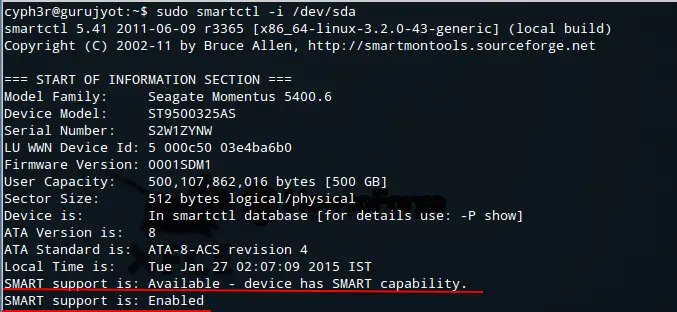
sudo smartctl -i /dev/sda

The above /sda can be replaced with your own hdd name /xyz or anything that is. It will be looking something like this:

Make sure the last two lines of the output are alike. The image contains information about my hdd basically. Now lets enable SMART service.

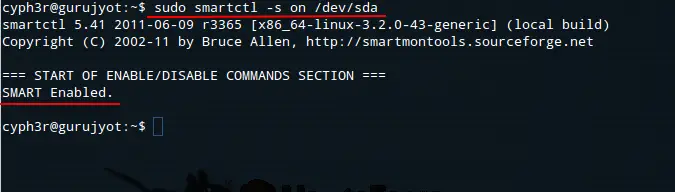
sudo smartctl -s on /dev/sda

The above command will turn on the smart support, if already enabled it does nothing.
To check the complete SMART information for an IDE drive and SATA drive type:

sudo smartctl -a /dev/sda (for IDE drives)

sudo smartctl -a -d ata /dev/sda (for SATA drives)

You can check your hard drive’s status by typing:

sudo smartctl -H /dev/sda

If the output shows any error you better run a backup!!!

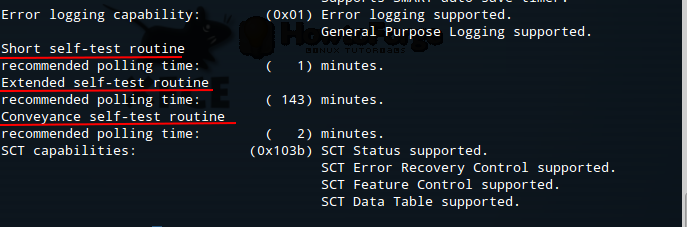
Now having SMART enabled on your system, let’see how to work with it. The tool used to test your hard drive has three types of tests to perform. You can check all that info by typing:

sudo smartctl -c /dev/sda

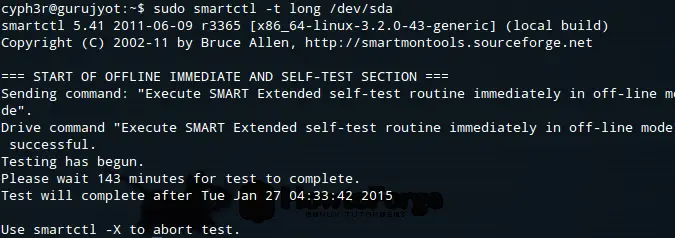
Short, Long and Conveyance you also see the time that it will take to complete all three test. You can stat with any test you feel like:

sudo smartctl -l long /dev/sda (for long test)

sudo smartctl -short /dev/sda (for short test)

sudo smartctl -conveyance /dev/sda (for conveyance test)

The above image is something taht is dislpayed after executing the command for the long test. The long test will take more time then anything else. All of the test runs in the background so there is no way you will be able to track the progress on your screen. You will have to type in commands for the output. If there are any errors while perfoming any of the above tests it means you shold get a backup of your sda as soon as possible. There might be chances of hard drive failure in the near future.

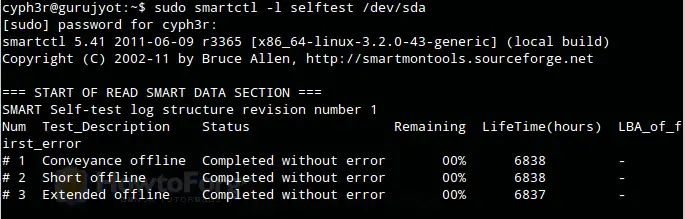
To get your test results you will have to type:

sudo smartctl -l selftest /dev/sda

smartctl selftest

Here is a image how the test results look like. Although the results are quite clear, but if you have any problem understanding the output of smartctl you can check the man pages if you want by typing:

man 8 smartctl

man 8 smartd (for smartd output’s)

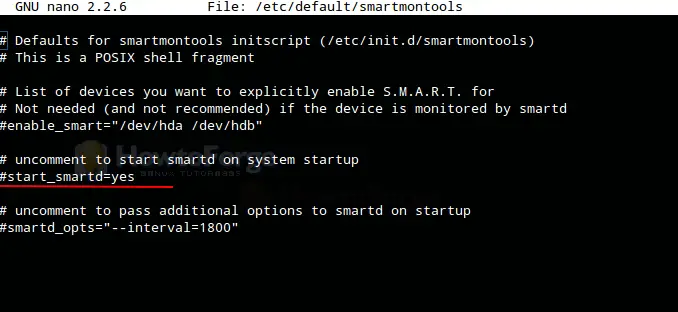
After completing all of the above you can run smartmontools as Daemon on your system. So you won’t have to perform all of the above actions daily. To do that go ahead and do the following:

sudo nano /etc/default/smartmontools

You can use any text editor you want, I’m using nano. Uncomment the following line:

This will start smartmontools everytime with the system. Now to configure how SMART will scan the disk and what actions are to be taken if SMART returns any error:

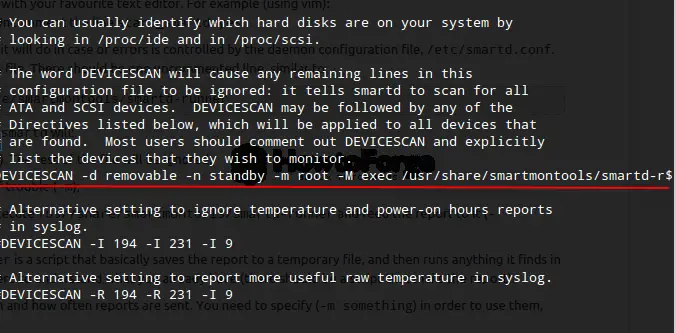
sudo nano /etc/smartd.conf (and uncomment the marked line)

smartd

If DEVICESCAN doesn’t possibly work on your system you may use /dev/sda or your hdd name instead of DEVICESCAN. Your added line will look like this:

/dev/sda -m root -M exec /usr/share/smartmontools/smartd-runner

In the above command -m root means that if an error occur’s during the scan, it will sent the root an email report, but instead the -M exec will exec commands in /usr/share/smartmontools/smartd-runner. You may remove the -M exec part if your system doesn’t have the smartd-runner file. The filesmartd-runner performs quite a number of functions, including sending mail to the root, but it might have its own time specifications. If you want to add your own specifications you can do that too, here is an exampe how to do it:

DEVICESCAN -a -H -l error -l selftest -f -s(S/../.././02|L/../../6/03) -m root -M exec /usr/share/smartmontools/smartd-runner

Here is an explanation of the above:
( -a) This enables some common options. You almost certainly want to use it. To check the SMART health status (-H). To report increases in both SMART error logs (-l). To check for failure of any Usage Attributes (-f) . “-s (S/../.././02|L/../../6/03)” This schedules the short and long self-tests. In this example, the short self-test will run daily at 2:00 A.M. The long test will run on every Saturday at 3:00 A.M. For more information, see the smartd.conf man page.
If you would like to scan a particular drive you can do that by placing your drive name insead of /dev/sda. To check the man file of smart.conf type in:

man 5 smartd.conf

They also have a GUI version of this application which can be insalled by:

sudo apt-get install gsmartcontrol

Here are some images that you may find handy.

This is how the GUI looks like, right click on the drive and you can find some other options in it.

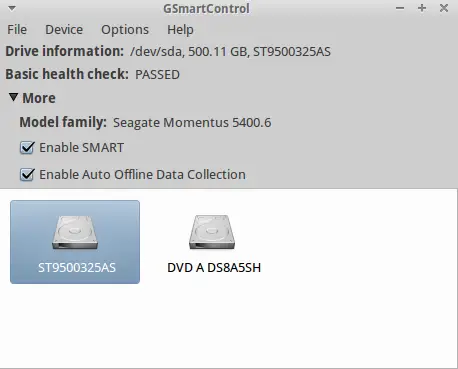
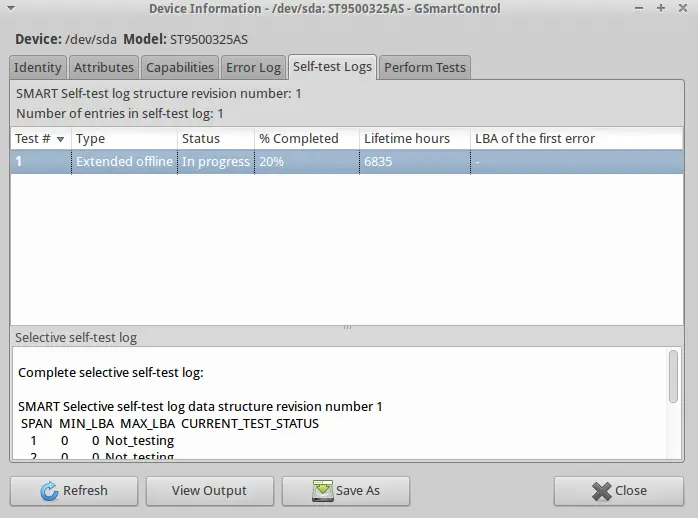
GSmartControl - Device information

Go ahead and try it.

Suggested application: GSmartControl

Take a look at GSmartControl. It’s a nice graphical frontend to smartctl; it shows all SMART values, and highlights those that indicate old age or impending failure, plus you may run tests on demand:

GSmartControl main window GSmartControl attribute list

As usual, you may install it from Synaptic or running sudo apt-get install gsmartcontrol.

12 scp command examples to transfer files on Linux

Secure copy

Scp (Secure Copy) is a command line tool to copy or transfer files across hosts. It uses the same kind of security mechanism like the ssh program. Infact it uses an ssh connection in the background to perform the file transfer. scp refers both to the “protocol” that defines how secure copy should work and the “program” (command) which is installed as a part of OpenSSH suite of tools.

In this quick tutorial we shall look at a few examples the scp command and how it can be used to transfer files securely.

Installing scp

Scp is generally installed by default on most linux distros as a part of openssh packages. On ubuntu/debian for example, the openssh-client package provides the scp program.

$ dpkg -L openssh-client | grep scp
/usr/bin/scp
/usr/share/man/man1/scp.1.gz

Its the OpenSSH package that provides the ssh, scp, sftp programs along with many other tools. So we do not have to do anything extra in here, except to use and learn the program.

Using scp

The basic syntax of scp is very simple to memorize. It looks like this

$ scp source_file_path destination_file_path

Depending on the host, the file path should include the full host address, port number, username and password along with the directory path.

So if you are “sending” file from your local machine to a remote machine (uploading) the syntax would look like this

$ scp ~/my_local_file.txt user@remote_host.com:/some/remote/directory

When copying file from remote host to local host (downloading), its looks just the reverse

$ scp user@remote_host.com:/some/remote/directory ~/my_local_file.txt

# just download the file
$ scp user@192.168.1.3:/some/path/file.txt .

That is pretty much about using scp for regular tasks. Apart from it, there are a couple of extra options and functions that scp supports. Lets take a quick overview of those.

And yes, by default scp will always overwrite files on the destination. If you need to avoid that, use a more powerful tool called rsync.

1. Verbose output

With verbose output, the scp program would output lots of information about what it does in the background. This is often useful when the program fails or is unable to complete the request. The verbose output would then indicate the exact point where the program ran into issues.

$ scp -v ~/test.txt root@192.168.1.3:/root/help2356.txt
Executing: program /usr/bin/ssh host 192.168.1.3, user root, command scp -v -t /root/help2356.txt
OpenSSH_6.2p2 Ubuntu-6ubuntu0.1, OpenSSL 1.0.1e 11 Feb 2013
debug1: Reading configuration data /home/enlightened/.ssh/config
debug1: Reading configuration data /etc/ssh/ssh_config
debug1: /etc/ssh/ssh_config line 19: Applying options for *
debug1: Connecting to 192.168.1.3 [192.168.1.3] port 22.
debug1: Connection established.
..... OUTPUT TRUNCATED


The output would be big and contain detailed information about how the connection is made, what configuration and identity files are being used and so on.

2. Transfer multiple files

Multiple files can be specified separated by a space like this

$ scp foo.txt bar.txt username@remotehost:/path/directory/

To copy multiple files from remote host to current local directory

$ scp username@remotehost:/path/directory/\{foo.txt,bar.txt\} .

$ scp root@192.168.1.3:~/\{abc.log,cde.txt\} .

3. Copy entire directory (recursively)

To copy an entire directory from one host to another use the r switch and specify the directory

$ scp -v -r ~/Downloads root@192.168.1.3:/root/Downloads

4. Copy files across 2 remote hosts

Scp can copy files from 1 remote host to another remote host as well.

$ scp user1@remotehost1:/some/remote/dir/foobar.txt user2@remotehost2:/some/remote/dir/

5. Speed up the transfer with compression

A super cool option to speed up the transfer to save time and bandwidth. All you need to do is use the C option to enable compression. The files are compressed on the fly and decompressed on the destination.

$ scp -vrC ~/Downloads root@192.168.1.3:/root/Downloads

In the above example we moved the entire directory with compression enabled. The speed gain would depend on how much the files could be compressed.

6. Limit the bandwidth usage

If you do not want scp to take up the entire available bandwidth, then use the l option to limit the maximum speed in Kbit/s.

$ scp -vrC -l 400 ~/Downloads root@192.168.1.3:/root/Downloads

7. Connect to a different port number on remote host

If the remote server has ssh daemon running on a different port (default is 22), then you need to tell scp to use that particular port number using the ‘-P’ option.

$ scp -vC -P 2200 ~/test.txt root@192.168.1.3:/some/path/test.txt

8. Preserve file attributes

The ‘-p’ option (smallcase), would preserve modification times, access times, and modes from the original file.

$ scp -C -p ~/test.txt root@192.168.1.3:/some/path/test.txt

9. Quiet mode

In quiet mode ( ‘-q’ option ), the scp output would get suppressed, and would disable the progress meter as well as warning and diagnostic messages.

$ scp -vCq ~/test.txt root@192.168.1.3:/some/path/test.txt

10. Specify identity file

When using key based (passwordless) authentication, you would need to specify the identity file which contains the private key. This option is directly passed to the ssh command and works the same way.

$ scp -vCq -i private_key.pem ~/test.txt root@192.168.1.3:/some/path/test.txt

11. Use a different ssh_config file

Use the ‘-F’ option to specify a different ssh_config file.

$ scp -vC -F /home/user/my_ssh_config ~/test.txt root@192.168.1.3:/some/path/test.txt

12. Use different cipher

Scp by default uses the AES cipher/encryption. Sometimes you might want to use a different cipher. Using a different cipher can speed up the transfer process. For example blowfish and arcfour are known to be faster than AES (but less secure).

$ scp -c blowfish -C ~/local_file.txt username@remotehost:/remote/path/file.txt

In the above example we use the blowfish cipher along with compression. This can give significant speed boost depending on available bandwidth.

Summary

Although scp is very efficient at transferring file securely, it lacks necessary features of a file synchronisation tool. All it can do is copy paste all the mentioned files from one location to another.

A more powerful tool is Rsync which not only has all functions of scp but adds more features to intelligently synchronise files across 2 hosts. For example, it can check and upload only the modified files, ignore existing files and so on.

10 SCP Commands to Transfer Files/Folders in Linux

Linux administrator should be familiar with CLI environment. Since GUI mode in Linux servers is not a common to be installed. SSH may the most popular protocol to enable Linux administrator to manage the servers via remote in secure way. Built-in with SSH command there is SCP command. SCP is used to copy file(s) between servers in secure way.

The below command will read as “copy source_file_name” into “destination_folder” at “destination_host” using “username account”.

Basic syntax of SCP
scp source_file_name username@destination_host:destination_folder

There are much parameters in SCP command that you can use. Here are the parameters that may useful on daily basis usage.

Provide the detail information of SCP process using -v parameter

Basic SCP command without parameter will copy the files in background. User will see nothing unless the process is done or some error appears. You can use “-v” parameter to print debug information into the screen. It can help you debugging connection, authentication and configuration problems.

pungki@mint ~/Documents $ scp -v Label.pdf mrarianto@202.x.x.x:.
Sample Output
Executing: program /usr/bin/ssh host 202.x.x.x, user mrarianto, command scp -v -t .
OpenSSH_6.0p1 Debian-3, OpenSSL 1.0.1c 10 May 2012
debug1: Reading configuration data /etc/ssh/ssh_config
debug1: /etc/ssh/ssh_config line 19: Applying options for *
debug1: Connecting to 202.x.x.x [202.x.x.x] port 22.
debug1: Connection established.
debug1: Host '202.x.x.x' is known and matches the RSA host key.
debug1: Found key in /home/pungki/.ssh/known_hosts:1
debug1: ssh_rsa_verify: signature correct
debug1: Next authentication method: password
mrarianto@202.x.x.x's password:
debug1: Authentication succeeded (password).
Authenticated to 202.x.x.x ([202.x.x.x]:22).
Sending file modes: C0770 3760348 Label.pdf
Sink: C0770 3760348 Label.pdf
Label.pdf 100% 3672KB 136.0KB/s 00:27
Transferred: sent 3766304, received 3000 bytes, in 65.2 seconds
Bytes per second: sent 57766.4, received 46.0
debug1: Exit status 0

Provide modification times, access times, and modes from original files

The “-p” parameter will help you on this. An estimated time and the connection speed will appear on the screen.

pungki@mint ~/Documents $ scp -p Label.pdf mrarianto@202.x.x.x:.
Sample Output
mrarianto@202.x.x.x's password:
Label.pdf 100% 3672KB 126.6KB/s 00:29

Make file transfer faster using -C parameter

One of parameter that can faster your file transfer is “-C” parameter. The “-C” parameter will compress your files on the go. The unique thing is the compression is only happen in the network. When the file is arrived to the destination server, it will returning into the original size as before the compression happen.

Take a look of these commands. It is using a single file of 93 Mb.

pungki@mint ~/Documents $ scp -pv messages.log mrarianto@202.x.x.x:.
Sample Output
Executing: program /usr/bin/ssh host 202.x.x.x, user mrarianto, command scp -v -p -t .
OpenSSH_6.0p1 Debian-3, OpenSSL 1.0.1c 10 May 2012
debug1: Reading configuration data /etc/ssh/ssh_config
debug1: /etc/ssh/ssh_config line 19: Applying options for *
debug1: Connecting to 202.x.x.x [202.x.x.x] port 22.
debug1: Connection established.
debug1: identity file /home/pungki/.ssh/id_rsa type -1
debug1: Found key in /home/pungki/.ssh/known_hosts:1
debug1: ssh_rsa_verify: signature correct
debug1: Trying private key: /home/pungki/.ssh/id_rsa
debug1: Next authentication method: password
mrarianto@202.x.x.x's password:
debug1: Authentication succeeded (password).
Authenticated to 202.x.x.x ([202.x.x.x]:22).
debug1: Sending command: scp -v -p -t .
File mtime 1323853868 atime 1380425711
Sending file timestamps: T1323853868 0 1380425711 0
messages.log 100% 93MB 58.6KB/s 27:05
Transferred: sent 97614832, received 25976 bytes, in 1661.3 seconds
Bytes per second: sent 58758.4, received 15.6
debug1: Exit status 0

Copying file without “-C” parameter will result 1661.3 second. Yo may compare the result to the command below which using “-C” parameter.

pungki@mint ~/Documents $ scp -Cpv messages.log mrarianto@202.x.x.x:.
Sample Output
Executing: program /usr/bin/ssh host 202.x.x.x, user mrarianto, command scp -v -p -t .
OpenSSH_6.0p1 Debian-3, OpenSSL 1.0.1c 10 May 2012
debug1: Reading configuration data /etc/ssh/ssh_config
debug1: /etc/ssh/ssh_config line 19: Applying options for *
debug1: Connecting to 202.x.x.x [202.x.x.x] port 22.
debug1: Connection established.
debug1: identity file /home/pungki/.ssh/id_rsa type -1
debug1: Host '202.x.x.x' is known and matches the RSA host key.
debug1: Found key in /home/pungki/.ssh/known_hosts:1
debug1: ssh_rsa_verify: signature correct
debug1: Next authentication method: publickey
debug1: Trying private key: /home/pungki/.ssh/id_rsa
debug1: Next authentication method: password
mrarianto@202.x.x.x's password:
debug1: Enabling compression at level 6.
debug1: Authentication succeeded (password).
Authenticated to 202.x.x.x ([202.x.x.x]:22).
debug1: channel 0: new [client-session]
debug1: Sending command: scp -v -p -t .
File mtime 1323853868 atime 1380428748
Sending file timestamps: T1323853868 0 1380428748 0
Sink: T1323853868 0 1380428748 0
Sending file modes: C0600 97517300 messages.log
messages.log 100% 93MB 602.7KB/s 02:38
Transferred: sent 8905840, received 15768 bytes, in 162.5 seconds
Bytes per second: sent 54813.9, received 97.0
debug1: Exit status 0
debug1: compress outgoing: raw data 97571111, compressed 8806191, factor 0.09
debug1: compress incoming: raw data 7885, compressed 3821, factor 0.48

As you can see, when you are using compression, transfer process is done in 162.5 second. It is 10 times faster than not using “-C” parameter. If you are copying a lot files across the network, “-C” parameter would help you to decrease the total time you need.

The thing that we should notice that compression method will not work on any files. When the source file is already compressed, you will not find any improvement there. Files such as .zip, .rar, pictures, and .iso files will not affected by “-C” parameter.

Select another cipher to encrypt files

By default SCP using “AES-128” to encrypt files. If you want to change to another cipher to encrypt it, you can use “-c” parameter. Take a look of this command.

pungki@mint ~/Documents $ scp -c 3des Label.pdf mrarianto@202.x.x.x:.

mrarianto@202.x.x.x's password:
Label.pdf 100% 3672KB 282.5KB/s 00:13

Above command tell SCP to use 3des algorithm to encrypt file. Please be careful that this parameter using “-c” not “-C“.

Limiting bandwidth usage

Another parameter that may useful is “-l” parameter. The “-l” parameter will limit the bandwidth to use. It will be useful if you do an automation script to copy a lot of file, but you don’t want the bandwidth is drained by the SCPprocess.

pungki@mint ~/Documents $ scp -l 400 Label.pdf mrarianto@202.x.x.x:.

mrarianto@202.x.x.x's password:
Label.pdf 100% 3672KB 50.3KB/s 01:13

The 400 value behind “-l” parameter is mean that we limit the bandwidth for SCP process only 50 KB/sec. One thing to remember that bandwidth is specified in Kilobits/sec (kbps). It is mean that 8 bits equal with 1 byte.

While SCP counts in Kilobyte/sec (KB/s). So if you want to limit your bandwidth for SCP maximum only 50KB/s, you need to set it into 50 x 8 = 400.

Specify specific port to use with SCP

Usually SCP is using port 22 as a default port. But for security reason, you may change the port into another port. For example, we are using port 2249. Then the command should be like this.

pungki@mint ~/Documents $ scp -P 2249 Label.pdf mrarianto@202.x.x.x:.

mrarianto@202.x.x.x's password:
Label.pdf 100% 3672KB 262.3KB/s 00:14

Make sure that it use capital “P” not “p“, since “p” is already used for preserved times and modes.

Copy files inside directory recursively

Sometimes we need to copy directory and all files / directories inside it. It will be better if we can do it in 1command. SCP support that scenario using “-r” parameter.

pungki@mint ~/Documents $ scp -r documents mrarianto@202.x.x.x:.

mrarianto@202.x.x.x's password:
Label.pdf 100% 3672KB 282.5KB/s 00:13
scp.txt 100% 10KB 9.8KB/s 00:00

When the copy process is done, at the destination server you will found a directory named “documents” with all it’s files. The folder “documents” is automatically created.

Disable progress meter and warning / diagnostic message

If you choose not to see progress meter and warning / diagnostic messages from SCP, you may disable it using “-q” parameter. Here’s the example.

pungki@mint ~/Documents $ scp -q Label.pdf mrarianto@202.x.x.x:.

mrarianto@202.x.x.x's password:
pungki@mint ~/Documents $

As you can see, after the you enter the password, there is no any information about SCP process. After the process is complete, you will be see a prompt again.

Copy files using SCP through Proxy

Proxy server is usually used in office environment. Natively, SCP is not proxy configured. When your environment using proxy, you have to “tell” SCP to communicate with the proxy.

Here’s the scenario. The proxy address is 10.0.96.6 and the proxy port is 8080. The proxy also implemented user authentication. First, you need to create “~/.ssh/config” file. Second you put this command inside it.

ProxyCommand /usr/bin/corkscrew 10.0.96.6 8080 %h %p ~/.ssh/proxyauth

Then you need to create file “~/.ssh/proxyauth” which contain.

myusername:mypassword

After that you can do SCP transparently as usual.

Please notice that corkscrew is might not installed yet on your system. On my Linux Mint, I need to install it first, using standard Linux Mint installation procedure.

$ apt-get install corkscrew

For other yum based systems, users can install corkscrew using the following yum command.

# yum install corkscrew

Another thing that since “~/.ssh/proxyauth” file contain your “username” and “password” in clear-text format, please make sure that the file can be accessed by you only.

Select different ssh_config file

For mobile user who often switch between company network and public network, it will be suffer to always change settings in SCP. It is better if we can put a different ssh_config file to match our needs.

Here’s a sample scenario

Proxy is used in company network but not in public network and you are regularly switch network.

pungki@mint ~/Documents $ scp -F /home/pungki/proxy_ssh_config Label.pdf

mrarianto@202.x.x.x:.
mrarianto@202.x.x.x's password:
Label.pdf 100% 3672KB 282.5KB/s 00:13

By default “ssh_config” file per user will be placed in “~/.ssh/config“. Creating a specific “ssh_config” file with proxy compatible, will make you easier to switch between networks.

When you are on company network, you can use “-F” parameter. When you are on public network, you can skip “-F” parameter.

That’s all about SCP. You can see man pages of SCP for more detail. Please feel free to leave comments and suggestions.