Bash script to print/log uptime, load average, cpu usage, diskusage and ram usage

The output of the script will be similar to:

02:20:41 up 35 min, 2 users, load average: 0.22, 0.80, 1.05

Memory Usage: 4986/7994MB (62.37%)

Disk Usage: 23/68GB (35%)

CPU Load: 0.78

=========

vi script1

#!/bin/sh

uptime >> /var/log/monitorlog.txt

free -m | awk ‘NR==2{printf “Memory Usage: %s/%sMB (%.2f%)\n”, $3,$2,$3*100/$2 }’ >> /var/log/monitorlog.txt

df -h | awk ‘$NF==”/”{printf “Disk Usage: %d/%dGB (%s)\n”, $3,$2,$5}’ >> /var/log/monitorlog.txt

top -bn1 | grep load | awk ‘{printf “CPU Load: %.2f\n”, $(NF-2)}’ >> /var/log/monitorlog.txt

echo “=========” >> /var/log/monitorlog.txt

Change the permissions to execute:

chmod 777 script1

Put a shell script in one of these folders: /etc/cron.daily, /etc/cron.hourly, /etc/cron.monthly or /etc/cron.weekly

If these are not enough for you, you can add more specific tasks eg. twice a month or every 5 minutes or… go to the terminal and type:

crontab -e

this will open your personal crontab (cron configuration file), so use http://crontab-generator.org/ to generate the crontab line and paste it under the file.

Script to run (log) top command after every few minutes using crontab (CPU utilization logs)

#!/bin/sh
top -b -n 1 | head -17 >> /var/log/logging.txt
echo “=========” >> /var/log/logging.txt

Change the permissions to execute:
chmod 777 script1

Put a shell script in one of these folders: /etc/cron.daily, /etc/cron.hourly, /etc/cron.monthly or /etc/cron.weekly

If these are not enough for you, you can add more specific tasks eg. twice a month or every 5 minutes or… go to the terminal and type:

crontab -e

this will open your personal crontab (cron configuration file), so use http://crontab-generator.org/ to generate the crontab line and paste it under the file.

How to install Samba server on Ubuntu 12.04

Part 1: Configuring anonymous share with samba server

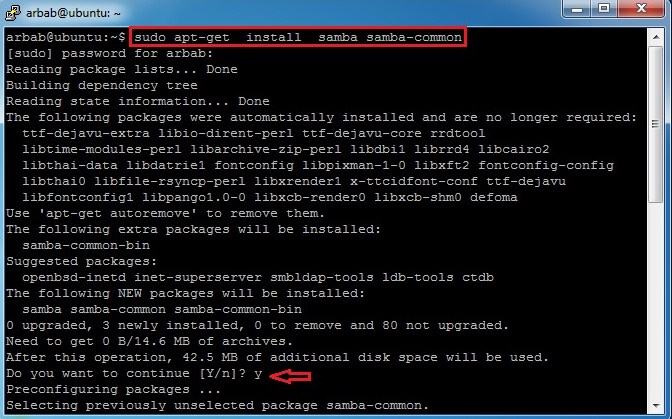
To install the samba package,enter the following command:

sudo apt-get install samba samba-common

Check the version of installed samba software by using this command:

smbd --version

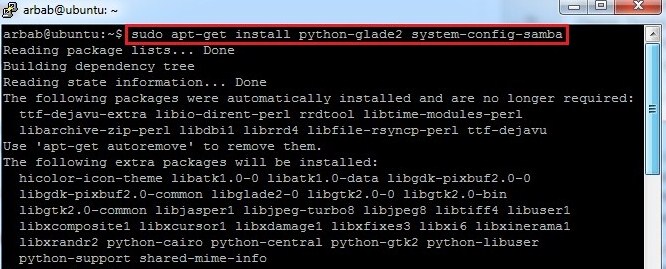
Also install these suggested packages for samba:

sudo apt-get install python-glade2 system-config-samba

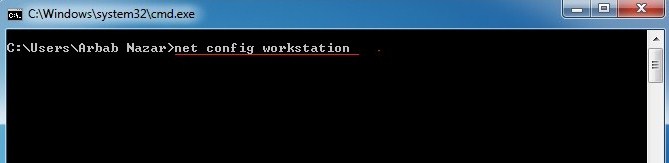
Go to your Windows machine and use this command in order to check the WORKGROUP name:

net config workstation

It will show the output, something like this:

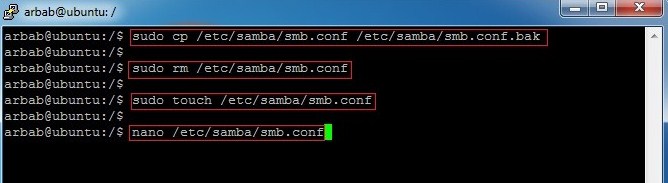
Backup the smb.conf file, then delete it and create the new one:

sudo cp /etc/samba/smb.conf /etc/samba/smb.conf.bak 
sudo rm /etc/samba/smb.conf 
sudo touch /etc/samba/smb.conf 
sudo nano /etc/samba/smb.conf

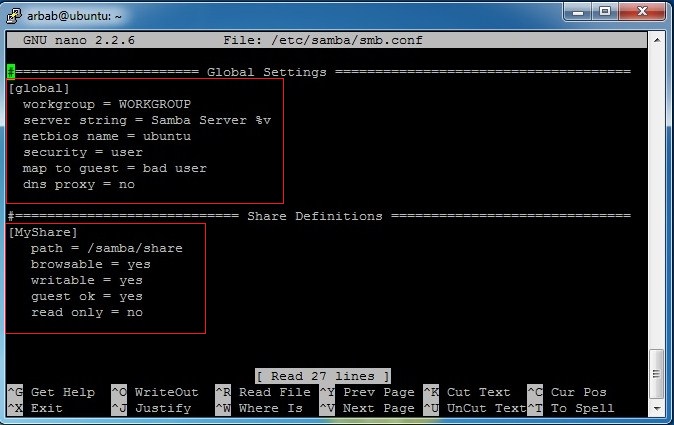
Add this, in your smb.conf file (or change it according to your requirement):

#======================= Global Settings ===================================== 
[global]
workgroup = WORKGROUP
server string = Samba Server %v
netbios name = ubuntu
security = user
map to guest = bad user
dns proxy = no
#============================ Share Definitions ============================== 
[MyShare]
path = /samba/share 
browsable =yes
writable = yes
guest ok = yes
read only = no

Save the smb.conf file and restart the service:

sudo service smbd restart

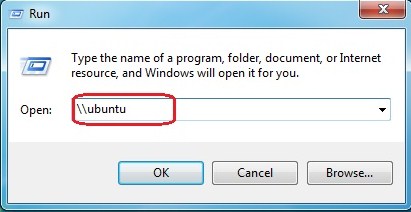
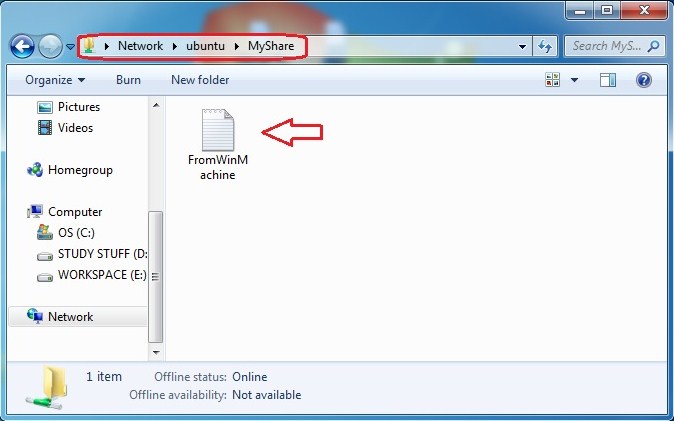
Access the samba share from windows (where ubuntu is the name of my samba server):

wao, we are able to access the samba share successfully 🙂

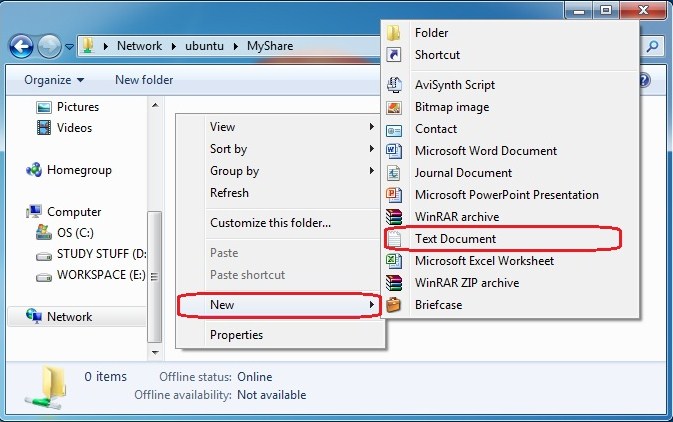
Let’s try to create something, inside the share folder:

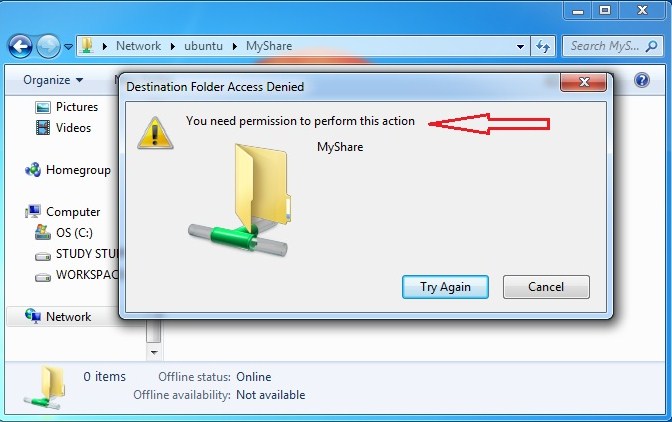
Error, we cannot create anything inside the share folder 😦

Check the current permission on the samba share:

cd /samba/
ls -l

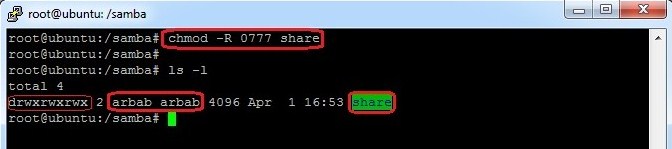
Change it, in such a way that everyone can read and write it(Check it, that it is allowed in your environment or not):

sudo chmod -R 0777 share
ls -l

Try to create something again, inside the share folder:

Verify the newly created file on samba server:

cd share/
ls -l

Part 2: Add and manage users and groups

Add a group in your ubuntu server (in my case smbgrp):

sudo addgroup smbgrp

Create a new share, set the permission on the share ,add the user to the samba group and create samba password:

cd /samba/
sudo chown -R arbab:smbgrp secure/ 
ls -l 
sudo chmod -R 0770 secure/
ls -l
sudo adduser arbab smbgrp
sudo smbpasswd -a arbab

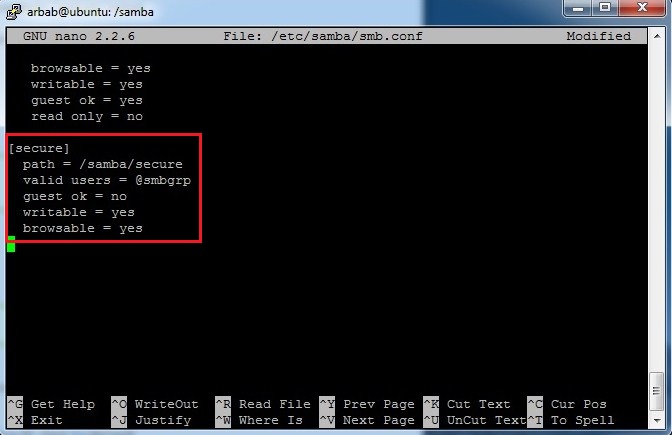
Add the newly created samba share in smb.conf file:

[secure]
 path = /samba/secure
 valid users = @smbgrp
 guest ok = no
 writable = yes
 browsable = yes

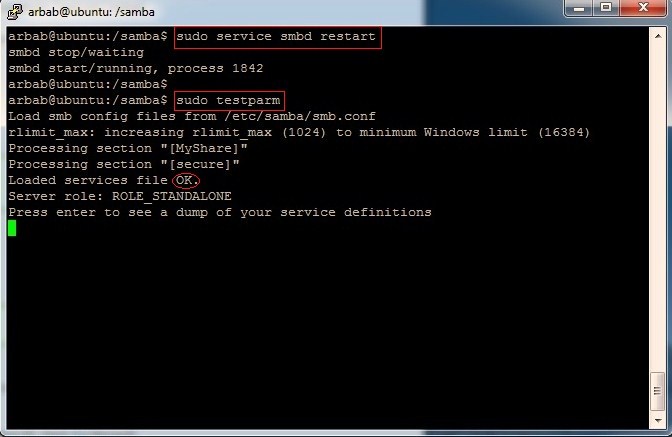
Restart the samba service and check the syntax error with testparm:

sudo service smbd restart 
sudo testparm

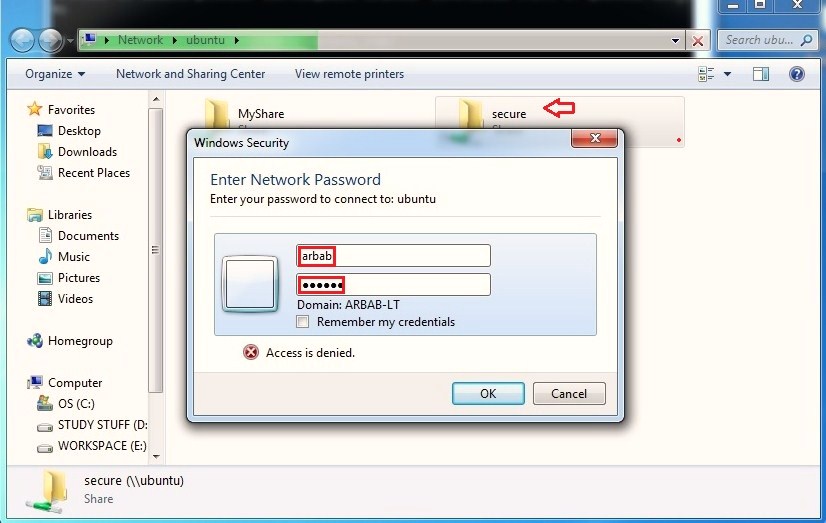
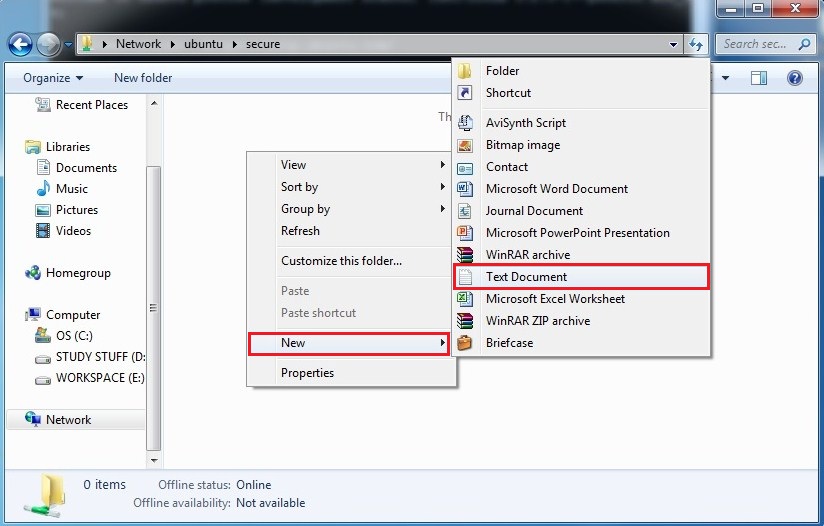
Testing from Windows Machine:

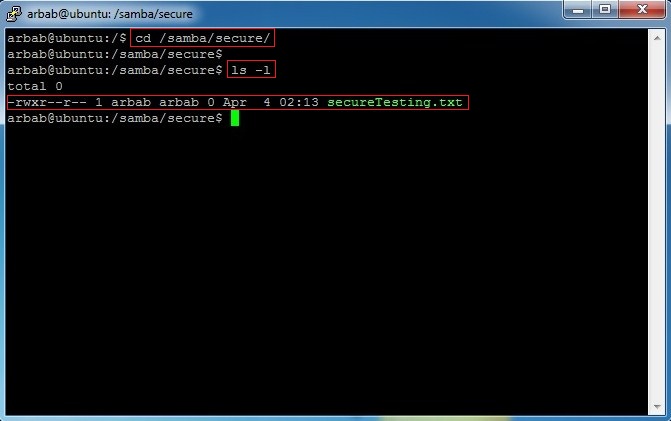
Verification from Ubuntu server:

cd /samba/secure/
ls -l

Hope this will help you!

Setup File server on ubuntu 14.04 ( Samba )

Samba is a free software used to enable file and print services on unix-like systems. It runs on most unix variants, such as Linux, AIX, Solaris and BSD.
This article helps you to set up file server on ubuntu 14.04 server. This article contains steps for creating both anonymous ( without username and password ) and secured shares .
1. Anonymous share.
2. Secured share.
3. User creation.

Setup File server on ubuntu 14.04

Step 1 » Install samba packages after updating repositories
krizna@leela:~$ sudo apt-get update
krizna@leela:~$ sudo apt-get install samba samba-common python-glade2

Creating Anonymous share

Everyone can access and store files without username and password .
Step 2 » Create folder for Anonymous share.
krizna@leela:~$ sudo mkdir -p /shares/anonymous
Step 3 » Change the ownership to nobody so that everyone can access and store files in that folder.
krizna@leela:~$ sudo chown nobody:nogroup /shares/anonymous/
Step 4 » Now define values in samba configuration to share /shares/anonymous/folder. /etc/samba/smb.conf is the main configurion file for samba .
Take a backup before editing that file .
krizna@leela:~$ sudo cp /etc/samba/smb.conf /etc/samba/smb.conf.orgnow add the below code at the end of the file to enable share.
krizna@leela:~$ sudo vim /etc/samba/smb.conf

Step 5 » Now restart smbd service .
krizna@leela:~$ sudo service smbd restart
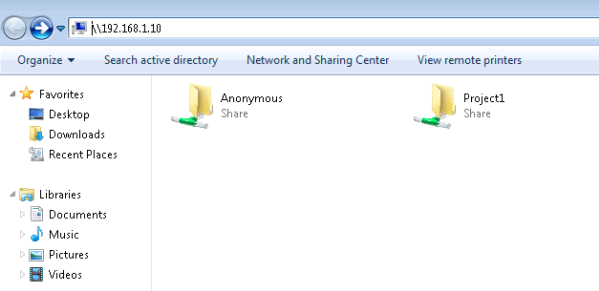
After restarting service . Try to access share from windows client (Goto -> RUN ->\\serverIP ) . you could access anonymous share folder without username and password, try to create or copy files to that folder.

Creating secured share

Secured shares can be accessed using username and password .Here for example, I’m going to create share project1.
Step 6 » Create a folder for share .
krizna@leela:~$ sudo mkdir -p /shares/project1
Step 7 » Create a new group smbproj1,so that Users added to this group can access project1 share.
krizna@leela:~$ sudo addgroup smbproj1
Step 8 » Modify ownership and permission for the folder.
krizna@leela:~$ sudo chown root:smbproj1 /shares/project1/
krizna@leela:~$ sudo chmod 770 /shares/project1/

Step 9 » Now define values in the configuration file .
krizna@leela:~$ sudo vim /etc/samba/smb.conf

Step 10 » Now restart smbd service .
krizna@leela:~$ sudo service smbd restartAfter restarting service, you could see Project1 share . Additional secured shares can be created in the same way.
setup file server on ubuntu 14.04

User creation

Add new user john for accessing project1 share
Step 11 » Create a user john .
krizna@leela:~$ sudo useradd john -s /usr/sbin/nologin -G smbproj1-s /usr/sbin/nologin : Restricting shell access
-G smbproj1 : Added to smbproj1 group
Step 12 » Create samba password for user john
krizna@leela:~$ sudo smbpasswd -a john
Now user john can access Project1 share. Additional users can be added in the same way.
For existing users use usermod command to add user in smbproj1 group and create samba password using smbpasswd.
krizna@leela:~$ sudo usermod mike -G smbproj1
For accessing multiple shares. Example: dave has access to multiple project groups like smbproj1 and smbproj2.
krizna@leela:~$ sudo usermod dave -G smbproj1,smbproj2
For troubleshooting, Use testparm command

How to Install And Configure Samba In Ubuntu For File Sharing

Samba is a useful service found in most Unix and Linux system that allows you to share file and print services with another computer, particularly a Microsoft Windows client. In Ubuntu, while the Nautiilus File Manager comes with a series of connection protocols to access files from a remote server, it doesn’t turn the machine into a file server and accept connection from other PC. Samba is the one that does the job. In this tutorial, we will show you how to install and configure Samba so you can turn your Ubuntu PC into a file server.

Samba is not installed by default. Open a terminal and type the following command:

sudo apt-get install samba

Alternatively, you can install Samba via the Ubuntu Software Center.

To get Samba to work the way we want it to work, we have to make some changes to its configuration file.

In the terminal,

gksu gedit /etc/samba/smb.conf

This will open the config file in Gedit.

Scroll down the page until you see the line:

workgroup = WORKGROUP

This is the identifier of your PC. You can keep it as the default, but it is best to change it to something more meaningful, like “HOME-DESKTOP”.

samba-workgroup

Next, scroll down further till you reach the “Authentication” section. You should see the line:

#   security = user

Remove the “#” at the front of the line.

samba-security

Continue to scroll down further until you reach the “Share Definitions” section. This is where you configure the files/folders that you want to share with others.

If you want the Home folder to be accessible, you should uncomment (remove the “;” at the front of the line) the following lines:

[homes]
   comment = Home Directories
   browseable = yes
   valid users = %S

Don’t forget to change the browseable value to “yes”. You can also uncomment the read only = no line if you allow others to write to your Home folder.

The last line valid users = %S means that only you, or anyone with your login account, can connect to your own Home folder via Samba.

To add additional file sharing path, add the following lines to the end of the file:

[share]
    comment = New Share Path
    path = /path/to/share/folder
    browsable = yes
    guest ok = yes
    read only = no
    create mask = 0755

Change the name of this share configuration and change the path to the folder you want to share.

You can change the “guest ok=yes” line to “guest ok=no” if you want the share path only available for logged in users.

Lastly, save and exit the file.

To add yourself to the Samba user list, you just have to type the following command:

sudo smbpasswd -a <username>

Replace with your username. It will then prompt you to set a password for this Samba account.

Alternatively, you can also create a new user account and add this user to the Samba user list

To create a user account, use the following command:

adduser <username>

Restart Samba services

sudo restart smbd
sudo restart nmbd

That’s it. You should be able to connect to this PC from another PC.

If you are looking for an easier way to configure the Samba settings, you can install “Samba Server Configuration” GUI.

sudo apt-get install system-config-samba

samba-server-configuration

On your Nautilus File Manager, you can also right-click on any folder and select the Sharing Options to enable sharing.

samba-nautilus-file-sharing

samba-nautilus-enable-sharing

Enjoy!

Install and Configure Samba share in Ubuntu 13.10 ‘Saucy Salamander’ , 13.04| Howto

One of the most asked features for Samba is a graphical user interface to help with configuration and management,  there are several GUI interfaces to Samba available, for me the most  simple and powerful one of these tools is samba server configuration tool. In this post, i will show you how to install and configure samba in Ubuntu 13.10 Saucy Salamander and 13.04 Raring Ringtail, this work also for previous releases of Ubuntu.

Installing Samba on Ubuntu:

1- Install Samba files

First thing we need to do is to install samba, go to Software center in Ubuntu and search for samba then install the package. If you want to install it via terminal then copy this command :

sudo apt-get  install  samba samba-common

2- Install some dependencies for Configuration tools (don`t   forget to  install python-glade2)

sudo apt-get install python-glade2

3- Installing Samba Server configuration Tool :

Now install the graphical interface System-config samba

sudo apt-get install system-config-samba

4- Add a Linux/Unix user:

adduser   pirat9

5- Make  a Linux/Unix  password for  user  pirat9

passwd pirat9

6- Now open samba configuration tool.

7- Add the  folder you want to share and setup the permissions access.

– Setup the permissions access

8- Now before to connect to  the  share, you  have  to  create the  samba user  :

sudo smbpasswd -a  pirat9
New SMB password
retype New SMB Password

Now the configuration is done.

Tip: You can chose any  directory you want to share by  right click on the  folder directory and open the  share options

And activate share:

9- Now, let`s test if samba share is working from another Linux Machine, in my case will try to connect from LinuxMint12 machine to Ubuntu 12.04 machine where we just installed samba, from menu open connect to server and type the details of your Ubuntu machine

12- Connect  from  windows  (XP/Vista/7)

Enjoy

Install Samba server in ubuntu 11.04 & Ubuntu 11.10 Oneiric Ocelot

Samba is a free software re-implementation of SMB/CIFS networking protocol, originally developed by Australian Andrew Tridgell. As of version 3, Samba provides file and print services for various Microsoft Windows clients and

can integrate with a Windows Server domain, either as a Primary Domain Controller (PDC) or as a domain member. It can also be part of an Active Directory domain.Samba runs on most Unix and Unix-like systems, such as Linux, Solaris, AIX and the BSD variants, including Apple’s Mac OS X Server (which was added to the Mac OS X client in version 10.2). Samba is standard on nearly all distributions of Linux and is commonly included as a basic system service on other Unix-based operating systems as well. Samba is released under the GNU General Public License. The name Samba comes from SMB (Server Message Block), the name of the standard protocol used by the Microsoft Windows network file system.

Lets  start then,

Install  samba  in  Ubuntu   can be  from Gui tool (Software  center  of  from command  line )

First we have to install sambe server, In  the termina type the command  :

sudo apt-get install samba smbfs

Now we  have  for  example  to  share  this directory  /share

lets make  a  configuration of  the samba  share :

#sudo vi /etc/samba/smb.conf

Look for this :

 # [global] security = USER

And add these lines just bellow security = user see screenshot bellow :

 hosts allow =

 [homes] comment = Home Directories browseable = no writable = yes [share] comment = Unixmen File Server path = /share/ force user = samba force group = samba read only = No hosts allow =

Explain : every  user connected to this samba  server can connect directly to his /home/directory

First  add a user (For example: unixmenuser to  the  system, in the terminal type the command :

#sudo  adduser  unixmenuser
root@unixmen-desktop:~# adduser unixmenuser

Output
Adding user `unixmenuser’ …
Adding new group `unixmenuser’ (1003) …
Adding new user `unixmenuser’ (1003) with group `unixmenuser’ …
Creating home directory `/home/unixmenuser’ …
Copying files from `/etc/skel’ …
Enter new UNIX password:
Retype new UNIX password:
passwd: password updated successfully
Changing the user information for unixmenuser
Enter the new value, or press ENTER for the default
Full Name []:

now  make  a  samba  password  for  this user    with  :

sudo smbpasswd  -a   unixmenuser

Output

New SMB password:
Retype new SMB password:
Added user unixmenuser.

Now  restart  your  samba  server

sudo /etc/init.d/samba   restart
  • Connect   to  Server  using  windows  share    via

Now if you have another computer with windows machine installed, test if it is working:

In your windows go to :

Start  —->   run    and insert   ip or  hostname

put your  login and  samba password

Enjoy

Installing a Squid proxy server on Ubuntu 12.10 with NCSA authentication

Installing Squid

I started by installing Squid:

sudo apt-get install squid

This actually installed Squid 3.1.20, so my Squid configuration file was located at /etc/squid3/squid.conf.

Next, I tested whether Squid worked out of the box. I used ifconfig to find out my VM’s IP address, then opened that in a browser on port 3128. I was given a page that said Squid at the bottom, so that’s a good sign.

Squid

Setting up a password file

Squid has a ton of options for authentication. Since I’m just testing proxy server authentication, I went with a simple NCSA-style username and password configuration. First I installed apache2-utils to get access to htpasswd:

sudo apt-get install apache2-utils

Next I created a file called users in my Squid configuration folder, with a user named paul.

sudo htpasswd -c /etc/squid3/users paul

Using htpasswd to set a password

And I made sure Squid could read that file:

sudo chmod o+r /etc/squid3/users

Configuring Squid to use NCSA authentication module

The different authentication modules are distributed as binaries that come with Squid, and to configure them you have to know where they are located. This command listed their locations:

dpkg -L squid3 | grep ncsa_auth

For me the output was /usr/lib/squid3/ncsa_auth.

To enable the module, I opened the Squid configuration file in vi:

sudo vi /etc/squid3/squid.conf

I searched for the text TAG: auth_param to find where the authentication module is configured. Next I added the following configuration:

auth_param basic program /usr/lib/squid3/ncsa_auth /etc/squid3/users
auth_param basic children 5
auth_param basic realm Paul's Squid!
auth_param basic credentialsttl 2 hours
auth_param basic casesensitive off

Next, I needed to add the ACL to give the users access. I searched for TAG: acl in the Squid configuration file and added this ACL to the list:

acl ncsa_users proxy_auth REQUIRED

Then I searched for TAG: http_access to find where HTTP access rules are configured. Scrolling down, there’s a section where you can insert your own rules. I added:

http_access allow ncsa_users

Restart Squid

Finally, I restarted Squid:

sudo service squid3 restart

And bam! After configuring the proxy settings, I was prompted for proxy credentials:

Prompted for proxy credentials

How To Install And Configure Squid Proxy On Ubuntu And Debian

About Squid Proxy

Squid Proxy is  a a great proxy server mainly used for caching frequently requested web content in order to speed up response time and also save network bandwidth. It supports many different protocols such as HTTP,FTP, TLS, SSL, Internet Gopher and HTTPS. Although it was originally designed to run as a daemon on Unix-like systems there have been several ports to windows, but according to wikipedia more current versions are not being developed.

Squid Proxy is released under the GNU General Public License.

In this tutorial you will learn how to install and setup Squid Proxy on Ubuntu and Debian Linux distributions. Just follow each step of this guide carefully and everything will be ok.

How To Install Squid Proxy

There are  many ways to install Squid Proxy on Ubunu and Debian systems, one of them is to use the command apt-get install since there is a package of this proxy available in the default repo. First open a new terminal emulator (CTRL+ALT+T) and update the package index like shown below.

sudo apt-get update

Once the update is finished installing Squid Proxy server on Ubuntu and Debian computers is very easy. All you have to do is run the following command.

sudo apt-get install squid

Then you will be asked if you want to continue with the installation. Type Y.

Wait for the download and installation to finish.

Squid Configuration

Before playing with this proxy there is something we need to do. Open the configuration file of Squid Proxy which is located under the directory /etc.

Depending on the version installed on your system you have to look for a specific path. Try to look for /etc/squid3/squid.conf or /etc/squid/squid.conf. Once you know where your squid.conf configurationfile is located then use your favorite text editor to edit it.

I use vim for text editing.

vim /etc/squid3/squid.conf

Once you have opened the squid.conf file you will see something similar to the following.

Look for http_access. Nobody can access the Squid Proxy server by default as http_access is set to deny all.

The line will look like shown below.

http_access deny all

In order to start using the Squid Proxy change http_access to allow.

http_access allow

Save the file but do not close it yet. We need to setup a hostname for our proxy server. You can use any name you like as Squid Proxy server allows to do that. The default one is localhost.

Find visible_hostname and give the name you want.

Now use the following command to restart the Squid Proxy.

sudo service squid3 restart

If the above command does not work for you just try the other one shown below.

sudo service squid restart

I get the following output.

oltjano@baby:~/Desktop$ sudo service squid3 restart
squid3 stop/waiting
squid3 start/running, process 4025

It is time to test if our proxy server is working or not. Go to your web browser’s settings and configure it to use a proxy server. I use Mozilla Firefox so I am going to show you how to do it for this browser. In case you are using Google Chrome or another web browser just google on how to configure your browser to use a proxy server.

Client Side Configuration

For Firefox:

Go to Preferences -> Advanced -> Network and click on Settings under Connection. And click on Manual Proxy Configuration like shown below.

Inside HTTP Proxy pus the ip address of the Squid server and port 3128 which is the default port being used by Squid Proxy. You can also change the default port by editing it in squid.conf.

Click on Ok and the proxy should work.

How To Setup DNS Server In Ubuntu

About DNS

DNS, stands for Domain Name System, translates hostnames or URLs into IP addresses. For example, if we typehttp://www.unixmen.com in browser, the DNS server translates the domain name into its associated ip address. Since the IP addresses are hard to remember all time, DNS servers are used to translate the hostnames like http://www.unixmen.com to 173.xxx.xx.xxx. So it makes easy to remember the domain names instead of its IP address.

In this tutorial, we will see how to setup and configure DNS server on Ubuntu 14.04 LTS. Also, the same method will work on Debian and its derivatives.

Setup DNS Server In Ubuntu 14.04

Scenario

For the purpose of this tutorial, I will be using three nodes. One will be acting as Master DNS server, the second system will be acting as Secondary DNS, and the third will be our DNS client. Here are my three systems details.

Primary (Master) DNS Server Details:

Operating System     : Ubuntu 14.04 64bit minimal server
Hostname             : masterdns.unixmen.local
IP Address           : 192.168.1.101/24

Secondary (Slave) DNS Server Details:

Operating System     : Ubuntu 14.04 32bit minimal server
Hostname             : secondarydns.unixmen.local
IP Address           : 192.168.1.102/24

Client Details:

Operating System     : Ubuntu 14.04 desktop
Hostname             : client.unixmen.local
IP Address           : 192.168.1.103/24

Setup Caching Server

In this configuration BIND9 will find the answer to name queries and remember the answer for the next query. This can be useful for a slow internet connection. By caching DNS queries, you will reduce bandwidth and (more importantly) latency.

The default configuration is setup to act as a caching server. All that is required is simply adding the IP Addresses of your ISP’s DNS servers. Caching server is opt for low Internet connection.

Install bind9 packages using command:

sudo apt-get install bind9 bind9utils bind9-doc

Then edit /etc/bind/named.conf.options file,

sudo vi /etc/bind/named.conf.options

Simply uncomment and edit the following in /etc/bind/named.conf.options:

forwarders {
 8.8.8.8;
};

Restart bind9 service.

sudo service bind9 restart

Test Caching Server

Run the following command to test it.

dig -x 127.0.0.1

Sample output:

;; global options: +cmd
;; Got answer:
;; ->>HEADER<<- opcode: QUERY, status: NOERROR, id: 60612
;; flags: qr aa rd ra; QUERY: 1, ANSWER: 1, AUTHORITY: 1, ADDITIONAL: 3

;; OPT PSEUDOSECTION:
; EDNS: version: 0, flags:; udp: 4096
;; QUESTION SECTION:
;1.0.0.127.in-addr.arpa.        IN    PTR

;; ANSWER SECTION:
1.0.0.127.in-addr.arpa.    604800    IN    PTR    localhost.

;; AUTHORITY SECTION:
127.in-addr.arpa.    604800    IN    NS    localhost.

;; ADDITIONAL SECTION:
localhost.        604800    IN    A    127.0.0.1
localhost.        604800    IN    AAAA    ::1

;; Query time: 4 msec
;; SERVER: 192.168.1.101#53(192.168.1.101)
;; WHEN: Thu Apr 09 14:51:36 IST 2015
;; MSG SIZE  rcvd: 132

Setup Primary (Master) DNS Server

You can use the same server for both Primary and Caching server.

Install bind9 packages on your server if not installed.

sudo apt-get install bind9 bind9utils bind9-doc

1. Configure Master DNS Server

DNS configuration files are stored in /etc/bind directory. Primary configuration file is /etc/bind/namd.conf.

Edit ‘/etc/bind/named.conf’ file.

sudo vi /etc/bind/named.conf

Make sure it contains the following lines. If not, add them.

include "/etc/bind/named.conf.options";
include "/etc/bind/named.conf.local";
include "/etc/bind/named.conf.default-zones";

Save and close the file.

Then, edit named.conf.local,

sudo vi /etc/bind/named.conf.local

Add the lines as shown in bold:

zone "unixmen.local" {
        type master;
        file "/etc/bind/forward.unixmen";
        allow-transfer { 192.168.1.102; };
        also-notify { 192.168.1.102; };
 };

zone "1.168.192.in-addr.arpa" {
        type master;
        file "/etc/bind/reverse.unixmen";
        allow-transfer { 192.168.1.102; };
        also-notify { 192.168.1.102; };
 };

Here,

  • forward.unixmen – Forward zone file
  • reverse.unixmen – Reverse zone file
  • 192.168.1.102 – Slave DNS server

2. Create Zone files

Create forward and reverse zone files which we defiend in the ‘/etc/bind/named.conf.local’ file.

2.1 Create Forward Zone

Create Forward Zone file name forward.unixmen in /etc/bind/zones,

sudo vi /etc/bind/forward.unixmen

Add the following lines:

$TTL 86400
@   IN  SOA     masterdns.unixmen.local. root.unixmen.local. (
        2011071001  ;Serial
        3600        ;Refresh
        1800        ;Retry
        604800      ;Expire
        86400       ;Minimum TTL
)
@       IN  NS          masterdns.unixmen.local.
@       IN  NS          secondarydns.unixmen.local.
@       IN  A           192.168.1.101
@       IN  A           192.168.1.102
@       IN  A           192.168.1.103
masterdns       IN  A   192.168.1.101
secondarydns    IN  A   192.168.1.102
client          IN  A   192.168.1.103

2.2 Create Reverse Zone

Create Forward Zone file name reverse.unixmen in /etc/bind/zones,

sudo vi /etc/bind/reverse.unixmen

Add the following lines:

$TTL 86400
@   IN  SOA     masterdns.unixmen.local. root.unixmen.local. (
        2011071002  ;Serial
        3600        ;Refresh
        1800        ;Retry
        604800      ;Expire
        86400       ;Minimum TTL
)
@       IN  NS          masterdns.unixmen.local.
@       IN  NS          secondarydns.unixmen.local.
@       IN  PTR         unixmen.local.
masterdns       IN  A   192.168.1.101
secondarydns    IN  A   192.168.1.102
client          IN  A   192.168.1.103
101     IN  PTR         masterdns.unixmen.local.
102     IN  PTR         secondarydns.unixmen.local.
103     IN  PTR         client.unixmen.local.

3. Configuring Permissions, Ownership for Bind

Run the following commands one by one:

sudo chmod -R 755 /etc/bind
sudo chown -R bind:bind /etc/bind

4. Test DNS configuration and zone files for any syntax errors

Check DNS default configuration file:

sudo named-checkconf /etc/bind/named.conf
sudo named-checkconf /etc/bind/named.conf.local

If it returns nothing, your configuration is valid.

Check Forward zone:

sudo named-checkzone unixmen.local /etc/bind/forward.unixmen

Sample output:

zone unixmen.local/IN: loaded serial 2011071001
OK

Check reverse zone:

sudo named-checkzone unixmen.local /etc/bind/reverse.unixmen 

Sample Output:

zone unixmen.local/IN: loaded serial 2011071002
OK

Restart bind9 service.

sudo service bind9 restart

Add the DNS Server details in your network interface config file.

sudo vi /etc/network/interfaces

Add the nameserver IP address:

auto eth0
iface eth0 inet static
        address 192.168.1.101
        netmask 255.255.255.0
        network 192.168.1.0
        broadcast 192.168.1.255
        gateway 192.168.1.1
        dns-nameservers 192.168.1.101
        dns-search unixmen.local

Reboot your system.

5. Test DNS Server

Method 1:

dig masterdns.unixmen.local

Sample Output:

; <<>> DiG 9.9.5-3ubuntu0.2-Ubuntu <<>> masterdns.unixmen.local
;; global options: +cmd
;; Got answer:
;; ->>HEADER<<- opcode: QUERY, status: NOERROR, id: 27712
;; flags: qr aa rd ra; QUERY: 1, ANSWER: 1, AUTHORITY: 2, ADDITIONAL: 2

;; OPT PSEUDOSECTION:
; EDNS: version: 0, flags:; udp: 4096
;; QUESTION SECTION:
;masterdns.unixmen.local.    IN    A

;; ANSWER SECTION:
masterdns.unixmen.local. 86400    IN    A    192.168.1.101

;; AUTHORITY SECTION:
unixmen.local.        86400    IN    NS    masterdns.unixmen.local.
unixmen.local.        86400    IN    NS    secondarydns.unixmen.local.

;; ADDITIONAL SECTION:
secondarydns.unixmen.local. 86400 IN    A    192.168.1.102

;; Query time: 4 msec
;; SERVER: 192.168.1.101#53(192.168.1.101)
;; WHEN: Thu Apr 09 14:20:00 IST 2015
;; MSG SIZE  rcvd: 125

Method 2:

nslookup unixmen.local

Sample Output:

Server:        192.168.1.101
Address:    192.168.1.101#53

Name:    unixmen.local
Address: 192.168.1.101
Name:    unixmen.local
Address: 192.168.1.102
Name:    unixmen.local
Address: 192.168.1.103

Now the Primary DNS server is ready to use.

It is time to configure our Secondary DNS server.

Setup Secondary(Slave) DNS Server

Secondary DNS server is optional, but recommended. If the master DNS server goes down, the Secondary DNS server will take charge and answer the queries. You need an additional server to setup Slave DNS server.

Install bind9 packages using the following command:

sudo apt-get install bind9 bind9utils bind9-doc

1. Configure Slave DNS Server

Edit ‘/etc/bind/named.conf’ file.

sudo vi /etc/bind/named.conf

Make sure it contains the following lines. If not, add them.

include "/etc/bind/named.conf.options";
include "/etc/bind/named.conf.local";
include "/etc/bind/named.conf.default-zones";

Save and close the file.

Then, edit named.conf.local,

sudo vi /etc/bind/named.conf.local

Add the lines as shown in bold:

zone "unixmen.local" {
        type slave;
        file "/var/cache/bind/forward.unixmen";
        masters { 192.168.5.101; };
 };

zone "1.168.192.in-addr.arpa" {
        type slave;
        file "/var/cache/bind/reverse.unixmen";
        masters { 192.168.5.101; };
 };

Here,

  • forward.unixmen – Forward zone file
  • reverse.unixmen – Reverse zone file
  • 192.168.1.101 – Master DNS server

The zone file must be in /var/cache/bind/ because, by default, AppArmor only allows write access inside it.

3. Configuring Permissions, Ownership for Bind

Run the following commands one by one:

sudo chmod -R 755 /etc/bind
sudo chown -R bind:bind /etc/bind

Restart bind9 service.

sudo service bind9 restart

4. Add the DNS Server details

Add the DNS Server details in your network interface config file.

sudo vi /etc/network/interfaces
# This file describes the network interfaces available on your system
# and how to activate them. For more information, see interfaces(5).

# The loopback network interface
auto lo
iface lo inet loopback

# The primary network interface
auto eth0
iface eth0 inet static
address 192.168.1.102
netmask 255.255.255.0
network 192.168.1.0
broadcast 192.168.1.255
gateway 192.168.1.1
dns-nameservers 192.168.1.101
dns-nameservers 192.168.1.102
dns-search home

Save and close the file.

Reboot your system.

5. Test DNS Server

After logging in to your server, run the following commands to check if DNS server is really working or not.

Method 1:

dig masterdns.unixmen.local

Sample Output:

; <<>> DiG 9.9.5-3-Ubuntu <<>> masterdns.unixmen.local
;; global options: +cmd
;; Got answer:
;; ->>HEADER<<- opcode: QUERY, status: NOERROR, id: 20290
;; flags: qr aa rd ra; QUERY: 1, ANSWER: 1, AUTHORITY: 2, ADDITIONAL: 2

;; OPT PSEUDOSECTION:
; EDNS: version: 0, flags:; udp: 4096
;; QUESTION SECTION:
;masterdns.unixmen.local.    IN    A

;; ANSWER SECTION:
masterdns.unixmen.local. 86400    IN    A    192.168.1.101

;; AUTHORITY SECTION:
unixmen.local.        86400    IN    NS    masterdns.unixmen.local.
unixmen.local.        86400    IN    NS    secondarydns.unixmen.local.

;; ADDITIONAL SECTION:
secondarydns.unixmen.local. 86400 IN    A    192.168.1.102

;; Query time: 5 msec
;; SERVER: 192.168.1.101#53(192.168.1.101)
;; WHEN: Thu Apr 09 14:32:38 IST 2015
;; MSG SIZE  rcvd: 125

Method 2:

dig secondarydns.unixmen.local

Sample Output:

; <<>> DiG 9.9.5-3-Ubuntu <<>> secondarydns.unixmen.local
;; global options: +cmd
;; Got answer:
;; ->>HEADER<<- opcode: QUERY, status: NOERROR, id: 53461
;; flags: qr aa rd ra; QUERY: 1, ANSWER: 1, AUTHORITY: 2, ADDITIONAL: 2

;; OPT PSEUDOSECTION:
; EDNS: version: 0, flags:; udp: 4096
;; QUESTION SECTION:
;secondarydns.unixmen.local. IN A

;; ANSWER SECTION:
secondarydns.unixmen.local. 86400 IN A 192.168.1.102

;; AUTHORITY SECTION:
unixmen.local. 86400 IN NS masterdns.unixmen.local.
unixmen.local. 86400 IN NS secondarydns.unixmen.local.

;; ADDITIONAL SECTION:
masterdns.unixmen.local. 86400 IN A 192.168.1.101

;; Query time: 5 msec
;; SERVER: 192.168.1.101#53(192.168.1.101)
;; WHEN: Thu Apr 09 14:33:02 IST 2015
;; MSG SIZE rcvd: 125

Method 3:

nslookup unixmen.local

Sample Output:

Server:        192.168.1.101
Address:    192.168.1.101#53

Name:    unixmen.local
Address: 192.168.1.101
Name:    unixmen.local
Address: 192.168.1.103
Name:    unixmen.local
Address: 192.168.1.102

Note: A zone is only transferred if the Serial Number on the Primary DNS server is larger than the one on the Secondary DNS server.

Client Side Configuration

Add the DNS server details in ‘/etc/resolv.conf’ file in all client systems

vi /etc/resolv.conf
# Generated by NetworkManager
search unixmen.local
nameserver 192.168.1.101
nameserver 192.168.1.102

Restart network service or reboot the system.

Test DNS Server

Now, you can test the DNS server using any one of the following commands:

dig masterdns.unixmen.local
dig secondarydns.unixmen.local
dig client.unixmen.local
nslookup unixmen.local

That’s all about now. The primary and secondary DNS servers are ready to use.