Network and CyberSecurity Professional
(Farzand Ali)
Implementing zone-based firewall using the CCP comes with alot of benefit such as the comfort of simplicity as compared to command line interface.
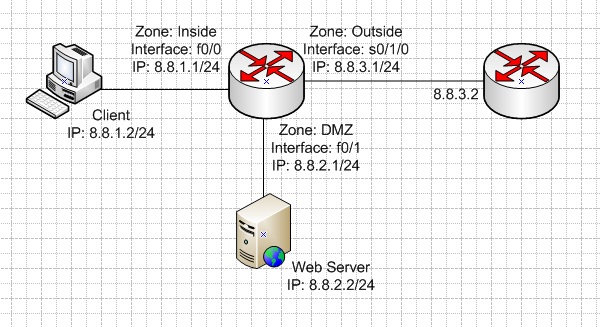
To begin, go to the Configure tab with the big gear icon on it. Expand the Security folder and click on Firewall and ACL. We should now be able see the Basic and Advanced firewall options. Select the Advanced Firewall and click Launch the selected task.

The Firewall Wizard should appear and you can read through the description and features of the advanced firewall. Click Next after reading.
Select the correct zones for the interface and click Next. If you want to access the CCP from outside the network, tick Allow secure Cisco CP access from outside interfaces.

Click Next after verifying the settings. If you did not tick Allow secure Cisco CP access from outside interfaces, you’ll be warned that access from outside will be denied after the firewall wizard’s completion. Click OK.
On this page, we’ll be able to add the services that we’re hosting in the DMZ zone that we want people from outside the network to connect to. In our case, we have a web server.
Click on Add and enter the ip address or the range of the web server. Select TCP/UDP and enter the service that we have. For web server, we’re going to add http and https.


Click Next after verifying the settings.
On the next page, we can select the level of security that we want to implement on the firewall.
For High Security
For Medium Security
For Low Security
Select the level of security according to your needs. For my case, I’m going to go with the medium level as I would like to monitor some of the application usage of the users inside the network.
Click on Preview Commands and verify the configurations that will be sent to the router.
Click Next.
Enter the IP address of the DNS Server and click Next.
Verify the summary and click Finish.
Tick Save running config. to device’s startup config to save the configuration to theNVRAM. Deliver.
By default, when you configure a Cisco device, you have to use the console cable and connect directly to the system to access it. Follow the steps mentioned below, which will enable SSH access to your Cisco devices. Once you enable SSH, you can access it remotely using PuTTY or any other SSH client.
First, make sure you have performed basic network configurations on your switch. For example, assign default gateway, assign management ip-address, etc. If this is already done, skip to the next step.
In the following example, the management ip address is set as 192.168.101.2 in the 101 VLAN. The default gateway points to the firewall, which is 192.168.101.1
# ip default-gateway 192.168.101.1
# interface vlan 101
(config-if)# ip address 192.168.101.2 255.255.255.0
Next, make sure the switch has a hostname and domain-name set properly.
# config t
(config)# hostname myswitch
(config)# ip domain-name thegeekstuff.com
The switch or router should have RSA keys that it will use during the SSH process. So, generate these using crypto command as shown below.
myswitch(config)# crypto key generate rsa
 The name for the keys will be: myswitch.thegeekstuff.com
 Choose the size of the key modulus in the range of 360 to 2048 for your
   General Purpose Keys. Choosing a key modulus greater than 512 may take
   a few minutes.

How many bits in the modulus [512]: 1024
 % Generating 1024 bit RSA keys, keys will be non-exportable...[OK]
Also, if you are running on an older Cisco IOS image, it is highly recommended that you upgrade to latest Cisco IOS.
Setup the following line vty configuration parameters, where input transport is set to SSH. Set the login to local, and password to 7.
# line vty 0 4
(config-line)# transport input ssh
(config-line)# login local
(config-line)# password 7
(config-line)# exit
If you have not set the console line yet, set it to the following values.
# line console 0
(config-line)# logging synchronous
(config-line)# login local
If you don’t have an username created already, do it as shown below.
myswitch# config t
Enter configuration commands, one per line.  End with CNTL/Z.
myswitch(config)# username ramesh password mypassword
Note: If you don’t have the enable password setup properly, do it now.
myswitch# enable secret myenablepassword
Make sure the password-encryption service is turned-on, which will encrypt the password, and when you do “sh run”, you’ll seee only the encrypted password and not clear-text password.
myswitch# service password-encryption
From the switch, if you do ‘sh ip ssh’, it will confirm that the SSH is enabled on this cisco device.
myswitch# sh ip ssh
SSH Enabled - version 1.99
Authentication timeout: 120 secs; Authentication retries: 3
After the above configurations, login from a remote machine to verify that you can ssh to this cisco switch.
In this example, 192.168.101.2 is the management ip-address of the switch.
remote-machine# ssh 192.168.101.2
login as: ramesh
Using keyboard-interactive authentication.
Password:

myswitch>en
Password:
myswitch#
MTA(Microsoft Technology Associate) Network Fundamentals Notes: mta notes
CCIE LAB RnS Blueprint:
Click to access ccieRS_Lab5.pdf
CCIE RnS Final Revision/Prep Notes/Commands extracted from all the studied material below*:
https://ccieccie.wordpress.com/category/ccna-ccnp-rns/
CBT Nuggets (CCNA/CCNP/CCIE):
http://www.cbtnuggets.com
INE Videos and Woorkbooks (CCNA/CCNP/CCIE) (Recommended):
http://www.ine.com
Books:
How to Master CCNA by Molenaar, René
How to Master CCNP SWITCH by Molenaar, René
How to Master CCNP ROUTE by Molenaar, René
How to Master CCNP TSHOOT by Molenaar, René
CCIE Routing and Switching V5.1 Foundations: Bridging the Gap Between CCNP and CCIE (Practical Studies) by Narbik Kocharians
Reference Guides for Revision:
CCNA portable command guide
CCNP portable command guide
Quick Reference Guides for CCNA, CCNP SWITCH, CCNP ROUTE, CCNP TSHOOT and CCIE
Forums:
http://certcollection.org/forum/
CCIE Hall Of Fame: http://cciehof.com
Cisco VIRL (INE ATC LABs):
http://virl.cisco.com/

 Network and CyberSecurity Professional